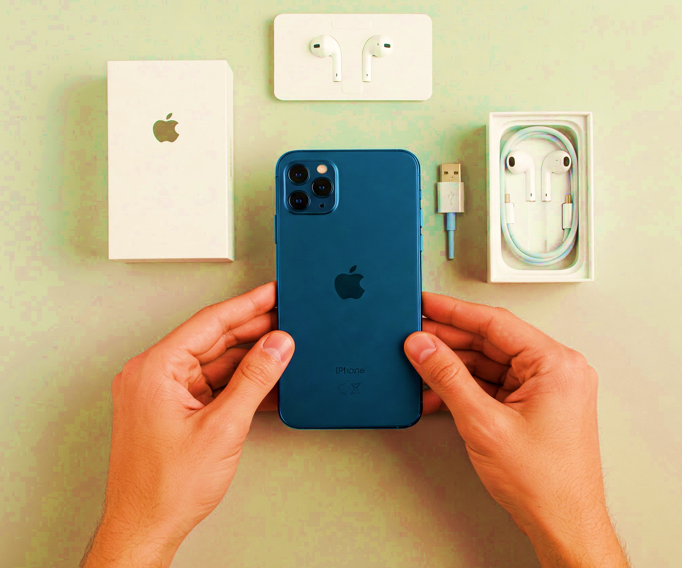

After unboxing your brand-new iPhone, it’s tempting to dive right in and start using it with the default settings. However, while the default settings are designed to offer a smooth user experience, they may not be optimized for productivity, privacy, or personalization. Making a few essential tweaks can help you get the most out of your new iPhone and enhance your overall experience. In this article, I’ll walk you through five important settings you should change right after unboxing your iPhone to unlock its full potential.
Let’s get started!
1. Disable iPhone Analytics
iPhone analytics collects data about how you use your device and sends it to Apple for improving their services. While it may seem harmless, it can impact your battery life and raise privacy concerns. Disabling this feature ensures that your personal data isn’t shared unnecessarily.
How to disable it:
• Go to Settings > Privacy & Security > Analytics & Improvements.
• Turn off Share iPhone Analytics and other related options.
2. Turn On Wi-Fi Calling
Wi-Fi Calling lets you make and receive calls over Wi-Fi when cellular coverage is poor. This is a lifesaver if you’re in areas with weak cellular signals, ensuring seamless communication without dropped calls.
How to enable it:
• Go to Settings > Phone > Wi-Fi Calling.
• Turn on Wi-Fi Calling on This iPhone.
3. Manage Background App Refresh
Background App Refresh allows apps to update content in the background, which can drain battery and consume data. By managing this feature, you can improve battery life and reduce unnecessary data usage.
How to manage it:
• Go to Settings > General > Background App Refresh.
• Either turn it off entirely or allow it only for essential apps.
4. Turn On Night Shift
Night Shift reduces blue light emission by adjusting your screen to a warmer color tone in the evening, which can help reduce eye strain and improve sleep quality. Turning it on early will protect your eyes right from the start.
How to enable it:
• Go to Settings > Display & Brightness > Night Shift.
• Set a schedule or turn it on manually.
5. Assign Ringtones
Customizing ringtones for calls and notifications not only helps personalize your iPhone but also makes it easier to identify important calls or messages without even looking at your phone.
How to set a ringtone:
• Go to Settings > Sounds & Haptics > Ringtone.
• Choose from built-in tones or add custom ones.
6. Rearrange Control Center
The Control Center provides quick access to essential features. Rearranging it to prioritize the tools you use most often can save time and make your experience more efficient.
How to customize it:
• Go to Settings > Control Center.
• Add, remove, and rearrange controls as per your preference.
7. Limit Notifications for Certain Apps
Unnecessary notifications can be distracting and reduce productivity. Limiting notifications for non-essential apps will help you stay focused and reduce interruptions.
How to manage notifications:
• Go to Settings > Notifications.
• Customize notification preferences for each app.