
No matter how much you love your iPhone, there are times when constant notifications can get irritating. Whether you are studying, working or binge-watching your favourite movie, these interruptions can easily distract you from what you are doing.
Apple introduced Focus modes with iOS 15, but many iPhone users may still be unaware of how useful this feature can be. Focus Mode allows you to customise how your iPhone handles notifications in different situations, helping you stay focused without necessarily missing important calls or messages.
You can create different Focus modes for work, personal time, sleep and other activities. You can also schedule them to activate automatically at specific times, locations or when you open certain apps. The best part is that you can customise your iPhone’s notification settings, Lock Screen and Home Screen to suit different situations, creating an experience that works the way you want it to.
What Is Focus Mode on an iPhone?
Let’s get to the main point: Focus Mode on an iPhone. It comes with several built-in options and allows you to customise how notifications are handled in different situations. You can decide which people and apps are allowed to send notifications while a Focus is active, helping you filter out distractions without necessarily missing important calls or messages.
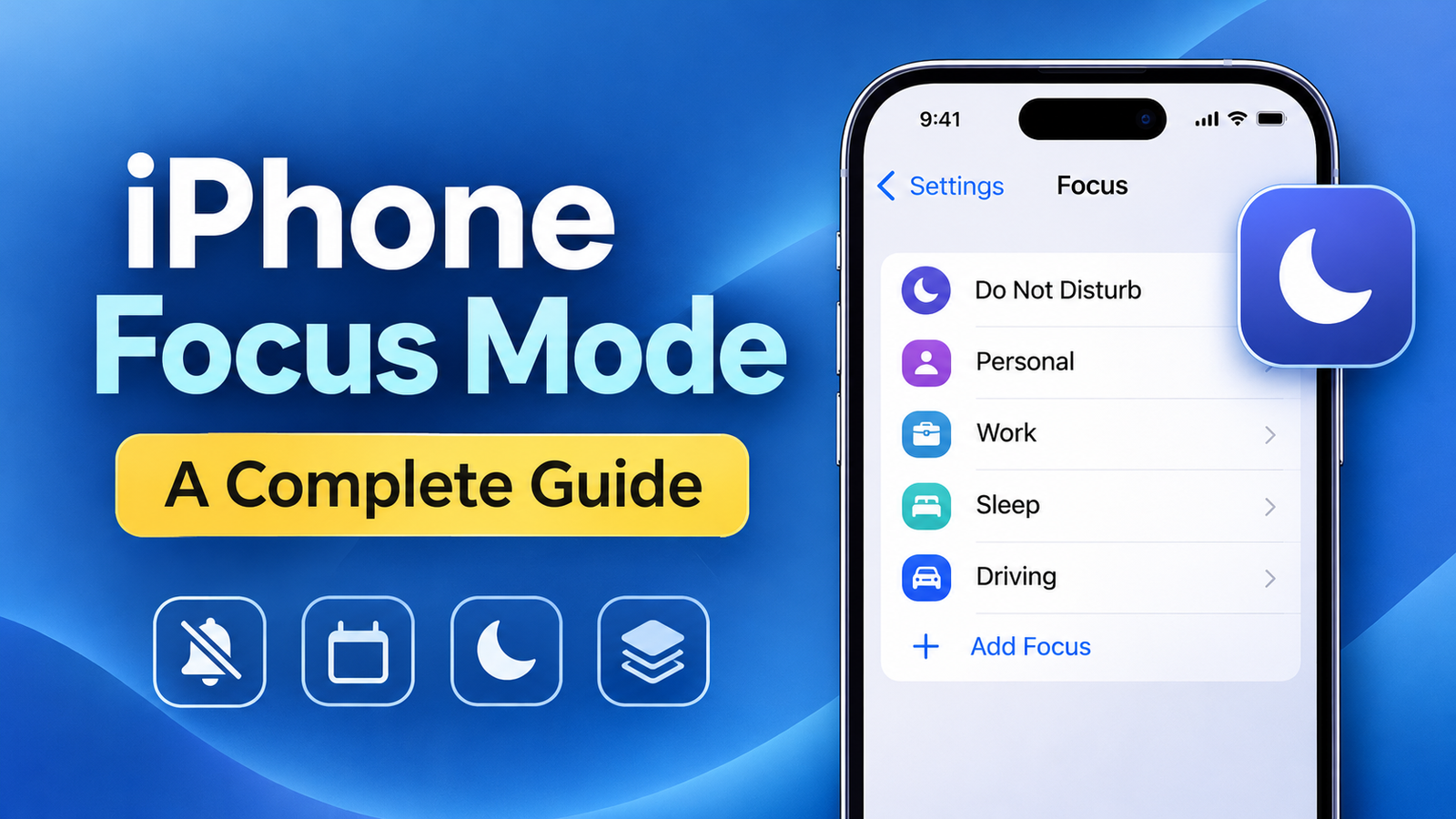
Some of the available options include Do Not Disturb, Personal, Work, Sleep and Driving. You can also create a custom Focus for a specific activity. If your iPhone supports Apple Intelligence, you may also have access to additional intelligent notification features, depending on your iOS version and region.
What’s more, you can schedule a Focus to activate automatically based on the time, location or app you’re using. You can even link a Focus to a particular Lock Screen or Home Screen, allowing you to create a different iPhone experience for work, study, sleep or personal time.
Different Types of Focus Modes on an iPhone
One of the best things about Focus Mode is that you don’t have to use the same notification settings for every situation. Apple provides several Focus options, each designed for a different purpose. You can customise these modes according to your needs or create your own if the existing options don’t suit your routine.
Let’s look at the different Focus modes available on an iPhone and when you might want to use each one.
1. Do Not Disturb
Do Not Disturb is useful when you want to minimise interruptions and concentrate on a particular activity. You can silence most notifications while allowing calls or messages from selected people if required.
For example, you can activate Do Not Disturb while studying, attending an important meeting or watching a film. You can also schedule it to activate automatically at specific times, where scheduling options are available.
2. Personal
Personal Focus is designed for your personal time. You can use it to silence work-related notifications while spending time with family, relaxing or enjoying your hobbies.
You can choose which contacts and apps are allowed to send notifications, helping you maintain a better separation between work and personal activities.
3. Work
As the name suggests, Work Focus is useful when you want to concentrate on professional tasks. You can allow notifications from colleagues and work-related apps while silencing unnecessary interruptions.
You can also link a particular Lock Screen or Home Screen page to this Focus, making it easier to keep your work-related apps separate from your personal ones.
4. Sleep
Sleep Focus helps reduce interruptions when you’re preparing to sleep. You can configure it to minimise notifications and link it to a suitable Lock Screen.
It can also work with your sleep schedule in the Health app, allowing your iPhone to activate Sleep Focus according to your bedtime routine.
5. Driving
Driving Focus is designed to help reduce distractions while you’re on the road. Depending on your settings, it can activate automatically when your iPhone detects that you’re driving or connects to your car’s Bluetooth system.
You can configure certain notification options and automatic replies, where supported. However, the main purpose is to help you concentrate on driving, so avoid interacting with your iPhone while behind the wheel.
6. Fitness
Fitness Focus can help reduce interruptions while you’re exercising. You can customise its notification settings so that unnecessary alerts don’t distract you during a workout.
7. Mindfulness
Mindfulness Focus is useful when you want some quiet time for meditation, relaxation or similar activities. You can customise it to reduce distractions while you take a break from your regular routine.
8. Reading
Reading Focus can help you concentrate on a book or other reading material without unnecessary notifications interrupting you.
9. Gaming
Gaming Focus is useful when you want fewer interruptions while playing games on your iPhone. You can configure it to reduce distractions during your gaming sessions.
10. Reduce Interruptions
On compatible iPhones with Apple Intelligence enabled, Reduce Interruptions can help prioritise notifications that may be important while silencing others.
Its availability depends on your device, software version, language and region.
11. Custom Focus
If none of the built-in options meets your requirements, you can create a custom Focus for almost any activity.
For example, you can create a Study Focus, Travel Focus or Shopping Focus and customise its notification settings according to your preferences.
The available options may vary depending on your iPhone and iOS version. You can check Apple’s official guide to setting up Focus for the latest details.
How to Set Up and Customise Focus Mode on an iPhone
Now that you understand what Focus Mode is and what it can do, let’s move on to setting it up. You can customise the existing Focus modes according to your preferences and create a setup that suits your daily routine.
Follow these steps to get started:
- Open Settings on your iPhone.
- Tap Focus.
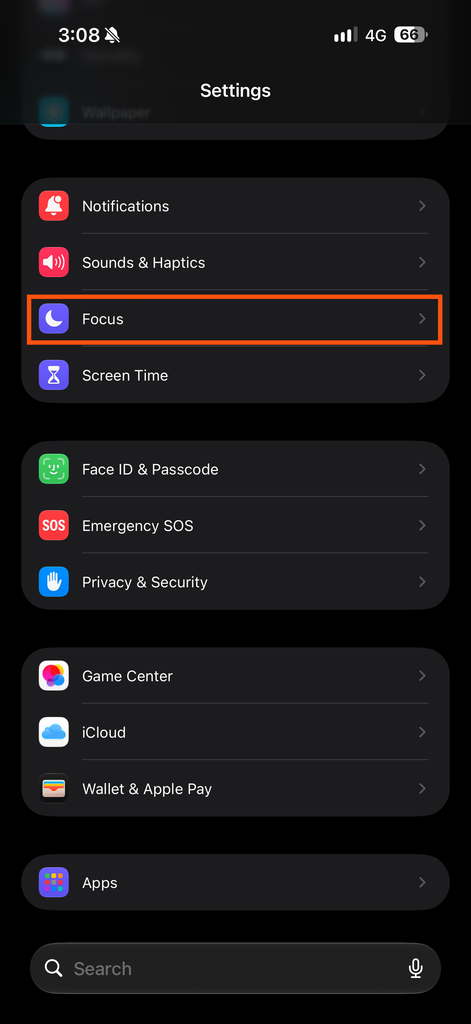
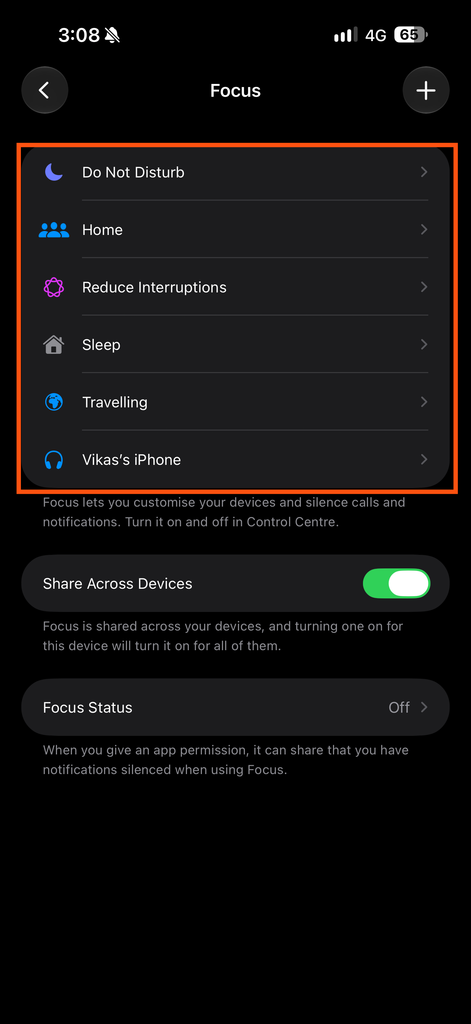
- Select the Focus mode you want to customise, such as Do Not Disturb, Personal or Work.
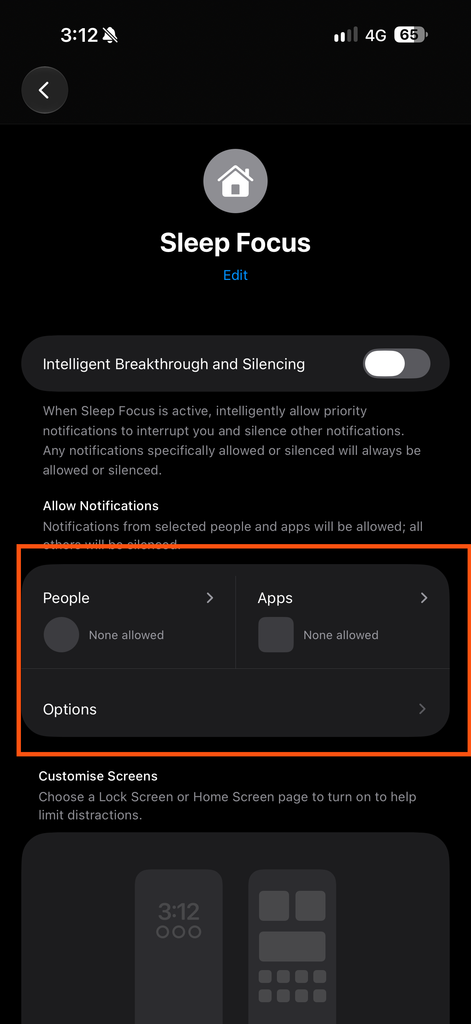
- Under the selected Focus, review the available options for managing notifications from people and apps.
- Choose which people and apps you want to allow notifications from, or configure the Focus to silence notifications from selected sources.
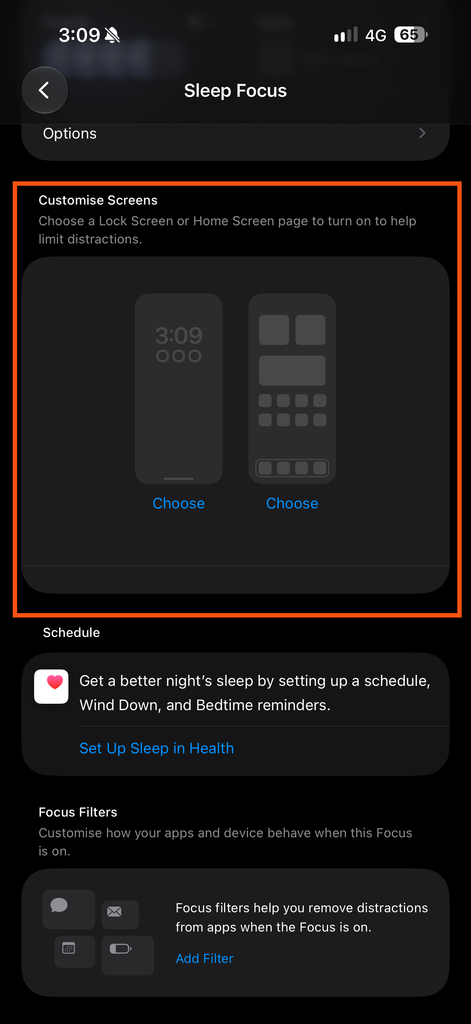
- Adjust any additional settings available for that Focus, such as its schedule or linked Lock Screen.
- Once you’ve finished customising it, return to the previous screen. Your settings will be saved automatically.
That’s it! Your Focus mode is now customised and ready to use. You can activate it whenever you need it and adjust its settings later as your requirements change.
How to Allow or Silence Notifications in Focus Mode on an iPhone
One of the most useful features of Focus Mode is that you can decide which people and apps are allowed to interrupt you. For example, you can allow calls from family members while silencing notifications from social media apps during work or study hours.
Follow these steps to customise your notification preferences:
- Open Settings and tap Focus.
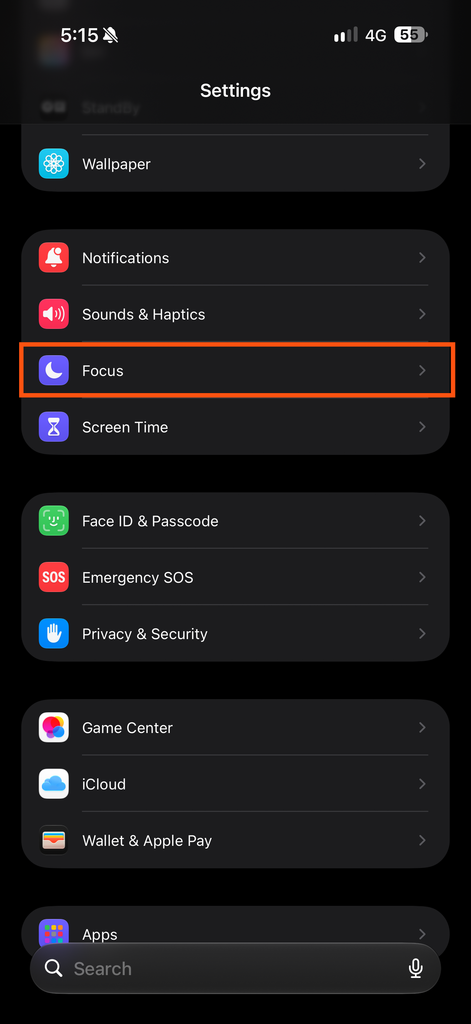
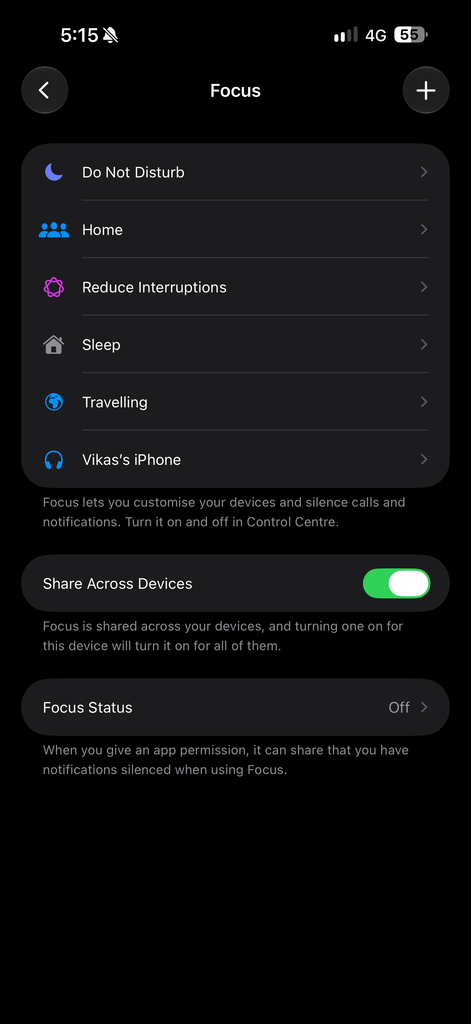
- Select the Focus mode you want to customise, such as Work, Personal or Do Not Disturb.
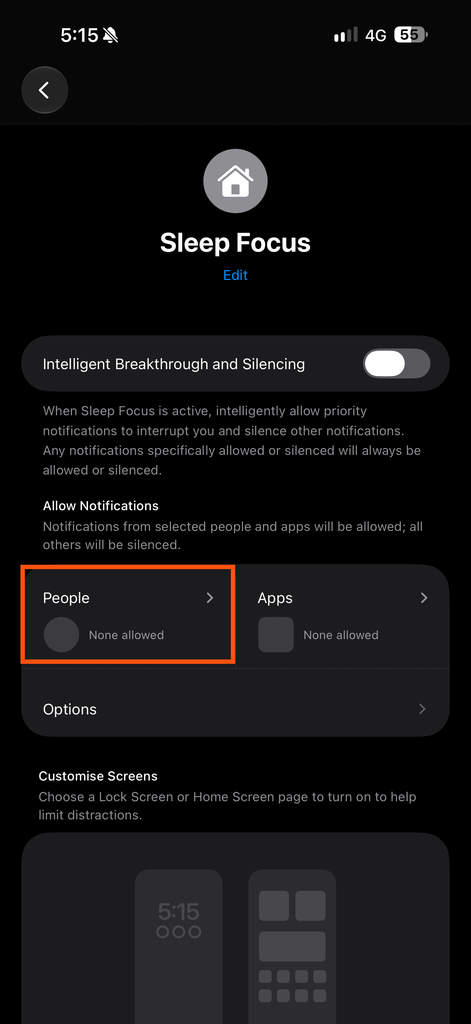
- Tap People to manage notifications from your contacts.
- Choose Allow Notifications From to receive notifications from selected people, or choose Silence Notifications From to silence notifications from specific people.
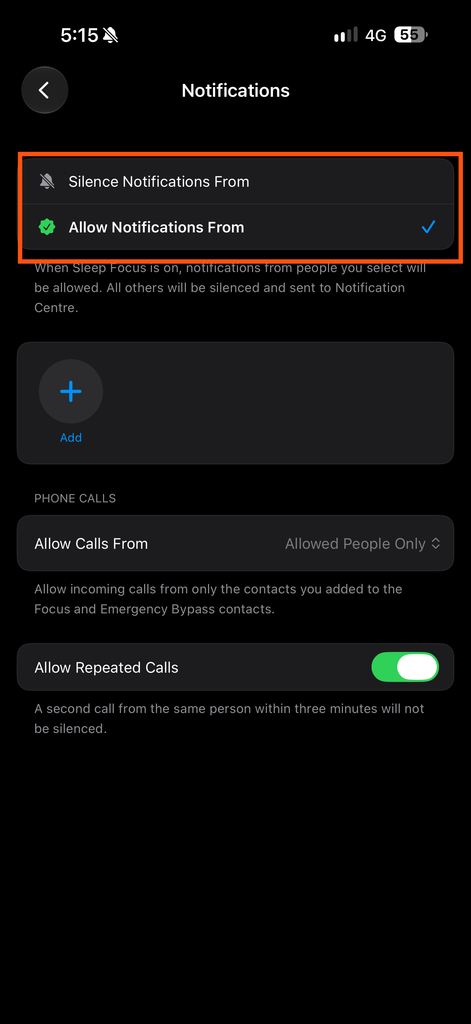
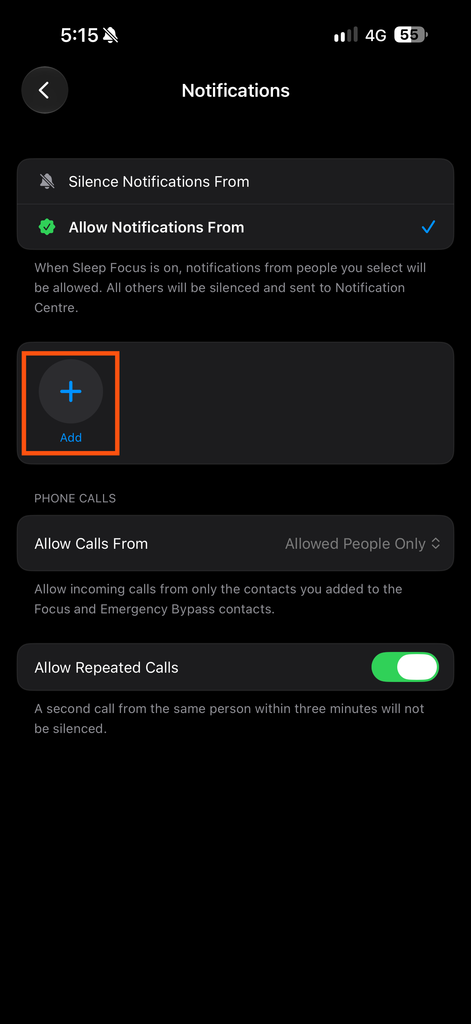
- Tap Add People and select the contacts you want to include.
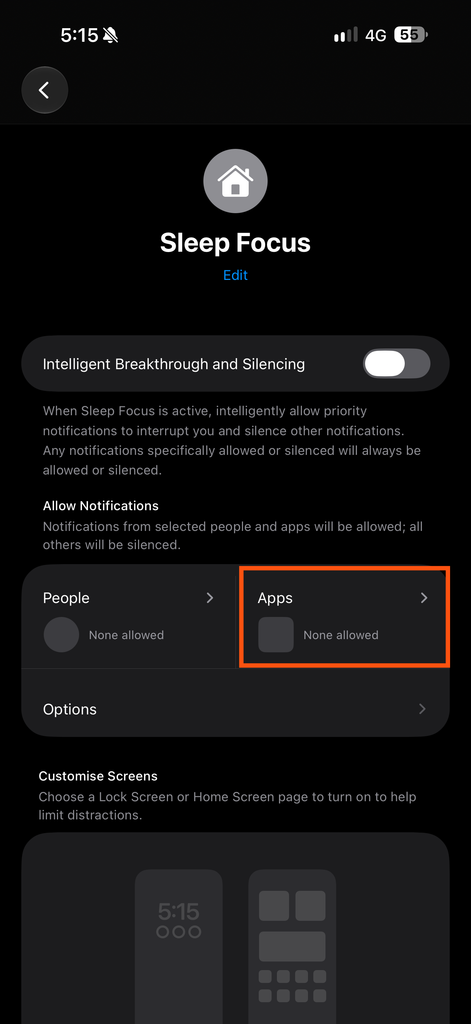
- Return to the previous screen and tap Apps.
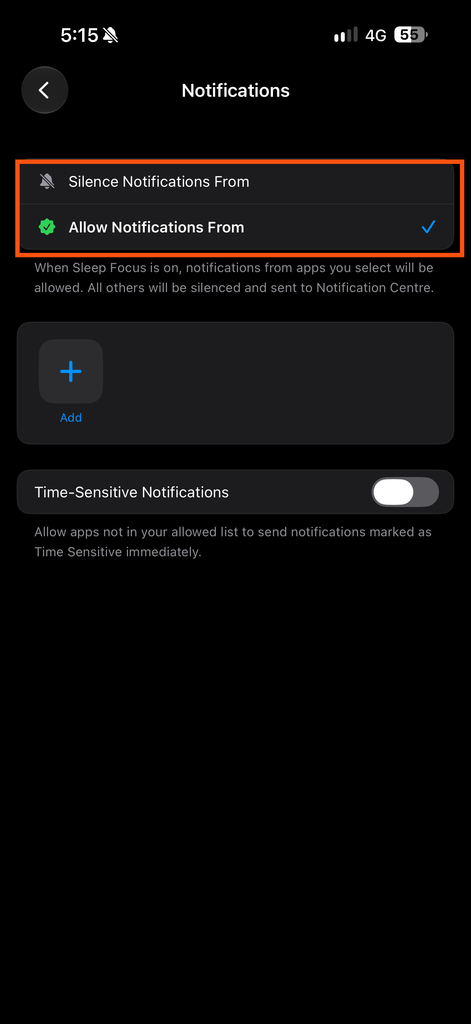
- Choose Allow Notifications From or Silence Notifications From, depending on your preference.
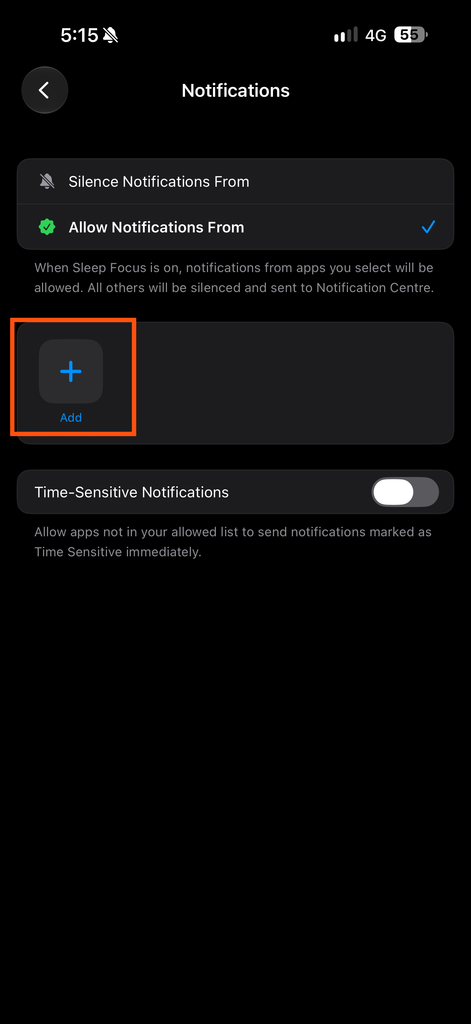
- Tap Add Apps and select the apps you want to allow or silence.
You can also review additional options, such as allowing calls from certain groups of people or allowing repeated calls. The available options may vary depending on your iOS version and Focus settings.
For example, if you’re using your iPhone for studying, you could allow calls and messages from family members while silencing notifications from social media apps. This way, you can reduce distractions without completely cutting yourself off from important communications.
How to Schedule Focus Mode Automatically on an iPhone
One of the best things about Focus Mode is that you don’t have to turn it on and off manually every time. You can schedule it according to your daily routine, and your iPhone will automatically activate it when the selected conditions are met.
For example, if you study or work at fixed hours, you can schedule a Focus mode to turn on during that time. You can also set it to activate when you reach a particular location or open a specific app.
Follow these steps to schedule a Focus mode:
- Open Settings on your iPhone.
- Tap Focus and select the Focus mode you want to schedule, such as Work or Personal.
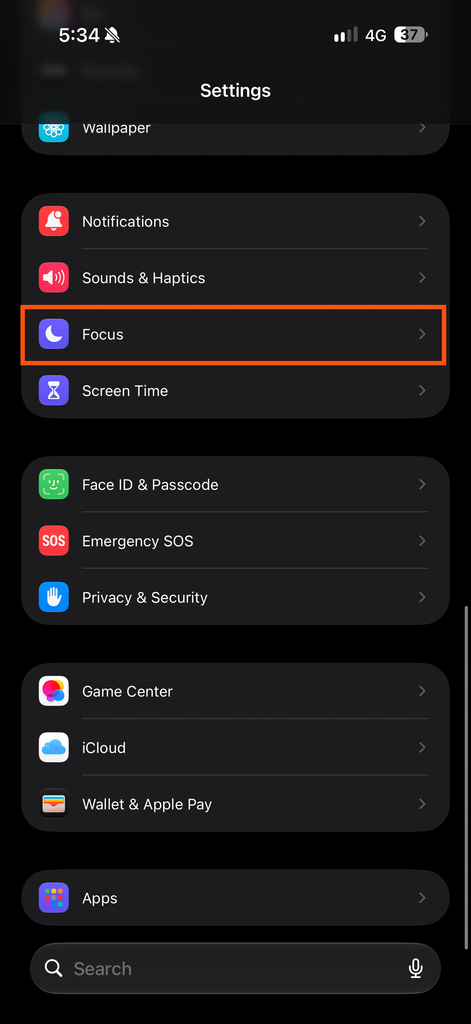
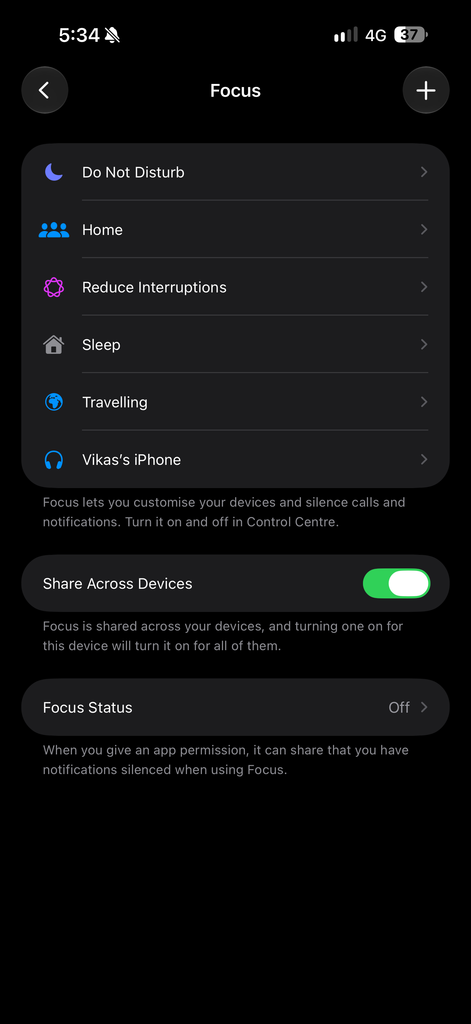
- Look for Add Schedule, Add Schedule or Automation, or the available scheduling options. The wording may vary depending on your iOS version and the Focus mode you’ve selected.
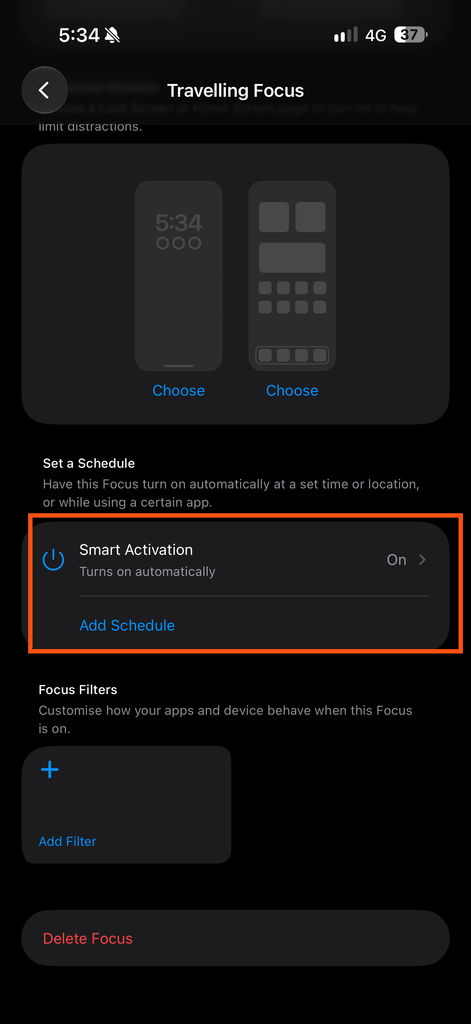
- Choose Time, Location or App, if these options are available, depending on when you want the Focus mode to activate.
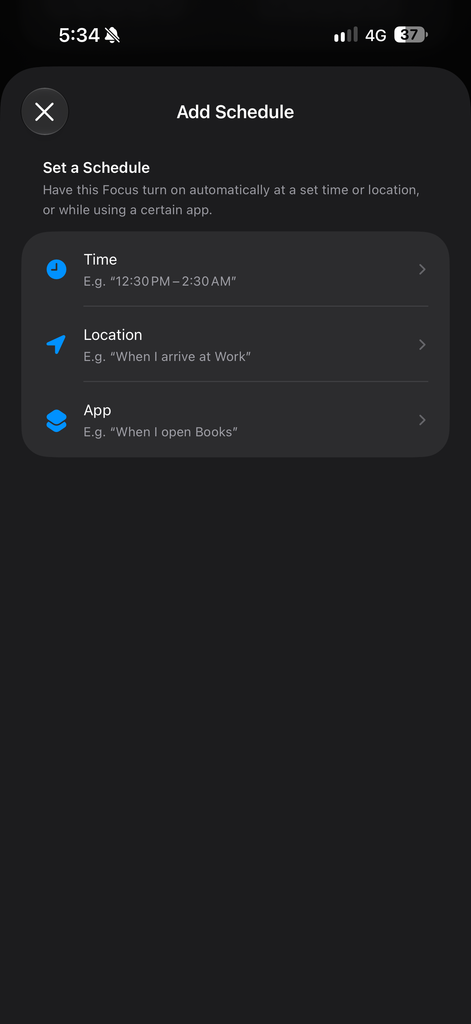
- If you select Time, choose the starting time, ending time and the days on which you want it to run.
- If you select Location, choose the place where you want the Focus mode to activate. If you select App, choose the app that should trigger it.
- Once you’ve configured the schedule, return to the previous screen. Your settings will be saved automatically.
That’s it! Your iPhone can now activate the selected Focus mode automatically according to your schedule.
For example, suppose you want your iPhone to use a different wallpaper when you are at home. Focus Mode lets you link a particular Lock Screen to a Focus and set that Focus to activate automatically based on your location. So, whenever you reach home, your iPhone can automatically activate the selected Focus and switch to your chosen Lock Screen. Similarly, when you leave home, the Focus can deactivate, allowing your iPhone to return to its previous setup, depending on your settings.
Note: Scheduling options can differ between Focus modes. Sleep Focus, for example, can follow the sleep schedule configured in the Health app. If you don’t see the scheduling option you’re looking for, check the settings specific to that Focus mode and your iOS version.
How to Customise Your iPhone Home Screen and Lock Screen with Focus Mode
Apart from managing notifications, Focus Mode also lets you customise how your iPhone looks in different situations. For example, you might prefer a simple Home Screen while working, whereas you may want your personal photos as wallpaper when you are at home.
You can link a particular Lock Screen to a Focus mode and choose a specific Home Screen page to appear when that Focus is active. This means your iPhone can show different screens for different activities without requiring you to change them manually every time.
To link a Lock Screen to a Focus mode:
- Touch and hold your iPhone’s Lock Screen to open the wallpaper gallery.
- Select the Lock Screen you want to use.
- Tap Focus near the bottom of the screen.
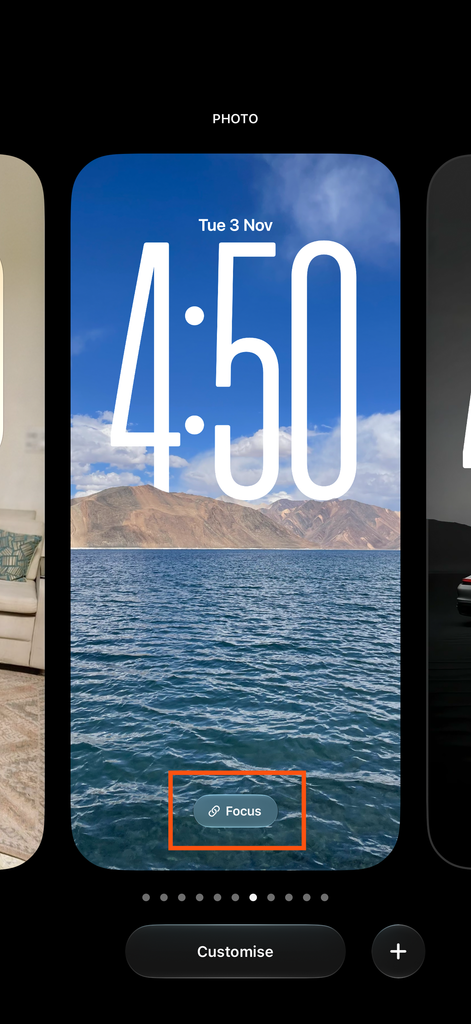
- Choose the Focus mode you want to link to that Lock Screen.
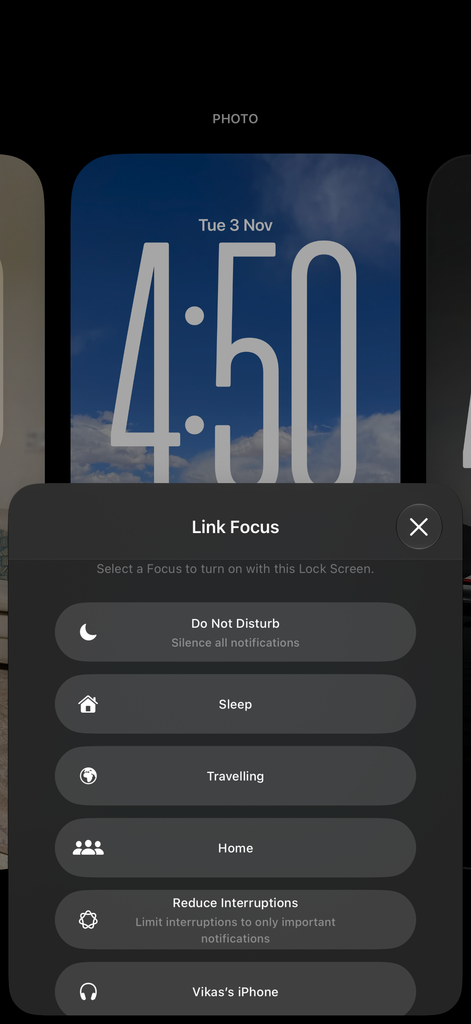
- Tap the screen to confirm your selection.
You can also customise the Home Screen associated with a Focus. Open Settings, tap Focus, select your preferred Focus mode and look for the Home Screen customisation option. From there, you can choose a Home Screen page to display when that Focus is active.
For example, you can keep work-related apps on a dedicated Home Screen page and link it to your Work Focus. When you activate that Focus, your selected Home Screen page and Lock Screen can appear, helping you keep personal and work activities separate.
How to Turn Focus Mode On and Off on an iPhone
Although you can schedule Focus Mode to activate automatically, there may be times when you want to turn it on or off manually. For example, if you suddenly need some uninterrupted time to finish your work, you can activate Do Not Disturb or your custom Work Focus in just a few taps.
Follow these steps to turn on Focus Mode:
- Swipe down from the top-right corner of your iPhone screen to open Control Centre.
- Tap Focus.
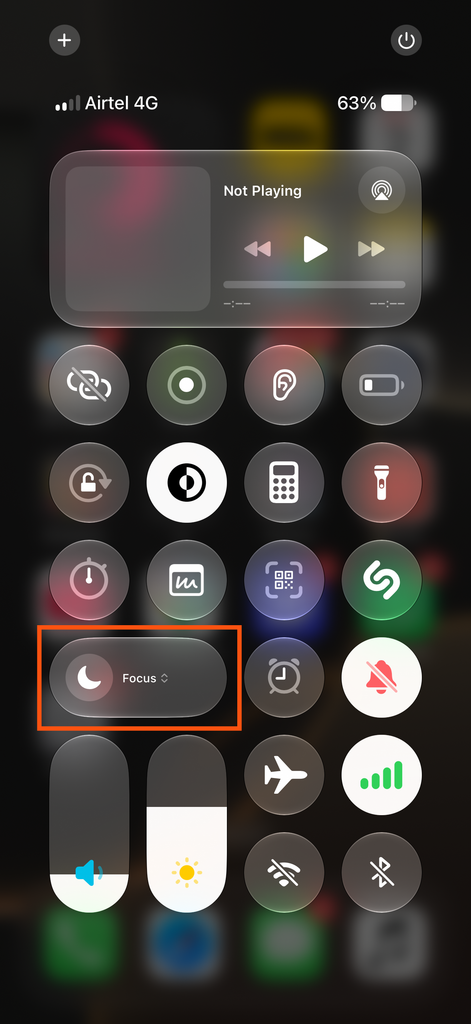
- Select the Focus mode you want to activate, such as Do Not Disturb, Personal or Work.
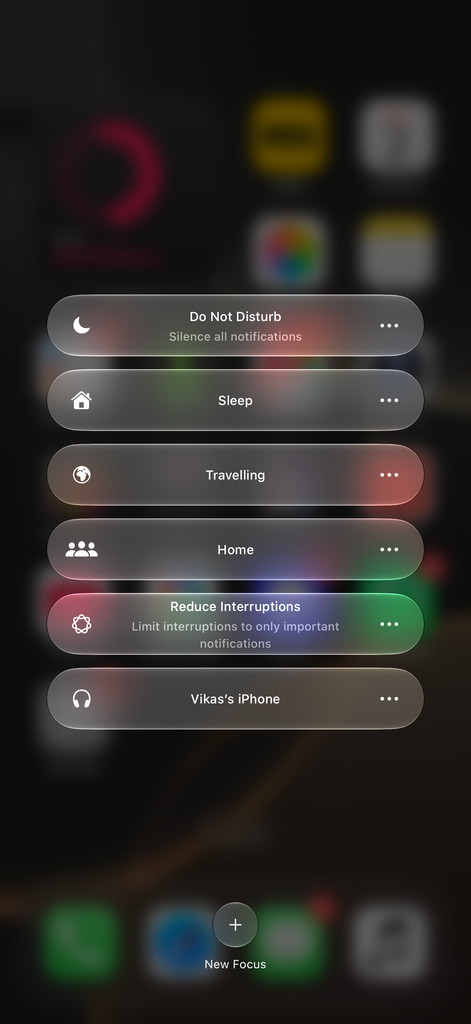
- Your selected Focus mode will now be active, and your iPhone will handle notifications according to your settings.
To turn it off, open Control Centre, tap the active Focus mode and select it again to deactivate it.
How to Share Focus Status with Others on an iPhone
Have you ever wondered what happens when someone sends you a message while Focus Mode is enabled? Depending on your settings and the app being used, they may see a message indicating that you have silenced notifications. This feature is called Share Focus Status, and it can help others understand why you might not respond immediately.
If you want to enable this feature, follow these steps:
- Open Settings on your iPhone.
- Tap Focus.
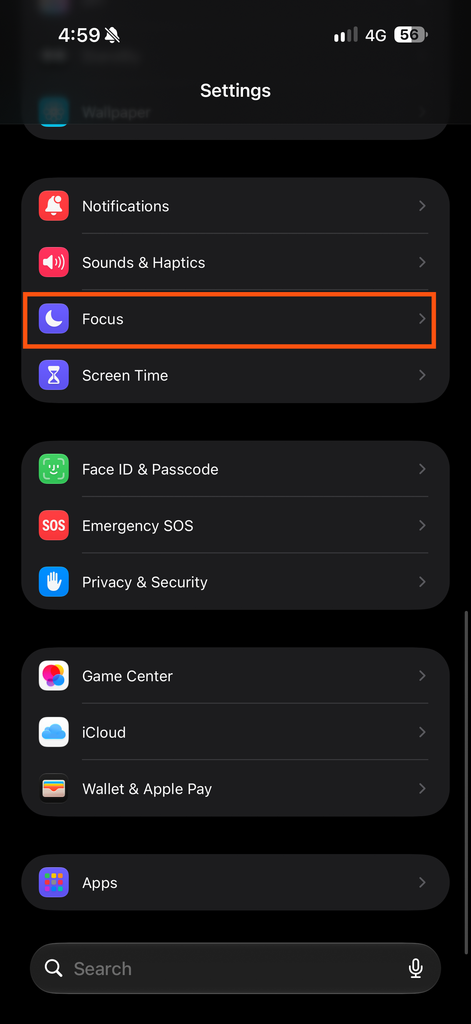
- Tap Focus Status.
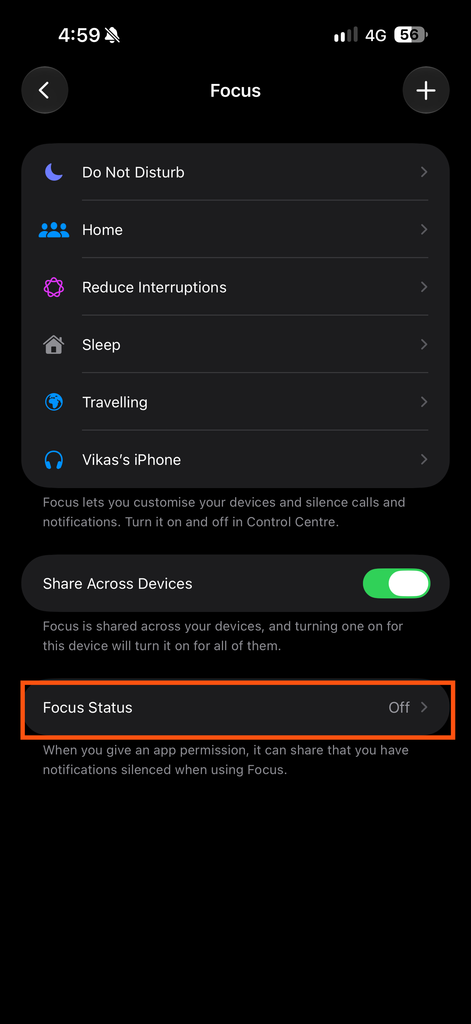
- Turn on Share Focus Status.
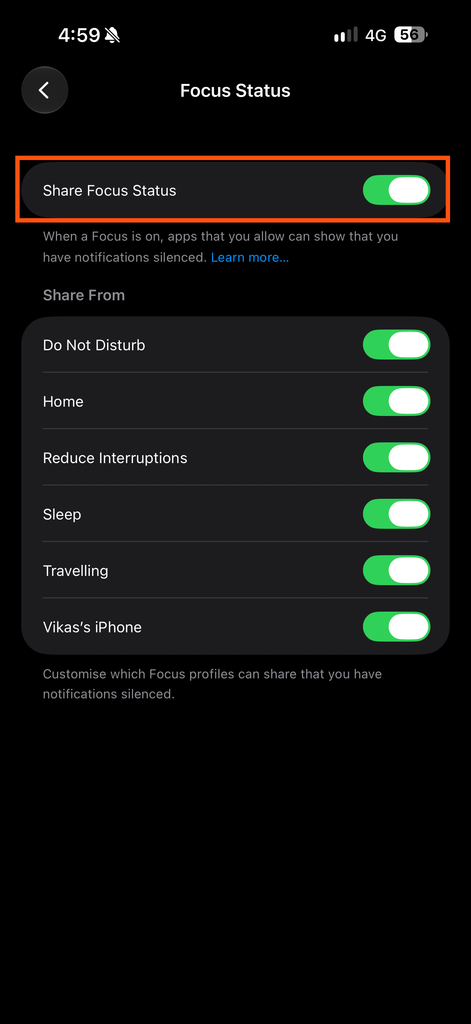
- If the option is available, choose which Focus profiles can share your status.
Once enabled, supported apps can let people know that your notifications are silenced when they message you. They won’t see which Focus mode you’re using; they’ll only see that notifications are silenced.
You can also turn this feature off whenever you want. Keep in mind that sharing your Focus Status doesn’t prevent people from contacting you, and it doesn’t automatically allow or block their notifications. Those settings are managed separately within Focus Mode.
How to Use Focus Filters on an iPhone
Apart from controlling notifications, Focus Mode can also help you manage what you see in certain apps. This is where Focus Filters come in. They allow supported apps to show specific information when a particular Focus mode is active, helping you separate your work and personal activities.
For example, you might want to see your work calendar during office hours but prefer your personal calendar when you’re at home. With Focus Filters, you can configure supported apps to display the information you need for each situation.
To set up a Focus Filter, follow these steps:
- Open Settings on your iPhone.
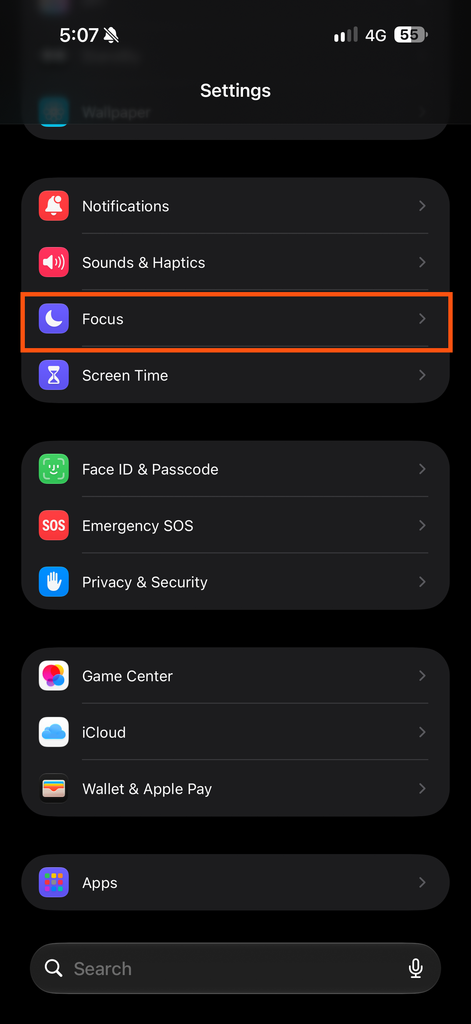
- Tap Focus and select the Focus mode you want to customise.
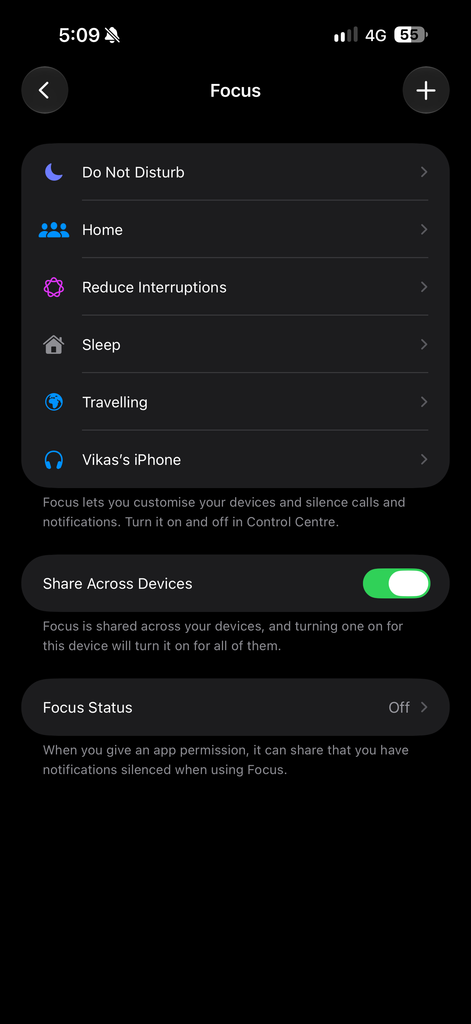
- Scroll down to the Focus Filters section.
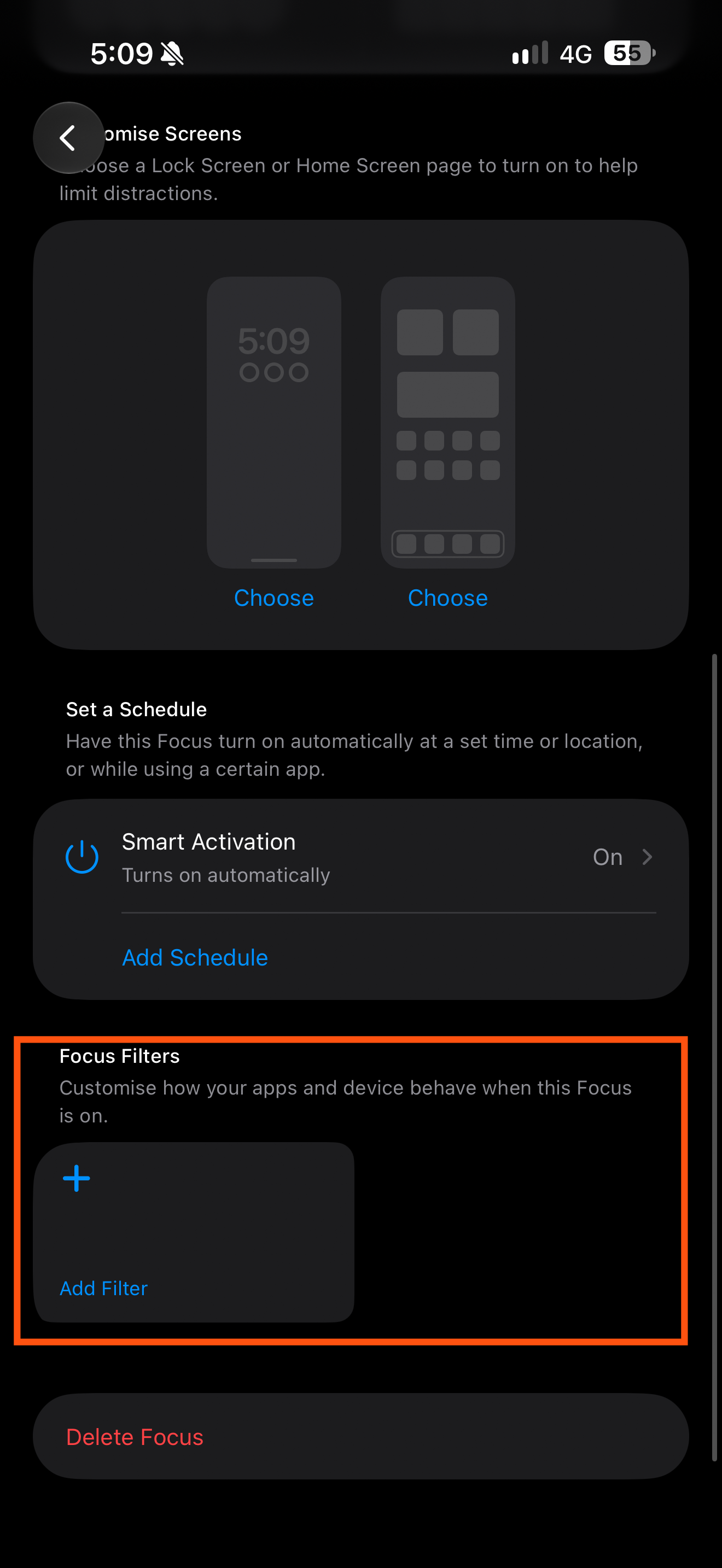
- Tap Add Filter.
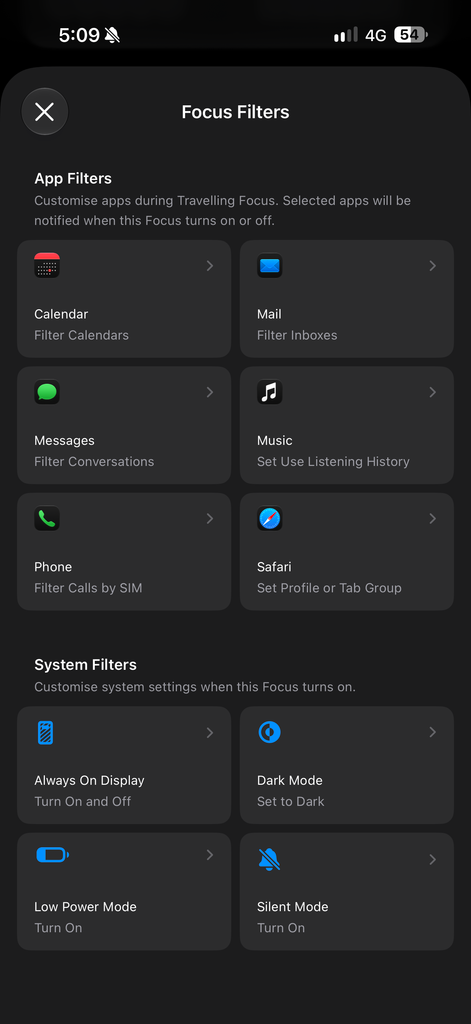
- Choose an app or system setting from the available options.
- Follow the on-screen instructions to configure the filter, then tap Add.
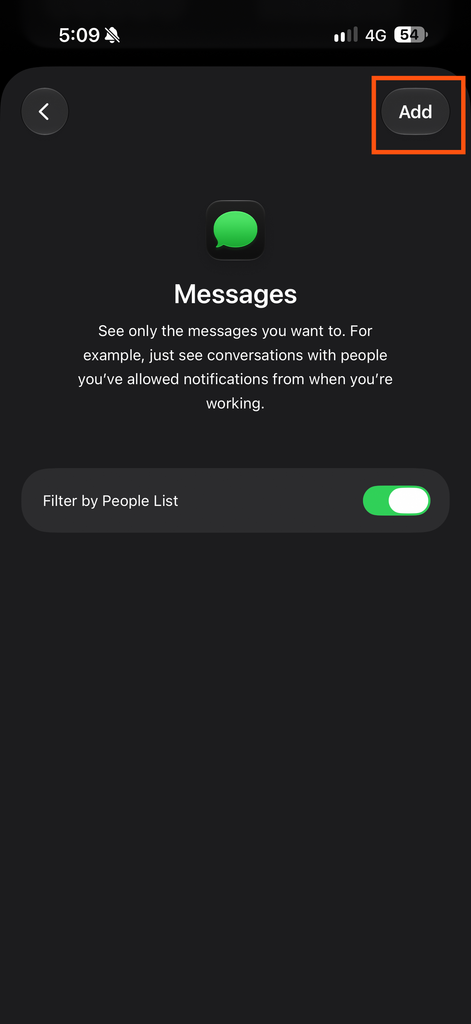
The available filters depend on your iPhone, iOS version and the apps you use. For example, supported filters may let you choose which calendars appear in Calendar, which email accounts are shown in Mail, or which appearance settings are used while a Focus is active.
If you no longer need a filter, return to the same Focus settings and remove it. Focus Filters are optional, but they can be useful if you want your iPhone to adapt not only its notifications but also certain app settings to your daily routine.
Common Focus Mode Problems on an iPhone and How to Fix Them
Although Focus Mode is quite useful, you may sometimes find that it doesn’t work the way you expected. For example, notifications might still appear, a scheduled Focus may not activate, or certain calls may come through even when you want some quiet time.
Here are a few things you can check if you face these problems.
1. Focus Mode Is Not Turning On Automatically
If your Focus mode isn’t activating at the scheduled time, open Settings > Focus and select the relevant Focus. Check its schedule and make sure the correct days, times, location or app have been selected. If you’re using location-based activation, also check that the relevant location settings are available and configured correctly.
2. You’re Still Receiving Notifications
Focus Mode doesn’t necessarily block every notification. Open Settings > Focus, select the active Focus and review the People and Apps settings. You may have allowed certain contacts or apps to send notifications. Also check whether options such as repeated calls or other permitted interruptions are enabled.
3. Important Calls Are Being Silenced
If you’re missing calls from people you need to hear from, check the allowed people and call settings for that Focus. You can adjust who is allowed to contact you while it is active. This is particularly useful if you want to silence general distractions without missing calls from family members or colleagues.
4. Your Lock Screen or Home Screen Isn’t Changing
If you’ve linked a Lock Screen or Home Screen to a Focus but it isn’t appearing as expected, check the linked screen settings under Settings > Focus. Make sure the correct Focus is active and that you’ve selected the intended screen. Keep in mind that the options available may vary depending on your iOS version.
5. Focus Status Isn’t Visible to Others
If people messaging you can’t see that your notifications are silenced, open Settings > Focus and check the Focus Status settings. Make sure Share Focus Status is enabled for the relevant Focus. Remember that this feature is supported only in compatible apps, so the status may not appear everywhere.
In most cases, reviewing your Focus settings should help you identify the cause. If a feature is still not working as expected, check for an available iOS update and consult Apple’s official support guidance for your particular issue.
Tips for Using Focus Mode More Effectively
Now that you know how to use Focus Mode, here are a few tips that can help you make better use of this feature in your daily routine.
- Create separate Focus modes for different activities: Instead of using the same settings everywhere, create separate modes for work, study, sleep and personal time. This gives you more control over which notifications you receive in each situation.
- Allow notifications from important contacts: You don’t necessarily have to silence everyone. Allow calls and messages from family members or other important contacts so you can reduce distractions without missing essential communication.
- Use automatic schedules: If your daily routine follows a fixed schedule, set your Focus modes to activate automatically. This saves you from having to turn them on and off manually every day.
- Customise your Home Screen and Lock Screen: Link a particular Lock Screen to a Focus and choose a suitable Home Screen page where supported. For example, you can keep work-related apps on a separate page for office hours.
- Review your settings from time to time: Your routine and priorities may change, so check your allowed contacts, apps and schedules occasionally. Remove anything you no longer need.
- Don’t rely on Focus Mode for emergencies: Focus Mode helps manage interruptions, but its behaviour depends on your settings. Make sure you understand which calls and notifications can still come through, especially when you need to remain reachable.
Frequently Asked Questions
1. What Is Focus Mode on an iPhone?
Focus Mode is an iPhone feature that helps reduce distractions by letting you control which people and apps can send notifications. You can use existing modes such as Do Not Disturb, Work and Sleep, or create a custom Focus.
2. Does Focus Mode Silence All Calls and Notifications?
Not necessarily. Focus settings determine which people and apps can notify you. You can allow selected contacts, apps and certain types of calls, depending on the options available for your chosen Focus.
3. Can Focus Mode Turn On Automatically?
Yes. You can schedule a Focus to activate at a particular time, when you reach a location or when you open a selected app. The available options depend on your Focus settings and iOS version.
4. Can Focus Mode Change My iPhone Wallpaper Automatically?
You can link a particular Lock Screen to a Focus mode and configure the Focus to activate automatically. When the Focus activates, the linked Lock Screen can appear. You can also select a Home Screen page for supported Focus settings.
5. What Is the Difference Between Do Not Disturb and Focus Mode?
Do Not Disturb is one of the available Focus modes. Focus is the broader feature that lets you create and customise different modes for activities such as work, sleep, driving and personal time.
6. Can I Create My Own Focus Mode?
Yes. Open Settings > Focus, tap the Add button and select Custom. You can give the Focus a name, choose a colour and icon, and configure its notification settings.
Conclusion
I hope you now understand how useful Focus modes can be in our daily routine. From switching to Do Not Disturb to automatically changing your wallpaper, there is so much more you can do with this feature.
After all, if a feature can make your daily routine simpler, why not make the most of it? I would encourage all iPhone users to experiment with different Focus modes according to their preferences and routines. You might discover a few useful ways to make your iPhone work better for you.