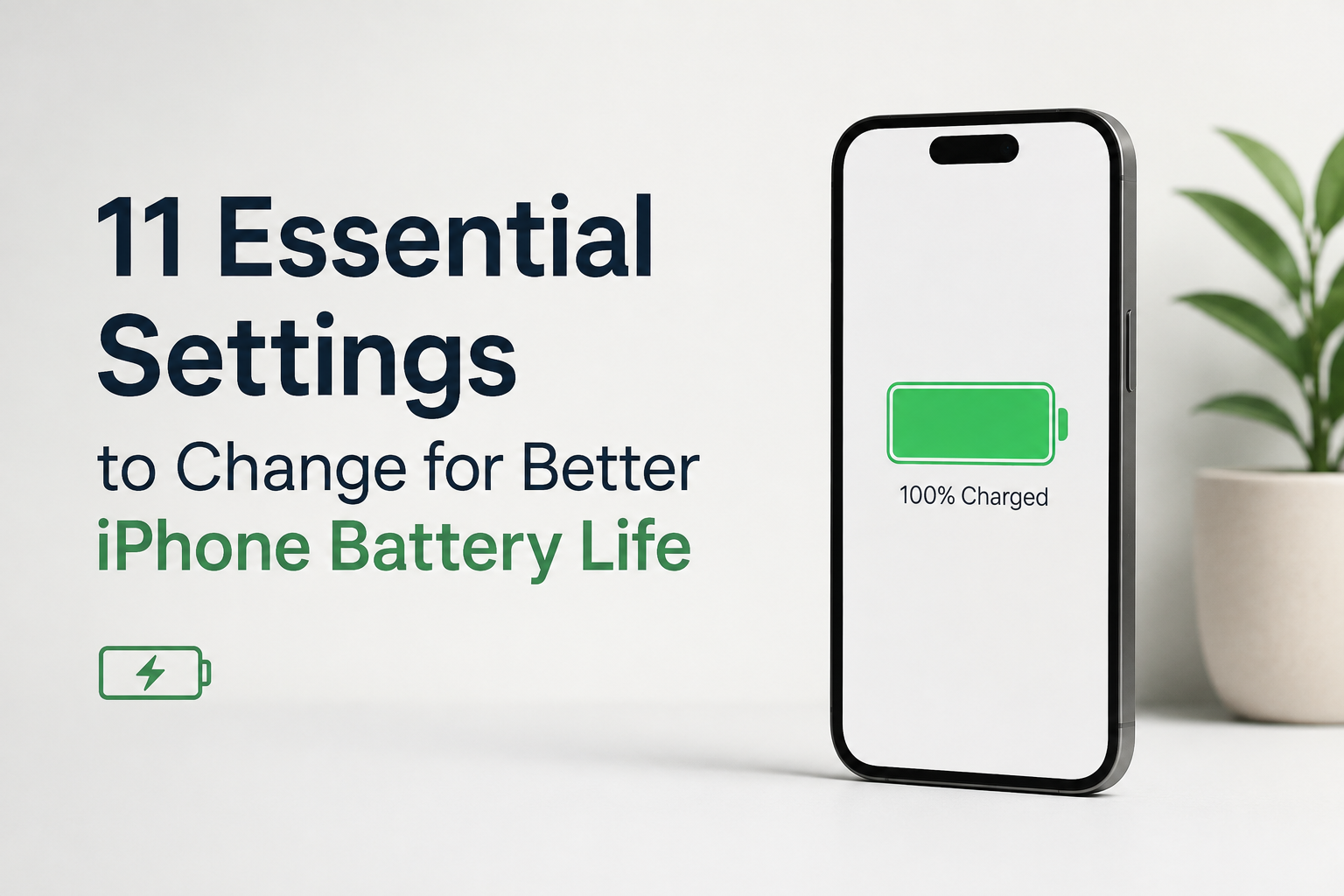

With our growing reliance on smartphones, maintaining good battery life has become a priority. After all, no one wants their iPhone to run out of battery when they need it most. iPhones use lithium-ion batteries, which naturally lose capacity and performance as they age. Whether you own the latest iPhone or an older model, making a few changes to your settings can help you get more out of each charge. If you’re looking for simple ways to improve your iPhone’s battery life, here are 11 settings worth considering.
- Reduce Auto-Lock Time: Reducing the Auto-Lock time makes your screen turn off sooner when you’re not using your iPhone. This prevents the display from staying on unnecessarily and can help reduce battery consumption.
- Disable Always-On Display on Supported iPhones: Always-On Display is convenient for checking the time and notifications without fully waking your iPhone. However, it does use some power. Turning it off can help reduce battery usage, particularly if you don’t need the display to remain visible when your iPhone is locked.
- Enable Auto-Brightness: Auto-Brightness automatically adjusts your screen brightness based on the surrounding light. This prevents the display from being brighter than necessary, particularly in darker environments, and can help reduce unnecessary battery consumption.
- Turn Off Location Services for Unnecessary Apps: Some apps use your location in the background when they don’t necessarily need it. Limiting location access to apps that actually need it can reduce unnecessary background activity and help your battery last longer.
- Turn On Low Power Mode: Low Power Mode reduces background activity and temporarily limits certain features, such as automatic downloads, email fetching and Background App Refresh. It can be particularly useful when your battery is running low or you need your iPhone to last through the rest of the day.
- Enable Optimised Battery Charging: Optimised Battery Charging helps reduce battery ageing by learning your charging routine and delaying charging beyond 80% until you are likely to need your iPhone. This reduces the amount of time the battery spends fully charged and can help maintain its long-term health.
- Switch to Dark Mode: Dark Mode can reduce power consumption on iPhones with OLED displays because darker pixels require less power than bright ones. While the difference may not be dramatic, using Dark Mode can still help reduce display-related power consumption over time.
- Enable Reduce Motion: iOS uses animations and visual effects throughout the system. Enabling Reduce Motion limits some of these effects and animations, which can reduce the amount of processing required. It can also make the interface feel simpler and more responsive for some users.
- Turn Off Raise to Wake: Raise to Wake automatically turns on the display whenever you lift your iPhone. While convenient, it can cause the screen to activate when you don’t actually need it. Turning it off can help avoid unnecessary screen activations.
- Turn Off Background App Refresh for Unnecessary Apps: Background App Refresh allows apps to check for new content even when you’re not actively using them. Disabling it for apps that don’t need frequent updates can reduce background activity and help conserve battery life.
- Disable Keyboard Haptics: Keyboard haptics provide a small vibration every time you type, using the iPhone’s haptic motor. If you type frequently, disabling this feature can eliminate this additional source of power consumption. The battery savings are likely to be modest, but it can still be useful if you’re trying to squeeze every bit of battery life from your iPhone.