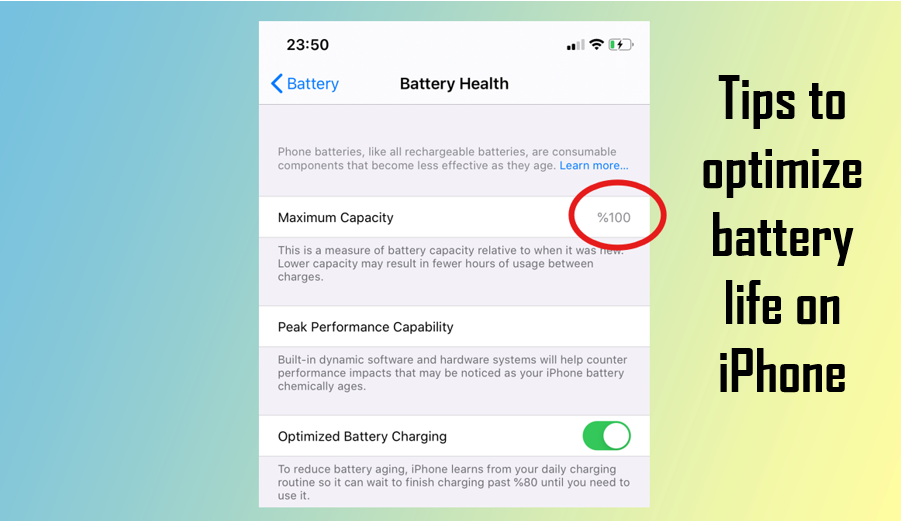

Smartphones have become an integral part of our lives, helping us with daily tasks and keeping us connected. To continue enjoying their services, we must ensure that the battery lasts as long as possible. Whether you’re using an older iPhone 8 or the latest iPhone 16 Pro, optimizing battery life has become a necessity.
With the rise of reels and shorts addiction, iPhone batteries often struggle to last an entire day on a full charge. Fortunately, by tweaking a few settings and adopting better habits, you can significantly extend your iPhone’s battery life.
Implement the following settings to enhance your iPhone’s battery performance and enjoy uninterrupted usage:
1. Activate Low Power Mode
When your iPhone’s battery starts dipping, Low Power Mode is your best friend. It cuts down background activities, disables some visual effects, and reduces power-hungry processes. You can turn it on manually from Settings > Battery or let your iPhone prompt you when the battery hits 20%.
2. Disable Haptic Feedback
While the tiny vibrations when you type or navigate through your iPhone feel nice, they also drain battery life. Disabling Haptic Feedback can give your battery a noticeable boost. Head over to Settings > Sounds & Haptics > System Haptics and turn it off. You’ll barely miss it!
3. Turn Off Always-On Display
If you have an iPhone with Always-On Display, turning it off can significantly extend battery life. While it looks cool, it keeps your screen active 24/7. Save power by going to Settings > Display & Brightness > Always On Display and toggling it off.
4. Limit Location Usage
Many apps constantly track your location, even when you don’t need them to. This drains the battery fast. Go to Settings > Privacy & Security > Location Services and switch apps to “While Using” instead of “Always”. This way, only necessary apps use location when required.
5. Turn On Auto Brightness
Keeping your screen at full brightness all the time is a battery killer. Let your iPhone handle it smartly by enabling Auto Brightness. It adjusts the screen brightness based on your surroundings, saving energy. Find it under Settings > Accessibility > Display & Text Size > Auto-Brightness.
6. Turn Off Background App Refresh
Apps running in the background constantly update themselves, eating up both battery and data. To stop this, go to Settings > General > Background App Refresh and set it to Wi-Fi or Off entirely. Your apps will still work fine when you open them manually.
7. Keep Your iPhone at Optimal Temperature
iPhones work best between 0°C and 35°C (32°F to 95°F). Extreme heat or cold can degrade battery health over time. Avoid leaving your phone in direct sunlight, inside a hot car, or in freezing temperatures. If your iPhone overheats, let it cool down before using it again.