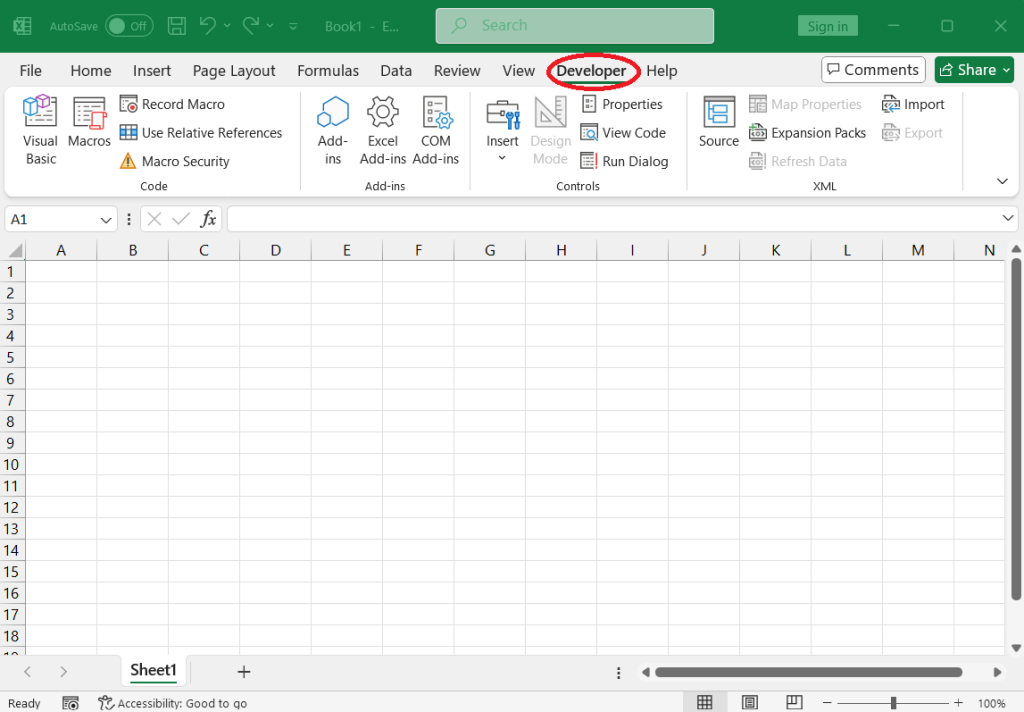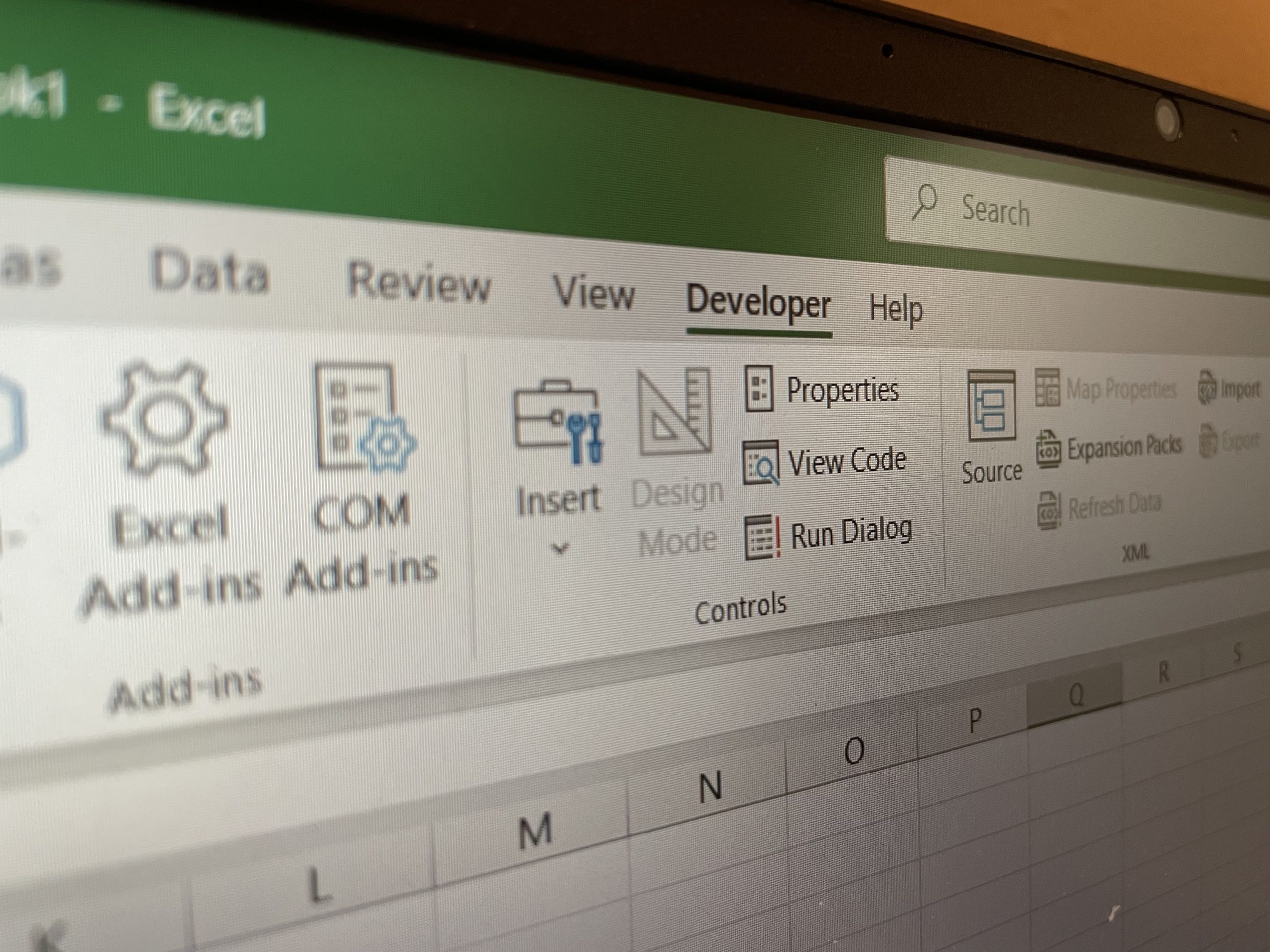

The Developer Tab in Microsoft Excel is a powerful feature that unlocks advanced tools for users. With this option enabled, you can write macros using the Visual Basic Editor, manage Add-ins, use form controls, and work with XML data. However, the Developer tab is not visible by default—you need to enable it manually.
In this article, I’ll guide you through the simple steps to enable the Developer option in Excel, helping you enhance your workflow and take full advantage of Excel’s advanced functionalities.
Steps to enable Developer option:
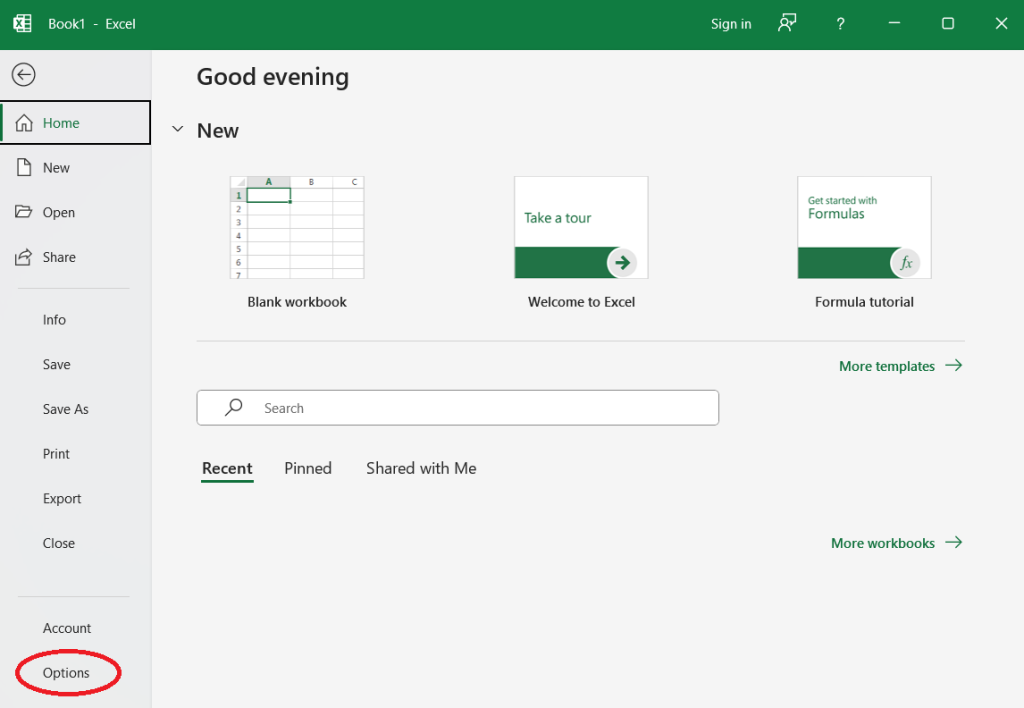
1. Open Excel and click on the File tab. Then, select Options.
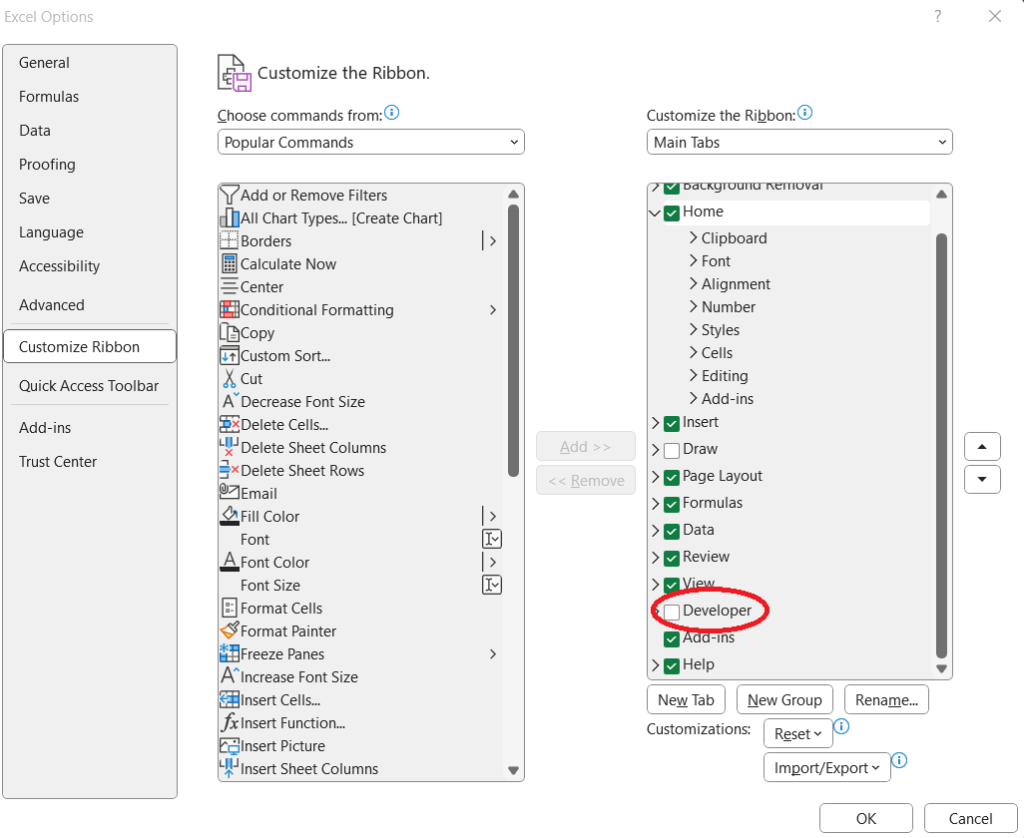
2. In the Excel Options window, go to Customize Ribbon from the left menu.
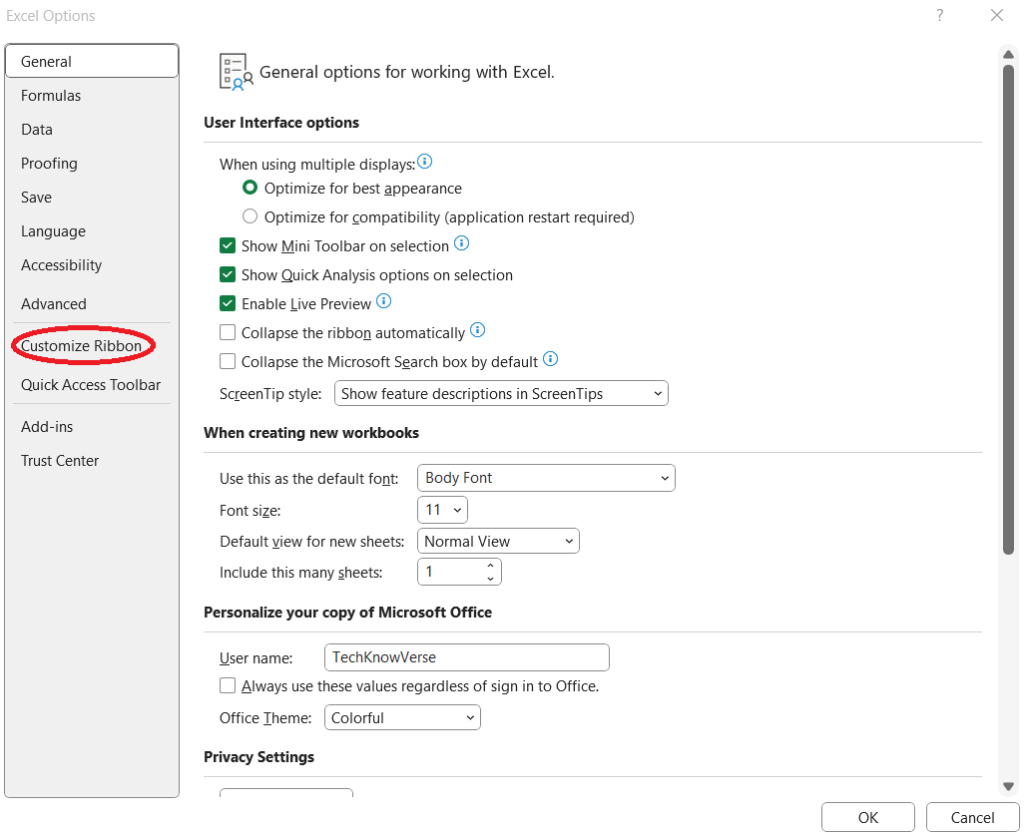
3. Under Main Tabs, check the box for Developer and click OK.
4. The Developer tab will now appear in the Excel ribbon, giving you access to Macros, Add-ins, and other advanced tools.