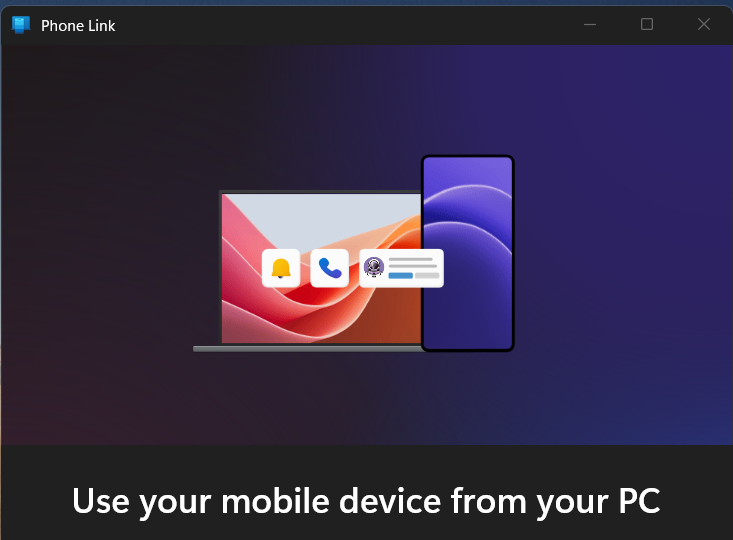

Imagine replying to your friend’s message or browsing your iPhone’s photo gallery directly from your Windows PC. Sounds convenient, right? With Microsoft’s Phone Link feature, that’s now possible. This powerful tool lets you wirelessly connect your iPhone to your Windows computer, no USB cable needed. Once paired, you can manage notifications, send and receive messages, make calls, access apps, and more. It’s a seamless integration that makes multitasking between your devices easier and faster than ever.
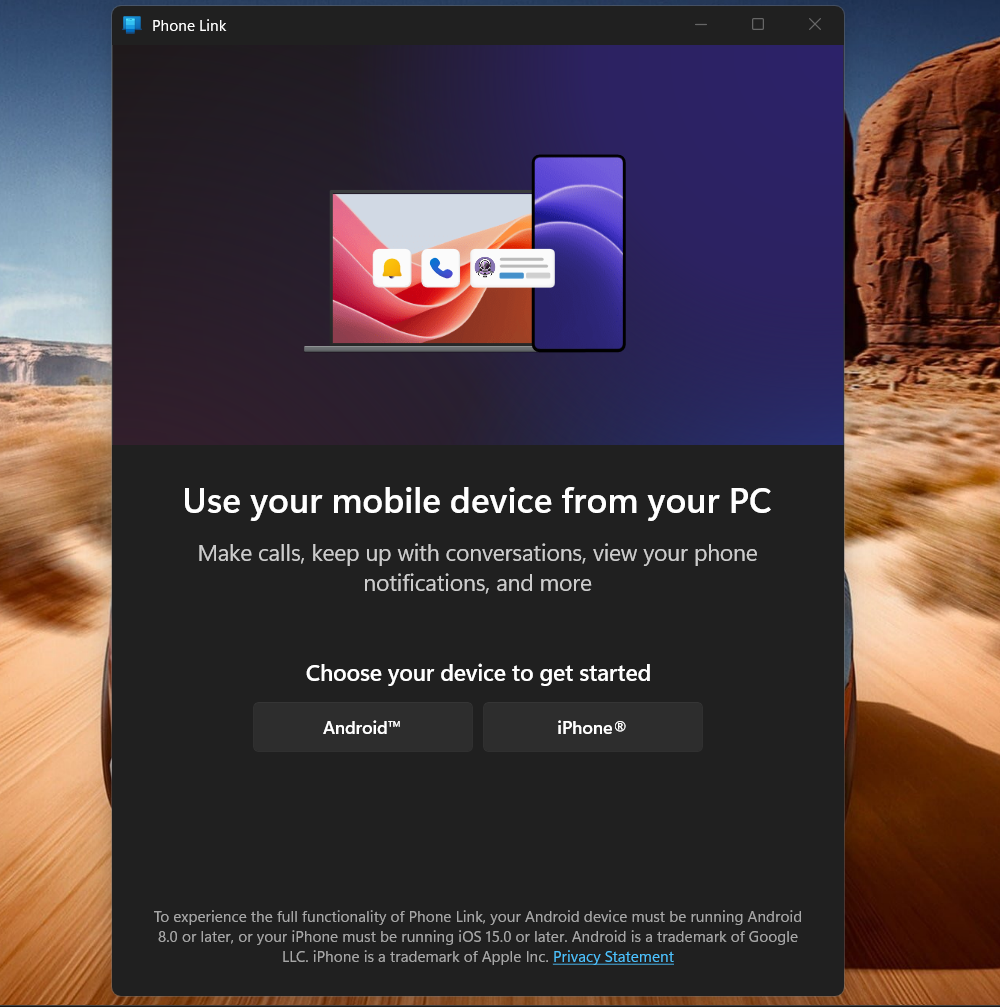
1. Launch the Phone Link App on Your Windows PC
Start by opening the Phone Link app. If it’s not already installed, you can download it from the Microsoft Store.
2. Turn On Bluetooth on Both Devices and Pair Using a QR Code
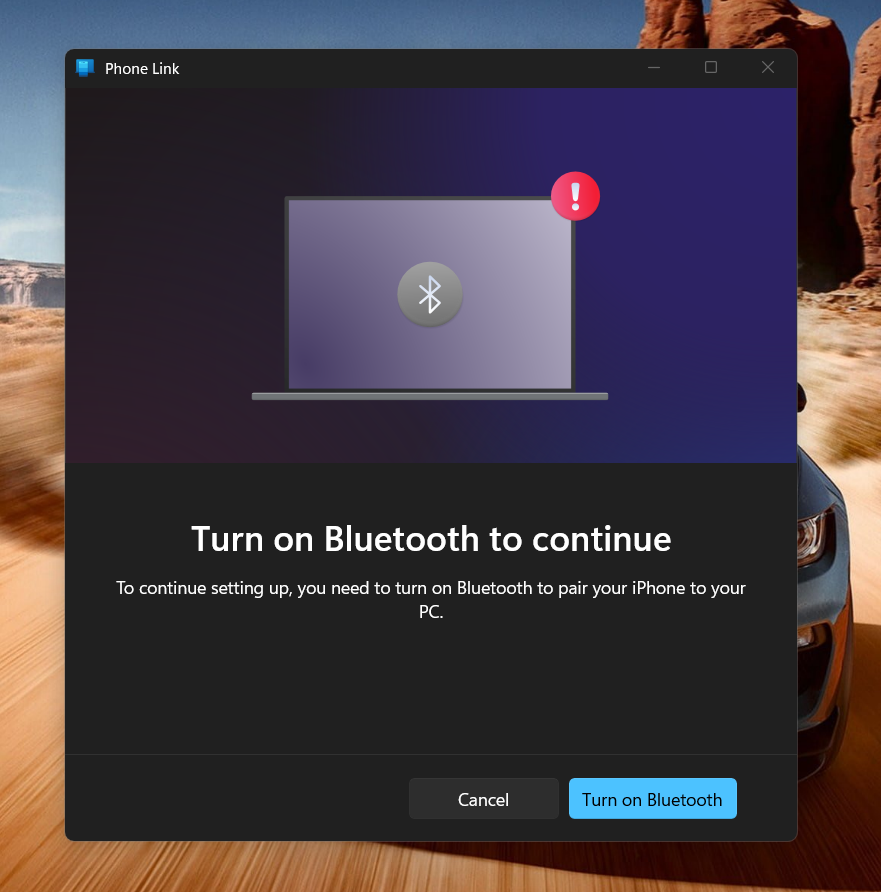
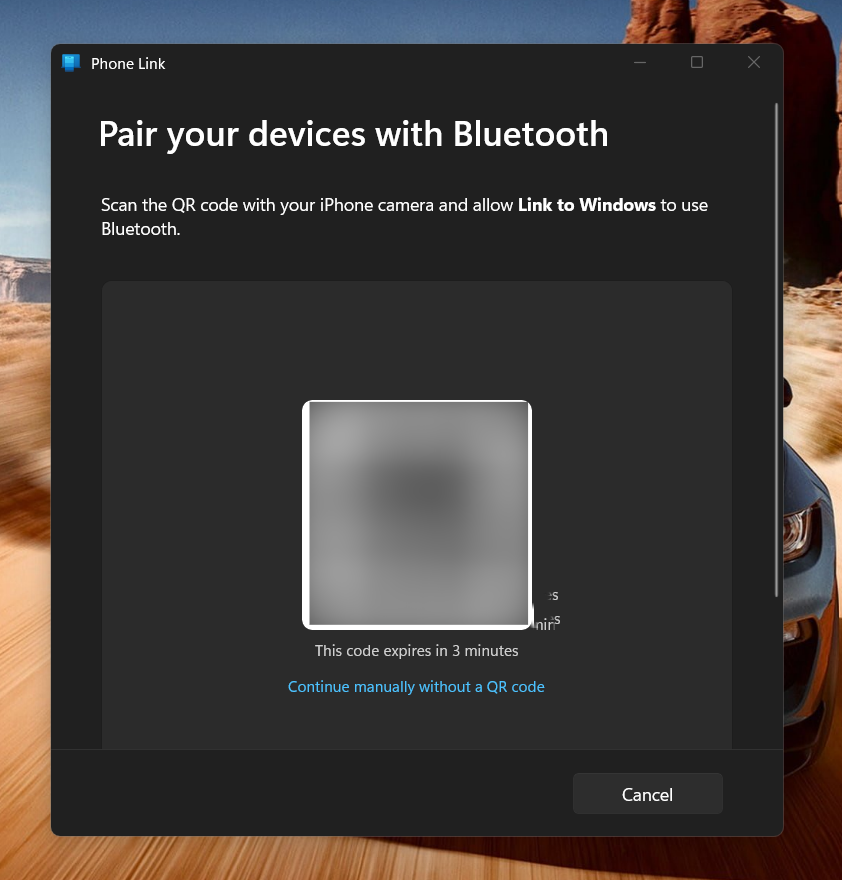
Ensure Bluetooth is enabled on both your iPhone and Windows PC. Then, follow the on-screen instructions in the Phone Link app to pair the devices. The app will display a QR code, simply scan it with your iPhone’s camera to initiate the pairing process.
💡 Tip: If you prefer not to use the QR code, you can pair manually by visiting https://aka.ms/startLinking in your iPhone’s browser.
3. Sign in to Your Microsoft Account (Optional)
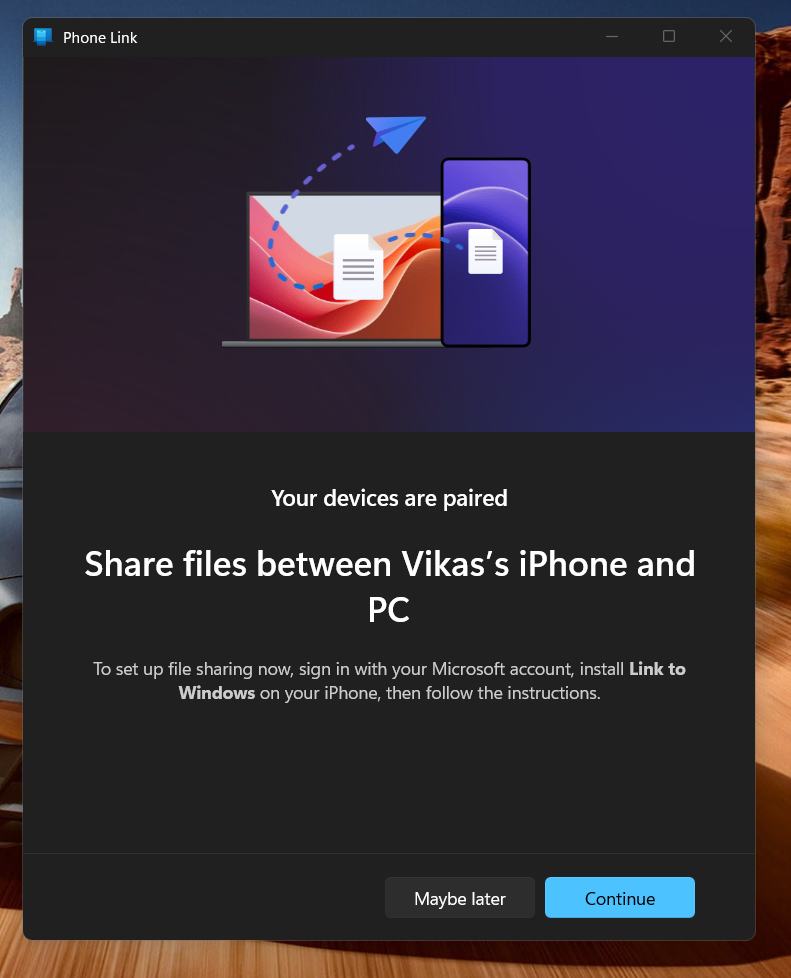
Once paired, you’ll see a prompt asking you to sign in to your Microsoft account. You can either sign in immediately or skip this step and do it later, depending on your preference.
4. Sync iPhone Content to Your PC
Follow the instructions on the next screen to sync your iPhone’s content with your PC. This allows access to key features like messages, calls, and notifications.
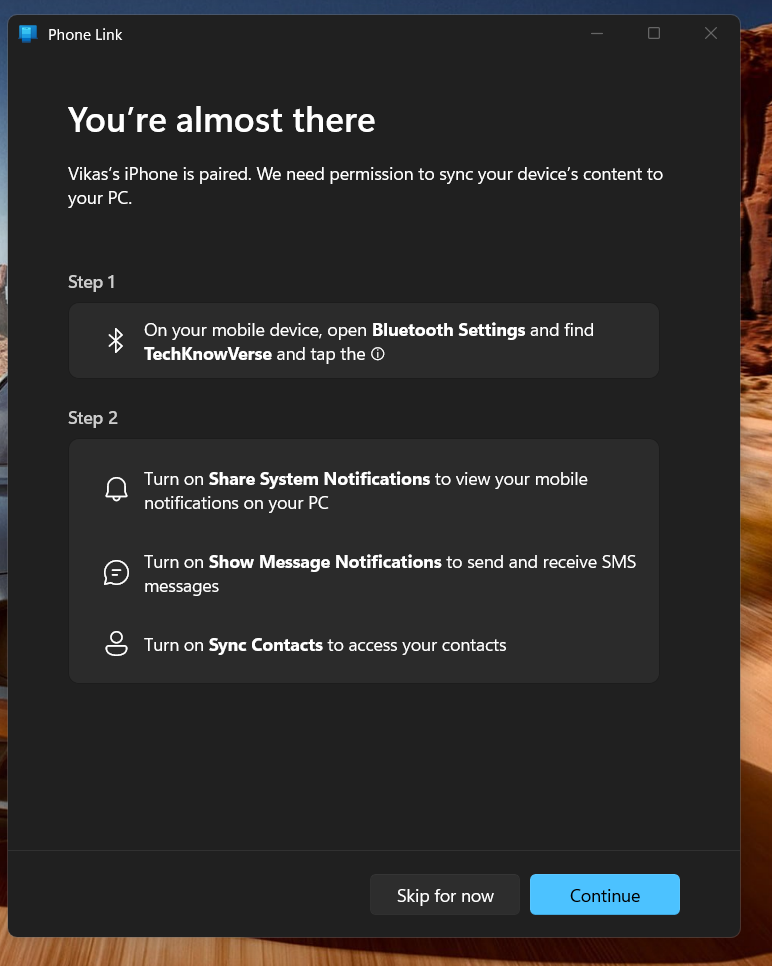
5. Tap Continue to Access the Phone Link Home Screen
Once syncing is complete, tap Continue to proceed. You’ll be taken to the Home screen of the Phone Link app, where everything is neatly organized.
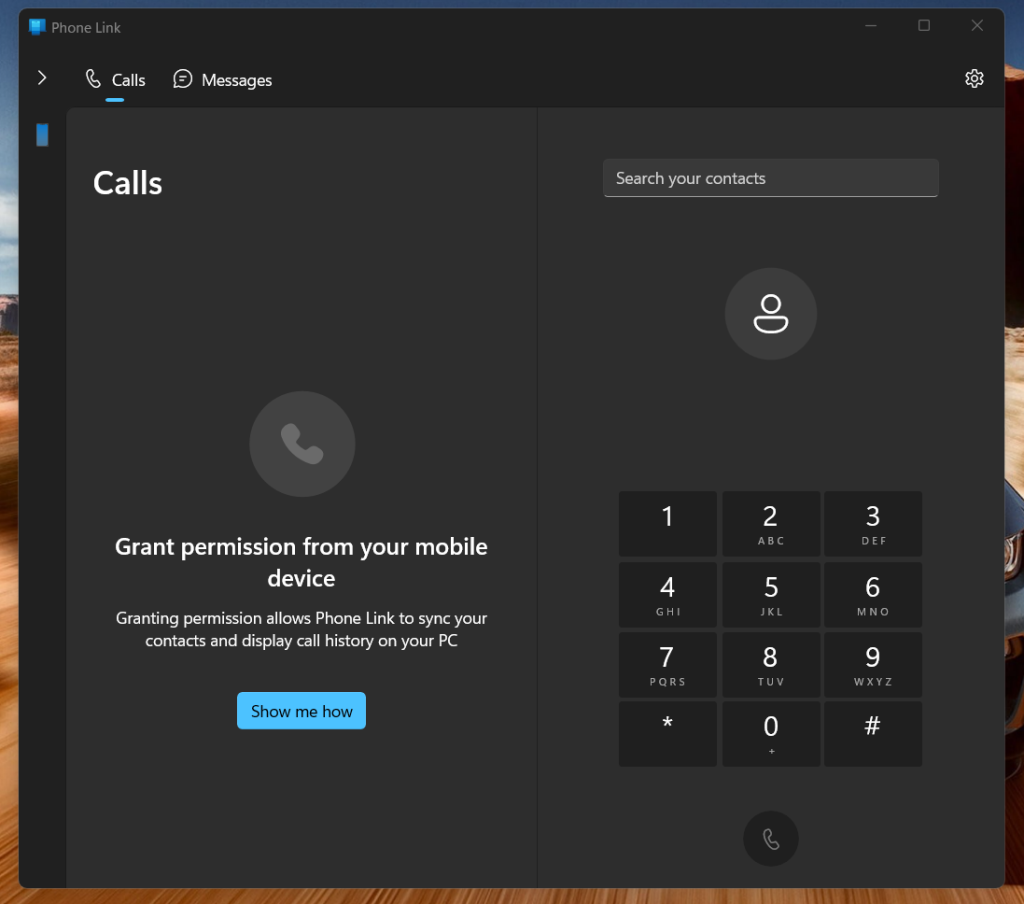
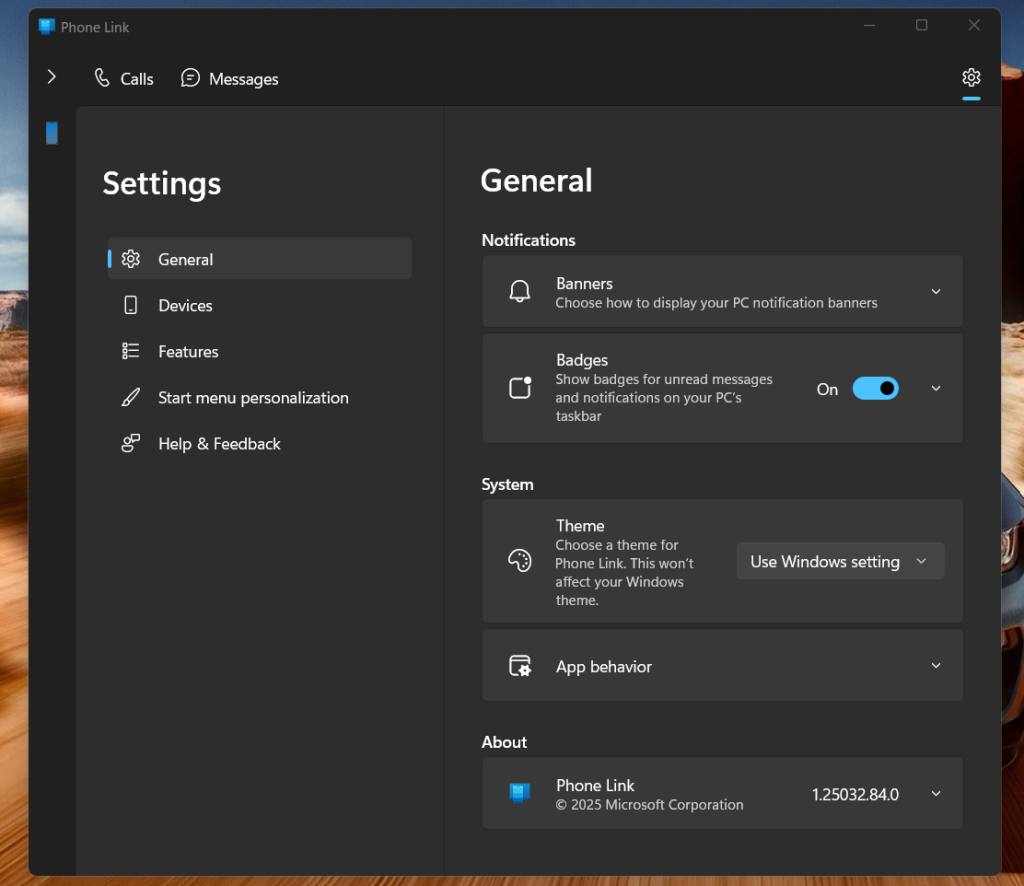
6. Customize Settings for a Seamless Experience
From the home screen, you can explore additional settings, enable or disable features, and fine-tune the app to suit your needs. This ensures a smooth and seamless integration between your iPhone and Windows PC.
Using the Phone Link app is a convenient way to bridge the gap between your iPhone and your Windows PC. Whether you want to take calls, read messages, or stay on top of notifications without picking up your phone, this simple setup brings Apple and Microsoft closer than ever.