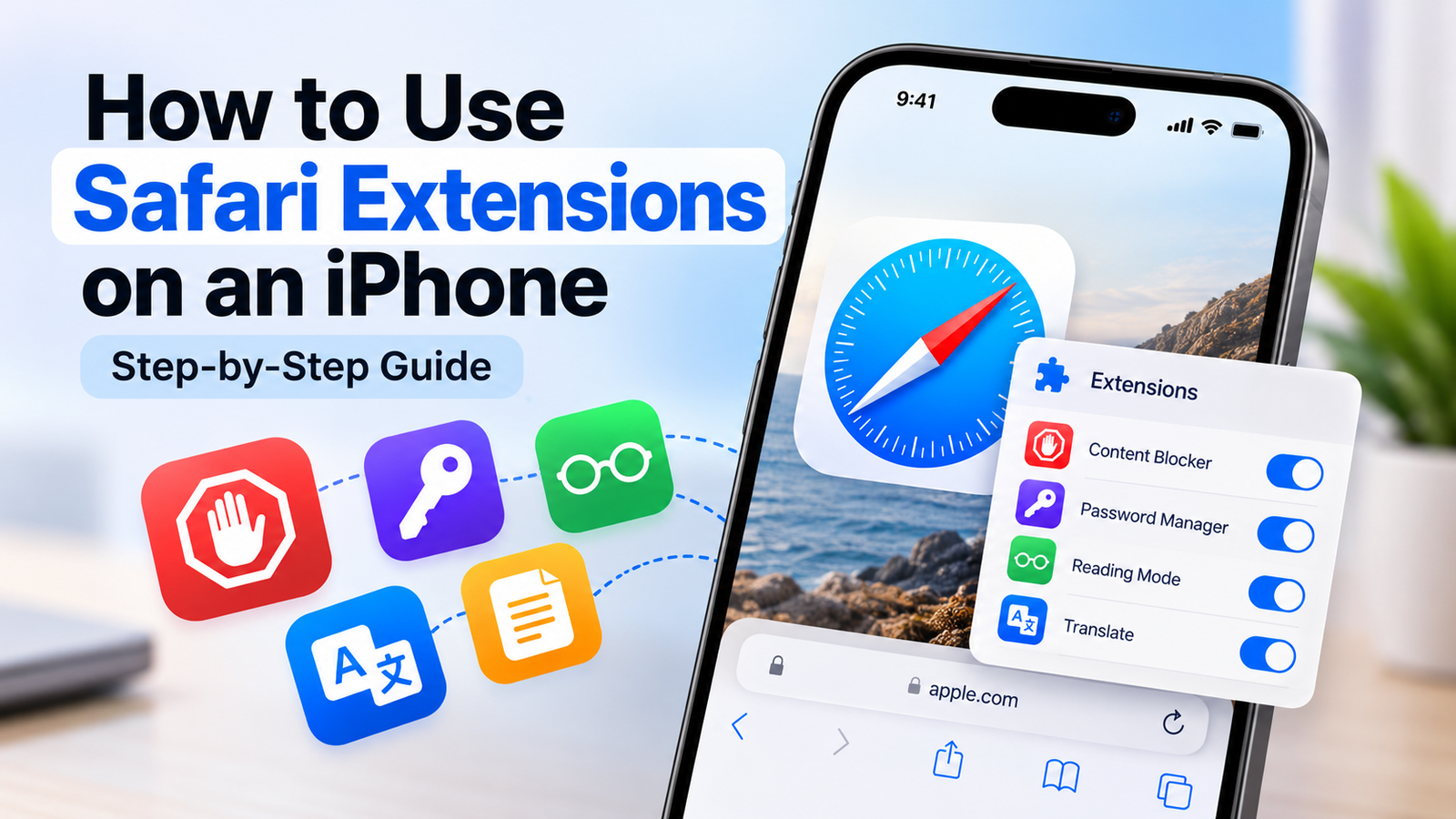

Got bored with the same old interface of Safari on your iPhone? Well, using Safari extensions can make your browsing experience more useful by adding features that aren’t available in the browser by default.
In this article, I’ll guide you through how to use Safari extensions on an iPhone, including how to find, install, enable and manage them.
Safari extensions are small software add-ons that extend the browser’s capabilities. Depending on the extension, they can help you block unwanted content, manage passwords, translate web pages or perform other tasks while browsing.
How to Find and Install Safari Extensions on an iPhone
Follow these steps to find and install Safari extensions on your iPhone:
- Open Settings and select the Apps option.
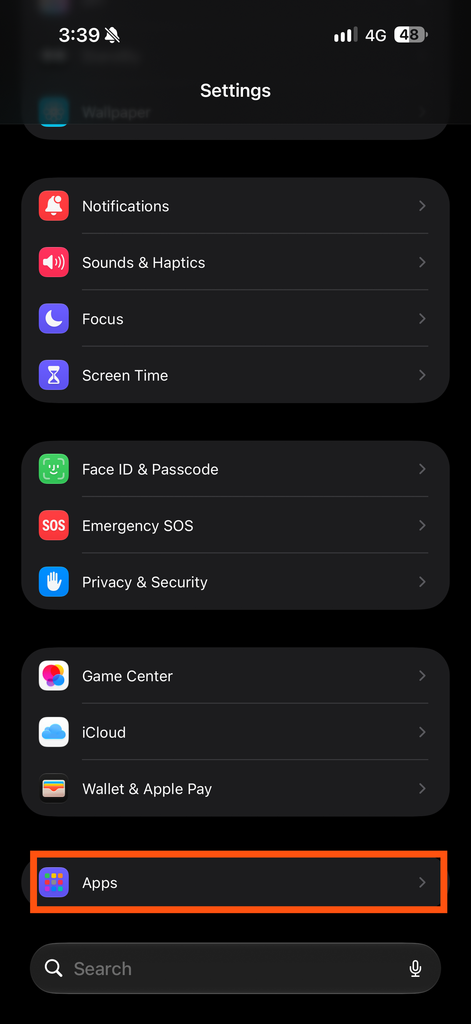
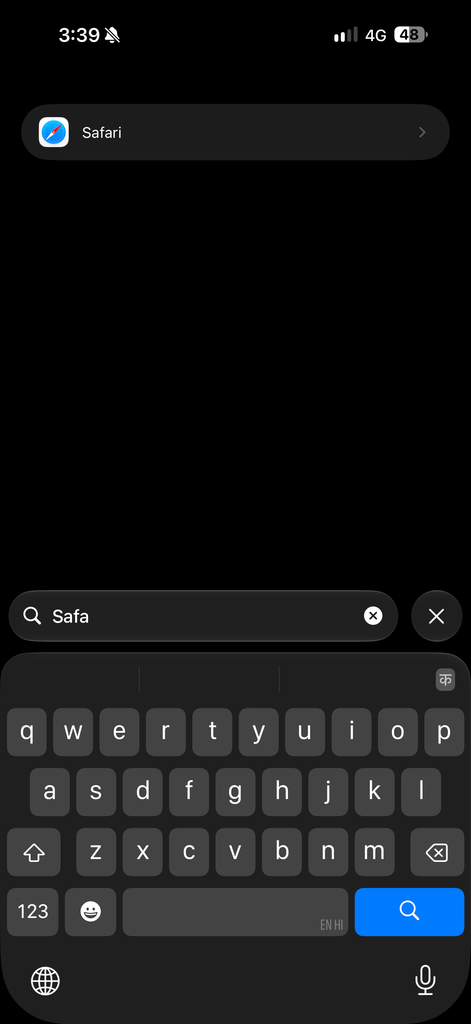
- In the Apps section, search for Safari and select it.
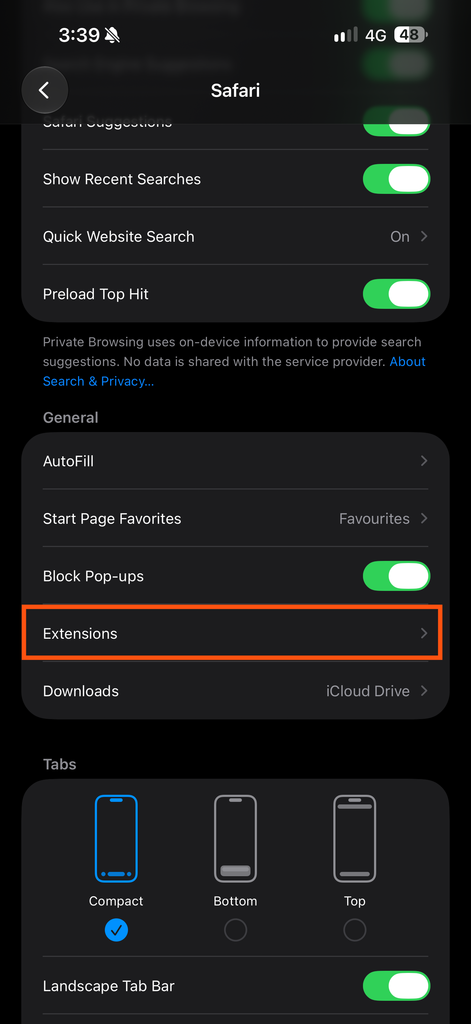
- In the Safari settings, select Extensions.
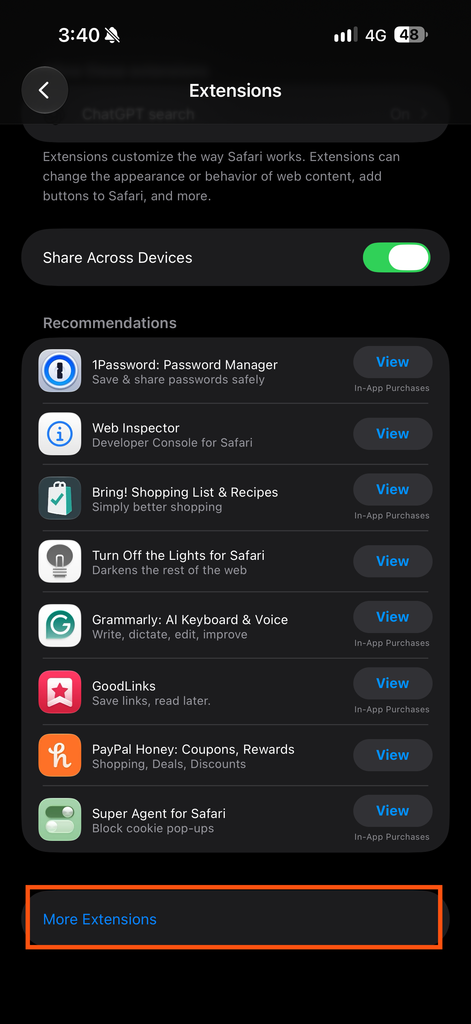
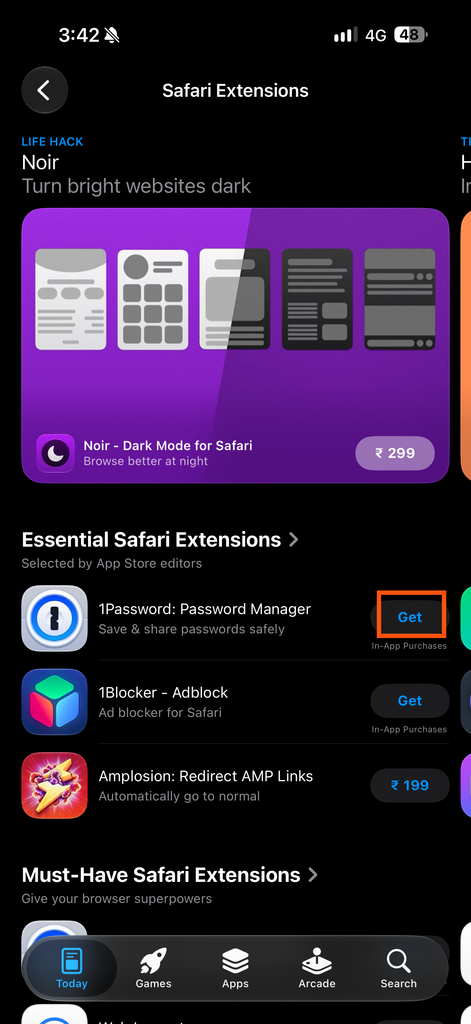
- Tap More Extensions to open the Safari Extensions section of the App Store.
- Browse the available extensions and choose one according to your needs. Tap Get if the extension is free or tap its displayed price if it is paid. Follow the on-screen instructions to install it.
How to Enable Safari Extensions on an iPhone
How to Enable Safari Extensions on an iPhone
Installing an extension alone may not be enough to start using it. You also need to enable it in Safari’s settings. Follow these steps to do so:
- Open Settings and select Apps.
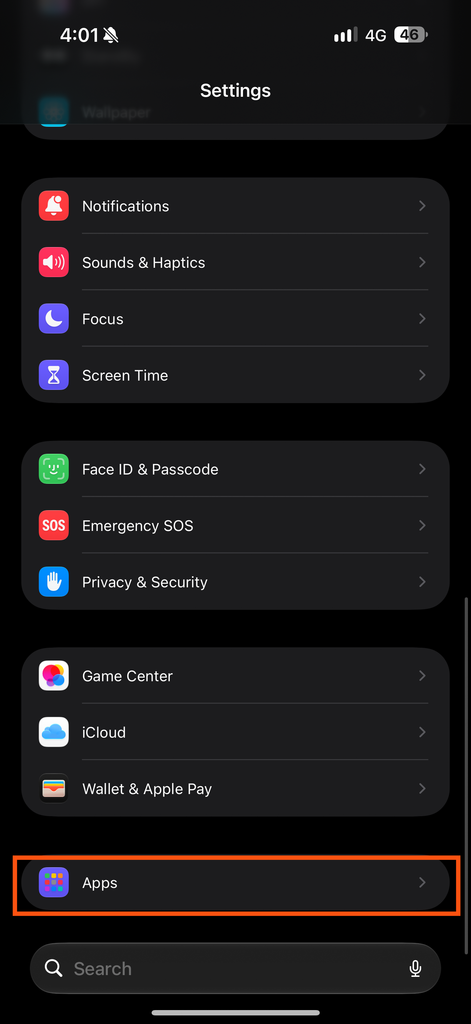
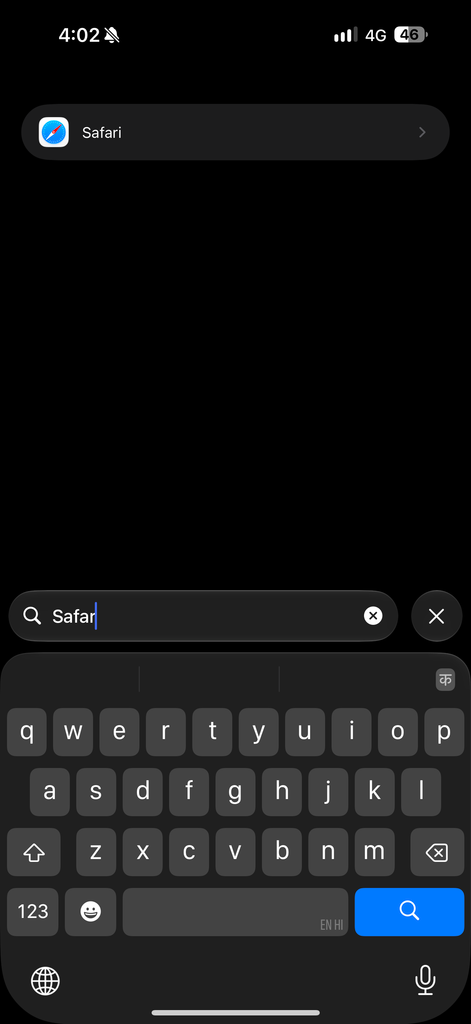
- Search for Safari and select it.
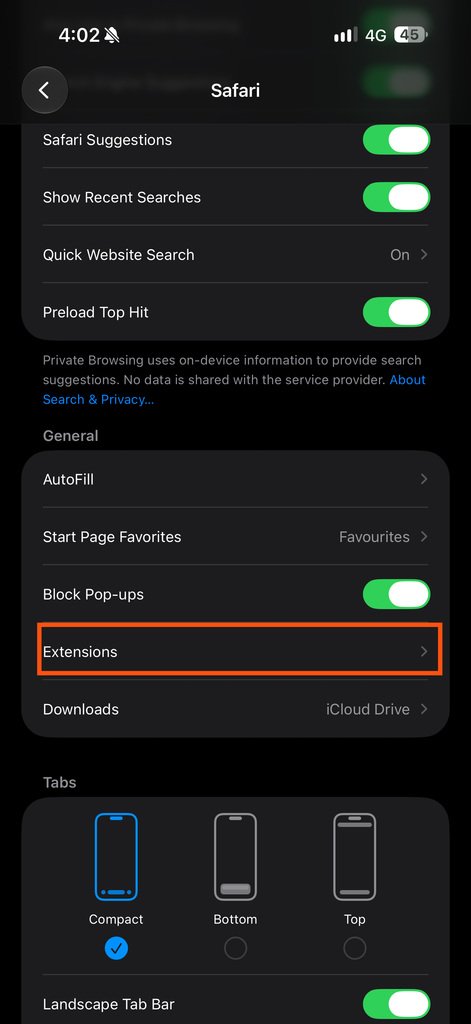
- In the Safari settings, select Extensions.
- Select the extension you want to enable.
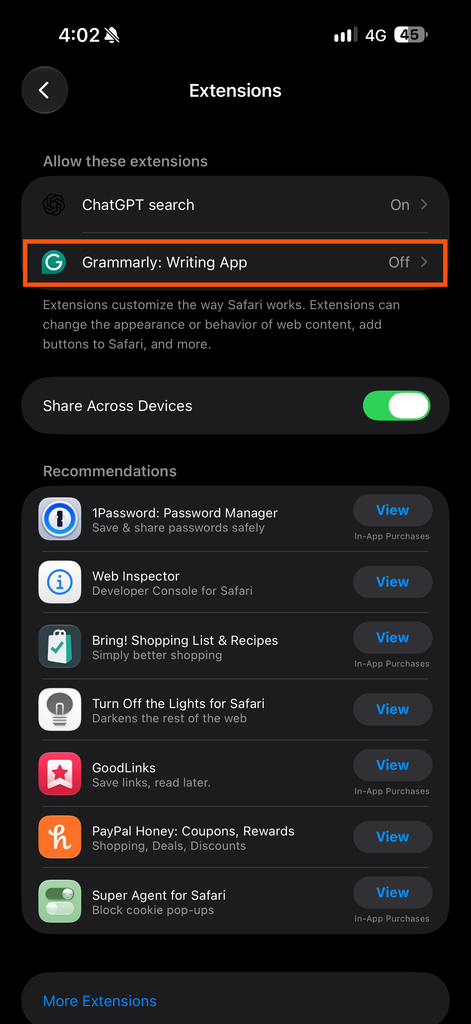
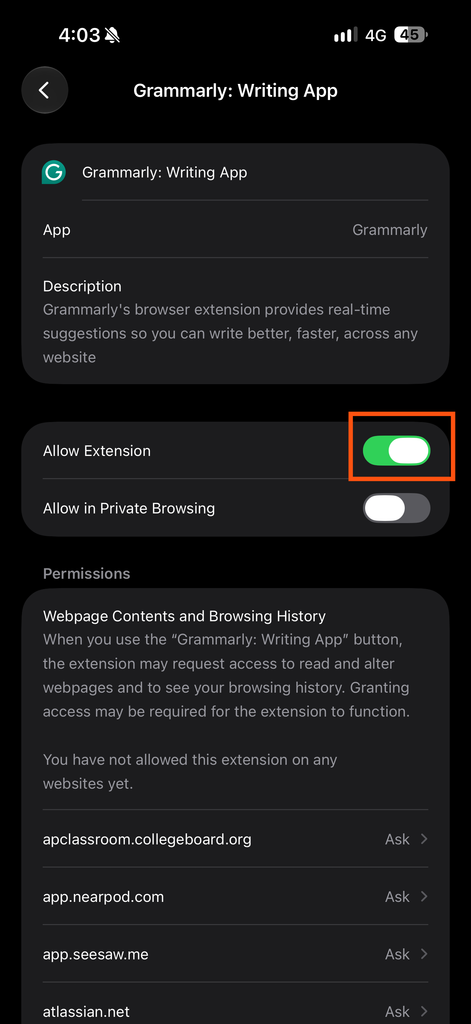
- Turn on the toggle next to the extension’s name. If prompted, review its permissions and choose the appropriate access option.
How to Manage Safari Extension Permissions on an iPhone
Safari extensions may need permission to access the websites you visit to perform their intended functions. You can review these permissions and control which websites an extension can access.
Follow these steps to manage extension permissions:
- Open Settings and select Apps.
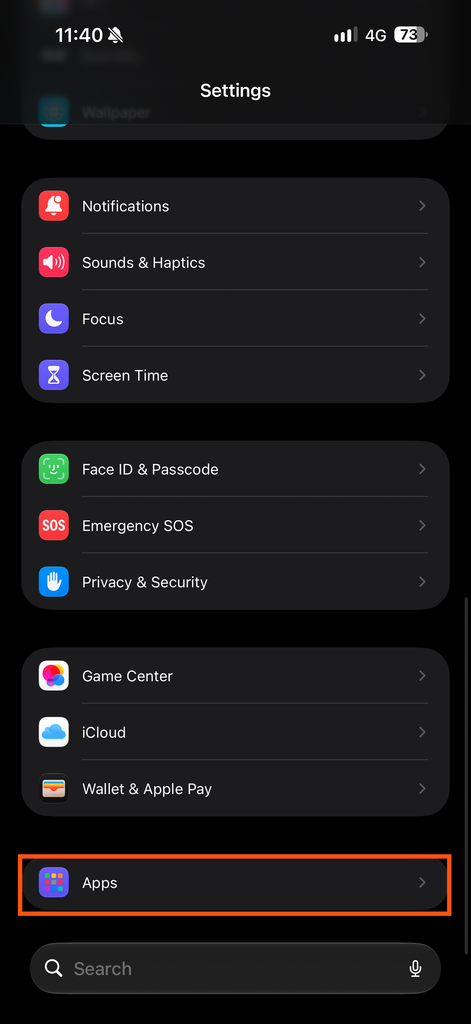
- Search for Safari and select it.
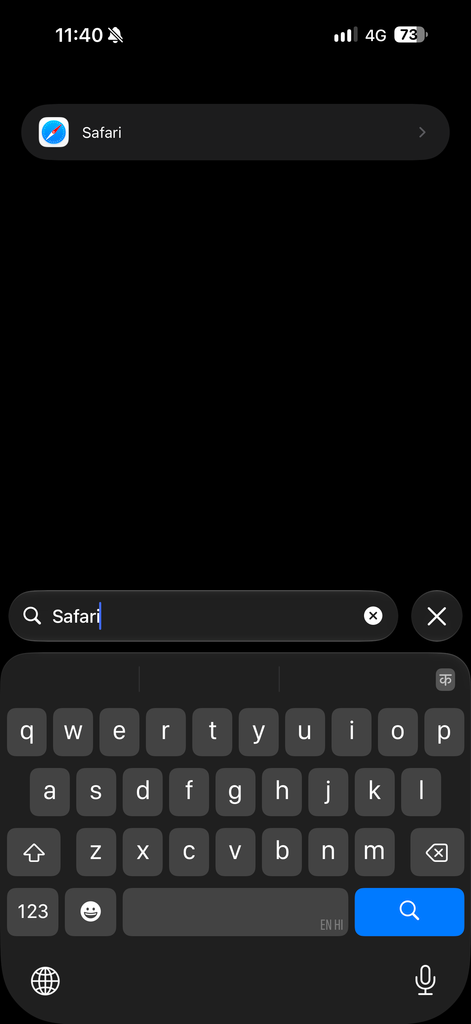
- Tap Extensions and choose the extension you want to manage.
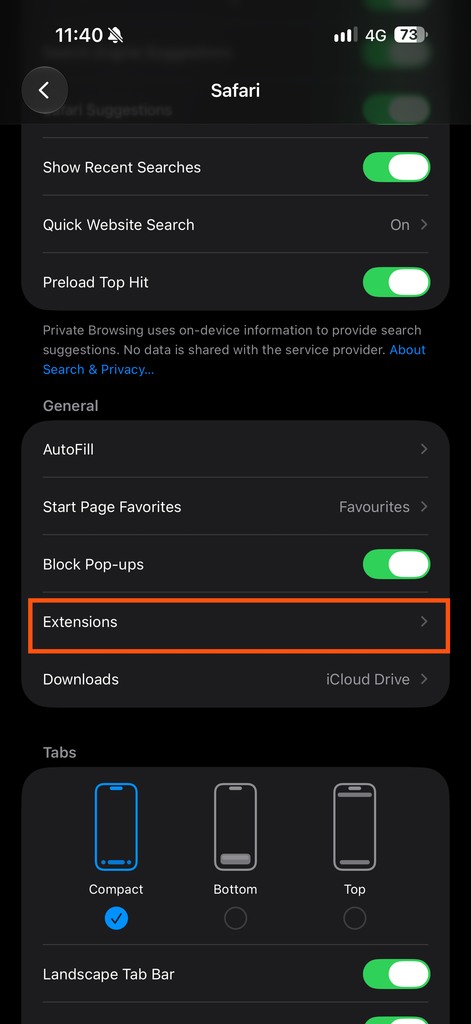
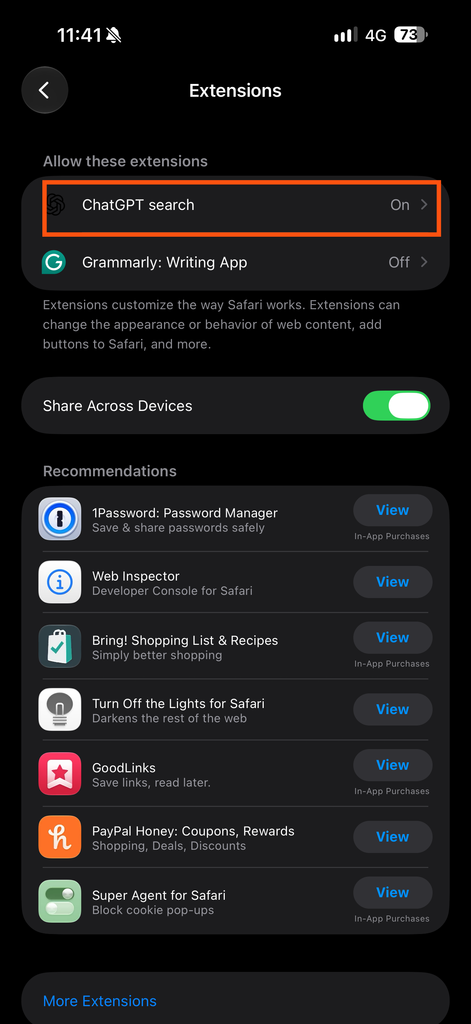
- Review the available website access and permission options.
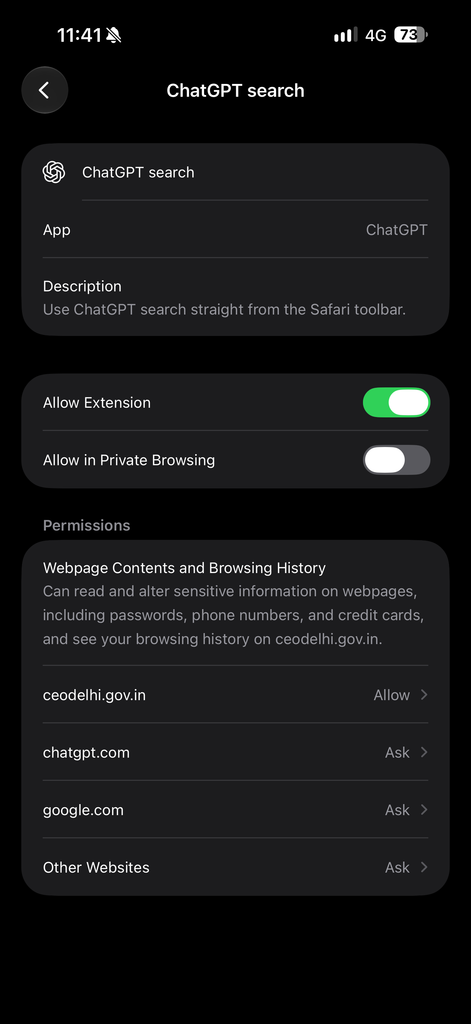
- Adjust the permissions according to your preference. Where available, you can allow access to specific websites, deny access or require the extension to ask before accessing a website.
Before granting access, check what the extension does and whether it genuinely needs permission to read or modify website content. Limiting access to the websites where you need the extension can help protect your privacy.
How to Disable or Remove Safari Extensions on an iPhone
If you no longer need a Safari extension, you can disable it temporarily or remove the associated app from your iPhone.
To Disable a Safari Extension
- Open Settings and select Apps.
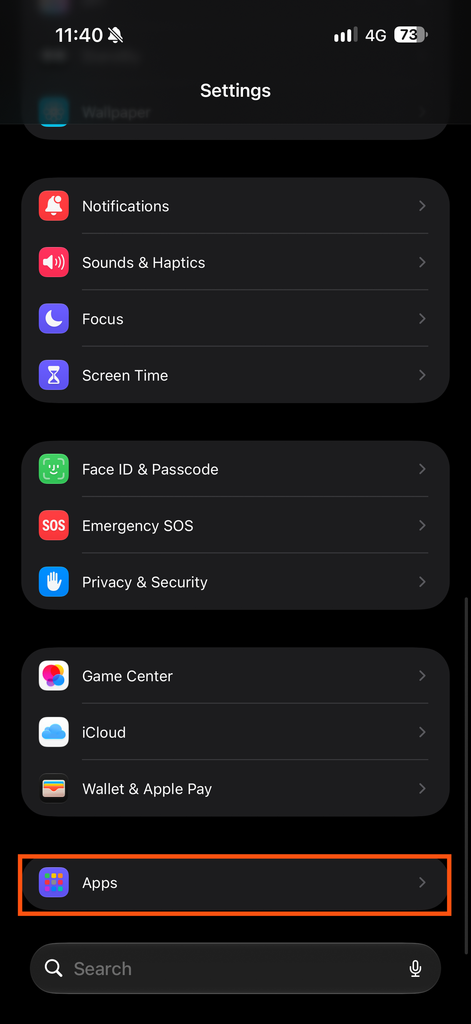
- Search for Safari and select it.
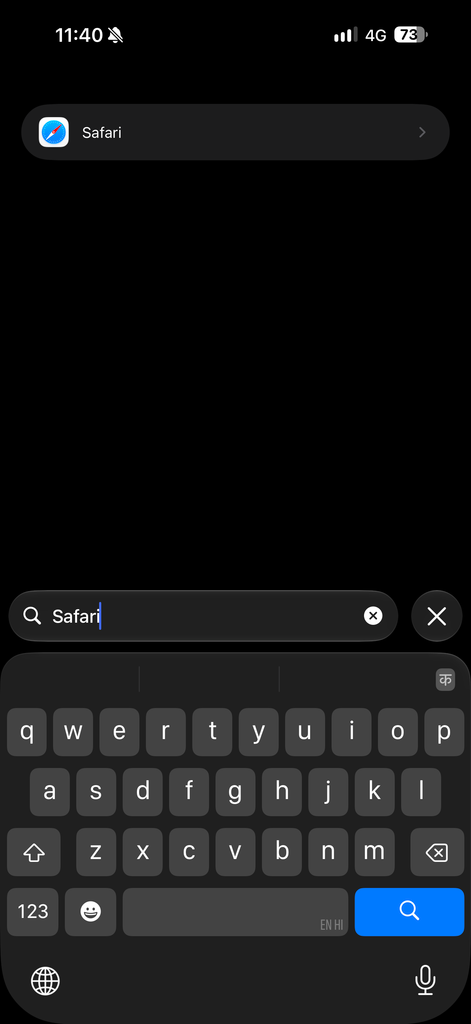
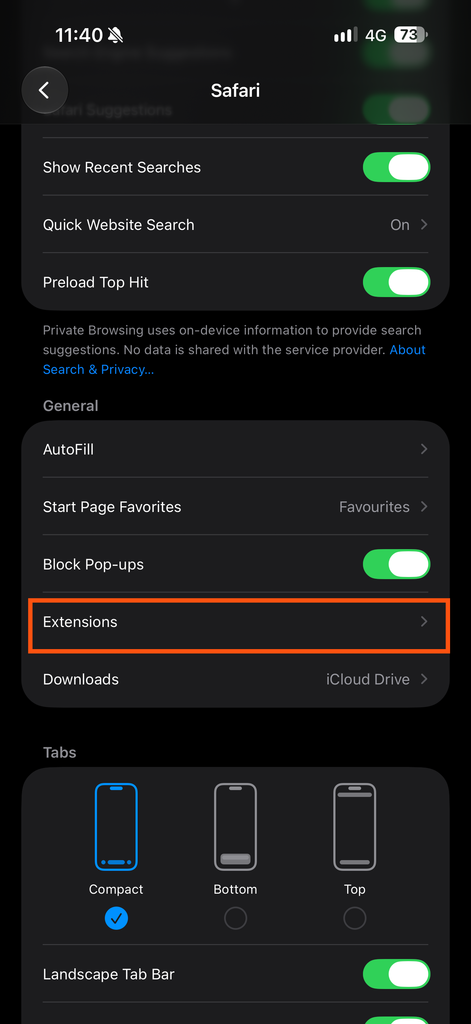
- Tap Extensions and choose the extension you want to disable.
- Turn off the Allow Extension toggle to disable the Safari extension.
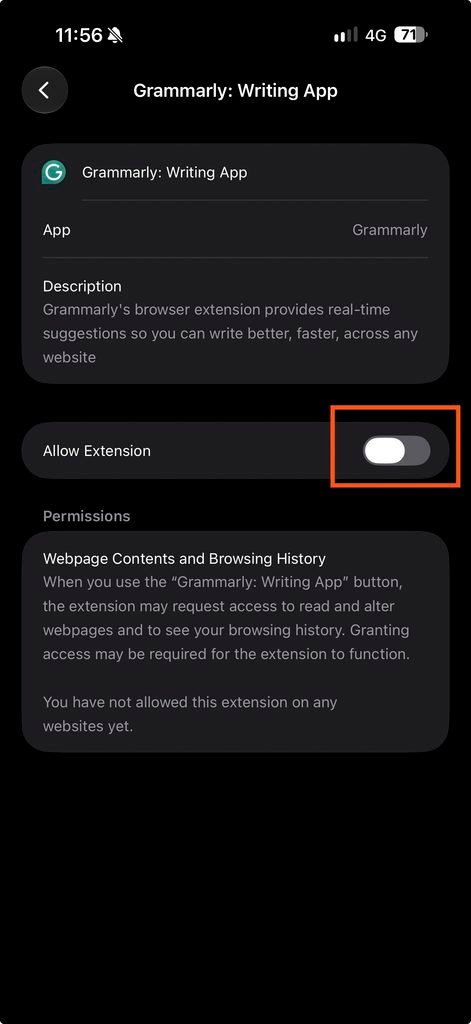
Disabling an extension stops it from functioning in Safari, but it does not necessarily uninstall the app associated with it.
To Remove a Safari Extension
- Find the app associated with the extension on your iPhone.
- Touch and hold its app icon.
- Select Remove App, then tap Delete App to confirm.
Keep in mind that deleting the associated app may remove its Safari extension as well. If you only want to stop using an extension temporarily, disabling it in Safari’s settings is the better option.
What to Do If Safari Extensions Are Not Working on an iPhone
If a Safari extension isn’t working as expected, there could be several reasons, such as incorrect permissions, compatibility issues or an outdated app. Try the following solutions to identify and fix the problem.
1. Check Whether the Extension Is Enabled
Open Settings → Apps → Safari → Extensions and select the extension. Make sure it is enabled.
2. Review Website Permissions
Some extensions need permission to access the website you’re visiting. Check the extension’s settings and grant the necessary access if you trust the extension and the website.
3. Update the Associated App
Open the App Store and check whether an update is available for the app that provides the extension. Installing the latest version may resolve compatibility or functionality issues.
4. Check iOS Compatibility
Make sure your iPhone is running an iOS version supported by the extension. Some extensions may require a particular version of iOS or may not support every device.
5. Restart Safari and Your iPhone
Close Safari and open it again. If the extension still doesn’t work, restart your iPhone and check whether the problem has been resolved.
6. Disable and Re-enable the Extension
If the problem persists, turn the extension off in Safari’s settings, then enable it again. Review any permission prompts that appear.
If none of these solutions works, consult the developer’s support page to check for known issues or compatibility limitations.
Are Safari Extensions Safe to Use on an iPhone?
Safari extensions obtained through Apple’s official App Store are generally a safer choice than downloading software from unverified sources. However, they can still pose security and privacy risks, depending on their functionality and the permissions you grant them.
One reason to prefer the App Store is that Apple reviews apps for compliance with its requirements and uses security measures designed to identify malicious software. Safari also provides permission controls that help limit an extension’s access to websites. However, these protections do not guarantee that every extension is free from security or privacy concerns.
There are risks to consider as well. Some extensions may request permission to access website content, which could expose sensitive information on the websites you visit. Depending on the extension’s capabilities and the access you grant, this might include information entered into forms or other content displayed on a webpage. Therefore, it is important to review an extension’s permissions carefully and only install extensions from developers you trust.
As a general rule, grant an extension only the access it needs to perform its intended function. If an extension requests broader permissions than you are comfortable with, consider choosing an alternative.
Conclusion
I hope you now understand how Safari extensions can make everyday tasks easier and improve your browsing experience on an iPhone. Installing and managing them is relatively straightforward, and with a little care when granting permissions, you can make the most of their features while protecting your privacy. So, explore the available extensions and choose the ones that best suit your needs.