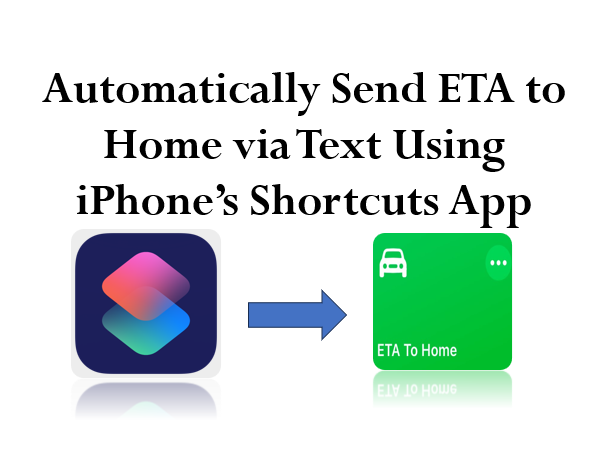

In today’s fast-paced world, staying connected and updating loved ones about your whereabouts has never been easier, thanks to the iPhone’s Shortcuts app. One particularly useful shortcut allows you to automatically send your estimated time of arrival (ETA) to your home via text message, keeping your family or housemates informed in real-time. This guide will walk you through creating a custom shortcut that sends your ETA to your home address in just a few taps—perfect for anyone who frequently commutes or drives home after work or school.
Here’s how you can set it up on your iPhone using the Shortcuts app.
Steps to Create a Shortcut for Automatically Sending ETA
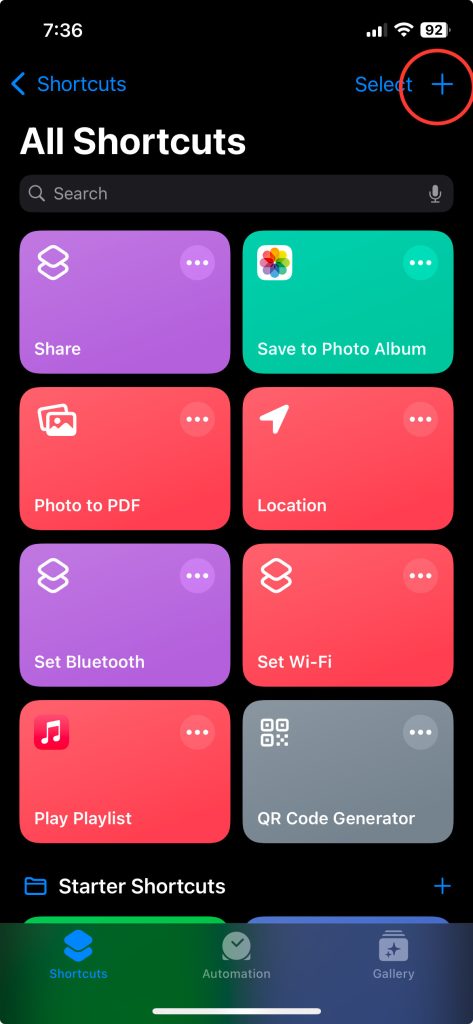
1. Open the Shortcuts App and Tap the “+” Icon
First, launch the Shortcuts app on your iPhone. In the top-right corner, tap the “+” icon to create a new shortcut. This will allow you to start building your custom automation for sending your ETA.
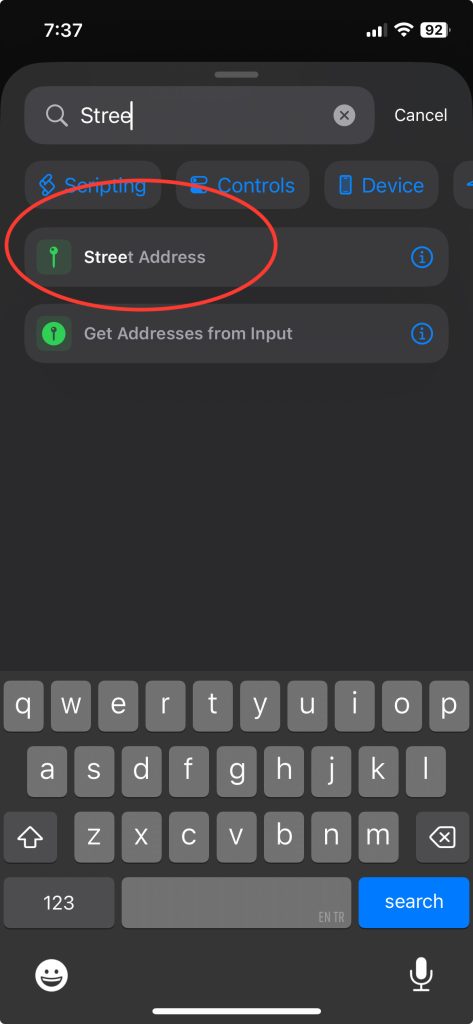
2. Search for “Street Address” and Tap on It
Next, in the search bar at the bottom, type “Street Address” and select the appropriate option. This allows you to input the destination address where you’re heading (in this case, your home address).
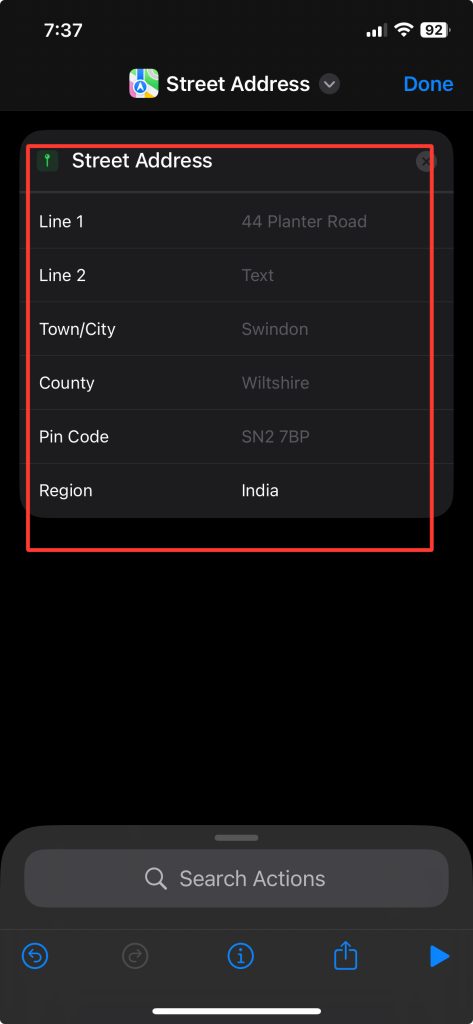
3. Enter Your Address Details
Once the “Street Address” action is added, you’ll be prompted to input your home address or any destination where you want to send your ETA. Make sure the address is accurate so that the travel time is calculated correctly.
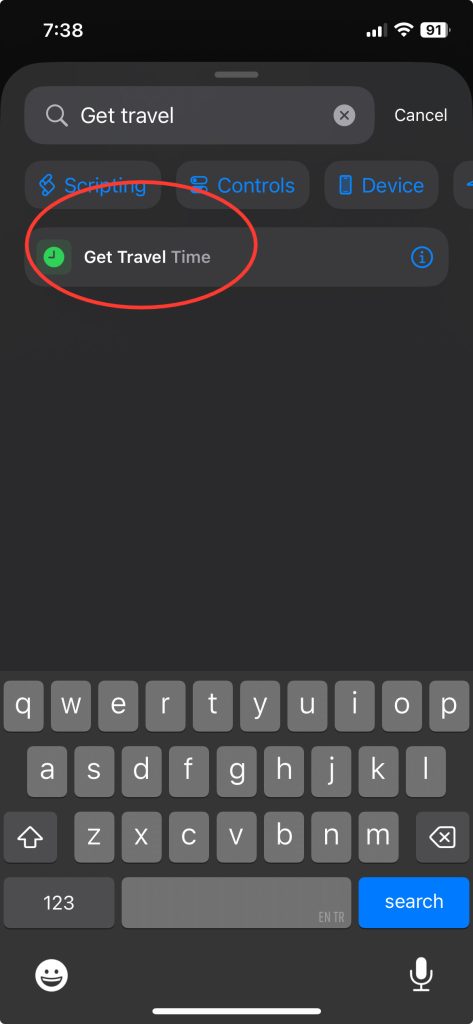
4. Search for “Get Travel Time” and Select It
Now, in the search bar again, type “Get Travel Time” and choose this option. This action will calculate how long it will take you to reach the destination based on your current location, traffic conditions, and your mode of travel (e.g., driving or walking).
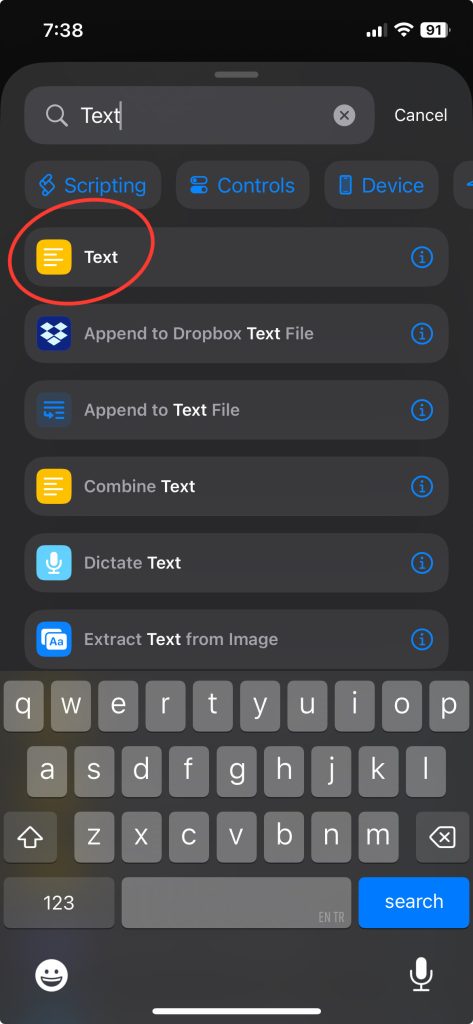
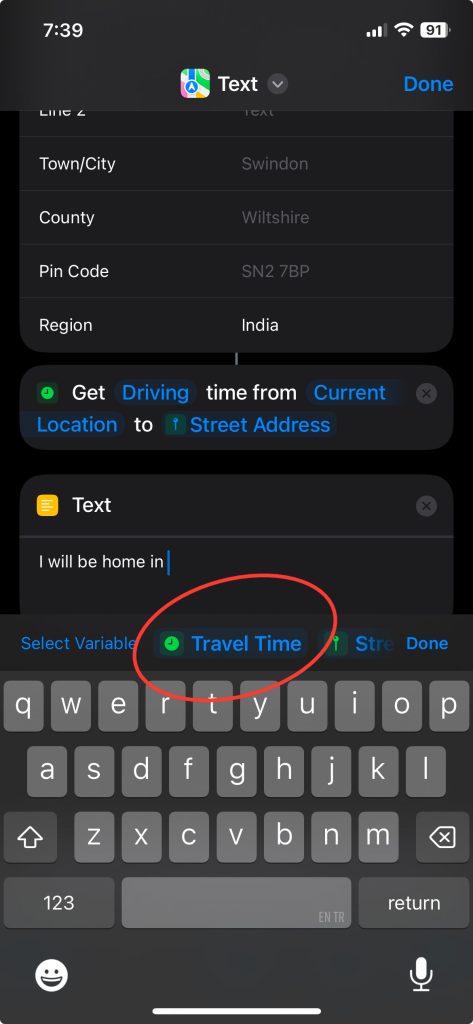
5. Search for “Text” and Type Your Message
Next, search for the “Text” action. Here, you can type the message you want to send alongside your ETA. A simple message could be: “I’m on my way home, and I’ll be there in approximately [Travel Time].” Be sure to select “Travel Time” so that the ETA is dynamically added to the message as shown in the steps below.
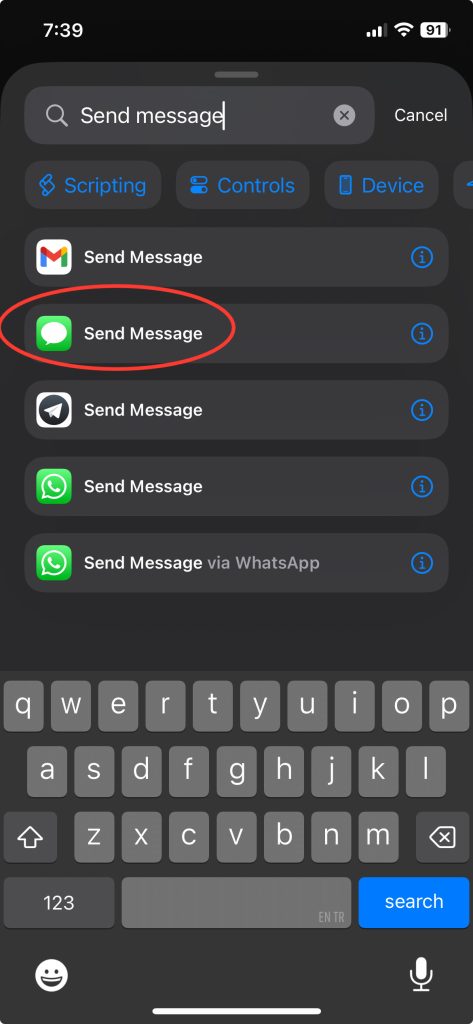
6. Add “Send Message” and Choose Your Recipient
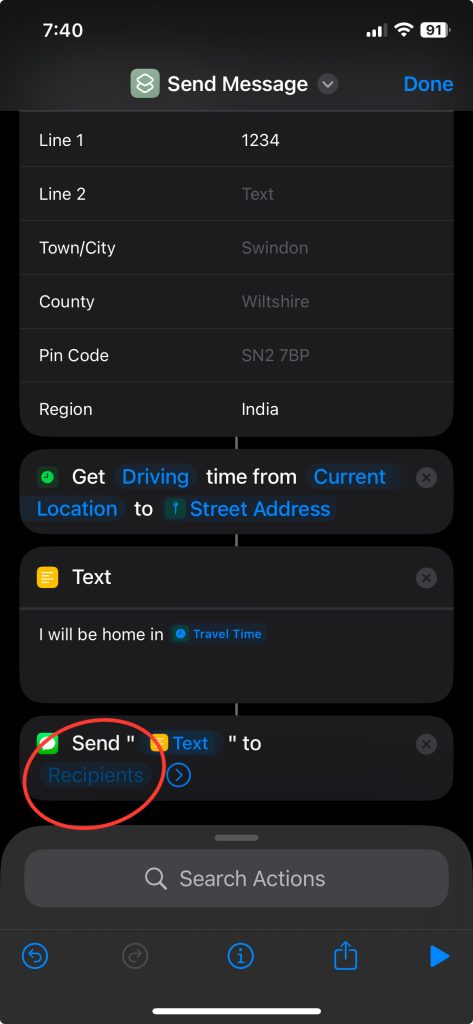
Search for “Send Message” and add it to the shortcut. Select the recipient (this can be a specific person, such as your spouse or a group chat with family members). If you don’t want to be prompted to confirm the ETA before it’s sent, toggle off the “Show When Run” option. This allows the message to be sent automatically without further interaction.
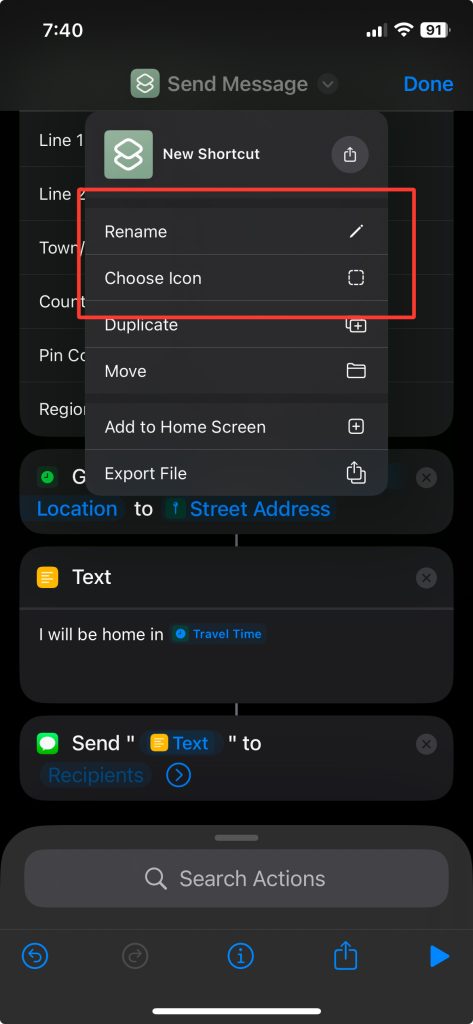
7. Customize the Shortcut Name and Icon, Then Tap “Done”
Finally, to make your shortcut more identifiable, you can rename it and change its icon to something meaningful, like a car or house icon. Once you’re satisfied with your shortcut’s setup, tap “Done” in the top-right corner.
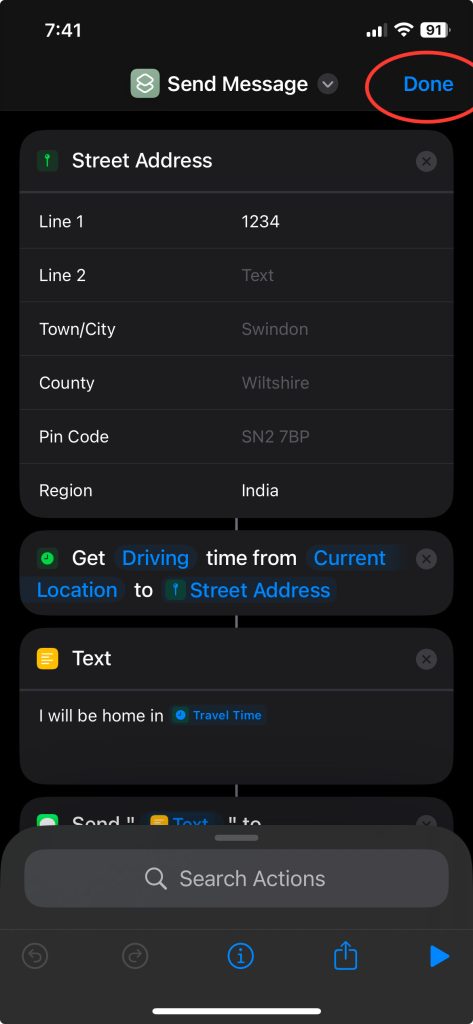
And that’s it! You’ve successfully created a shortcut that automatically sends your ETA to your home.
Conclusion
Creating a shortcut to send your ETA via text is a simple yet effective way to stay connected with loved ones. The iPhone’s Shortcuts app allows you to automate this process, saving you time while ensuring those at home are always informed of your whereabouts. Whether you’re commuting, traveling, or just trying to stay organized, this shortcut can make life a little easier.
By following the steps above, you can streamline the process of keeping in touch, and once set up, it’ll only take one tap to let your family know when to expect you. Try it out and customize it further to suit your needs!