
Introduction
Maintaining your PC on a daily basis is not an easy task because most people don’t even know what the actual problems are. Most Windows PCs, no matter how good their specifications are, tend to slow down over time. The duration may vary from person to person, but the reasons are quite common.
One of the major reasons is background activity performed by different apps simultaneously. Whenever you install an application, it often comes with background processes to function properly. A single app does not impact performance much, but as the number of third-party apps increases, these background processes start consuming system resources continuously.
Another common reason is startup applications that launch automatically when you boot your PC, causing slower startup times.
This is just the tip of the iceberg. Without proper maintenance, your PC can fall into a cycle of slow performance. The good news is that you don’t need to go the extra mile. In this guide, we will explore the key factors affecting your PC’s performance and how you can maintain it to keep it running like new.
Keep Your Windows Updated
One of the most crucial things you can do is keep your Windows system up to date. Windows updates not only protect your PC from external threats but also include important security patches and performance improvements.
These updates act like a protective shield for your system, helping it defend against viruses and vulnerabilities. Along with security, updates also bring bug fixes that improve system stability and performance.
Ignoring updates can lead to several issues:
- Lack of new features: Updates often introduce useful features.
- Security risks: Without patches, your PC becomes vulnerable.
- Software incompatibility: Outdated systems may not support new apps.
- Performance issues: Bugs and crashes become more frequent.
Manage Startup Programs
Startup programs are applications that automatically launch when your computer boots or when you log in. While some of them are useful, having too many startup apps can significantly slow down your system.
Many applications add themselves to startup without user awareness. As a result, when you start your PC, multiple apps begin loading simultaneously, consuming CPU, RAM, and disk resources.
This leads to slower boot times and reduced performance. Disabling unnecessary startup apps can free up resources and make your system start faster and run smoother.
Regularly Clean Disk Space
The amount of free storage available plays a crucial role in your computer’s performance. Over time, your disk gets filled due to several reasons:
- Temporary files
- Windows update files
- Unnecessary downloads
- Recycle Bin data
- Large games
- Malware
- Cache files
How it affects performance
A full disk can disrupt many system operations. It slows down file access, increases chances of crashes, and affects overall responsiveness. When storage is low, the operating system may fail to create necessary temporary (page/swap) files, leading to memory issues.
Common problems include:
- Slow file access
- System instability or crashes
- Increased disk usage (thrashing)
Why cleaning helps
Freeing up disk space allows your system to function properly again. It restores room for virtual memory, improves responsiveness, and helps Windows perform background operations efficiently.
Use Reliable Antivirus & Security Tools
Why antivirus is important
Antivirus software protects your computer from threats like viruses, spyware, and malware. It works by scanning files, monitoring system activity, and blocking suspicious behavior. It also protects you from harmful websites and scans external devices like USB drives.
How malware affects performance
Malware runs in the background and consumes CPU, memory, and network resources. This results in slow performance, crashes, and system instability. It can also steal sensitive data such as login credentials and financial information.
Built-in vs Third-Party Antivirus
Built-in antivirus like Windows Defender is free and provides solid protection for everyday users who follow safe browsing practices.
Third-party antivirus solutions offer advanced features such as VPN, password managers, and parental controls, but they can also consume more system resources.
Keep Drivers Updated
What are drivers
Drivers act as a bridge between the Windows operating system and your computer’s hardware. They translate system commands into instructions that hardware components can understand.
Why they are important
Without drivers, your operating system and hardware cannot communicate effectively, which can lead to malfunction or reduced performance.
Why updating them is important
Updating drivers ensures smooth performance and system stability. Key benefits include:
- Optimization: Updated drivers improve hardware performance.
- Security: They fix vulnerabilities and protect against threats.
- Stability: Updates reduce bugs, crashes, and freezes.
- Compatibility: They ensure proper functioning with new Windows updates.
Defragment and Optimize Drives
Defragmentation is the process of reorganizing fragmented data on a Hard Disk Drive (HDD) so that related data is stored together. Over time, data becomes scattered across the disk, making it slower to access.
By rearranging data into contiguous blocks, defragmentation improves access speed and overall system performance.
HDD vs SSD
HDD (Hard Disk Drive) uses spinning disks and mechanical arms, while SSD (Solid State Drive) uses flash memory.
Key differences:
- Speed: SSDs are much faster than HDDs.
- Capacity: HDDs generally offer higher storage at lower cost.
- Price: HDDs are cheaper; SSDs are more expensive.
- Power usage: HDDs consume more power.
- Noise: HDDs are noisier; SSDs are silent.
Important: Defragmentation is useful for HDDs but not required for SSDs.
Why defragmentation improves performance
- Faster file access
- Improved boot time
- Reduced mechanical stress on HDD
- Better overall efficiency
Adjust Power Settings for Performance
Windows 11 offers three power modes: Best Power Efficiency, Balanced, and Best Performance.
- Best Power Efficiency reduces CPU usage to save battery
- Balanced mode adjusts performance based on demand
- Best Performance mode keeps the CPU running at higher capacity for maximum speed
Choosing the right mode based on your needs can significantly affect system performance.
Keep Your System Cool and Clean
Overheating is a major cause of performance degradation. It leads to thermal throttling, where the CPU or GPU reduces speed to control temperature, causing lag and slowdowns.
Dust accumulation blocks airflow and increases heat, which can damage components over time.
Basic cleaning tips
- Use a microfiber cloth for screens and surfaces
- Use compressed air for vents and keyboards
- Avoid using wet cloths
Keeping your system clean ensures better airflow and consistent performance.
Uninstall Unnecessary Programs
Windows often comes with pre-installed apps, commonly known as bloatware. These apps consume storage and system resources, increasing boot time and reducing performance.
Removing unnecessary programs frees up resources and improves system efficiency. While some apps may be useful, most users benefit from uninstalling unused ones.
Backup Your Data Regularly
Data loss can occur due to malware, system crashes, or hardware failure. That’s why maintaining regular backups is essential.
Cloud storage provides easy and universal access to your files and reduces manual effort. External hard drives are also a reliable option, especially for offline backups.
Using both methods together offers better protection and peace of mind.
Conclusion
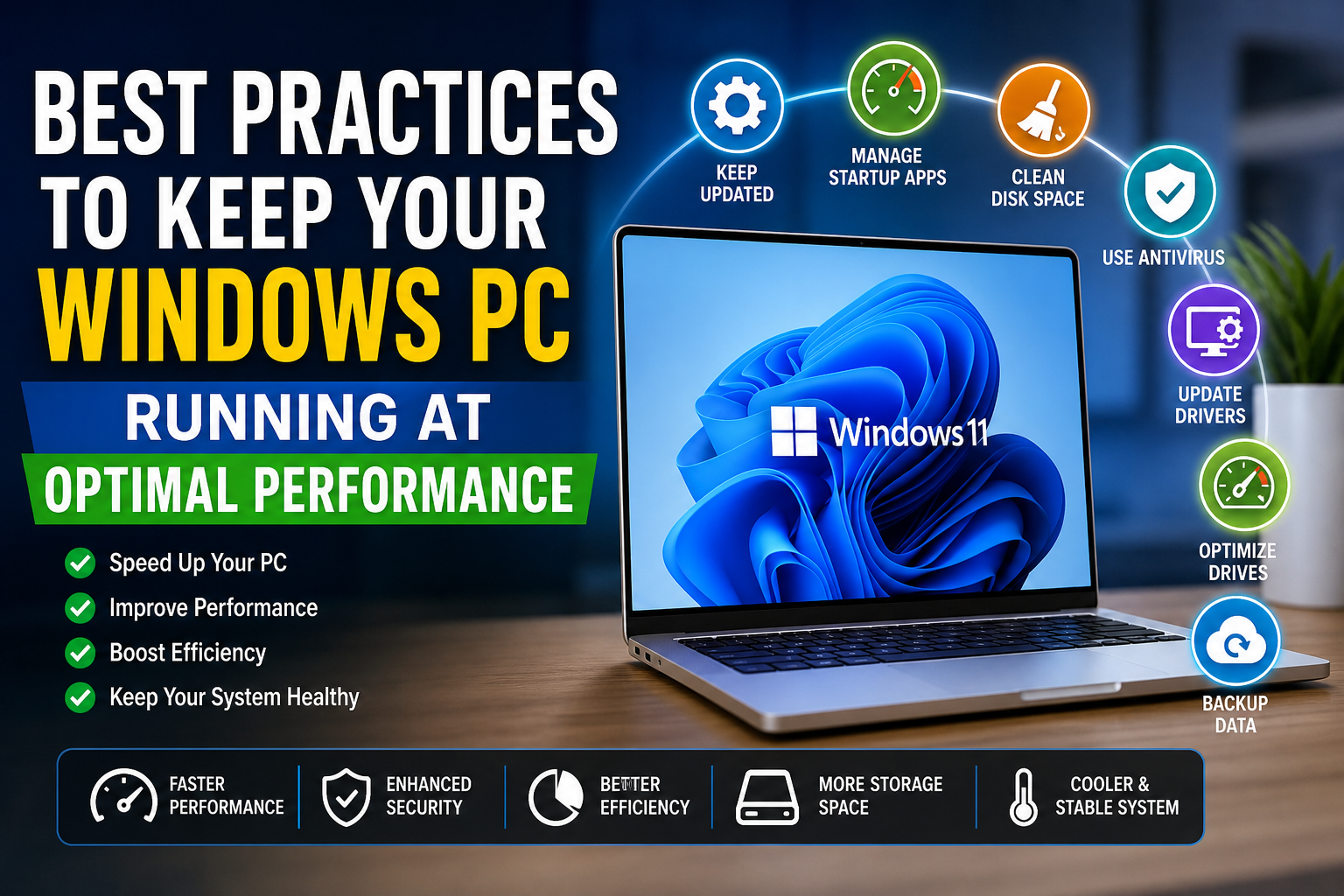
Keeping your Windows computer in optimal condition doesn’t require advanced technical knowledge—it just requires consistency. Small practices like updating your system, managing startup apps, cleaning disk space, and maintaining proper security can make a significant difference over time.
Instead of waiting for your PC to slow down, adopting these habits early ensures smooth performance, better efficiency, and longer system life. A well-maintained computer not only works faster but also provides a more reliable and frustration-free experience.
FAQ
1. Why does my Windows PC slow down over time?
Due to background apps, outdated software, disk clutter, and lack of maintenance.
2. Is Windows Defender enough?
Yes, for most users with safe browsing habits. Advanced users may prefer third-party tools.
3. How often should I clean my PC?
Basic cleaning should be done every few weeks, while internal cleaning can be done every few months.
4. Does defragmentation improve SSD performance?
No, SSDs do not require defragmentation.