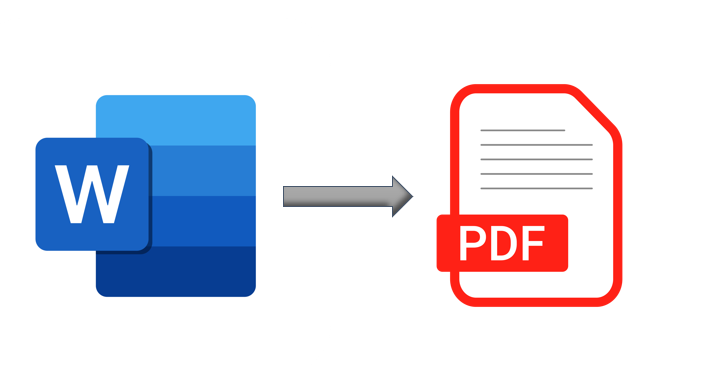

Undoubtedly, Word is one of the premier formats for business documents. However, when sharing or viewing documents across various devices or platforms, PDF is often preferred. The advantages of PDF over Word are numerous, making it the go-to choice for many. PDF documents offer consistency across devices, enhanced security, and broad compatibility, among other benefits. Often, while working, we encounter situations where converting a Word document to PDF is necessary. In this article, I will guide you on how to convert a Word file to PDF using both offline and online methods.
Using Microsoft Word
- Open the Document:
- Open the Word document you want to convert in Microsoft Word.
- Save As PDF:
- Click on the “File” menu.
- Select “Save As” (or “Export” in some versions).
- Choose the location where you want to save the PDF file.
- In the “Save as type” dropdown menu, select “PDF”.
- Click “Save”.
Using Online Methods
There are various online tools to convert Word documents to PDF. Here are a few popular options:
Using Adobe Acrobat Online
- Visit Adobe Acrobat Online:
- Go to the Adobe Acrobat online PDF converter here.
- Upload Your Document:
- Click on “Select a file” and choose the Word document you want to convert.
- The document will be uploaded and automatically converted to PDF.
- Download the PDF:
- Once the conversion is complete, click “Download” to save the PDF file to your computer.
Using Smallpdf
- Visit Smallpdf:
- Go to the Smallpdf Word to PDF converter here.
- Upload Your Document:
- Drag and drop your Word document into the designated area or click “Choose file” to upload the document.
- Download the PDF:
- After the conversion process, click “Download” to save the PDF file.