
Introduction
In the hustle and bustle of daily routine, people often forget many important things. Thanks to the Reminders app, which is a daily lifesaver for many people, managing tasks becomes much easier. The Reminders app is very useful for managing tasks such as upcoming birthdays, important assignments, or household chores. But some tasks require multiple inputs to do them properly. The iPhone’s Reminders app allows you to use iCloud to share to-do lists. You can collaborate and assign tasks to other people who also use iCloud.
In this guide, we will look at how to create and share reminder lists on an iPhone and how they can help improve everyday task management.
Requirements Before Sharing Reminder Lists on iPhone
Before proceeding to share the reminder list, there are some key requirements that should be fulfilled. These requirements ensure that reminder list sharing works smoothly.
- iCloud must be enabled
- The Reminders app must be synced with iCloud
- An internet connection is required
- The recipient must use an Apple ID / iCloud
Once these requirements are fulfilled, you can easily create and share reminder lists.
How to Create a Reminder List on iPhone
Before sharing a reminder list, you first need to create a list in the Reminders app. Creating a list is very simple and only takes a few seconds.
Follow these steps to create a reminder list on iPhone:
- Open the Reminders app
Unlock your iPhone and open the Reminders application from the home screen. - Tap “Add List”
At the bottom right corner of the screen, you will see the option Add List. Tap on it to create a new reminder list. - Enter a name for the list
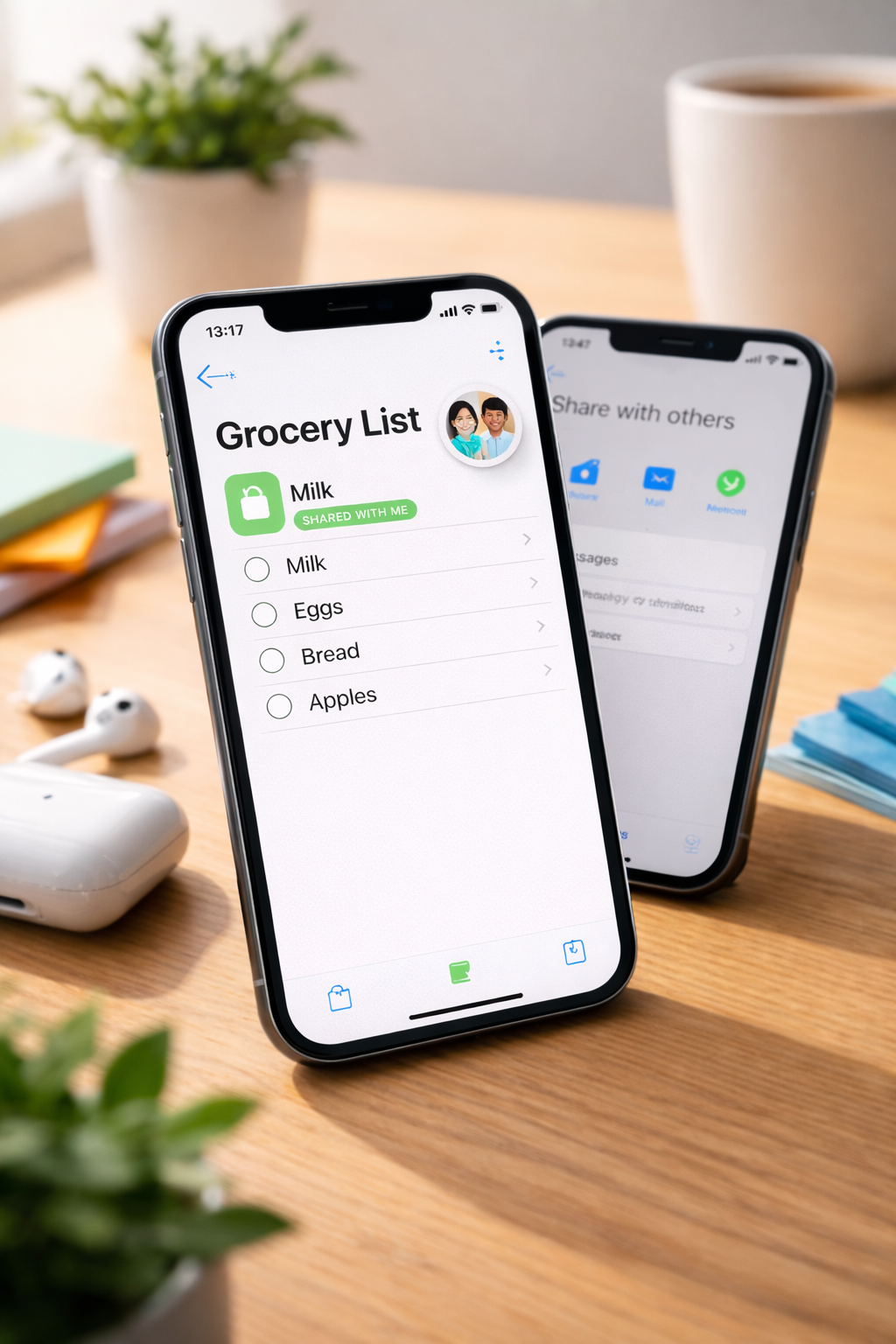
Now type a name for your reminder list. For example, you can name it Grocery List, Household Tasks, Office Work, or anything relevant to your tasks. - Choose a color and icon (optional)
The Reminders app allows you to customize your list by selecting a color and an icon. This helps you easily identify different lists. - Tap “Done”
After naming the list and selecting the design, tap Done to create the list. - Start adding reminders
Once the list is created, tap New Reminder to add tasks to the list. You can add multiple tasks depending on your needs.
Now your reminder list is ready and you can proceed to share it with others.
How to Share a Reminder List on iPhone
Once the reminder list is created, you can share it with other people so they can also add tasks, update reminders, or mark them as completed.
Follow these steps to share a reminder list:
- Open the Reminders app
Launch the Reminders app on your iPhone. - Select the reminder list you want to share
From the lists available, tap the reminder list that you want to share with others. - Tap the Share or Add People option
At the top of the screen, you will see a Share icon or an Add People option. Tap on it. - Choose how you want to send the invitation
You can send the invitation through Messages, Mail, or a shareable link, depending on your preference. - Send the invitation
Enter the contact of the person you want to collaborate with and send the invitation. - Recipient accepts the invitation
Once the recipient accepts the invitation, they will automatically gain access to the shared reminder list.
After this step, both of you will be able to manage the tasks in the same list.
What Happens After You Share the Reminder List
Once the reminder list is shared and the other person accepts the invitation, collaboration becomes very simple. Anyone with access to the shared list can add new reminders, mark tasks as completed, and see updates in real time.
This makes shared reminder lists very helpful when multiple people are involved in completing tasks.
Common Uses of Shared Reminder Lists
Shared reminder lists can be useful in many everyday situations.
Some common examples include:
- Grocery shopping lists for family members
- Household chore management
- Office task coordination
- Event planning tasks
- Travel planning checklists
Instead of sending reminders individually, everyone can simply access the same list and stay organized.
If you want to get the most out of your iPhone and manage tasks efficiently, you may also find it helpful to understand other iPhone features and behaviors. For example, you can read our guide on iPhone overheating causes and solutions to learn why it happens and how to prevent it.
Conclusion
The Reminders app on iPhone is a simple yet powerful tool that helps people manage daily tasks efficiently. When the reminder list is shared, it becomes even more useful because multiple people can collaborate on the same list.
Whether it is managing household chores, planning an event, or organizing work tasks, shared reminder lists make task management much easier. By using iCloud syncing, everyone involved can stay updated and complete tasks together without confusion.
If used properly, the shared reminder feature in the Reminders app can significantly improve productivity and organization in everyday life.