
iPhone photos are renowned for their exceptional quality, but this often results in large file sizes that can quickly consume your device’s storage. Whether you’re aiming to save space or need to adjust an image’s dimensions for online uploads, resizing becomes essential. While various online tools can assist, you might be surprised to learn that your iPhone can resize images natively, without the need for additional apps. In this article, we’ll walk you through the step-by-step process to resize images directly on your iPhone using the Shortcuts app.
Follow the steps:
Step 1: Start a New Shortcut
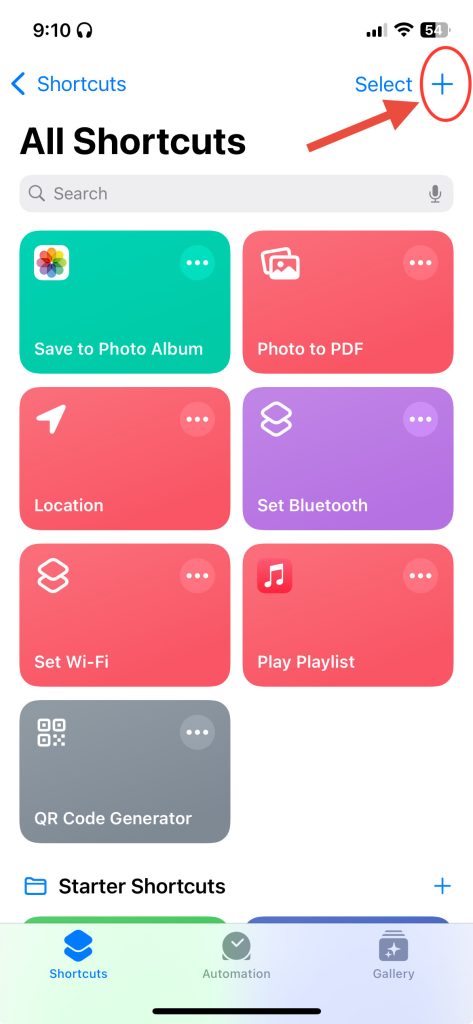
To begin, open the Shortcuts app on your iPhone and tap the “+” icon in the top right corner to create a new shortcut.
Step 2: Search and Select “Resize Image”
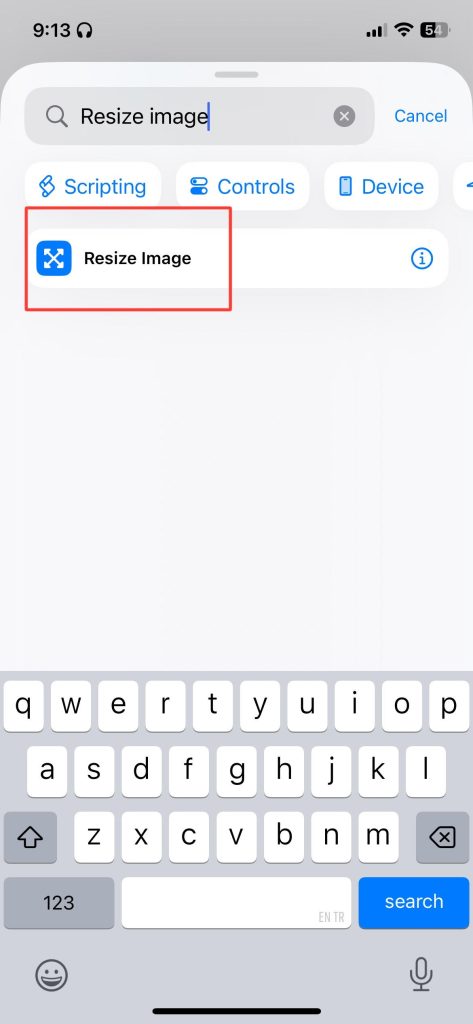
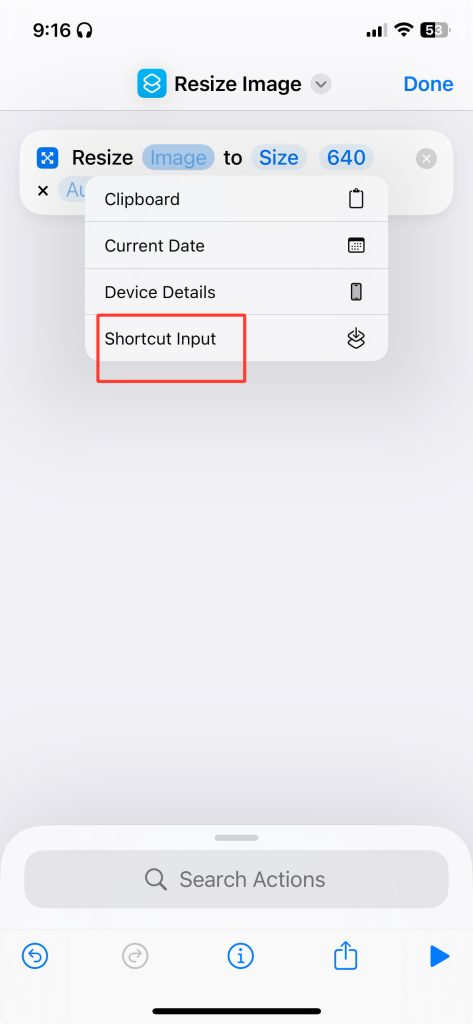
In the search bar, type “Resize Image” and select it from the options. Next, tap the image option and choose “Shortcut Input” to set the source for the image you want to resize.
Step 3: Customize Image Settings
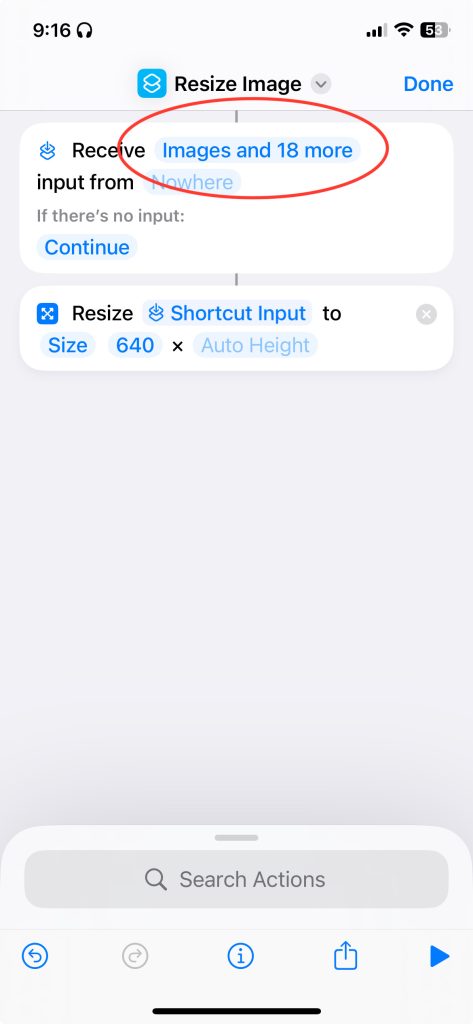
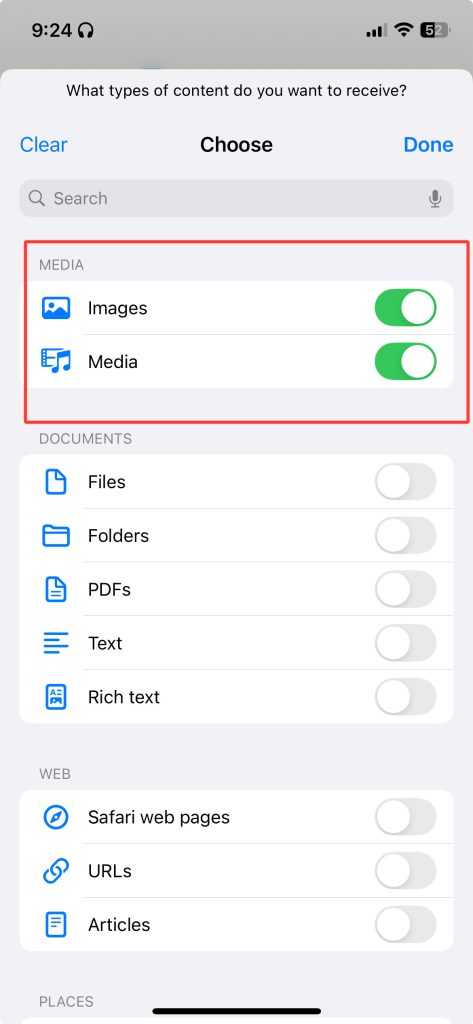
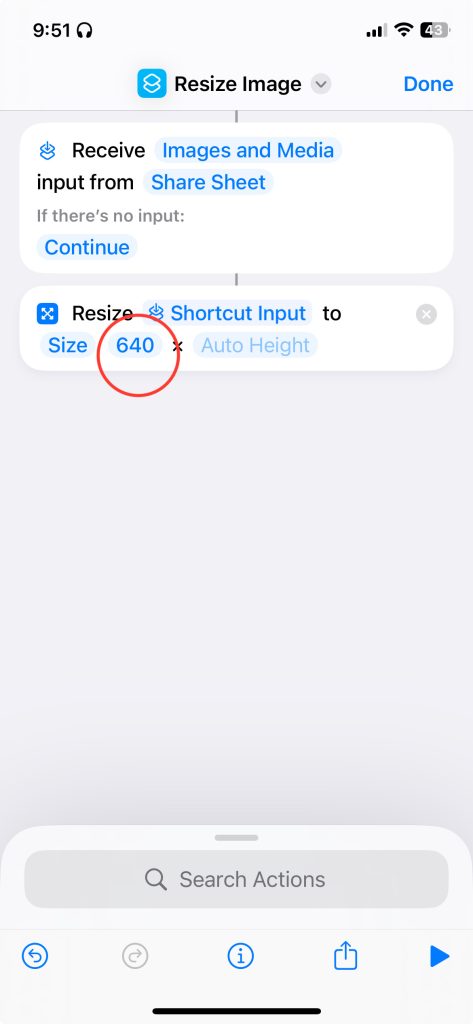
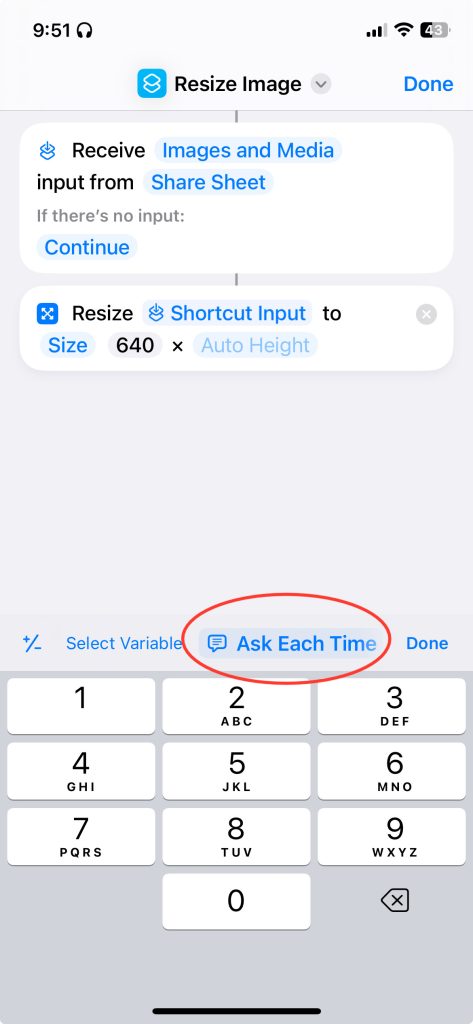
Ensure that “Image” and “Media” options are checked by tapping on the “Images” selection. Afterwards, set the width to “640” and choose “Ask Each Time” for height, allowing you to customize dimensions for each use.
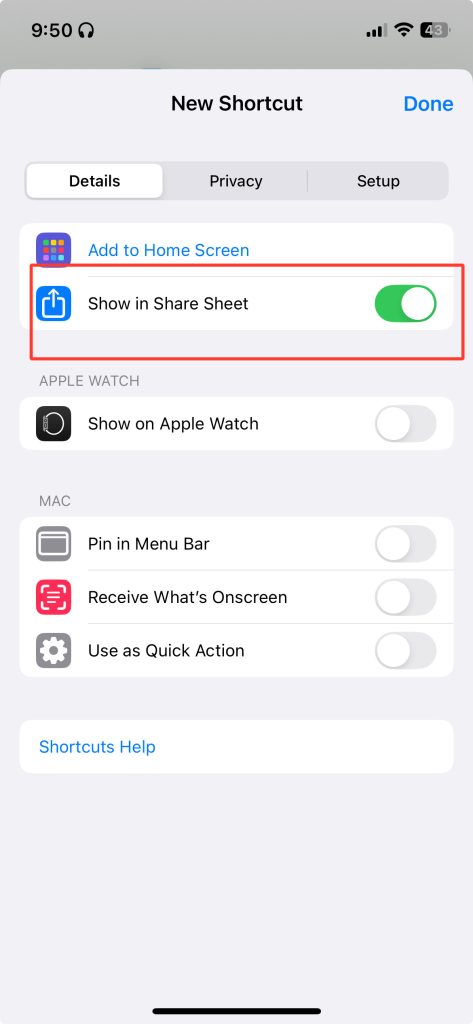
Step 4: Enable in Share Sheet
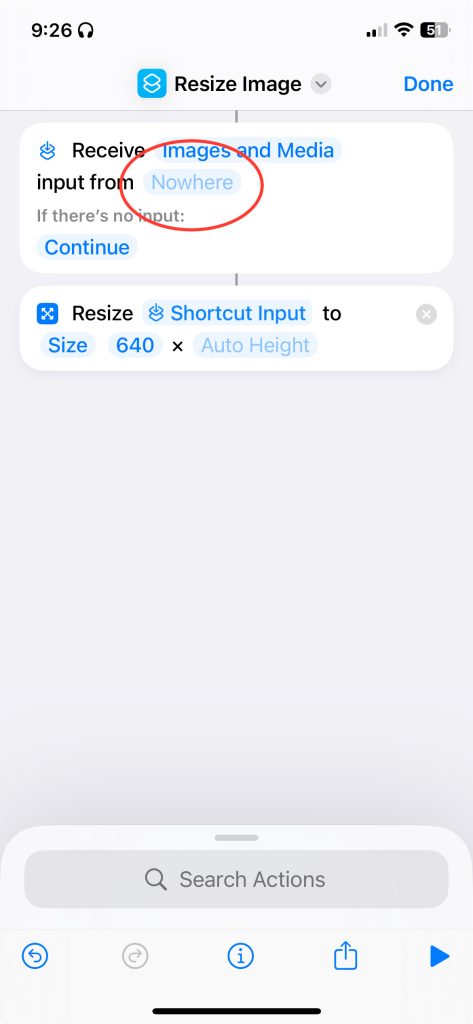
Tap “Nowhere” and toggle on “Show in Share Sheet.” This will make your resizing shortcut accessible from the share menu when viewing an image.
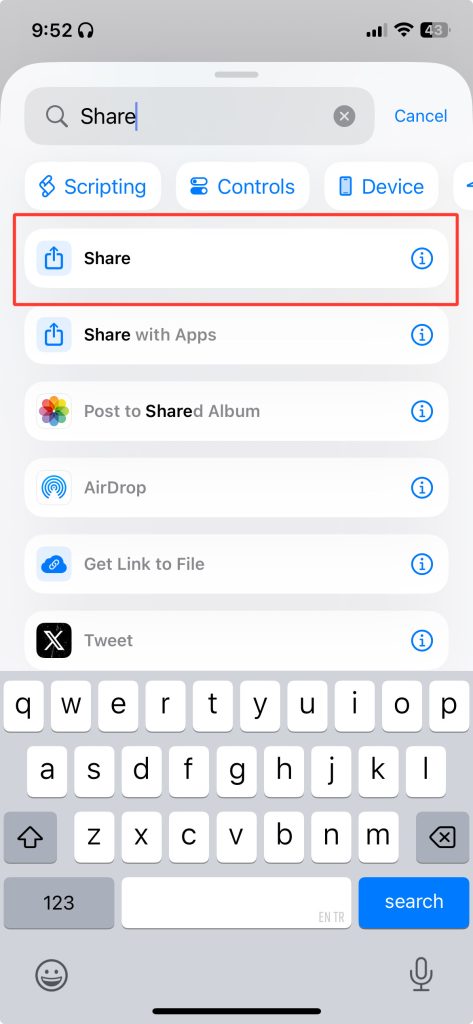
Step 5: Add Share Action
Search for “Share” and add it to the shortcut. This step enables you to share the resized image directly after resizing it.
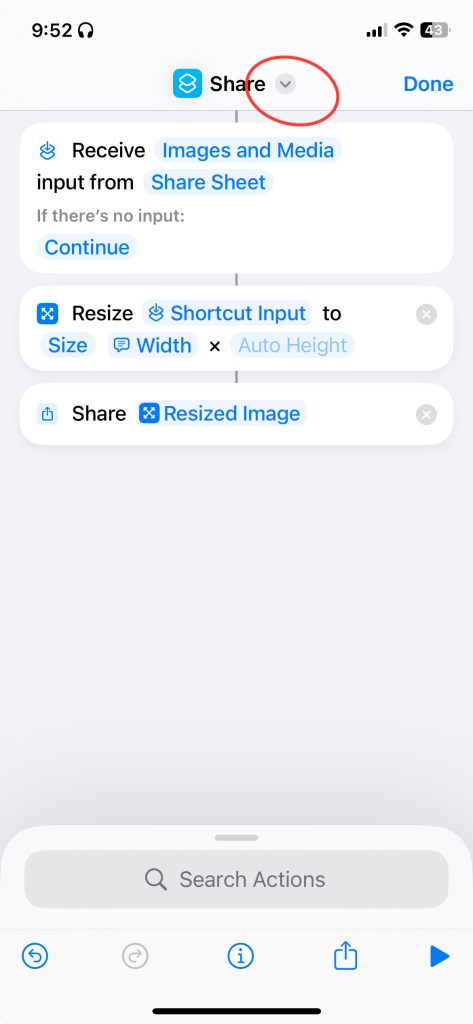
Step 6: Customize the Shortcut
To personalize your shortcut, tap the dropdown arrow to rename it and change the icon. This makes it easier to identify when using it in the future.
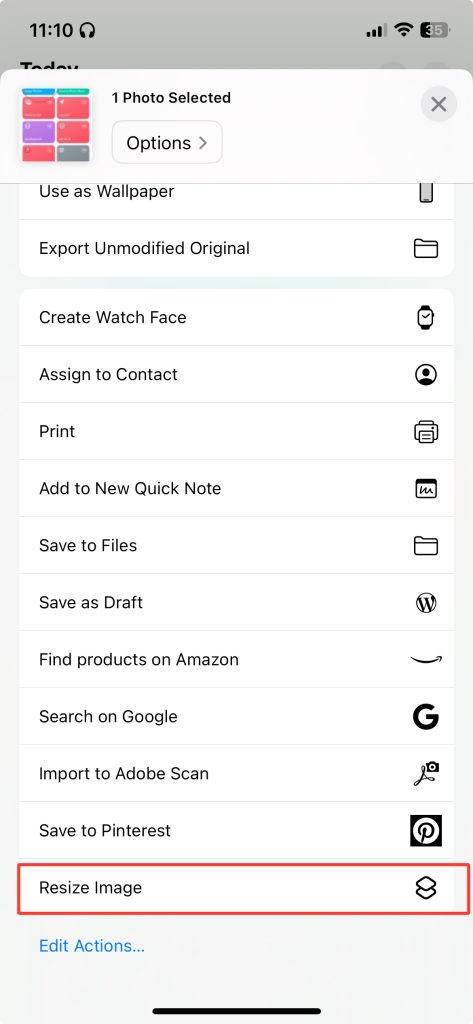
Step 7: Use the Shortcut
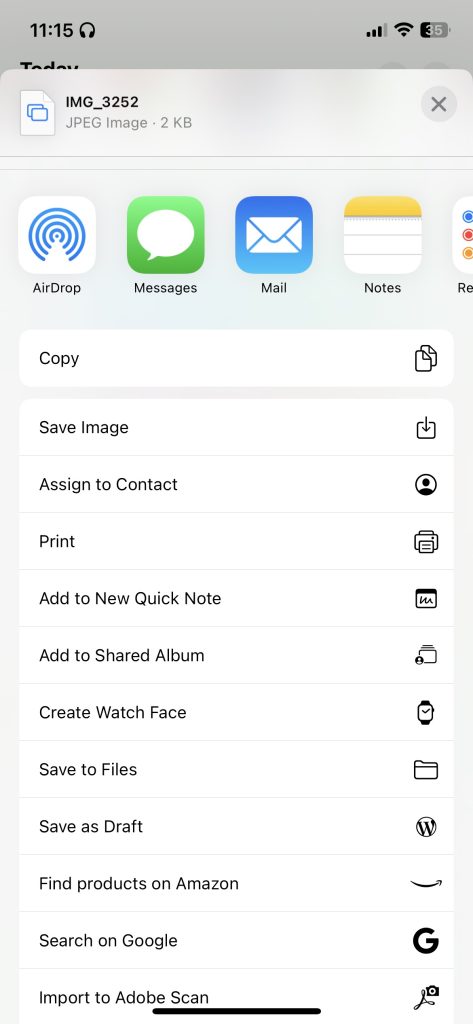
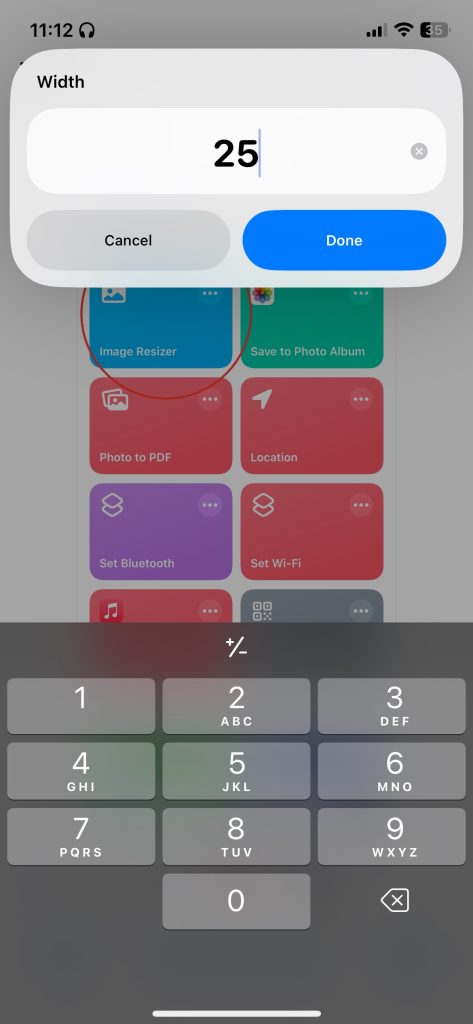
When you’re ready to resize an image, open any photo, tap “Share,” and select the image resizer option you created. Enter the desired width and tap “Done.”
Step 8: Share the Resized Image
After resizing, the share options will appear, allowing you to send the resized image to your desired destination seamlessly.