
Scheduling a text message on your iPhone can be a lifesaver in various situations—whether you want to wish someone at the stroke of midnight or the timing isn’t quite right to send a message immediately. In this guide, I’ll walk you through how to schedule a text on your iPhone without needing any third-party apps. All you need is the built-in Shortcuts app, which makes the process quick and easy.
By following just a few simple steps, you can effortlessly schedule a text message, ensuring your wishes and important messages reach your loved ones at the perfect time, 24/7. This feature is perfect for birthday wishes, reminders, or any time-sensitive communication. Ready to get started? Follow the steps below and never miss a perfect moment to send a message again.
Here’s how you can do it:
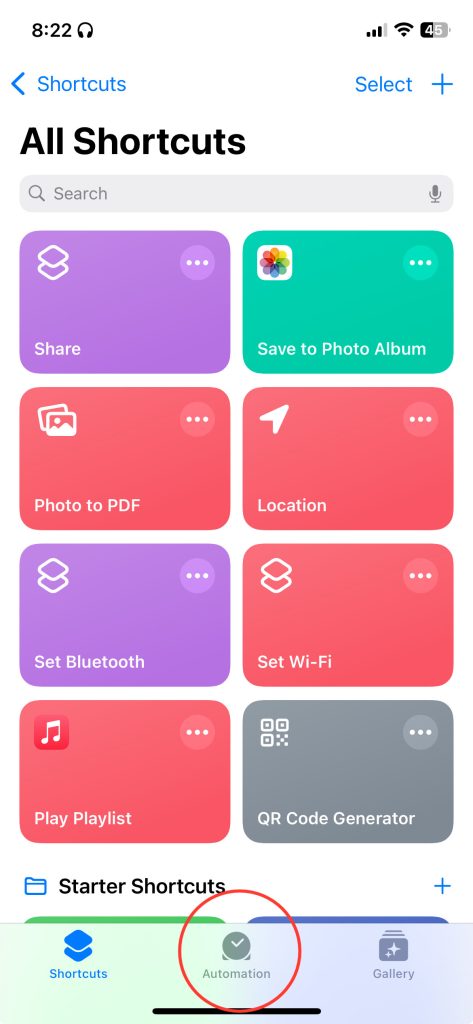
1. Open the Shortcuts App
- Launch the Shortcuts app on your iPhone.
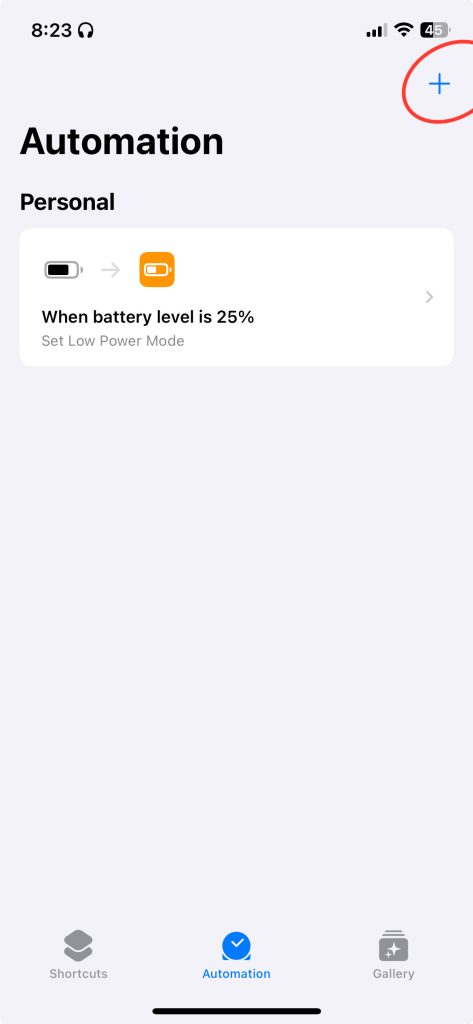
2. Create a New Automation
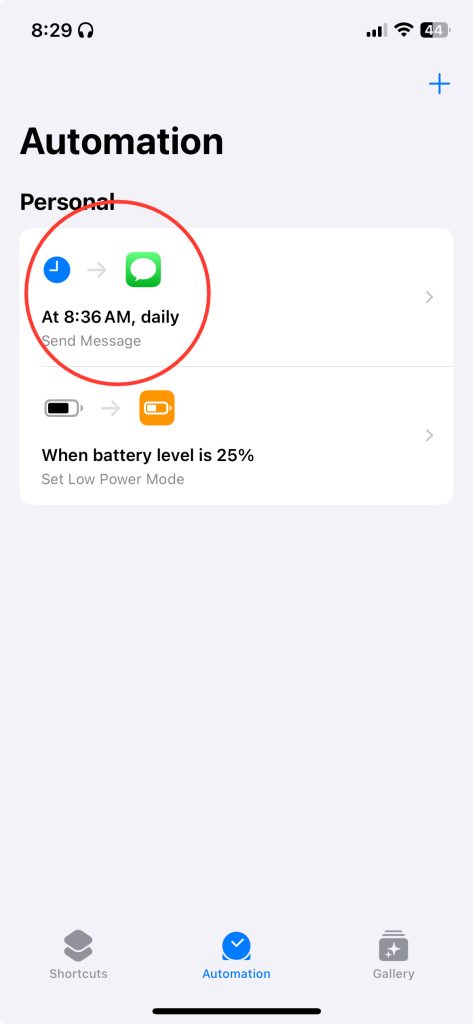
- Tap on the “Automation” tab at the bottom.
- Tap on the “+” icon in the top right corner.
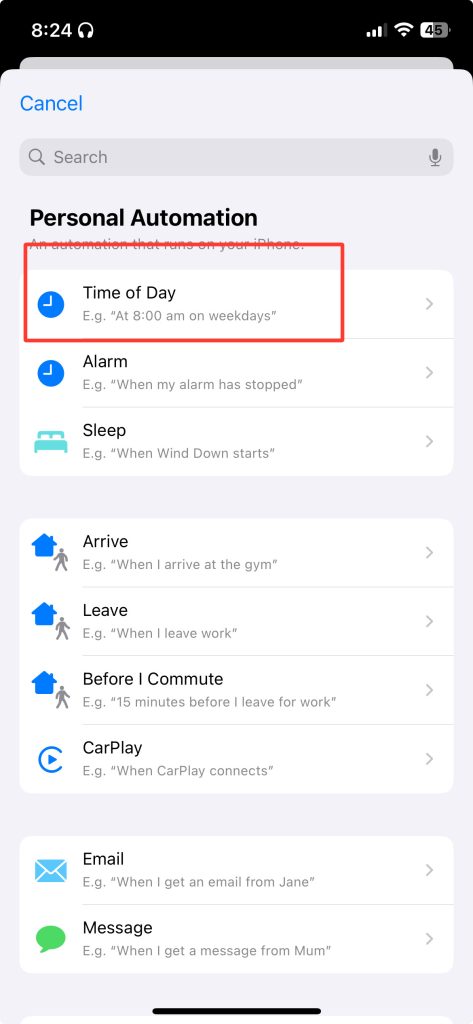
3. Set the Trigger for Your Automation
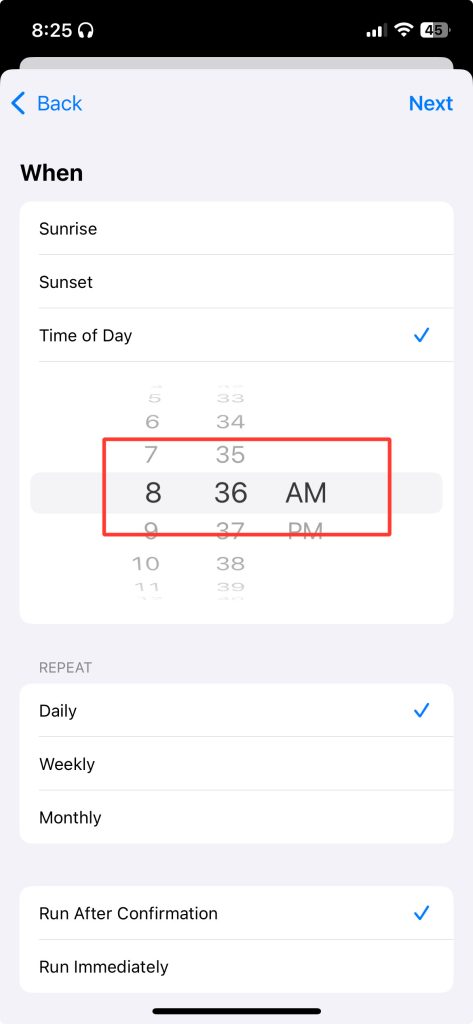
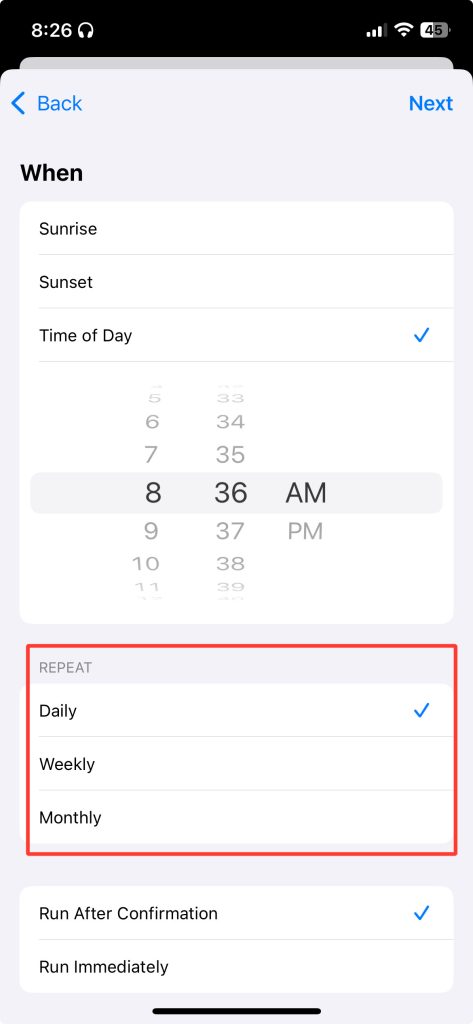
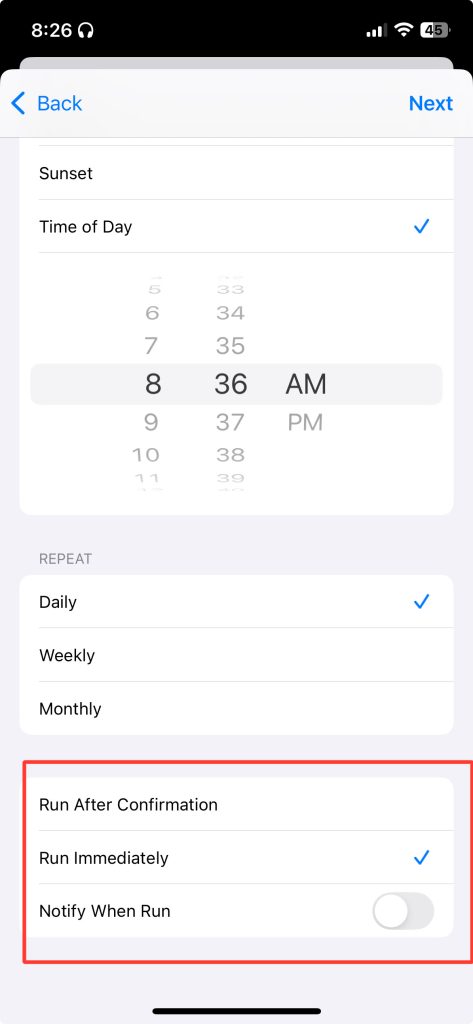
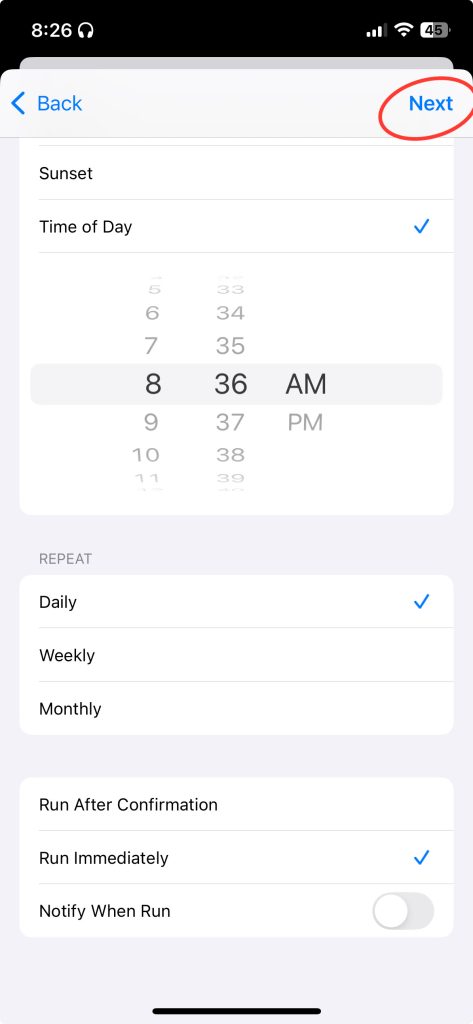
- Choose a trigger for when you want the message to be sent. For example, you can select “Time of Day” to send the message at a specific time. Afterwards, select “Run immediately” option and tap “Next.”
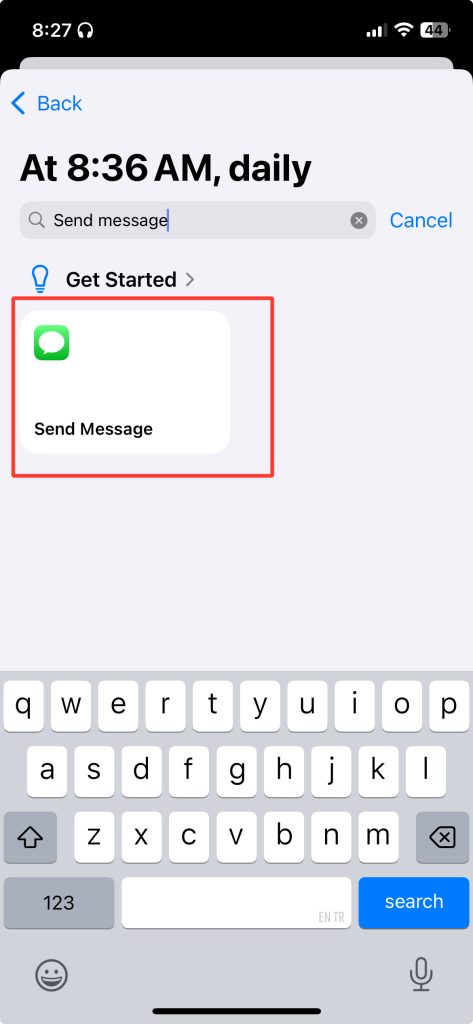
4. Add the Action to Send a Message
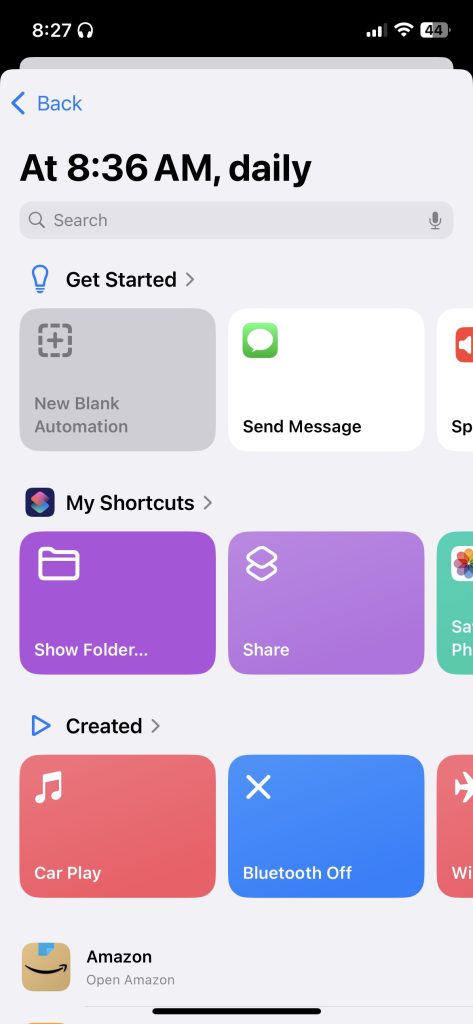
- In the search bar, type “Send Message” and select it.
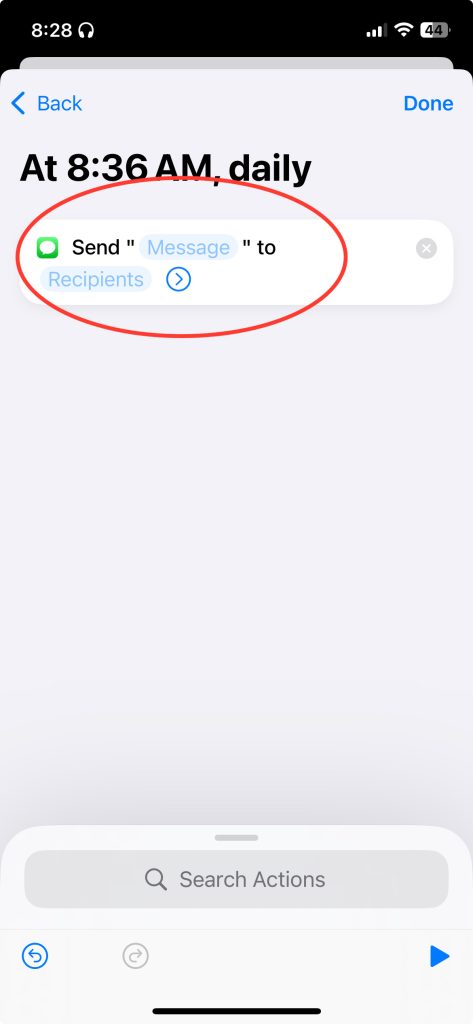
- Tap on the “Recipients” field to select the contact you want to send the message to.
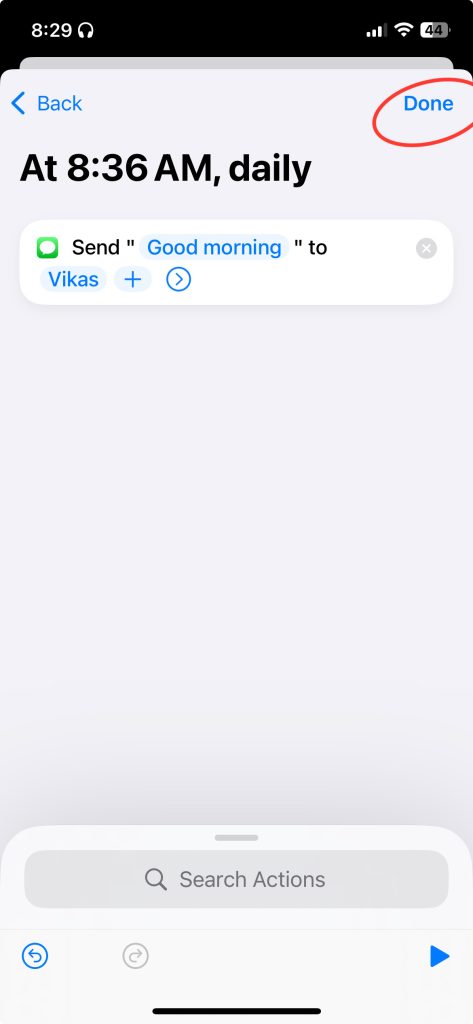
- Tap on the “Message” field to type your text message.
- After setting up the message, tap “Done”
5. Review and Confirm
- Review the automation details to ensure everything is correct.