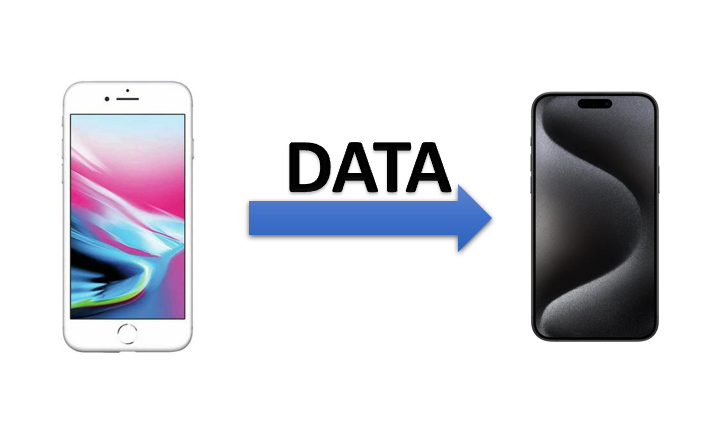

Switching to a new iPhone and need to know how to transfer data from your old iPhone? You’re in the right place! This comprehensive guide will show you exactly how to transfer data from iPhone to iPhone. Though it might seem complicated, the process is quite simple. Anyone can easily transfer their old iPhone’s data to a new one.
The following are the steps:
Step 1: Backup Your Old iPhone
Before you can restore data to your new iPhone, you need to create a backup of your current device. You have two main options for this: iCloud and iTunes/Finder.
Using iCloud:
1. Connect to Wi-Fi: Ensure your iPhone is connected to a Wi-Fi network.
2. Open Settings: Go to the Settings app.
3. Tap on Your Name: This will take you to your Apple ID settings.
4. Select iCloud: Scroll down and tap on iCloud.
5. Tap iCloud Backup: Ensure that iCloud Backup is turned on.
6. Back Up Now: Tap on “Back Up Now” and wait for the process to complete. Ensure the backup finishes before proceeding.
Using iTunes/Finder (macOS Catalina or later):
1. Connect Your iPhone to Your Computer: Use a USB cable to connect your iPhone to your Mac or PC.
2. Open iTunes or Finder: Launch iTunes on Windows or Finder on macOS Catalina and later.
3. Select Your Device: Click on your iPhone icon in the app.
4. Backup: Under the “Backups” section, choose “This Computer” and click “Back Up Now.”
Step 2: Turn on Your New iPhone
Once you have your old iPhone backed up, it’s time to set up your new iPhone.
1. Power On: Turn on your new iPhone by holding the power button until you see the Apple logo.
2. Follow the On-Screen Instructions: Choose your language, region, and connect to a Wi-Fi network.
3. Restore from Backup: When you reach the “Apps & Data” screen, you have a few options to restore your data:
Restore from iCloud Backup:
1. Sign in to iCloud: Enter your Apple ID and password.
2. Choose Backup: Select the most recent backup of your old iPhone.
3. Wait for Restoration: The process will begin and might take some time depending on the size of the backup and your internet speed.
Restore from iTunes/Finder Backup:
1. Connect Your New iPhone to Your Computer: Use a USB cable.
2. Open iTunes or Finder: Select your new device.
3. Restore Backup: In the “Backups” section, click “Restore Backup” and choose the correct backup from the list.
4. Wait for Completion: Allow the restoration process to complete before disconnecting your iPhone.
Step 3: Complete the Setup
After the restoration process is complete, your new iPhone will restart. Follow any additional on-screen instructions to complete the setup. This might include signing into your Apple ID, setting up Face ID or Touch ID, and agreeing to Apple’s terms and conditions.
Step 4: Verify Your Data
Once your new iPhone is set up, it’s important to verify that all your data has been restored correctly. Check your contacts, photos, apps, and settings to ensure everything is in place.