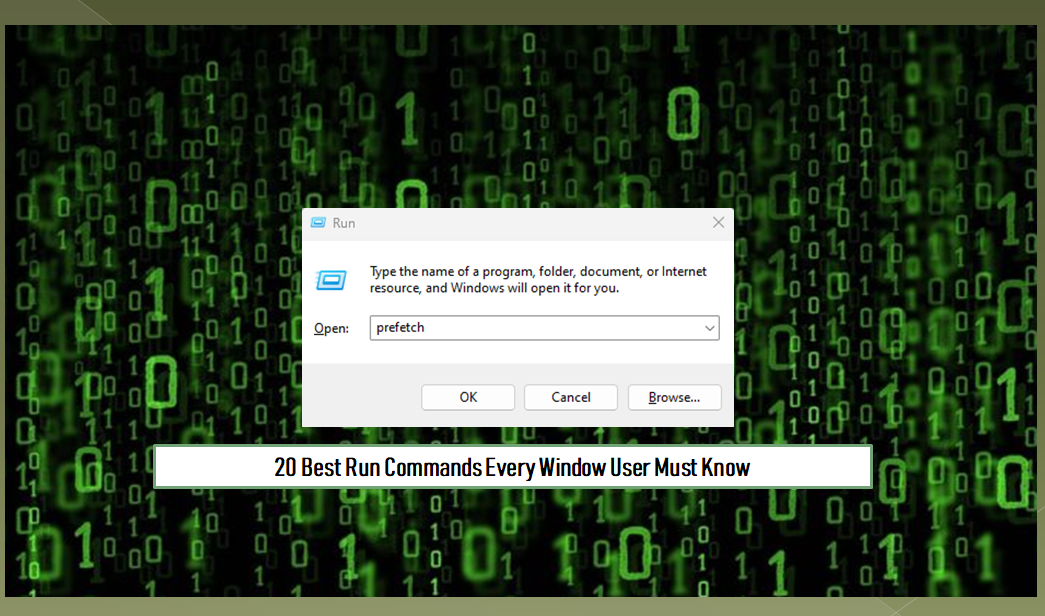

Run commands are a quick and efficient way to directly open applications or settings on a Windows system. Instead of navigating through multiple menus, you can simply type a command and access the desired application or tool. This approach allows users to reach specific locations or access particular Windows features quickly, saving time and improving efficiency. To use these commands, press the “Windows key + R” shortcut, type the desired command, and press Enter.
In this guide, I will share 20 useful Run commands that can enhance your daily user experience. Here’s the list, along with a brief explanation of each:
- msconfig: Opens the System Configuration tool, allowing you to manage startup programs, boot settings, and system services.
- msinfo32: Launches the System Information window, providing details about your system’s hardware, software, and configuration.
- optionalfeatures: Opens the Windows Features dialog box, where you can enable or disable optional Windows components.
- resmon: Starts the Resource Monitor, which provides real-time data about your system’s resource usage, including CPU, memory, disk, and network.
- dxdiag: Opens the DirectX Diagnostic Tool to troubleshoot issues related to video and sound drivers.
- osk: Launches the On-Screen Keyboard, a virtual keyboard that can be useful for troubleshooting or accessibility purposes.
- mrt: Runs the Microsoft Windows Malicious Software Removal Tool, which checks for and removes specific malware infections.
- compmgmt.msc: Opens the Computer Management console, which includes tools like Event Viewer, Device Manager, and Disk Management.
- gpedit.msc: Launches the Group Policy Editor, allowing advanced users to configure system and user-specific policies (available on Pro and Enterprise editions).
- regedit: Opens the Registry Editor, where you can view and modify the Windows registry (be cautious when using this tool).
- taskmgr: Opens the Task Manager to monitor and manage running processes, applications, and system performance.
- powercfg.cpl: Opens the Power Options settings, allowing you to configure power plans and manage energy usage.
- charmap: Launches the Character Map tool, which helps you find and copy special characters not available on your keyboard.
- %temp% or temp: Opens the Temporary Files folder, where you can delete unnecessary files to free up space.
- netplwiz: Opens the User Accounts window, where you can manage user accounts and passwords.
- perfmon.msc: Launches the Performance Monitor, which provides advanced performance metrics and monitoring tools.
- diskpart: Opens the Disk Partitioning tool for advanced disk management tasks like creating or deleting partitions.
- %appdata%: Directly opens the AppData folder, where user-specific application data is stored.
- explorer: Launches Windows File Explorer, allowing you to browse files and folders on your system.
- control: Opens the Control Panel, where you can manage system settings and configurations.
Mastering these Run commands can make your interactions with Windows more efficient and productive. Try incorporating them into your workflow to save time and simplify common tasks.