
It has been a decade since the launch of Microsoft Windows 10, and as of 14 October 2025, Windows 10 has officially reached its end of support. That means that Microsoft no longer provides regular software updates, security fixes, or technical assistance for Windows 10.
This is troubling news for millions of desktop and laptop users worldwide. Without security updates, devices running Windows 10 become increasingly vulnerable. Over time, uncovered vulnerabilities can pose risks of viruses, malware, and cyberattacks. These dangers are just the tip of the iceberg: continuing to use Windows 10 for a long time without taking any additional security measures can put your personal data and device at greater risk.
However, there is one important thing that Windows 10 users should know: your PC will not suddenly stop working because Windows 10 has reached its end of support.
You can still turn on your computer, use your existing applications, access your files and browse the internet. The main change is that Microsoft is no longer providing normal security and feature updates for Windows 10.
So, what should you do if you are still using Windows 10?
There are several options available, and the right choice depends on your computer and how long you want to continue using it.
What Does Windows 10 End of Support Mean?
Windows 10 reached its official end of support on 14 October 2025.
Before this date, Microsoft regularly released updates that included security fixes, bug fixes, improvements and, in some cases, new features. After the end-of-support date, Windows 10 no longer receives regular security updates, feature updates or technical support from Microsoft.
This does not mean that Windows 10 becomes unusable overnight.
Your existing Windows 10 computer can continue to function after the end-of-support date. You can still use your installed applications, access your files and perform your usual tasks.
The biggest concern is security.
When Microsoft discovers a security vulnerability in a supported version of Windows, it can release a security update to fix it. With Windows 10 no longer receiving regular security updates, newly discovered vulnerabilities can remain unpatched.
This can make a Windows 10 PC increasingly vulnerable to malware, viruses and other security threats.
There can also be compatibility issues over time as software developers gradually focus on newer versions of Windows.
Will My Windows 10 PC Stop Working?
No, your Windows 10 PC will not suddenly stop working.
This is probably one of the biggest misconceptions surrounding the end of Windows 10 support.
Microsoft has ended support for the operating system, but the operating system itself continues to work.
You can still start your PC, open your applications, watch videos, browse the internet and access your personal files.
However, there is an important difference between working and being supported.
Your PC may continue to work perfectly well today, but that doesn’t mean it will remain secure and fully compatible forever.
As time passes, more security vulnerabilities may be discovered and some software developers may eventually stop supporting Windows 10.
Therefore, if you are still using Windows 10, you should start thinking about your next step rather than simply ignoring the end of support.
What Are Your Options After Windows 10 End of Support?
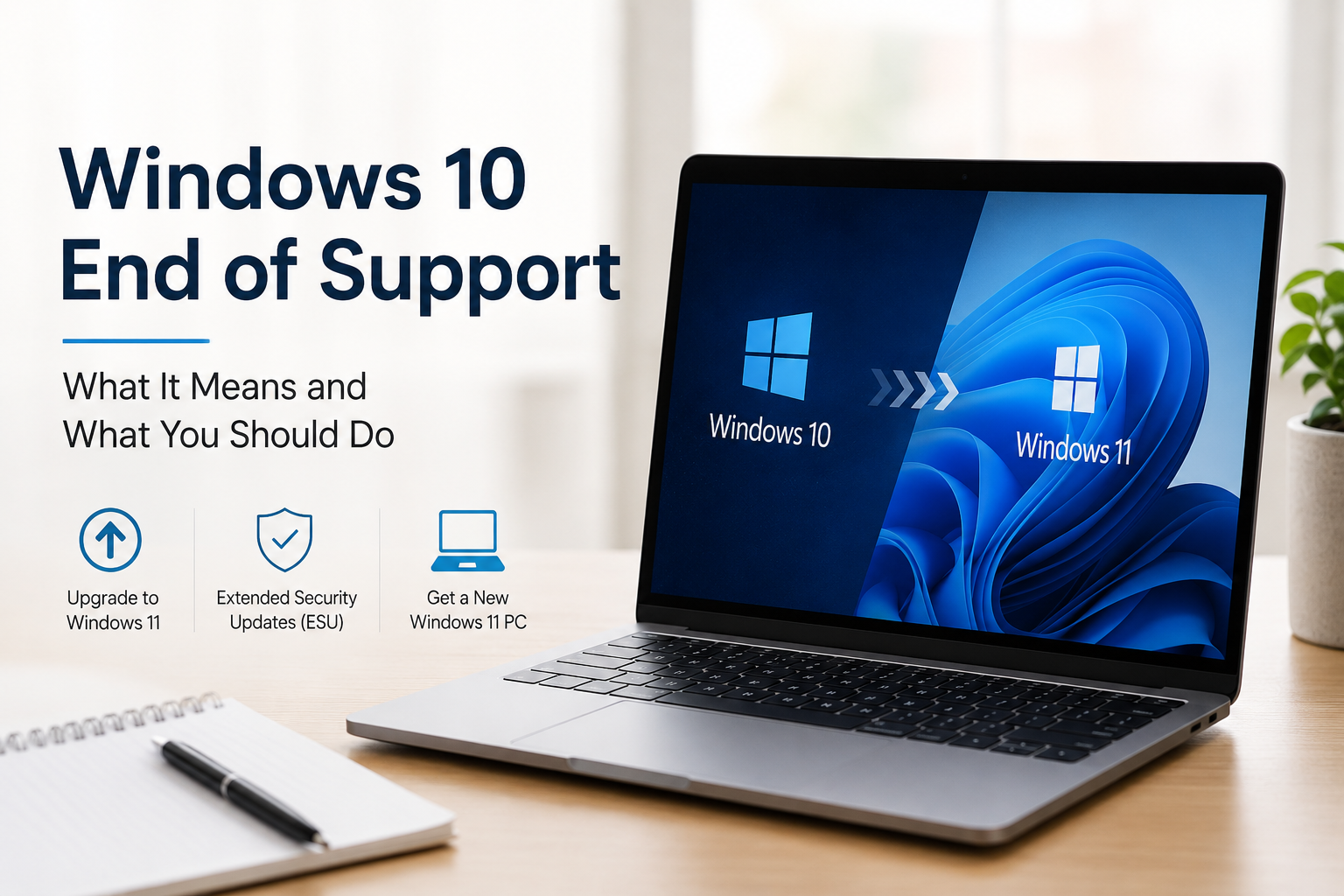
According to Microsoft, there are three main options for Windows 10 users:
- Upgrade your existing PC to Windows 11.
- Get a new PC with Windows 11.
- Enrol in the Windows 10 Extended Security Updates (ESU) programme if you need more time.
Let’s look at each option in detail.
1. Upgrade Your Windows 10 PC to Windows 11
If your existing PC meets the Windows 11 hardware requirements, upgrading to Windows 11 is probably the simplest option.
Eligible Windows 10 PCs can upgrade to Windows 11 without buying another Windows licence. However, the computer must meet Microsoft’s hardware requirements.
Before upgrading, I would recommend checking whether your PC is officially compatible with Windows 11.
How to Check If Your PC Can Run Windows 11
Microsoft provides a PC Health Check application that can check your computer’s compatibility with Windows 11.
You can also check Windows Update.
On Windows 10, go to:
Start → Settings → Update & Security → Windows Update
Then select Check for updates.
If your computer is eligible, Windows Update may show you the option to upgrade to Windows 11.
Windows 11 has several hardware requirements, including:
- A compatible 64-bit processor with at least two cores
- At least 4 GB of RAM
- At least 64 GB of storage
- UEFI firmware
- Secure Boot capability
- TPM 2.0
- A DirectX 12-compatible graphics processor
- A display with at least 720p resolution
However, simply having 4 GB of RAM and 64 GB of storage does not mean that your computer is compatible. The processor, TPM 2.0 and Secure Boot requirements are also important.
If your PC officially supports Windows 11 and is working well, upgrading is generally the option I would consider first.
2. Get a New Windows 11 PC
Not every Windows 10 computer is compatible with Windows 11.
Older PCs may fail Microsoft’s compatibility requirements because of their processor, TPM version or other hardware limitations.
If your computer is already several years old and has started showing signs of ageing, buying a new PC may make more sense than trying to keep the old one running indefinitely.
For example, if your computer is already slow, has storage problems, frequently crashes or struggles with the applications you use every day, this could be a good time to consider replacing it.
A new Windows 11 PC also gives you newer hardware and a longer support period.
However, I wouldn’t recommend buying a new computer simply because Windows 10 has reached end of support if your existing PC is otherwise in good condition. First check whether it can officially upgrade to Windows 11.
3. Use Windows 10 Extended Security Updates
If your computer cannot run Windows 11 and you are not ready to replace it yet, Microsoft offers another option called Extended Security Updates, commonly known as ESU.
This programme is designed for people who need additional time before moving to a supported Windows version.
The important thing to understand is that ESU is not the same as extending normal Windows 10 support.
It provides eligible Windows 10 devices with important security updates, but it does not bring back regular feature updates or general technical support.
For someone who has a perfectly usable computer but cannot upgrade to Windows 11, ESU can be a useful temporary solution.
How Long Does Windows 10 ESU Last?
This is an important update from the information that was originally published in this article.
Microsoft’s current consumer ESU programme provides eligible Windows 10 devices with security updates through 12 October 2027.
Therefore, the earlier information that suggested the consumer ESU programme would end in October 2026 is no longer current.
This is also a good example of why articles about operating system support need to be updated from time to time. Microsoft’s support programmes and eligibility rules can change.
Who Is Eligible for Windows 10 ESU?
Consumer ESU is available for eligible devices running Windows 10 version 22H2.
Microsoft also has specific requirements for the Windows edition and the device.
If you are considering ESU, it is worth checking Microsoft’s current requirements before enrolling because eligibility and enrolment options can change.
What Does ESU Provide?
ESU mainly provides security updates for eligible Windows 10 devices.
It does not turn Windows 10 back into a fully supported operating system.
You should therefore think of ESU as a temporary bridge that gives you additional time to move to Windows 11 or replace your computer.
It is not a reason to continue using Windows 10 indefinitely.
How to Enrol in Windows 10 ESU
If your computer is eligible for the consumer ESU programme, Microsoft provides the enrolment option through Windows Update.
On your Windows 10 computer, open:
Start → Settings → Update & Security → Windows Update
Check for available updates and look for the Windows 10 Extended Security Updates option if your device is eligible.
Follow the instructions shown on the screen to complete enrolment.
Microsoft may require you to sign in with a Microsoft account during the process.
The exact options shown to you can depend on your device and region, so it is better to follow the instructions displayed by Microsoft rather than relying on an older guide.
What Happens If You Don’t Upgrade or Use ESU?
You can continue using Windows 10 without upgrading and without enrolling in ESU.
However, your computer will not receive the additional security protection provided through ESU.
This means that as new vulnerabilities are discovered, your computer may become increasingly exposed to security threats.
For someone who uses their PC for everyday browsing, online banking, shopping, work, email and storing personal documents, this is something that should not be ignored.
The longer you continue using an unsupported operating system, the more important it becomes to consider moving to a supported version.
What About Microsoft 365 and Office?
Windows 10 reaching end of support can also create confusion around Microsoft 365 and Office applications.
Microsoft has stated that Microsoft 365 Apps on Windows 10 will continue receiving security updates for a limited period after Windows 10 itself reached end of support.
Microsoft 365 security updates on Windows 10 are scheduled to continue through 10 October 2028.
However, this does not mean that Windows 10 itself has regained support.
It is also important to distinguish Microsoft 365 from standalone versions of Microsoft Office because different Office products have different support lifecycles.
Therefore, if you depend heavily on Microsoft 365 or Office for work, it is still a good idea to move to Windows 11 rather than treating continued application support as a reason to remain on Windows 10 permanently.
Should You Upgrade, Buy a New PC or Use ESU?
There isn’t one answer that applies to everyone.
The best option depends on the condition and compatibility of your computer.
If Your PC Supports Windows 11
Upgrade to Windows 11.
If your computer is working well and officially meets the Windows 11 requirements, upgrading is probably the most straightforward solution.
You get a supported version of Windows without having to replace a perfectly usable computer.
If Your PC Doesn’t Support Windows 11 but Still Works Well
Consider ESU as a temporary option.
If your computer is still performing well but doesn’t meet Windows 11’s requirements, ESU can give you additional time to plan your next purchase.
This can be particularly useful if you don’t want to replace a perfectly functional PC immediately.
However, I would still treat ESU as a temporary solution rather than a permanent one.
If Your PC Is Old or Already Struggling
Consider buying a new Windows 11 PC.
If your computer is already slow or experiencing hardware problems, the end of Windows 10 support may simply be another reason to replace it.
There isn’t much point in spending a lot of money trying to keep an old computer running if it is already struggling with everyday tasks.
Can You Still Use Windows 10 After End of Support?
Yes.
Your Windows 10 computer can continue to function after the end-of-support date.
But there is a difference between being able to use Windows 10 and being protected by a supported operating system.
If you only use an old computer occasionally for simple offline tasks, your situation may be different from someone who uses the same computer every day for banking, work, email and browsing.
For most users, I would recommend upgrading to Windows 11 if the PC supports it.
If it doesn’t, ESU can provide additional time while you decide whether to replace the computer.
What Should You Do If Your PC Is Not Compatible With Windows 11?
This is probably the situation many Windows 10 users are facing.
If your PC doesn’t meet Windows 11’s requirements, don’t immediately assume that you need to buy a new computer.
First consider the condition of the PC.
If it is relatively new, performs well and meets all your needs apart from Windows 11 compatibility, ESU may be worth considering.
On the other hand, if the PC is already old, slow or experiencing hardware problems, replacing it with a newer Windows 11 computer may be the better long-term decision.
I would also avoid installing Windows 11 on unsupported hardware simply to get around Microsoft’s requirements unless you fully understand the potential limitations and risks involved.
What Should You Do Before Upgrading to Windows 11?
Before making any major change to your operating system, make sure your important files are backed up.
Documents, photos, videos and other personal files should be stored somewhere safe before you begin the upgrade.
You should also make sure that the applications you rely on are compatible with Windows 11.
If your computer contains important work files, I would strongly recommend having a separate backup rather than relying entirely on the files stored on the PC.
A little preparation can save you from a lot of trouble later.
Frequently Asked Questions
Does Windows 10 stop working after October 14, 2025?
No. Windows 10 computers continue to function after the end-of-support date. However, Microsoft no longer provides regular security updates, feature updates or technical support for Windows 10.
Can I still use my Windows 10 PC?
Yes. You can continue using your Windows 10 PC, but continuing to use an unsupported operating system for a long period can increase security risks.
Is Windows 11 upgrade free?
Eligible Windows 10 PCs can upgrade to Windows 11 without purchasing a new Windows licence. The computer must meet Microsoft’s minimum hardware requirements.
What if my PC cannot run Windows 11?
You can consider Microsoft’s Extended Security Updates programme if your device is eligible, or you can replace the computer with a newer Windows 11 PC.
How long will Windows 10 ESU last?
Microsoft’s current consumer ESU programme provides security updates through 12 October 2027 for eligible Windows 10 devices.
Does ESU provide new Windows 10 features?
No. ESU is intended to provide important security updates. It does not turn Windows 10 back into a fully supported operating system or provide normal feature updates.
Will my Windows 10 licence expire?
No. The end of Windows 10 support does not mean that your existing Windows licence suddenly becomes invalid.
Can I upgrade to Windows 11 later if I use ESU?
Yes. Using ESU does not prevent you from moving to Windows 11 later if your computer is compatible.
Should I buy a new PC immediately?
Not necessarily.
If your current computer is compatible with Windows 11 and works well, upgrading may be enough. If it isn’t compatible but still works well, ESU can provide additional time. If the computer is already old or unreliable, replacing it may make more sense.
Final Thoughts
If your PC meets the requirements for Windows 11, you should upgrade as soon as possible to maintain security, compatibility, and peace of mind. The ESU programme is only a temporary bridge — it isn’t a permanent fix.
For users whose computers aren’t compatible with Windows 11, ESU provides some valuable extra time. But I wouldn’t use that extra time to ignore the problem completely. Start planning whether you want to upgrade your existing PC or replace it with a newer Windows 11 machine.
Windows 10 had a very long run, and for many people it has been a reliable operating system. But now that its support has ended, moving to a supported version of Windows is the better long-term choice.
If your current PC is still working perfectly, there is no reason to panic and replace it overnight. Check its Windows 11 compatibility first, understand your ESU options if necessary, and then make a decision based on the condition of your computer and how you use it.