
When working on your Windows PC, the Snipping Tool often comes to mind whenever the need for a screenshot arises. The Snipping Tool is a built-in Microsoft Windows utility introduced with Windows Vista and included in all later versions. While it’s widely recognized for capturing screenshots, many users are unaware of its other powerful features.
Yes, beyond basic screenshots, the Snipping Tool allows you to create freeform screenshots, record videos, take delayed screenshots, extract text from images, and much more. These features make it an indispensable tool for Windows users.
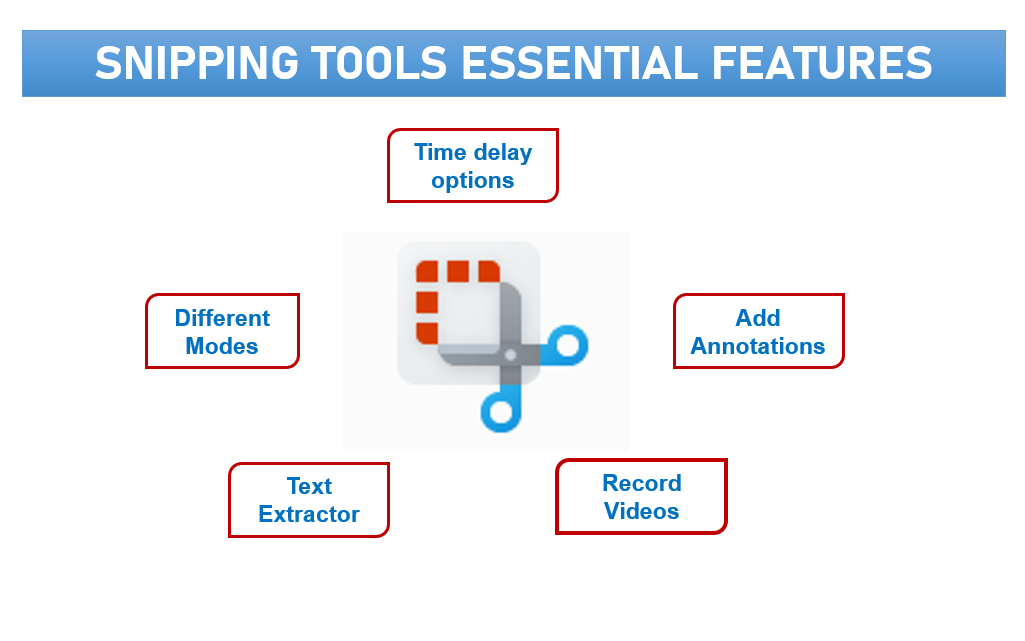
In this article, I will guide you through 5 essential features of the Snipping Tool that can significantly enhance your user experience. Let’s dive into the list:
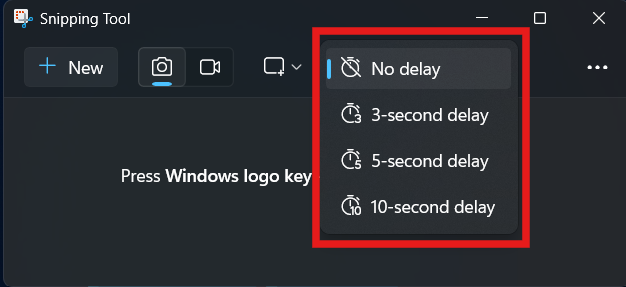
1. Time Delay Feature
The time delay feature in the Snipping Tool allows users to set a timer before capturing a screenshot. This is particularly useful for capturing drop-down menus, tooltips, or any UI element that disappears when you move the mouse. Simply select the delay duration, and the tool will give you time to set up your screen before snapping.
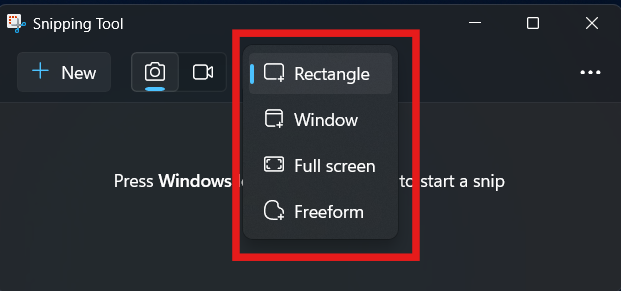
2. Different Snipping Modes
From freeform shapes to rectangular or full-screen captures, the Snipping Tool offers multiple modes to fit your needs. Whether you’re marking up specific sections or documenting your entire screen, these modes provide flexibility and precision for all kinds of screenshots.
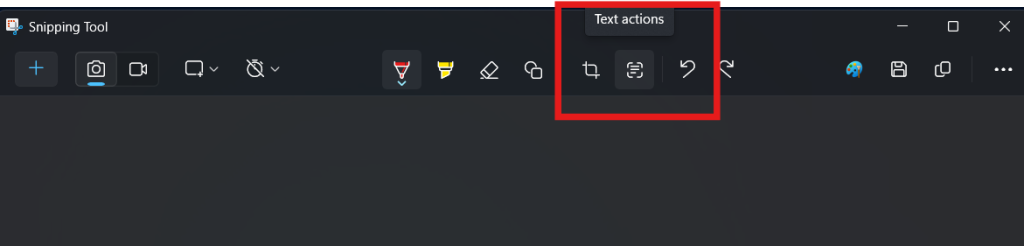
3. Extract Text from Image
The built-in OCR (Optical Character Recognition) feature lets users extract text from screenshots seamlessly. This saves time by eliminating the need to retype text from images—perfect for copying error messages, form details, or web content.
4. Record Your Screen
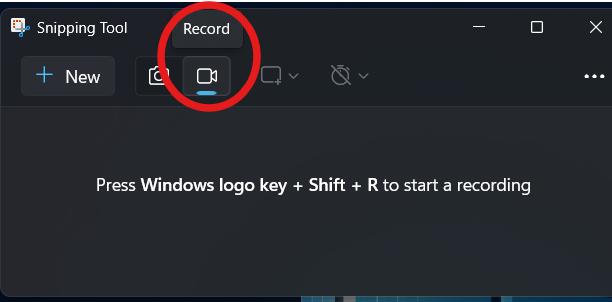
Beyond static screenshots, the Snipping Tool now supports screen recording. This feature is invaluable for creating tutorials, presentations, or documenting processes. With simple controls, you can capture your on-screen actions and save them as video files.
Beyond static screenshots, the Snipping Tool now supports screen recording. This feature is invaluable for creating tutorials, presentations, or documenting processes. With simple controls, you can capture your on-screen actions and save them as video files.
5. Annotation Tools for Editing
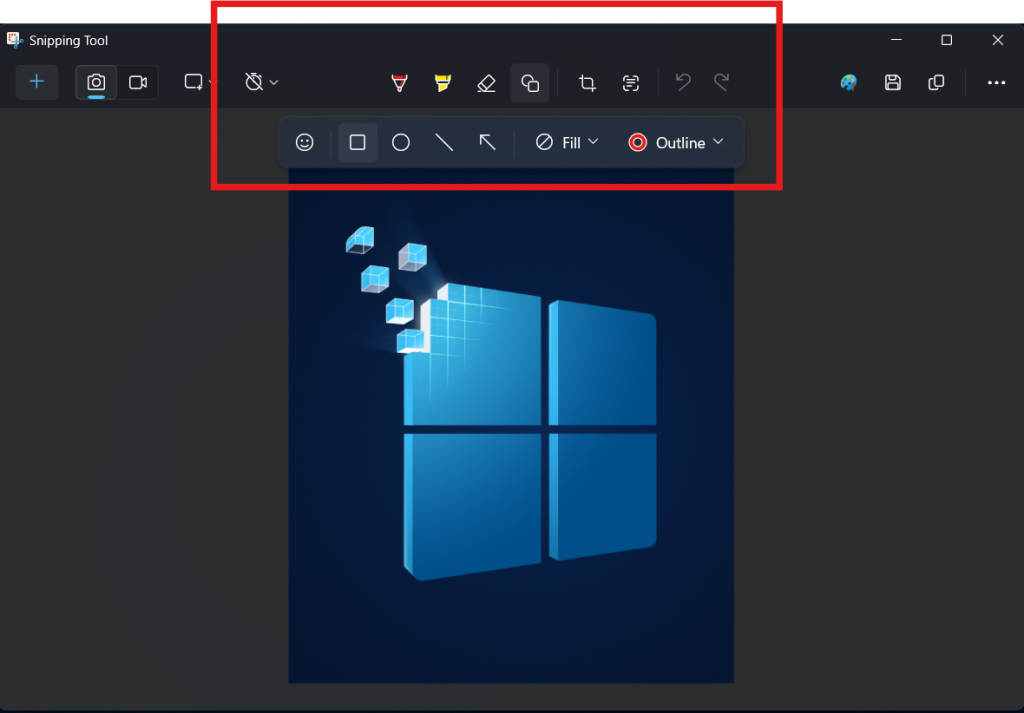
After capturing a screenshot, the Snipping Tool offers built-in annotation options. Highlight, draw, or add text directly to your image, making it easy to emphasize key areas or provide detailed instructions.