Setting up your new PC—a common ritual—is literally an exciting process that engages you with your brand-new PC. Since I got my first PC, I was always curious to set up brand-new devices, and I even regularly format the same just to enjoy the process. Although it’s a simple task, most users customize only basic settings that don’t necessarily bring the best out of their PC. After analyzing the setup procedure of Windows 11, I have selected a few tweaks that should be done in the setup process of a new Windows device.
1. Disable Unwanted Notifications
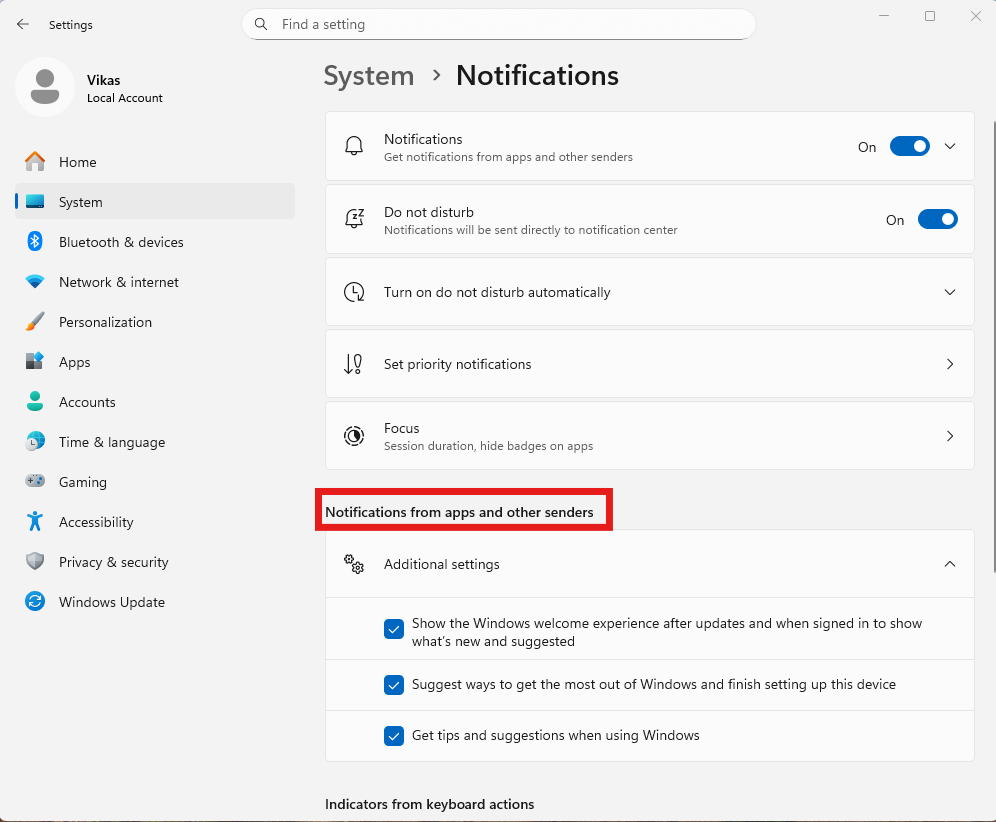
Windows 11 often sends a barrage of notifications—from apps, system tips, Microsoft promotions, and background apps—that can distract you, slow down focus, and even eat up a bit of battery life on laptops. By disabling unwanted notifications, you create a cleaner, distraction-free environment and let only essential alerts (like security updates or calendar reminders) appear.
Disable Notifications for Specific Apps
- 1. Open Settings → System → Notifications.
- 2. Scroll down to the Notifications from apps and other senders section.
- 3. Turn Off notifications for apps you don’t want (like Tips, Microsoft Store, Weather, Mail, etc.).
2. Disable Startup Apps
When you first set up a Windows 11 PC, many programs automatically add themselves to the startup list—meaning they launch every time your system boots. This might include chat apps, game launchers, cloud storage clients, and software updaters. While a few startup apps are useful (like antivirus tools or touchpad drivers), most of them slow down boot time, consume resources, and reduce performance.
How to Disable Startup Apps in Windows 11
1. Press Windows + I(Shortcut) to open Settings.
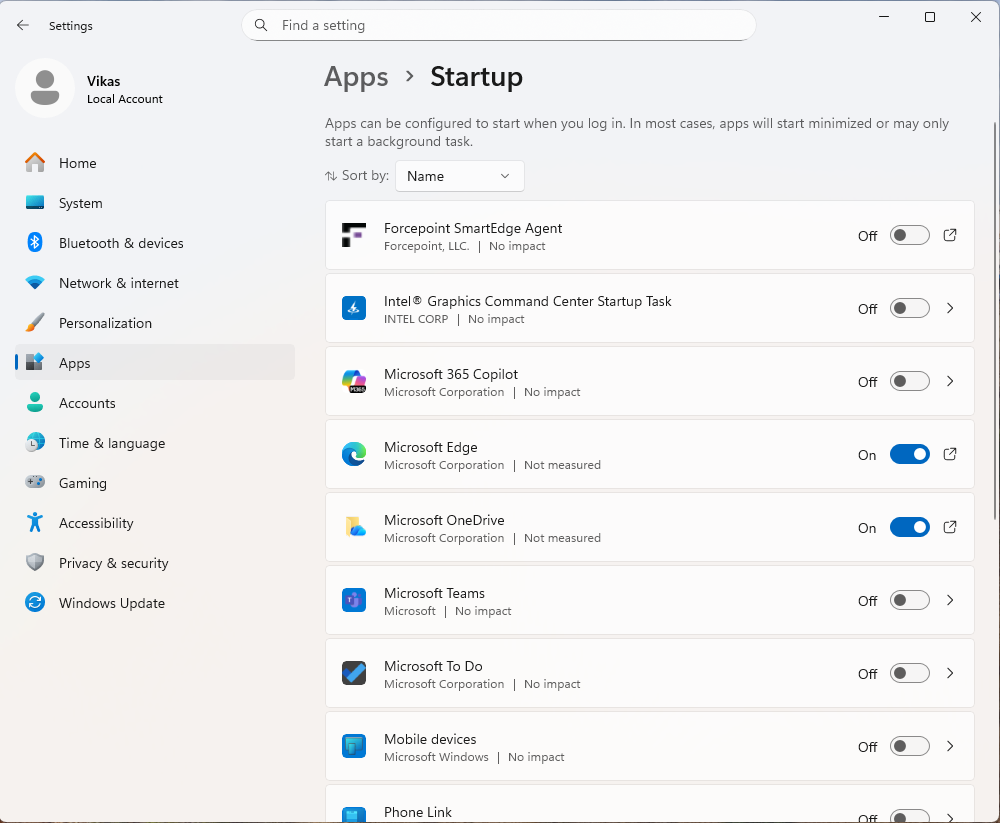
2. Navigate to Apps → Startup.
3. You’ll see a list of apps that launch at startup, each showing an “impact” label (e.g., High, Medium, Low).
4. Toggle Off the switch for any app you don’t want to start automatically.
Examples: Zoom, Microsoft Teams (personal), OneDrive, Epic Games Launcher.
3. Remove Ads from Windows 11
Windows 11 subtly shows advertisements and “suggested content” across various parts of the system — including the Start menu, File Explorer, Settings, and even the lock screen. These ads can create unnecessary clutter, consume data, and distract you. Removing them ensures a clean and focused experience.
How to Remove Ads in Windows 11
A. Turn Off Ads in the Settings App
1. Open Settings → Privacy & security → Recommendations & Offers
Turn Off the following options:
• Let apps show me personalized ads by using my advertising ID.
• Let Windows Show me product recommendations and offers in Settings

B. Disable File Explorer Promotions
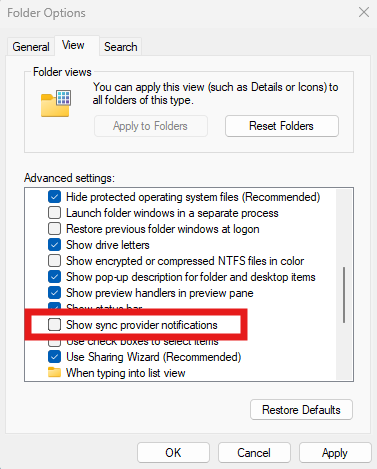
1. Open File Explorer → View → Options → Folder Options.
2. Go to the View tab and uncheck “Show sync provider notifications.”.
4. Remove Unwanted Apps (Bloatware)
When you set up a new Windows 11 PC, it comes with several pre-installed apps such as games, social media shortcuts, and promotional software. These apps take up storage and can slow down your system. Removing them early ensures your PC stays clean and fast.
How to Remove or Disable Unwanted Apps
1. Press Windows + I to open Settings.
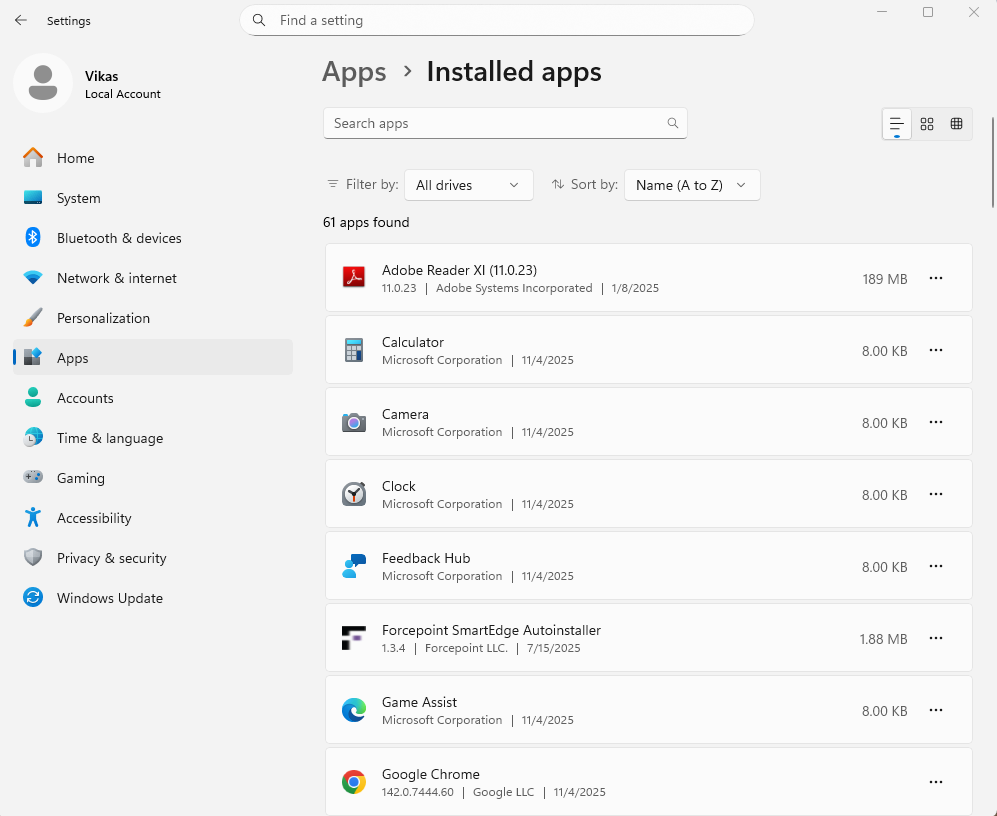
2. Navigate to Apps → Installed apps.
3. Click the three dots (…) next to the app you want to remove and select Uninstall.
5. Disable Tracking and Data Collection
Windows 11 continuously collects diagnostic and usage data to improve user experience. While some of this is necessary for updates and troubleshooting, much of it is optional and used for analytics and personalized ads. Disabling telemetry enhances privacy and slightly boosts performance.
How to Disable Tracking and Data Collection
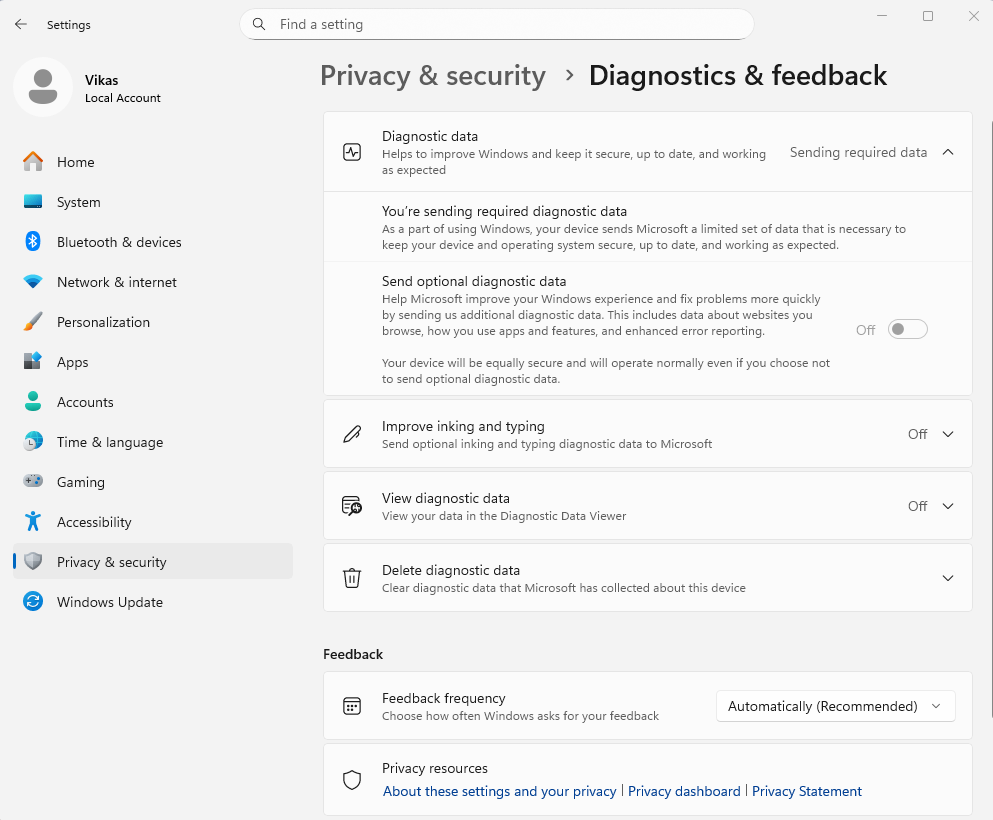
1. Settings → Privacy & security → Diagnostics & feedback.
2. Under Diagnostic data, uncheck Send optional data.
Windows 11 is a great operating system if calibrated correctly. The above settings will enhance your privacy, performance, and overall experience while working with Windows 11.