
Spending long hours working on your computer can lead to eye strain and fatigue, especially if you’re using a bright screen. Luckily, Windows 11 offers a built-in Dark Mode feature that can be a game-changer for your visual comfort. Not only does Dark Mode help reduce eye strain, but it also contributes to energy savings and can even enhance your productivity and sleep quality. In this comprehensive guide, we’ll walk you through the straightforward steps to enable Dark Mode in Windows 11, ensuring a more comfortable and efficient computing experience.
Why Choose Dark Mode in Windows 11?
Switching to Dark Mode is more than just a cosmetic change—it can significantly benefit your overall well-being. Here’s why you should consider making the switch:
- Reduces Eye Strain: The lower brightness and softer contrast in Dark Mode are easier on the eyes, especially during extended screen time or in low-light environments.
- Conserves Battery Life: Dark Mode can help extend battery life on laptops by using less power to illuminate the screen.
- Improves Productivity: A more comfortable viewing experience can lead to fewer distractions and less eye fatigue, which in turn can boost your productivity.
- Enhances Sleep Quality: Reducing exposure to bright screens before bedtime can help improve your sleep patterns by minimizing blue light exposure.
How to Enable Dark Mode in Windows 11
Enabling Dark Mode in Windows 11 is simple and can be done in just a few steps. Follow this guide to make the change:
- Open Settings: Click on the Start menu and select “Settings” (you can also use the shortcut Win + I).
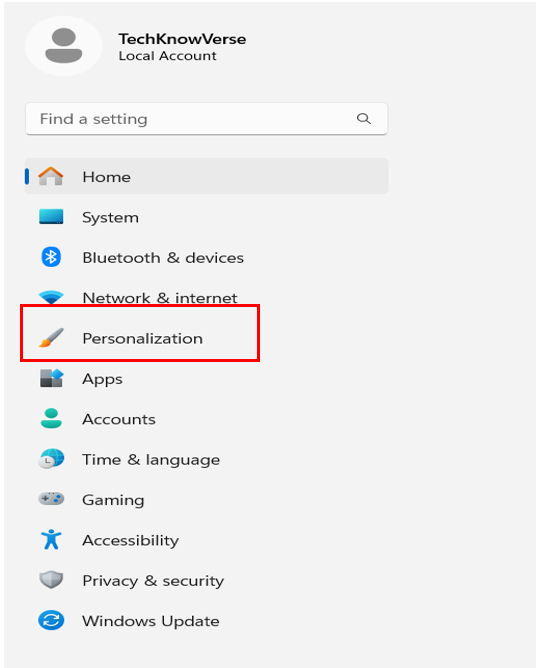
- Navigate to Personalization: In the Settings window, click on “Personalization” from the sidebar.
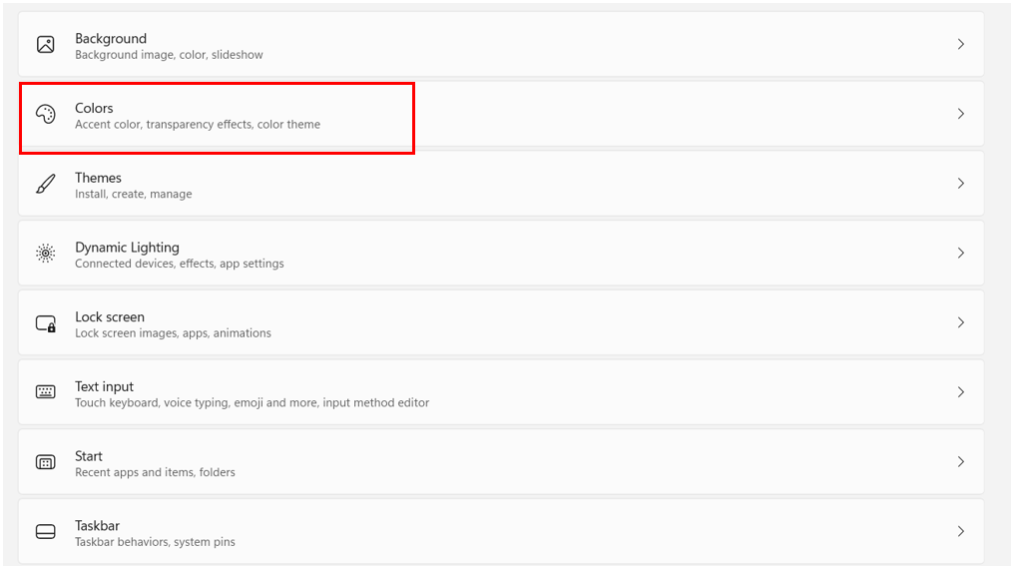
- Select Colors: Within the Personalization menu, click on “Colors.”
- Choose Dark Mode: Scroll down to the “Choose your mode” section and select “Dark” from the options. You’ll immediately notice the change in your interface.
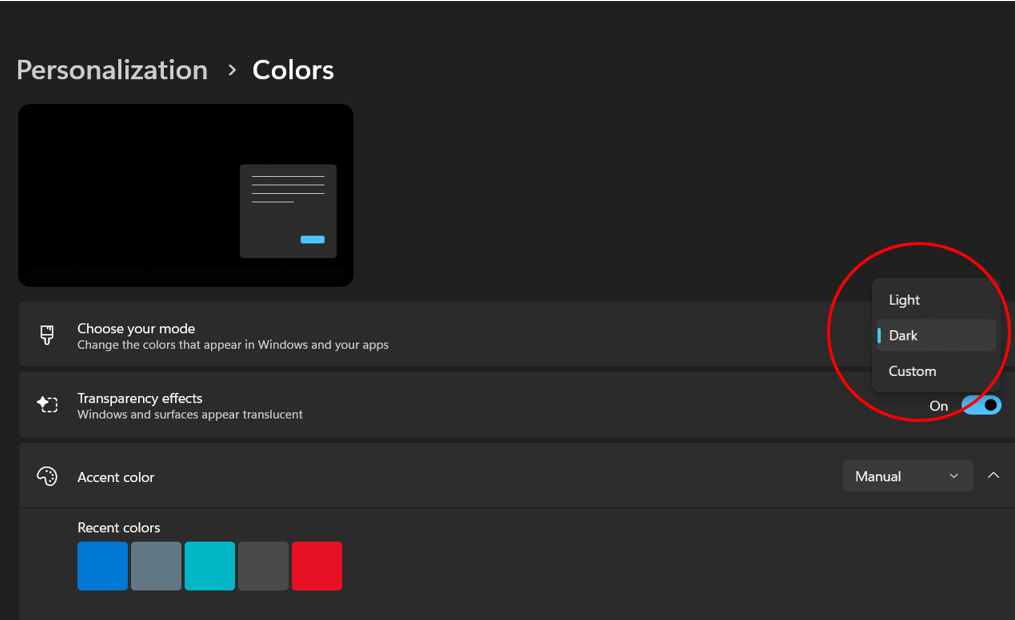
- Customize Further (Optional): You can also choose to adjust additional settings such as accent colors and transparency effects to tailor the Dark Mode to your preference.
By following these steps, you’ll be able to enjoy a more comfortable and energy-efficient computing experience with Windows 11’s Dark Mode.