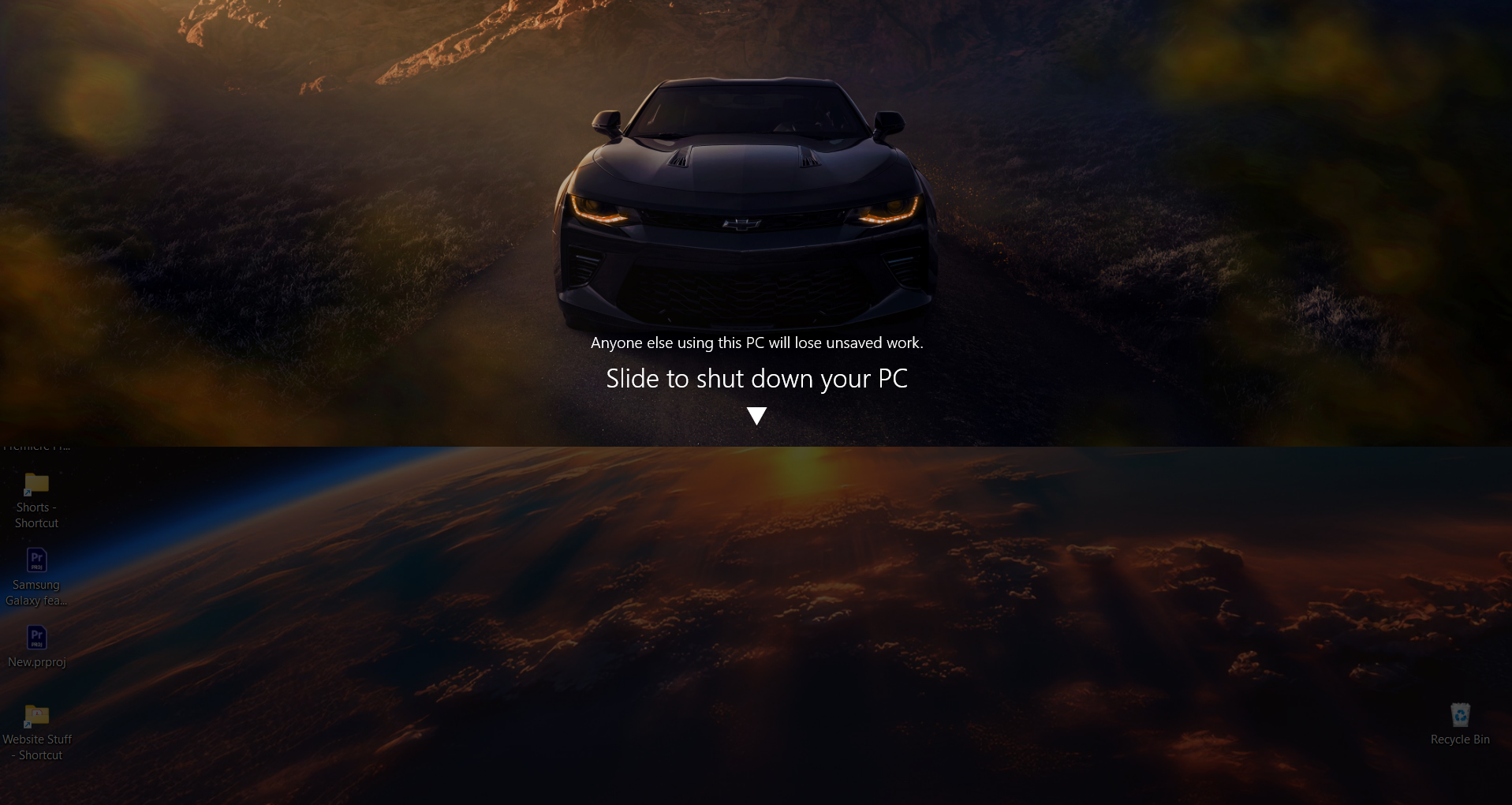

Microsoft has introduced a simplified method for shutting down Windows 11, 10, and 8.1 tablets and touch devices. The “Slide To Shut Down” feature allows users to effortlessly power off their PC by sliding down a lock screen that appears halfway across the display. This convenient functionality is accessed through the SlideToShutDown.exe tool, which can be found in the C:\Windows\System32 directory. For even quicker access, you can create a “Slide to Shutdown” shortcut on your desktop to streamline the shutdown process on your Windows touch device.
Creating a “Slide to Shutdown” shortcut in Windows 11 is a straightforward process. Follow these steps to set it up:
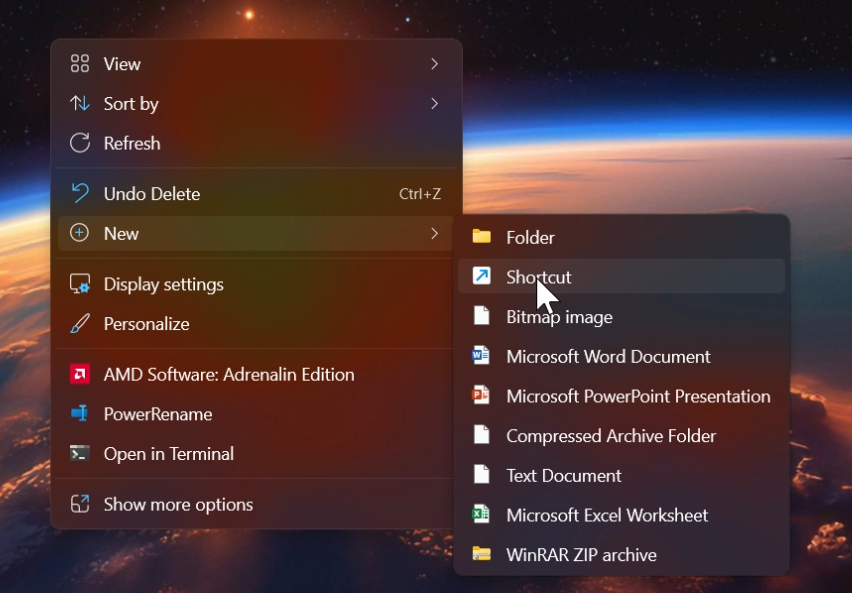
- Right-click on Your Desktop:
- Choose New > Shortcut from the context menu.
- Enter the Shortcut Location:
- In the location field, type the following command:
“C:\Windows\System32\SlideToShutDown.exe”
- Click Next.
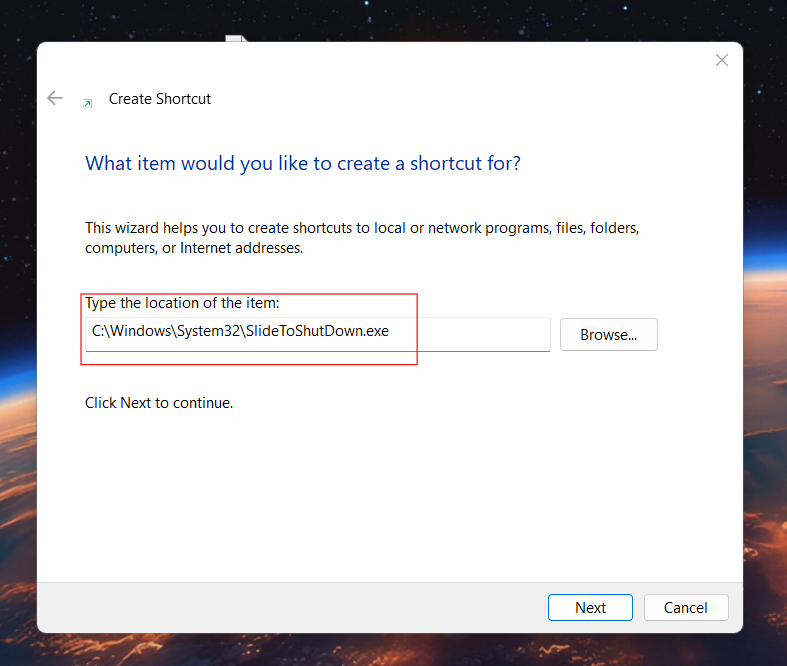
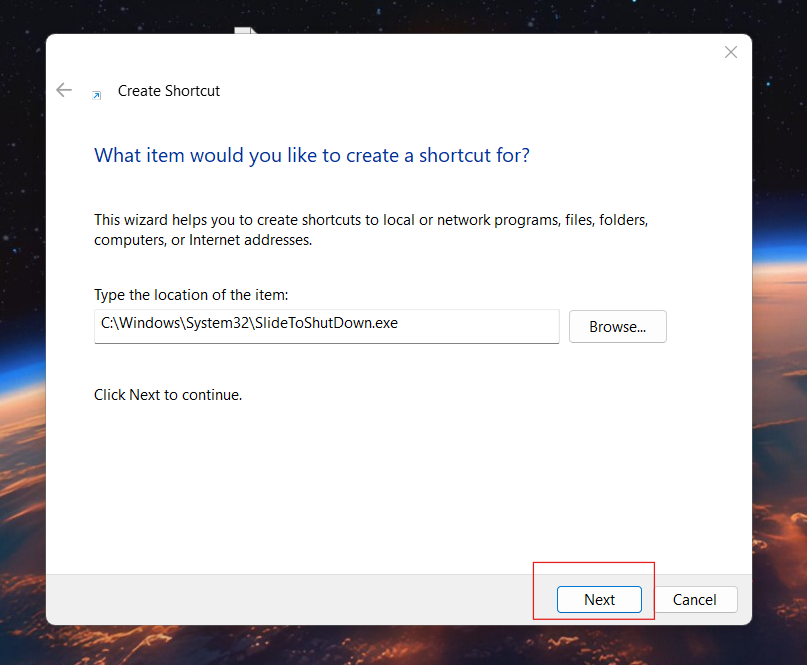
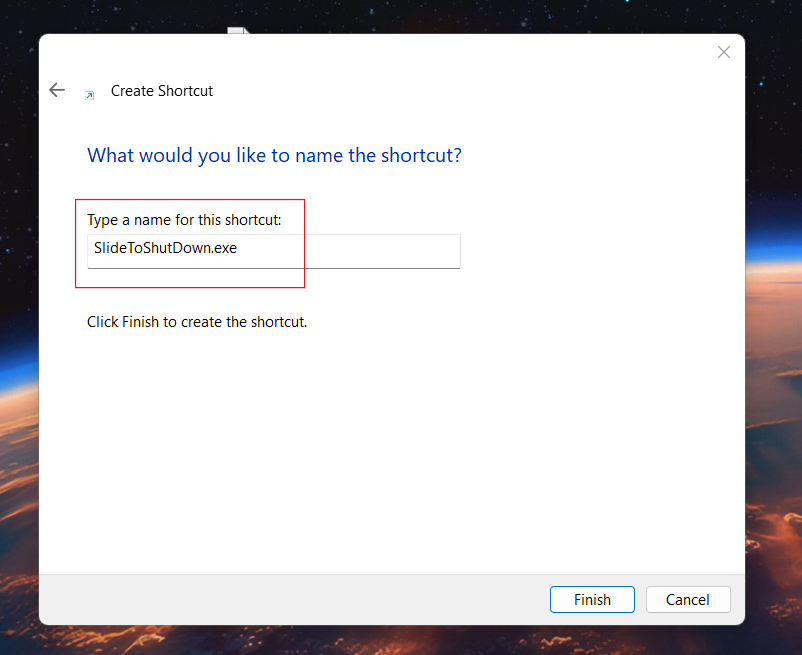
- Name Your Shortcut:
- Enter a name for the shortcut, such as “Slide to Shutdown.”
- Click Finish.
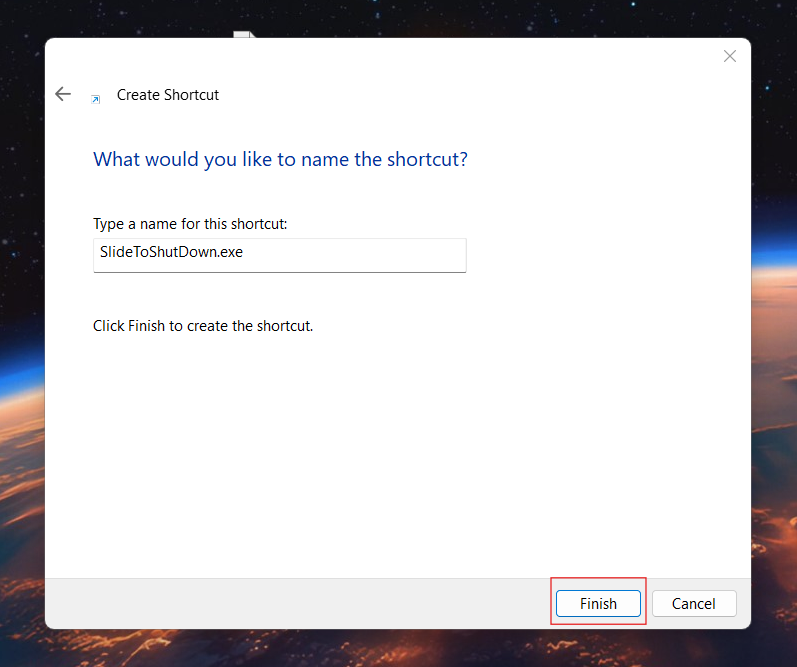
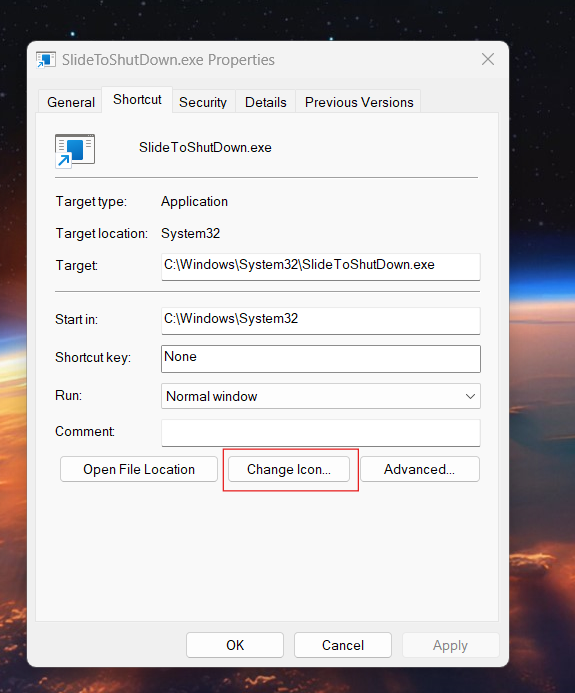
- Customize the Shortcut Icon (Optional):
- Right-click on the newly created shortcut and select Properties.
- In the Shortcut tab, click on Change Icon.
- Choose an icon from the available options or browse for a custom one.
- Click OK and then Apply.
- Use the Shortcut:
- Double-click the shortcut to bring up the “Slide to Shut Down” screen. Simply slide down to shut down your PC.
By following these steps, you’ll have a convenient shortcut on your desktop for quickly shutting down your Windows 11 device using the “Slide to Shutdown” feature.