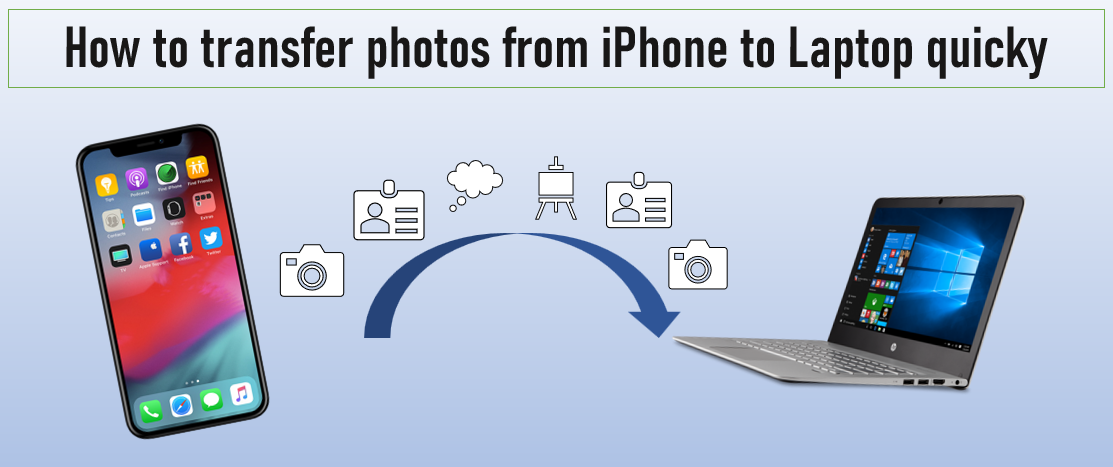

With the growing number of photos and videos we store on our iPhones, many of us struggle with limited storage space. Transferring them to a Windows laptop is a simple solution that not only frees up storage on your iPhone but also ensures your media is safely backed up. Thankfully, Microsoft has made it easy to move your photos and videos to a Windows laptop. In this guide, we’ll walk you through the straightforward steps to do just that.
To transfer photos from an iPhone to a laptop, follow these steps:
1. Connect your iPhone to the Laptop
- Use a USB cable to connect your iPhone to your Windows laptop.
- On your iPhone, a pop-up will appear asking you to “Trust This Computer.” Tap Trust and enter your passcode if prompted.
2. Open the Photos App
- On your laptop, open the Photos app. You can find it by searching for “Photos” in the Start menu.
3. Import Photos
- In the Photos app, click on the Import button in the top-right corner.
- Select From a connected device from the drop-down menu.
4. Select Photos to Import
- The Photos app will detect your iPhone and scan for photos. This may take a few seconds.
- Once the scan is complete, a list of photos will appear. You can either select specific photos to transfer or choose to import all new photos.
5. Choose Destination Folder
- Before importing, you can select the destination folder for your photos by clicking on Change destination (optional).
- Once ready, click on the Import button to start transferring your photos.
6. Wait for Transfer to Complete
- The transfer process may take a few minutes, depending on the number of photos and their size.
In conclusion, transferring photos and videos from your iPhone to a Windows laptop is a quick and effective way to manage your device’s storage while keeping your media safely backed up. With the built-in tools provided by both Apple and Microsoft, the process is straightforward and accessible to anyone. By following the steps outlined in this guide, you’ll be able to free up space on your iPhone and ensure your valuable memories are securely stored on your laptop. Now, you can enjoy capturing new moments without worrying about running out of space!