
Introduction
During my spare time, I regularly explore articles and videos to discover new iPhone features. While millions of people use iPhones every day, many still don’t know about some incredibly useful features hidden deep inside the settings.
Recently, while watching an iPhone tips video, I got the idea to share some of the most practical features I’ve come across.
Some of these features can improve productivity, while others enhance privacy, convenience, and the overall iPhone experience. From hidden shortcuts to smart AI-powered tools, Apple has added several underrated features that most users overlook.
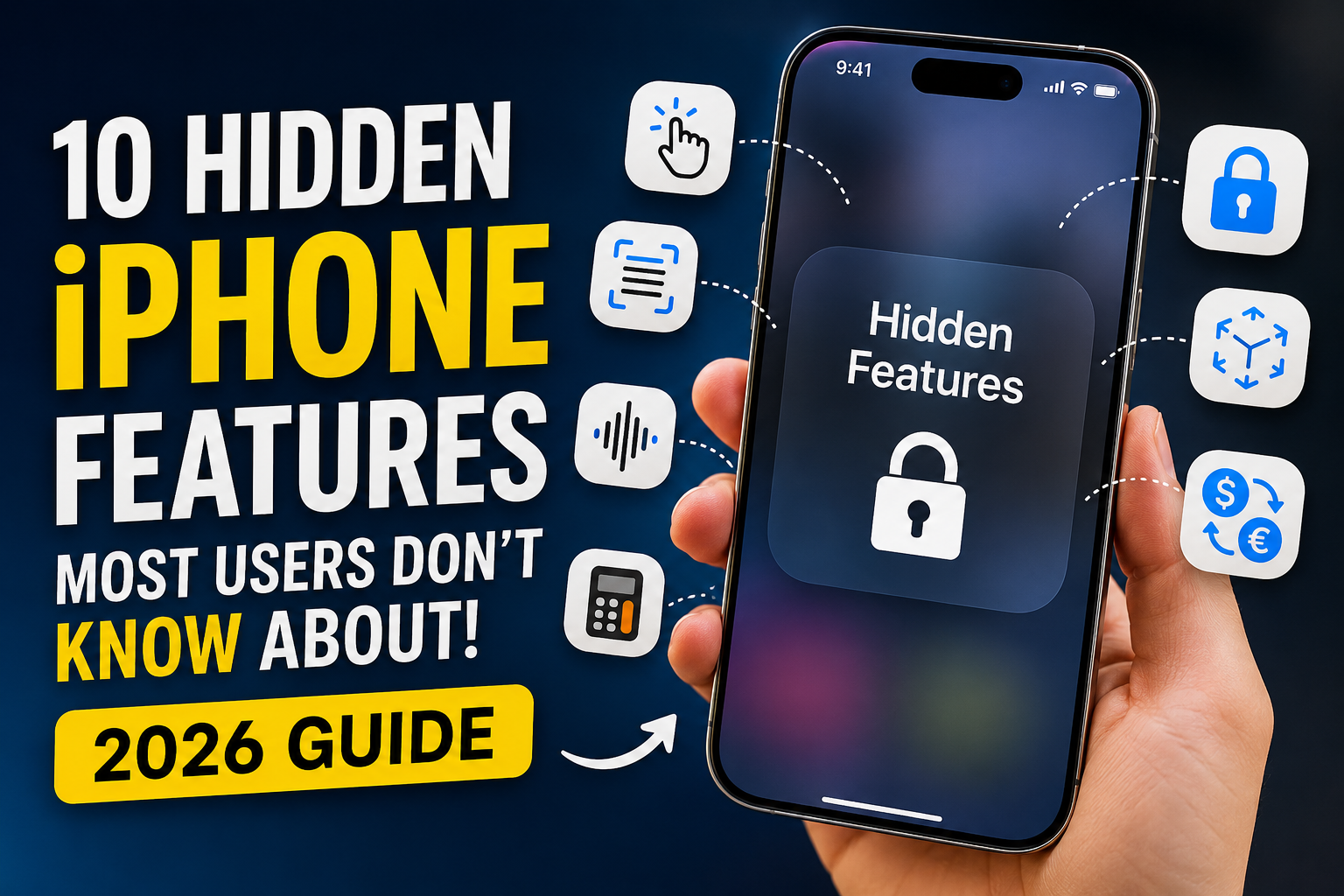
In this article, I’ll break down the top 10 hidden iPhone features that are actually worth trying in 2026.
Although there are many hidden features available, I’ve shortlisted the ones I found most useful. Surprisingly, many users still don’t know about them because they are buried deep inside the settings menu.
But don’t worry—in this guide, I’ll explain everything step by step, including how these features work and how to set them up properly.
I’m confident that after reading this article, you’ll feel more engaged with your iPhone and may even start exploring more features on your own.
Top 10 Hidden iPhone Features
- Use Back Tap as a Hidden Shortcut Button
- Turn the Keyboard Into a Hidden Trackpad
- Copy Text Directly From Photos Using Live Text
- Use Background Sounds for Focus and Relaxation
- Identify Objects, Plants, and Pets with Visual Lookup
- Lock and Hide Apps Using Face ID
- Improve Call Quality with Voice Isolation
- Measure Real Objects Using the Measure App
- Use Currency Conversion and Math Notes in Calculator
- Reduce White Point for Comfortable Night Usage
1. Use Back Tap as a Hidden Shortcut Button
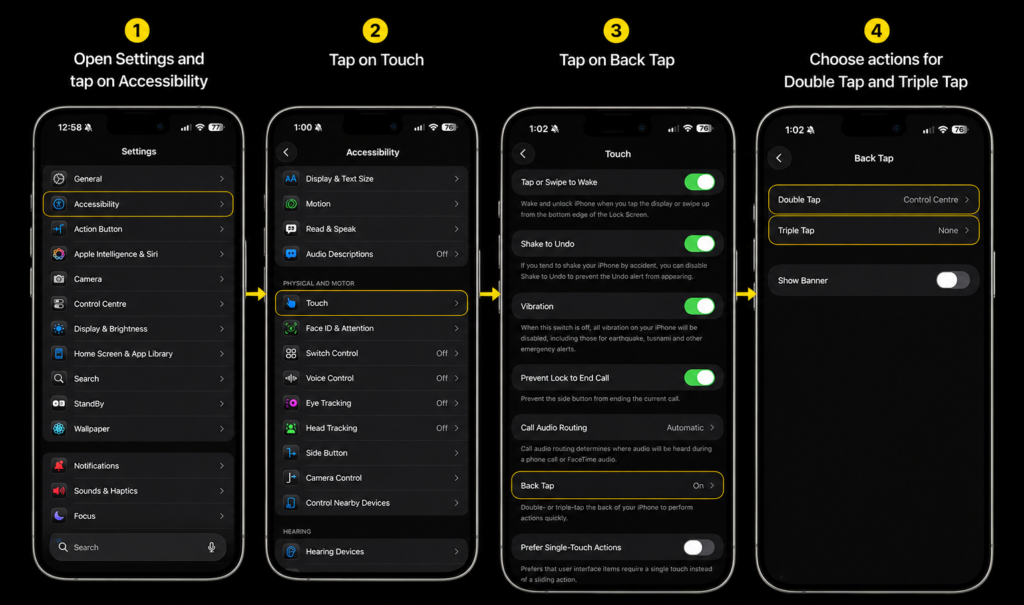
One of the most underrated iPhone features is Back Tap. This feature allows users to double tap or triple tap the back of the iPhone to perform specific actions instantly. It can be used to take screenshots, turn on the flashlight, open the camera, activate shortcuts, or even launch particular apps. Once configured properly, it almost feels like adding an extra hidden button to the iPhone.
This feature becomes especially useful during one-handed usage as it reduces the need to navigate through multiple menus. Many users never discover it because it is hidden deep inside accessibility settings.
How to Enable Back Tap
- Open Settings
- Go to Accessibility
- Tap Touch
- Select Back Tap
- Choose either Double Tap or Triple Tap
- Assign your preferred action
2. Turn the Keyboard Into a Hidden Trackpad
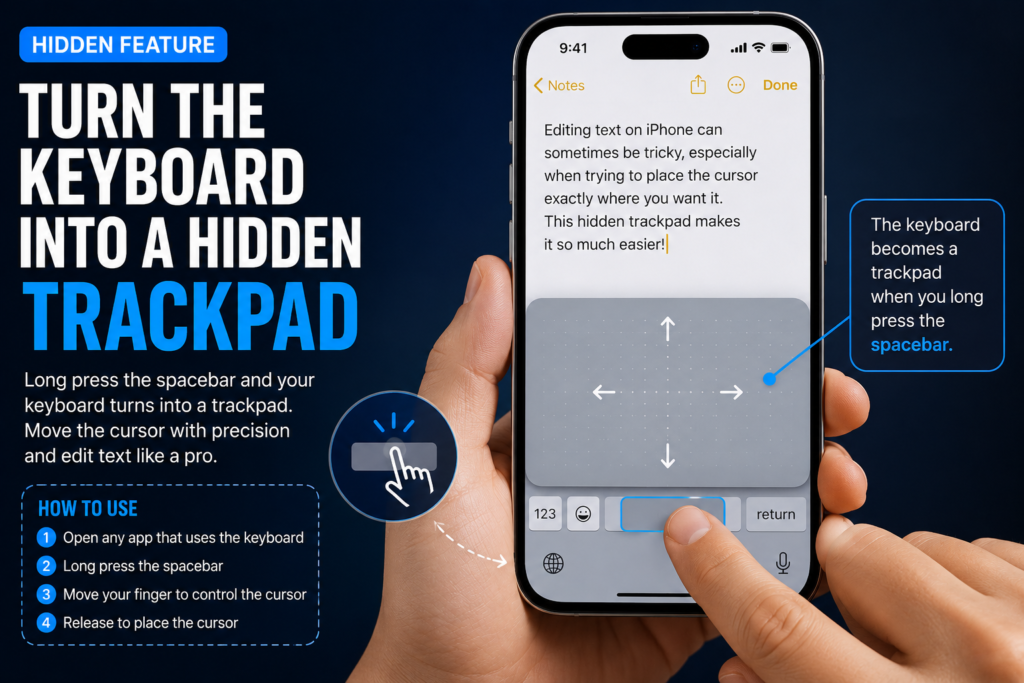
Editing text on smartphones can sometimes feel frustrating, especially while correcting mistakes or moving the cursor between sentences. Fortunately, iPhone includes a hidden keyboard trackpad feature that makes text editing significantly easier. By long pressing the spacebar, the keyboard instantly transforms into a trackpad, allowing users to move the cursor smoothly and accurately across the screen.
This feature is particularly useful while writing long notes, emails, or documents because it saves time and improves precision compared to manually tapping on text.
How to Use the Keyboard Trackpad
- Open any app that uses the keyboard
- Long press the spacebar
- Move your finger around to control the cursor
- Release to place the cursor at the desired position
3.Copy Text Directly From Photos Using Live Text
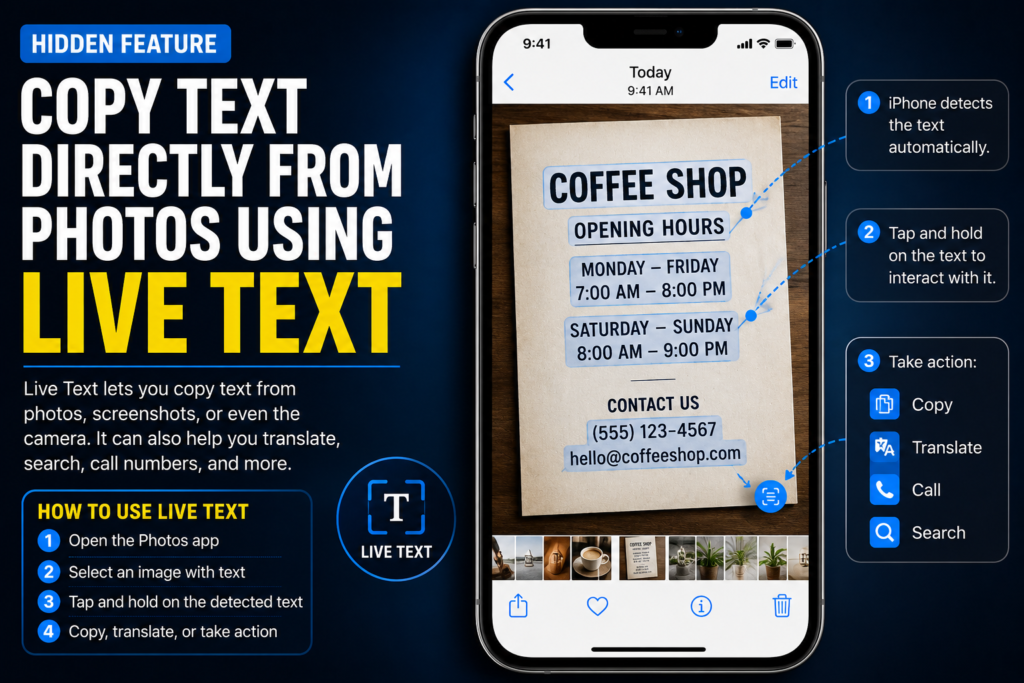
Live Text is one of the smartest AI-powered features available on modern iPhones. It allows users to detect and copy text directly from photos, screenshots, or even through the camera viewfinder. Whether it is a WiFi password, phone number, receipt, document, or handwritten note, the iPhone can instantly recognize the text and make it selectable.
This feature becomes extremely useful in daily life because it removes the need to manually type information from images. It also supports translation and quick actions such as calling phone numbers directly from photos.
How to Use Live Text
- Open the Photos app
- Select an image containing text
- Tap and hold on the detected text
- Copy, translate, or share the text as required
4.Use Background Sounds for Focus and Relaxation
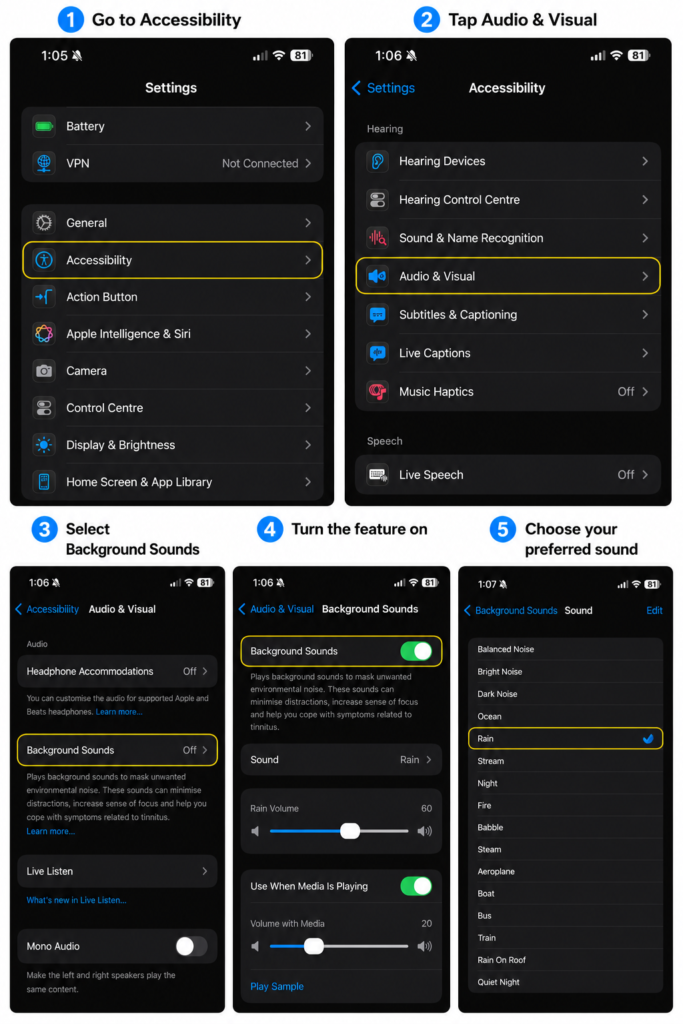
Many users install third-party apps for white noise or relaxation sounds without realizing that iPhone already includes a built-in Background Sounds feature. It provides ambient sounds such as rain, ocean, stream, and dark noise which can help improve focus, concentration, and relaxation.
This feature is especially helpful while studying, working, sleeping, or reducing distractions in noisy environments. Since it is integrated directly into iOS, it also works smoothly in the background while using other apps.
How to Enable Background Sounds
- Open Settings
- Go to Accessibility
- Tap Audio & Visual
- Select Background Sounds
- Turn the feature on and choose your preferred sound
5. Identify Objects, Plants, and Pets with Visual Lookup
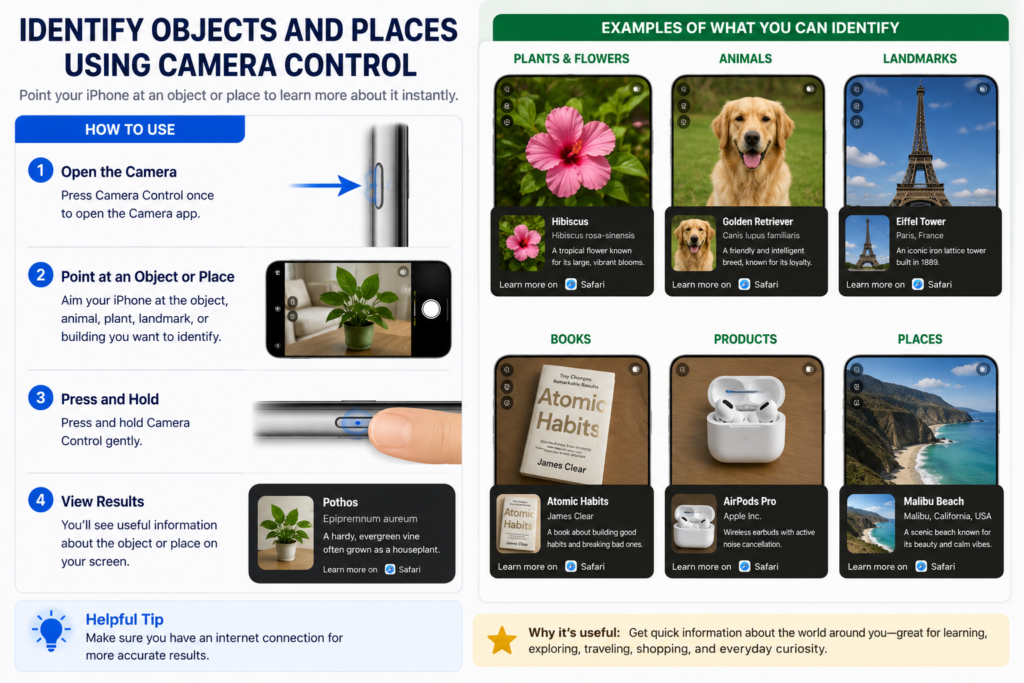
Visual Lookup is another hidden iPhone feature powered by on-device intelligence. It allows users to identify objects inside photos, including plants, pets, landmarks, books, and even food items. Instead of manually searching online, the iPhone can instantly provide information related to the detected object.
This feature is useful for learning, traveling, and everyday curiosity. Many users accidentally discover it while browsing their photo gallery because Apple does not actively highlight it.
How to Use Visual Lookup
- Open the Photos app
- Select a compatible image
- Swipe up on the photo or tap the information icon
- View details related to the identified object
6. Lock and Hide Apps Using Face ID
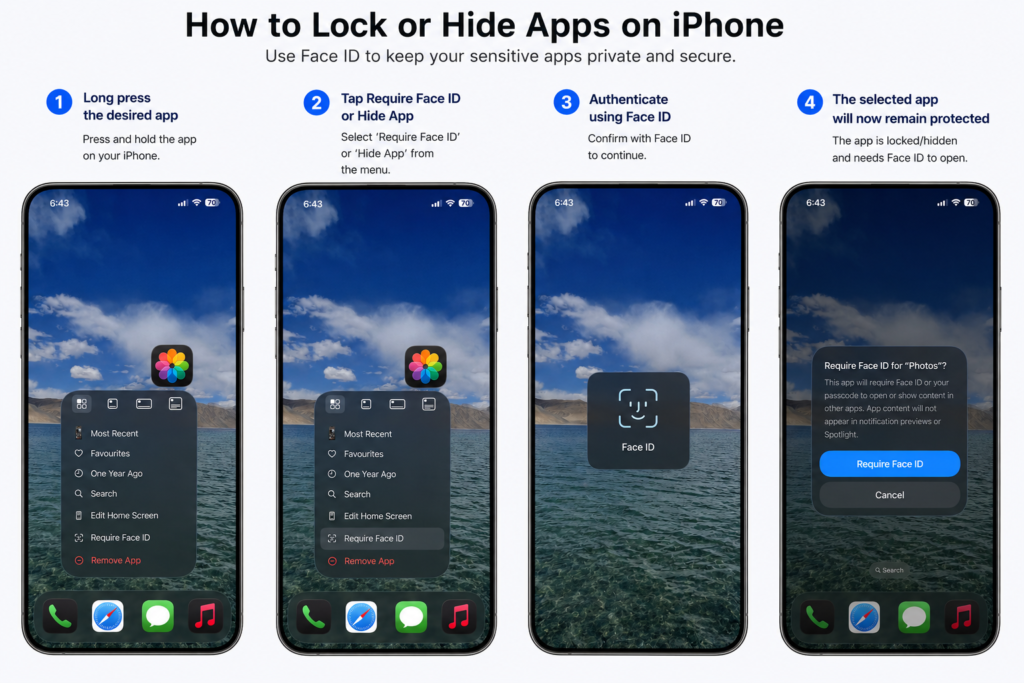
Privacy has become increasingly important for smartphone users, and iPhone now offers the ability to lock or hide certain apps using Face ID. This feature helps secure sensitive apps such as banking apps, personal chats, notes, or private media from unauthorized access.
The hidden apps section also prevents selected apps from appearing openly on the home screen, adding an additional layer of privacy for users who share their devices with others.
How to Lock or Hide Apps
- Long press the desired app
- Tap Require Face ID or Hide App
- Authenticate using Face ID
- The selected app will now remain protected
7.Improve Call Quality with Voice Isolation
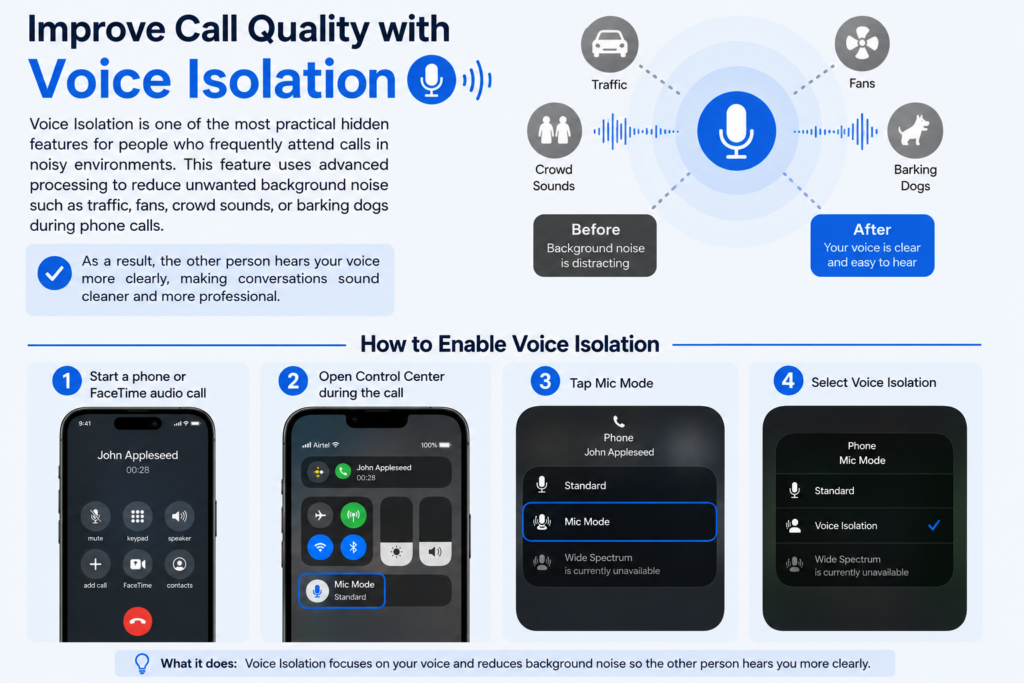
Voice Isolation is one of the most practical hidden features for people who frequently attend calls in noisy environments. This feature uses advanced processing to reduce unwanted background noise such as traffic, fans, crowd sounds, or barking dogs during phone calls.
As a result, the other person hears your voice more clearly, making conversations sound cleaner and more professional.
How to Enable Voice Isolation
- Start a phone or FaceTime audio call
- Open Control Center during the call
- Tap Mic Mode
- Select Voice Isolation
8.Measure Real Objects Using the Measure App
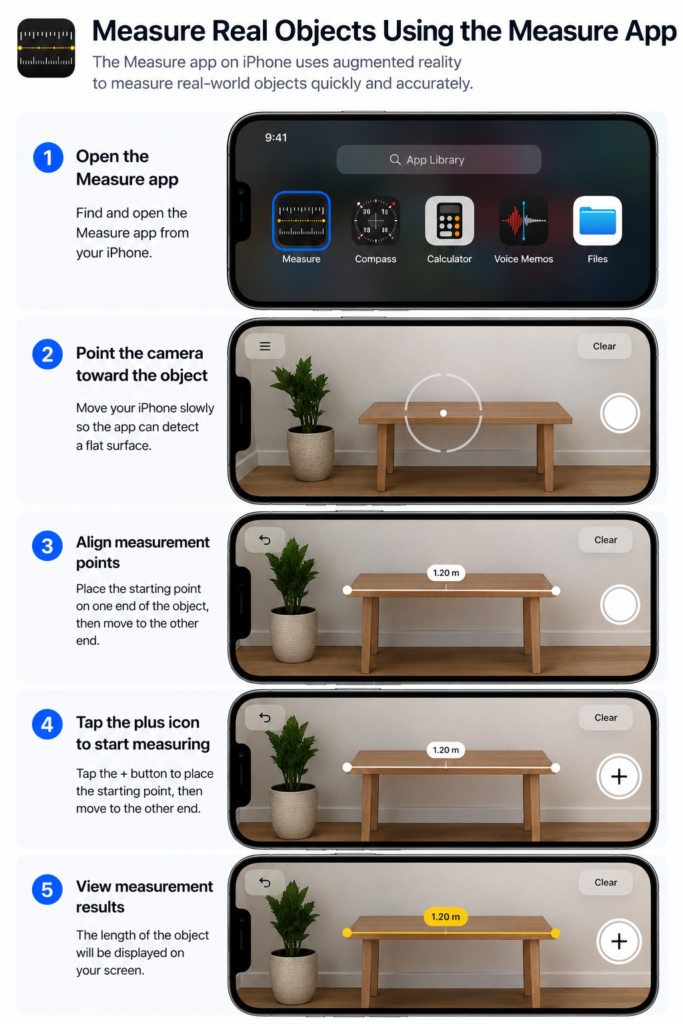
The built-in Measure app uses augmented reality technology to measure real-world objects directly through the iPhone camera. Users can estimate the dimensions of furniture, packages, walls, tables, and various other objects without carrying a physical measuring tape.
Although it may not replace professional tools completely, it is extremely convenient for quick measurements during shopping, room planning, or office work.
How to Use the Measure App
- Open the Measure app
- Point the camera toward the object
- Move the device slowly to detect dimensions
- Tap the plus icon to start measuring
9. Use Currency Conversion and Math Notes in Calculator
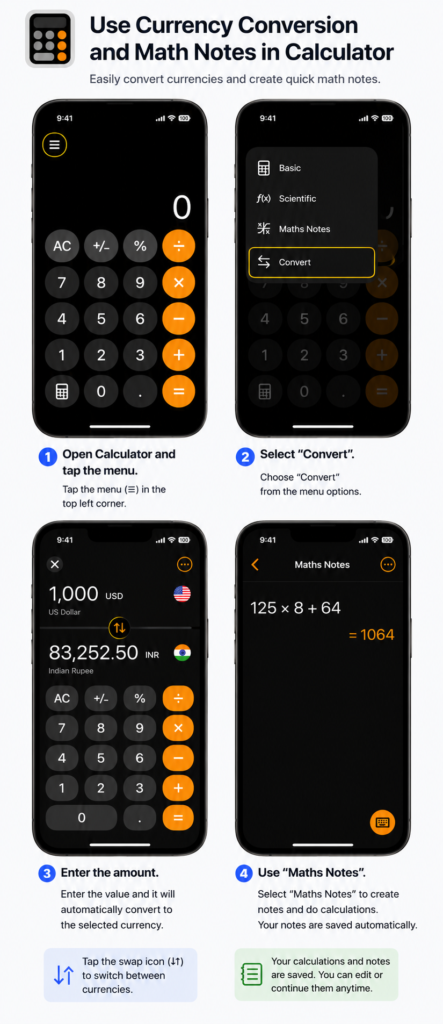
The updated Calculator experience on iPhone now supports quick currency conversion and Math Notes, making it much more useful for students, travelers, and everyday users. Instead of opening separate apps or searching online, users can perform basic conversions and mathematical calculations directly within the calculator interface.
Math Notes can also solve handwritten equations automatically, which makes the feature practical for quick calculations and learning purposes.
How to Use Currency Conversion and Math Notes
- Open the Calculator app
- Access the conversion or Math Notes section
- Enter your values or handwritten calculations
- View instant results directly on screen
10. Reduce White Point for Comfortable Night Usage
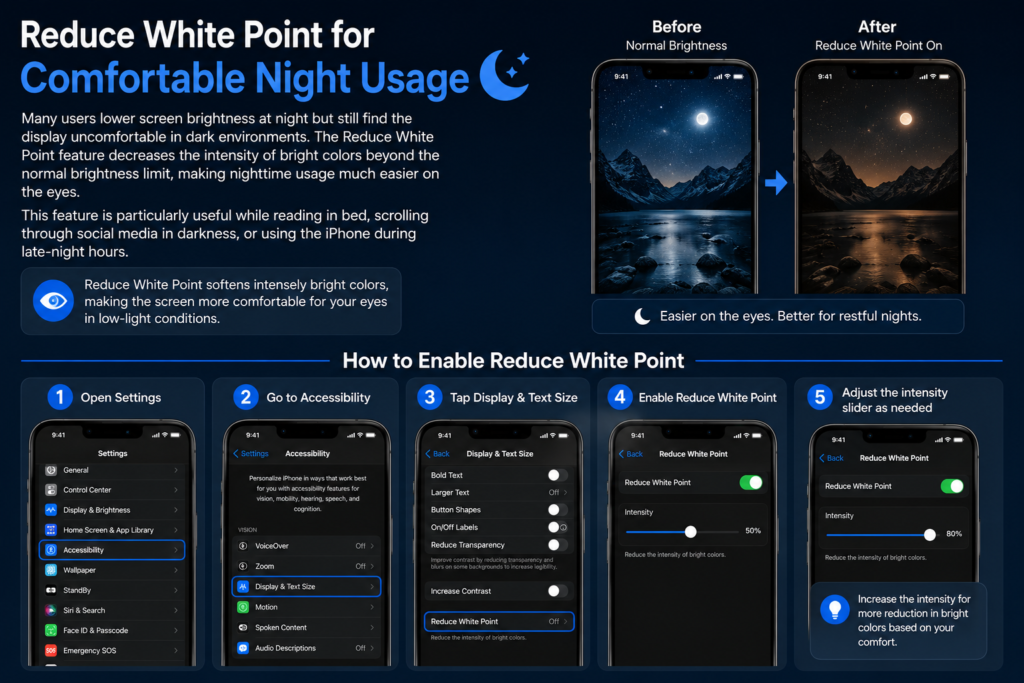
Many users lower screen brightness at night but still find the display uncomfortable in dark environments. The Reduce White Point feature decreases the intensity of bright colors beyond the normal brightness limit, making nighttime usage much easier on the eyes.
This feature is particularly useful while reading in bed, scrolling through social media in darkness, or using the iPhone during late-night hours.
How to Enable Reduce White Point
- Open Settings
- Go to Accessibility
- Tap Display & Text Size
- Enable Reduce White Point
- Adjust the intensity slider as needed
Frequently Asked Questions
Do hidden iPhone features affect battery life?
Most hidden iPhone features have very little impact on battery life during normal usage. However, features that constantly use background processing, microphone access, or location services may slightly increase battery consumption if kept active for long periods.
Which iPhones support features like Live Text and Visual Lookup?
Features such as Live Text and Visual Lookup are generally available on newer iPhones running recent iOS versions. Older devices may not support some AI-powered features due to hardware limitations.
Are these hidden iPhone features safe to use?
Yes, all the features mentioned in this guide are official iOS features provided by Apple. They are built directly into the system and are safe to use without installing third-party apps.
Can I disable these hidden features later?
Yes, every feature can be disabled anytime through the Settings app. Users can customize or turn them off whenever they want according to their personal preferences.
Why are many useful iPhone features hidden inside settings?
Many advanced iPhone features are placed inside accessibility, privacy, or system settings because they are designed for specific use cases. As a result, many users never discover them during normal day-to-day usage.
Conclusion
iPhones include far more capabilities than most users realize. While many people only use their devices for basic tasks like calling, messaging, or browsing social media, Apple has quietly added several hidden features that can genuinely improve productivity, privacy, convenience, and the overall user experience.
From Back Tap shortcuts to AI-powered Live Text and Voice Isolation, these features show how powerful modern iPhones have become. The best part is that most of them are already built into iOS and can be enabled within a few seconds.
If you have never explored these hidden iPhone settings before, now is probably the perfect time to start. You may end up discovering features that completely change the way you use your iPhone every day.