
We often hand our iPhones to friends, family members, or sometimes even someone we don’t know. During this exchange, the other person may accidentally open a private app such as Photos or Mail, which can be uncomfortable for many users.
Fortunately, with iOS 18, Apple introduced a useful privacy feature that allows you to lock and hide certain apps on your iPhone. This gives you more control over your personal information when someone else is using your device.
How to Hide an App on iPhone
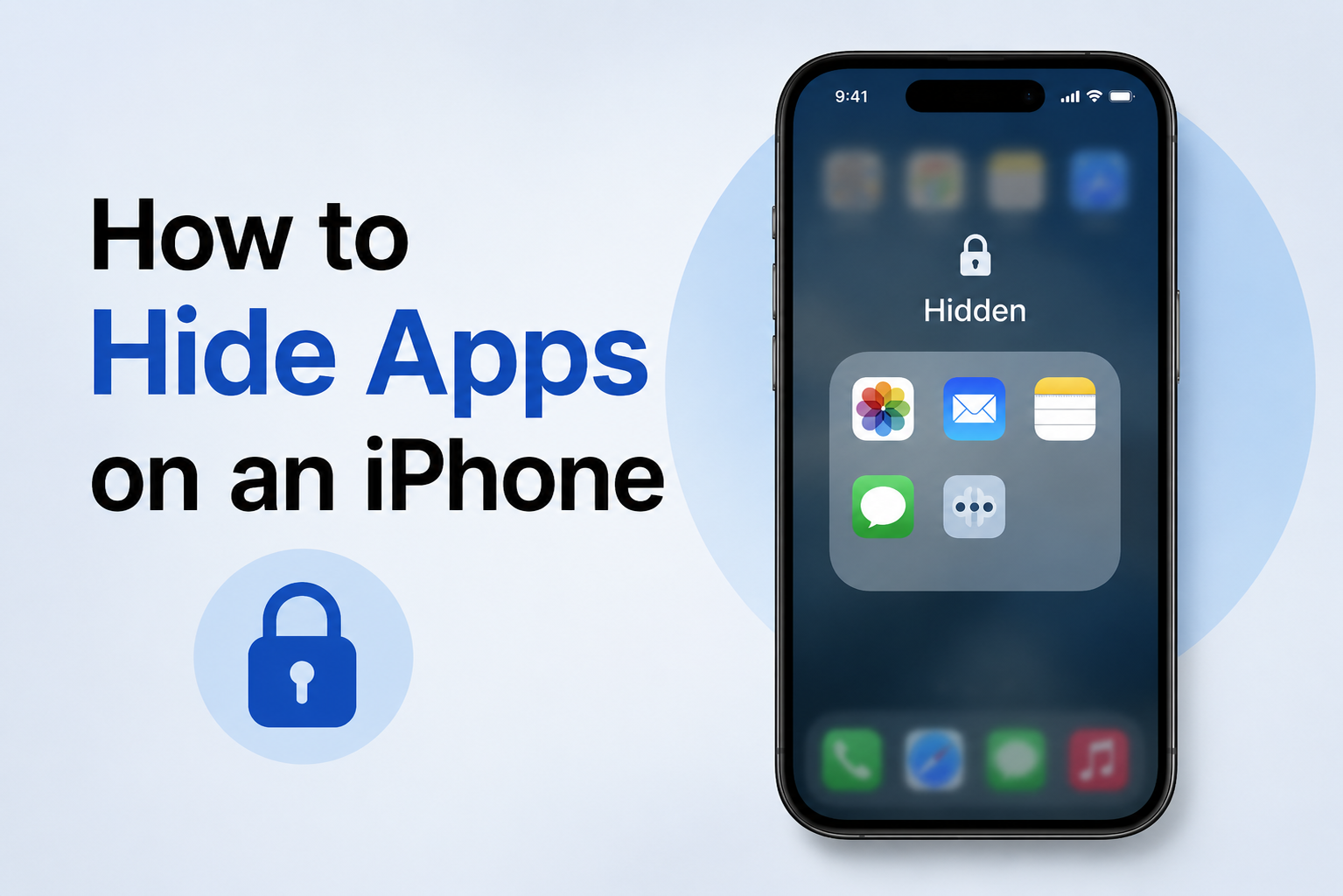
Hiding an app on an iPhone takes only a few steps. Once hidden, the app is removed from your Home Screen and placed in the Hidden folder in the App Library.
Follow these steps:
- Find the app you want to hide on your Home Screen.
- Touch and hold the app icon until the quick actions menu appears.
- Tap Require Face ID (or Touch ID or Passcode, depending on your device).
- Select Hide and Require Face ID.
- Authenticate using Face ID, Touch ID or your passcode.
- Tap Hide App to confirm.
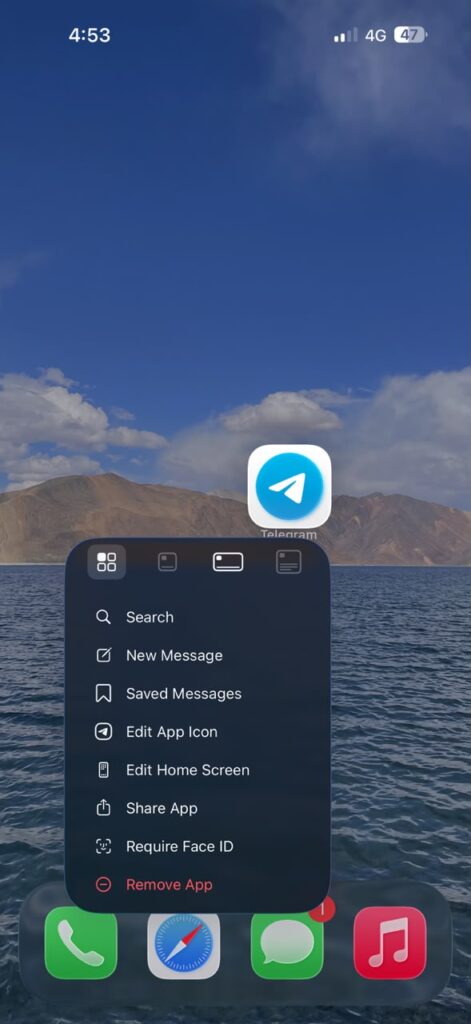
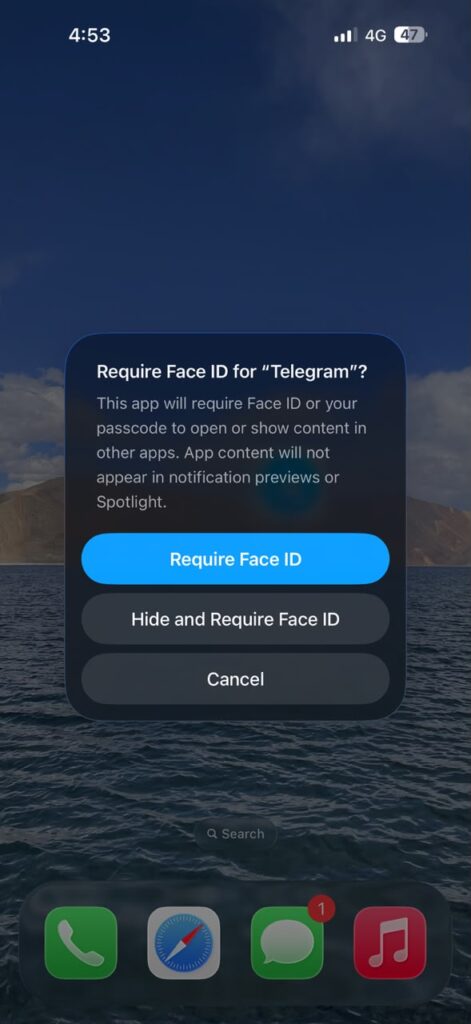
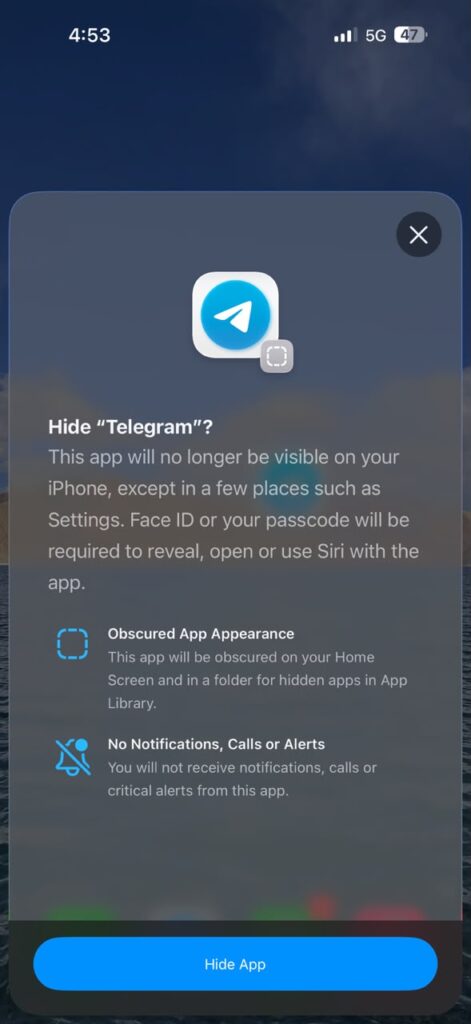
The app will now disappear from your Home Screen and move to the Hidden folder at the bottom of the App Library. Opening this folder requires authentication.
How to Find and Open Hidden Apps on iPhone
Hiding an app does not delete it from your iPhone. You can still access it whenever you need it from the App Library.
- Swipe left past all your Home Screen pages to open the App Library.
- Scroll down and tap the Hidden folder.
- Authenticate using Face ID, Touch ID or your passcode.
- Tap the app you want to open.
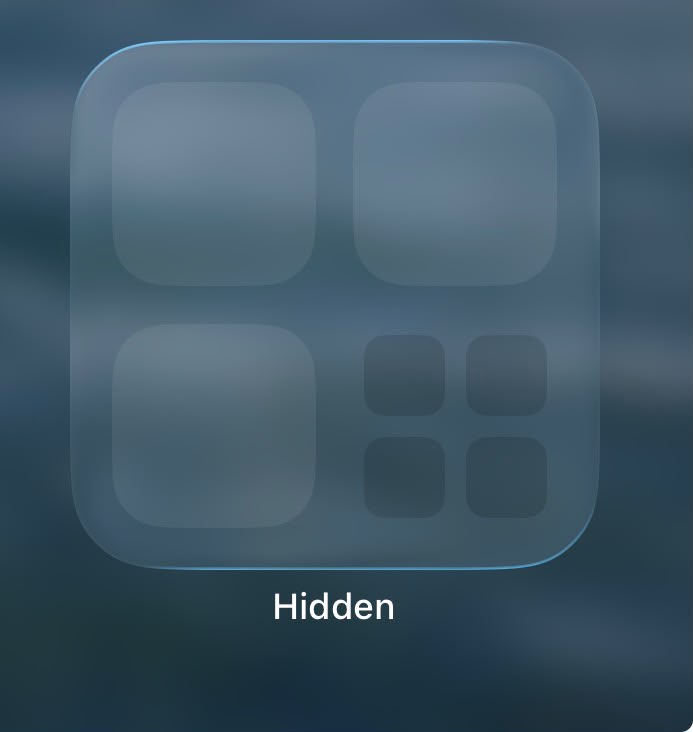
The Hidden folder itself remains visible in the App Library, but the apps stored inside it aren’t displayed until you authenticate.
How to Unhide an App on iPhone
If you no longer want an app to remain hidden, you can easily unhide it from the App Library.
- Open the App Library.
- Scroll down and tap Hidden.
- Authenticate using Face ID, Touch ID or your passcode.
- Touch and hold the app you want to unhide.
- Tap Don’t Require Face ID (or Touch ID or Passcode).
- Authenticate again if prompted.
The app will be removed from the Hidden folder. You can then add it back to your Home Screen if required.
Can You Hide Every App on an iPhone?
No. Apple does not allow every app on your iPhone to be hidden. The dedicated Hide and Require Face ID option is available for apps you have downloaded from the App Store, while Apple’s built-in apps cannot be hidden using this feature.
If the Hide and Require Face ID option doesn’t appear when you touch and hold an app, that particular app may not support hiding.
Are Hidden Apps Completely Invisible?
Not entirely. Hiding an app prevents it from appearing normally on your Home Screen, in the App Library and in Search, and its notifications and calls are also suppressed.
However, Apple notes that the name of a hidden app may still appear in certain places on your iPhone, including Screen Time, Battery Usage and App Store purchase history.
So, while hiding an app provides an additional layer of privacy when someone else is using your iPhone, it should not be considered a way to completely erase all traces of an app from the device.
Final Thoughts: Is Hiding Apps on iPhone Worth It?
So, is this feature worth the hype? From my perspective — definitely. In an era where someone can easily gain access to your personal information, having the option to hide sensitive apps adds a useful extra layer of privacy.
It not only helps protect your personal information but also gives you more confidence when handing your iPhone to someone else for a quick task. While hidden apps aren’t completely invisible, this feature is still a simple and effective way to keep certain apps away from unwanted attention.