
What Is the iPhone Shortcuts App?
On 7 June 2018, Apple introduced the Shortcuts app during WWDC 2018. Later, on 19
September 2019, it became a default app on every iPhone running iOS 13. Despite
being available for years, many iPhone users still overlook this powerful app, even
though it can significantly improve their day-to-day experience.
The Shortcuts app is one of Apple’s most underrated productivity tools. It allows you to
automate repetitive tasks and perform multiple actions with a single tap. Whether it’s
sharing your estimated arrival time, automatically enabling Low Power Mode, launching
your favourite apps together, or changing your wallpaper based on your location, the
possibilities are almost endless.
In simple words, a shortcut is a quick way to perform one or more actions at once,
while an automation runs those actions automatically when a specific trigger is met,
such as connecting to a Bluetooth device, reaching a location, or a particular time of
day.
The best part is that you don’t need any coding knowledge to use the Shortcuts app.
Apple’s drag-and-drop interface makes it easy for beginners to create useful shortcuts
within minutes.
Before jumping into the best iPhone shortcuts, it’s worth understanding how the
Shortcuts app works. You can either choose from Apple’s built-in Shortcut Gallery,
create your own shortcuts by combining different actions, or import shortcuts shared by
trusted communities. However, whenever you import a shortcut from the internet, it’s
always a good idea to review what it does before adding it to your iPhone.
In this guide, I’ll walk you through ten of the most useful iPhone shortcuts that can
genuinely save you time and make everyday tasks easier.
Before You Begin
Before creating these shortcuts, make sure the following requirements are met:
- Update your iPhone to the latest version of iOS for the best compatibility.
- Ensure the Shortcuts app is installed on your iPhone. (It comes pre-installed on modern versions of iOS, but you can also download it again from the App Store if you’ve removed it.)
- When creating shortcuts or automations, grant permissions such as Photos, Location, Notifications, or Microphone if prompted. Some shortcuts won’t work correctly without the required permissions.
Who Should Use These iPhone Shortcuts?
The iPhone Shortcuts app isn’t just for power users or tech enthusiasts. Whether you’re a student, working professional, content creator, traveller, or simply someone who wants to save time, these shortcuts can simplify everyday tasks. From automating routine actions to reducing repetitive taps, the shortcuts in this guide are designed to make your iPhone smarter and more efficient.
Top 10 Best iPhone Shortcuts
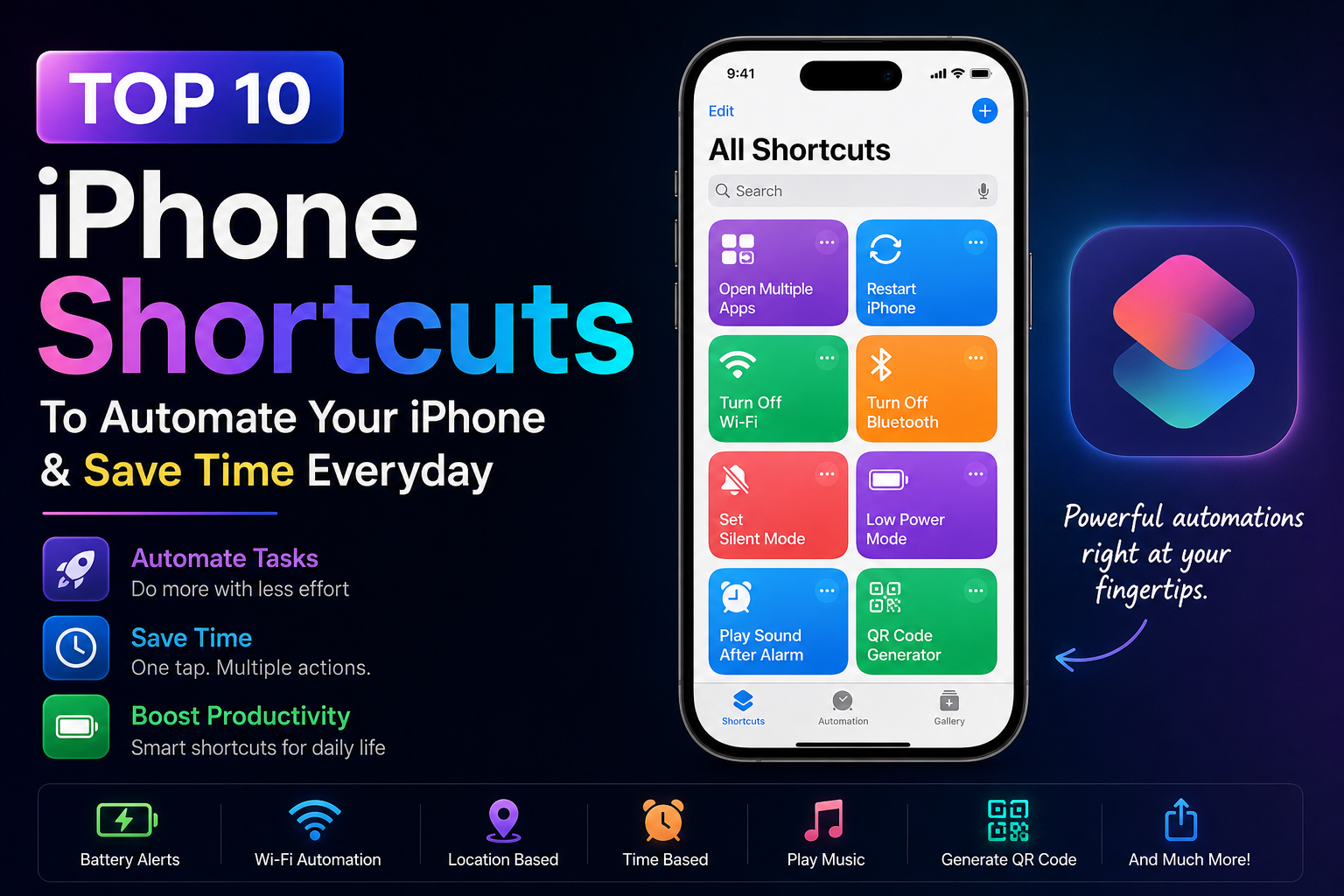
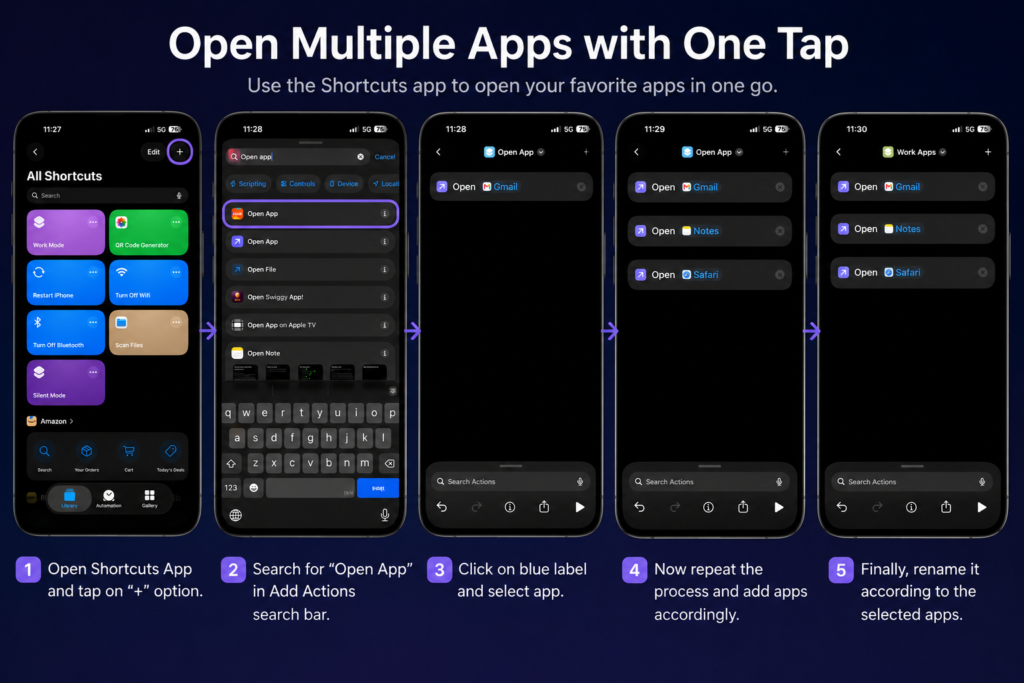
1. Open Multiple Apps with One Tap
If you regularly open the same set of apps every morning or during work, this shortcut can save you several taps. With a single tap, you can launch multiple apps at once, making it ideal for work, study, or your daily routine.
- Open Shortcuts App and tap on “+” option.
- Search for “Open App” in Add Actions search bar.
- Click on blue label and select app.
- Now repeat the process and add apps accordingly.
- Finally, rename it according to the selected apps.
2. Restart iPhone
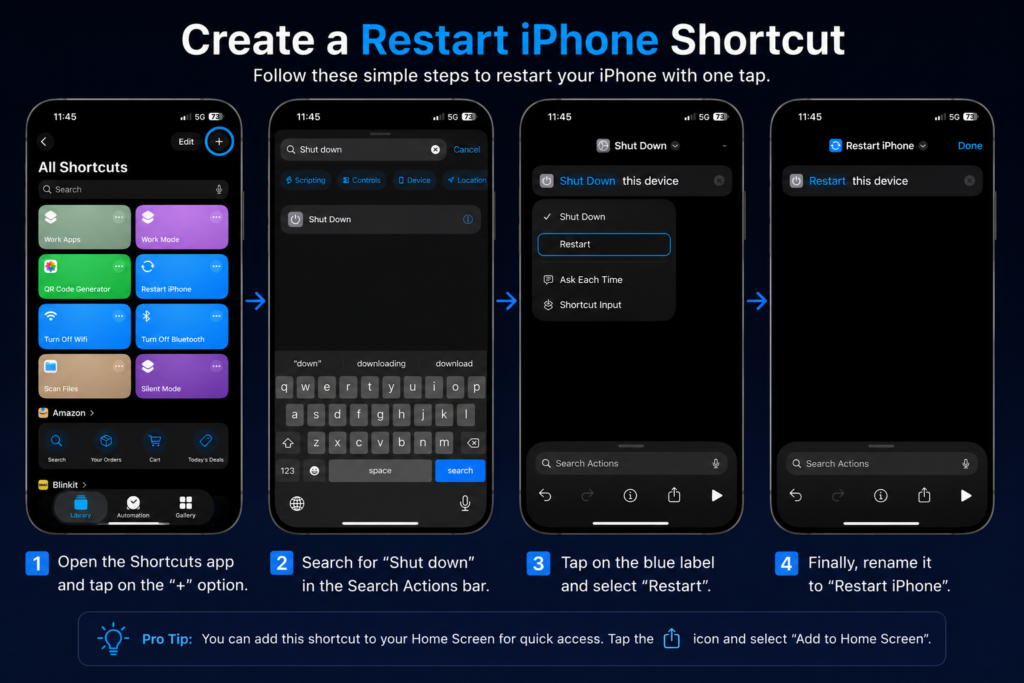
Restarting your iPhone is one of the easiest ways to fix minor glitches, improve performance, and refresh system processes. Instead of using the hardware buttons every time, you can create a shortcut that restarts your iPhone with a single tap.
- Open Shortcuts App and tap on “+” option.
- Search for “Shut down” in Search Actions bar.
- Click on blue label and select Restart.
- Finally, rename it accordingly.
3. Turn off Wi-fi completely
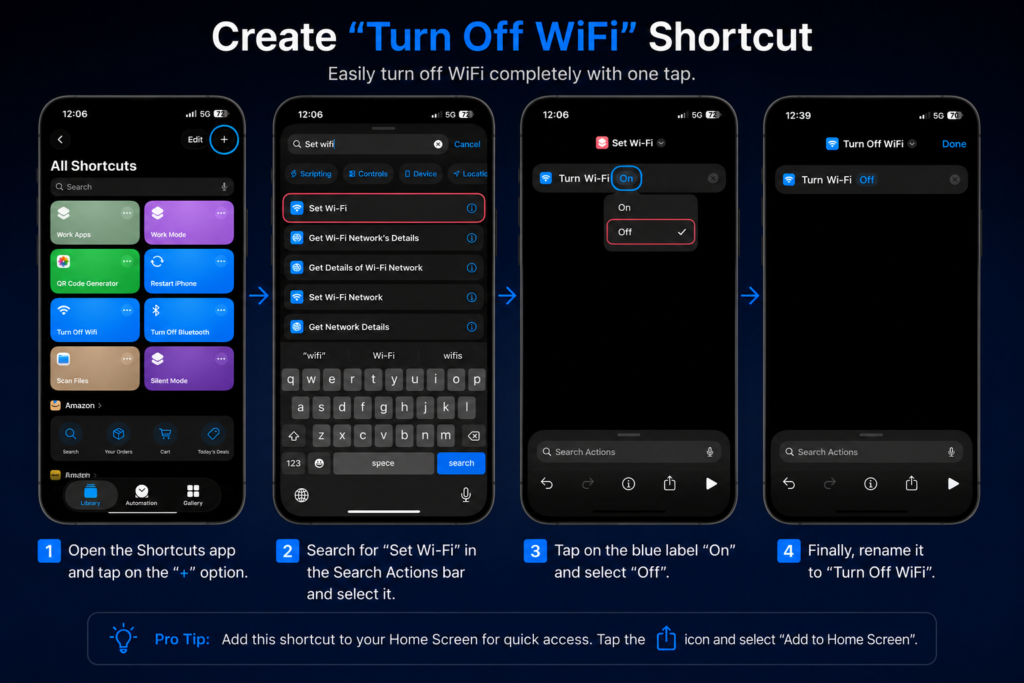
Tapping the Wi-Fi button in Control Centre only disconnects your current network temporarily—it doesn’t fully disable Wi-Fi. This shortcut turns Wi-Fi off completely, giving you more control over your wireless connections.
- Open Shortcuts App and tap on “+” option.
- Search for “Set Wifi” in Search Actions bar and select it.
- Click on Blue lable On and select Off.
- Finally, rename it accordingly.
4. Turn Off Bluetooth Completely
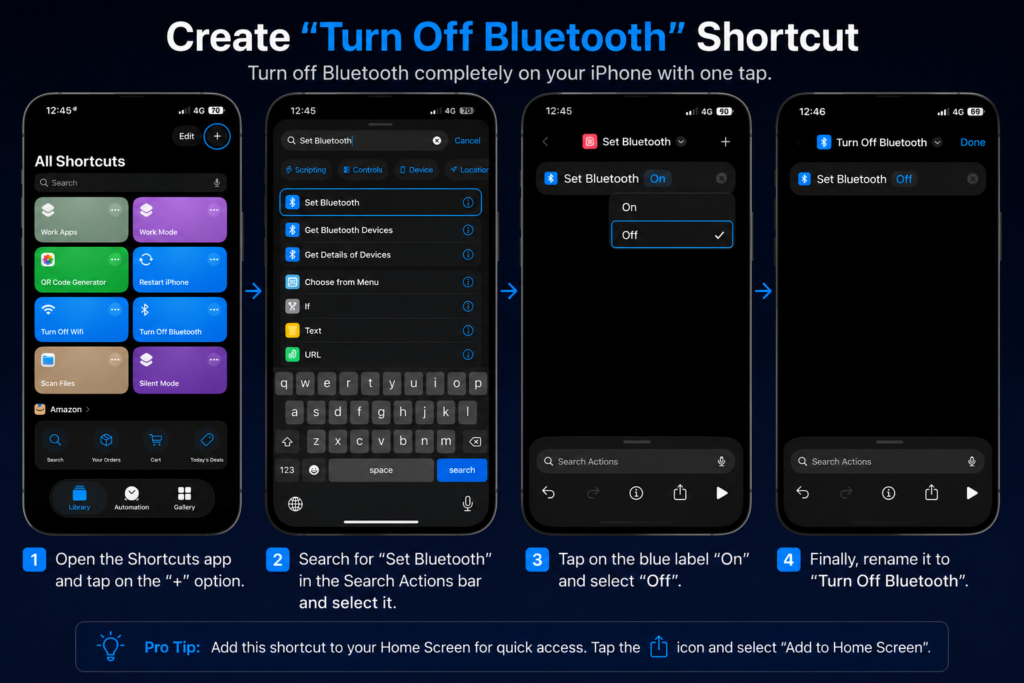
Similar to Wi-Fi, the Bluetooth button in Control Centre usually disconnects accessories rather than turning Bluetooth off entirely. This shortcut lets you disable Bluetooth completely with one tap.
- Open Shortcuts App and tap on “+” option.
- Search for “Set Bluetooth” in Search Actions bar and select it.
- Tap the Blue On Label and select Off.
- Finally, rename it accordingly.
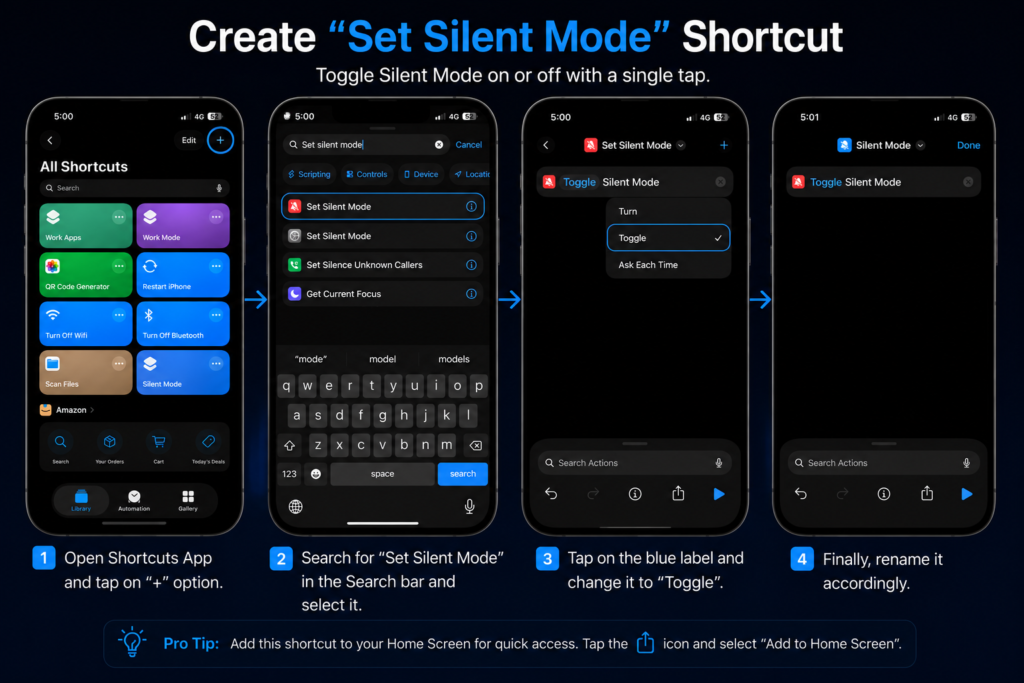
5. Set Silent Mode
If you frequently switch between silent and ring mode throughout the day, this shortcut makes the process much quicker. A single tap instantly toggles Silent Mode without navigating through Settings.
- Open Shortcuts App and tap on “+” option.
- Search for “Set Silent Mode” in Search bar and select it.
- Click on blue label and change it to Toggle.
- Finally, rename it accordingly.
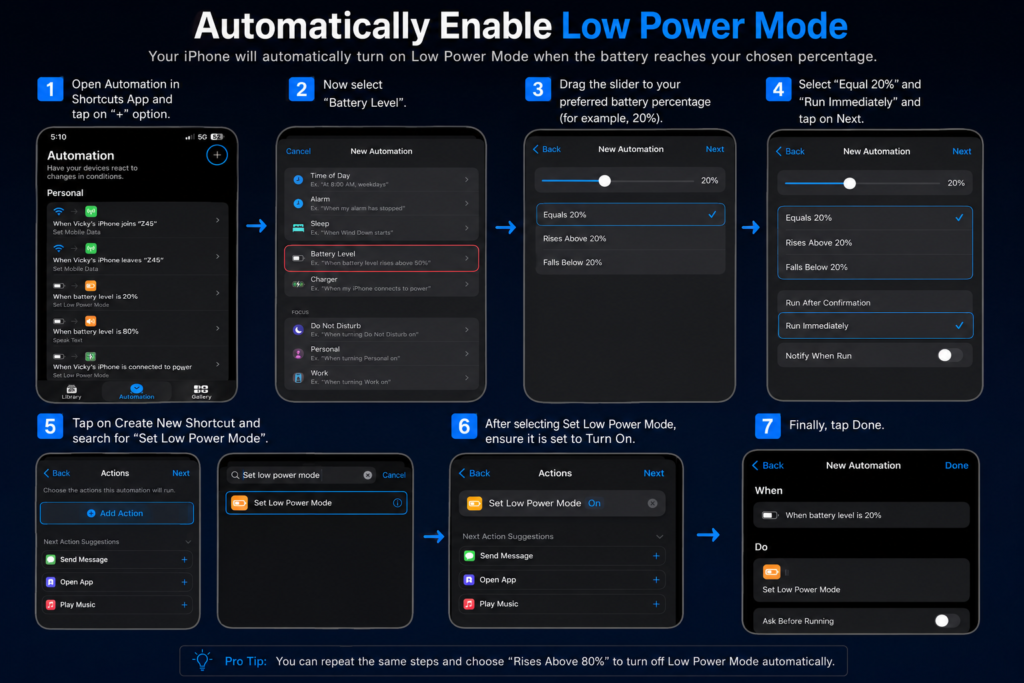
6. Automatically Enable Low Power Mode
Instead of waiting for your iPhone to suggest Low Power Mode, you can automate it to activate at your preferred battery percentage. This helps extend battery life without any manual intervention.
- Open Automation in Shortcuts App and tap on “+” option.
- Now select “Battery Level”.
- Drag the slider to your preferred battery percentage (for example, 20%)
- Select Equal 20% and Run Immediately and tap on Next.
- Tap on Create New Shortcut and search for “Set Low Power Mode”.
- After Selecting Set Low Power Mode, ensure it is set to Turn On.
- Finally tap Done.
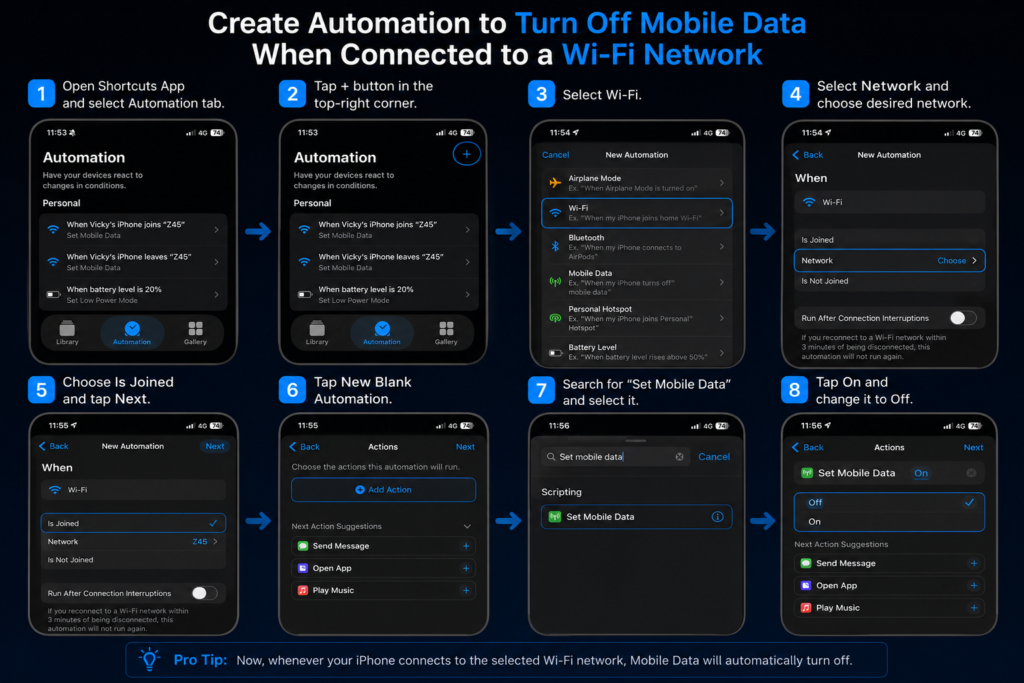
7. Automatically Switch Between Mobile Data and Wi-Fi
This automation automatically disables mobile data when you connect to your home or office Wi-Fi and can enable it again when you leave. It reduces unnecessary mobile data usage while keeping your iPhone connected.
- Open Shortcuts App and select Automation tab
- Tap + button in the top-right corner.
- Select Wi-Fi
- Select Network and choose desired Network.
- Choose is Joined and tap Next.
- Tap New Blank Automation
- Search for Set Mobile Data
- Tap On and change it to Off.
Pro Tip: You can also create the opposite automation. Instead of choosing Is Joined, select Is Disconnected in the Wi-Fi trigger and set Mobile Data to On. This way, your iPhone automatically switches back to mobile data whenever it disconnects from your selected Wi-Fi network.
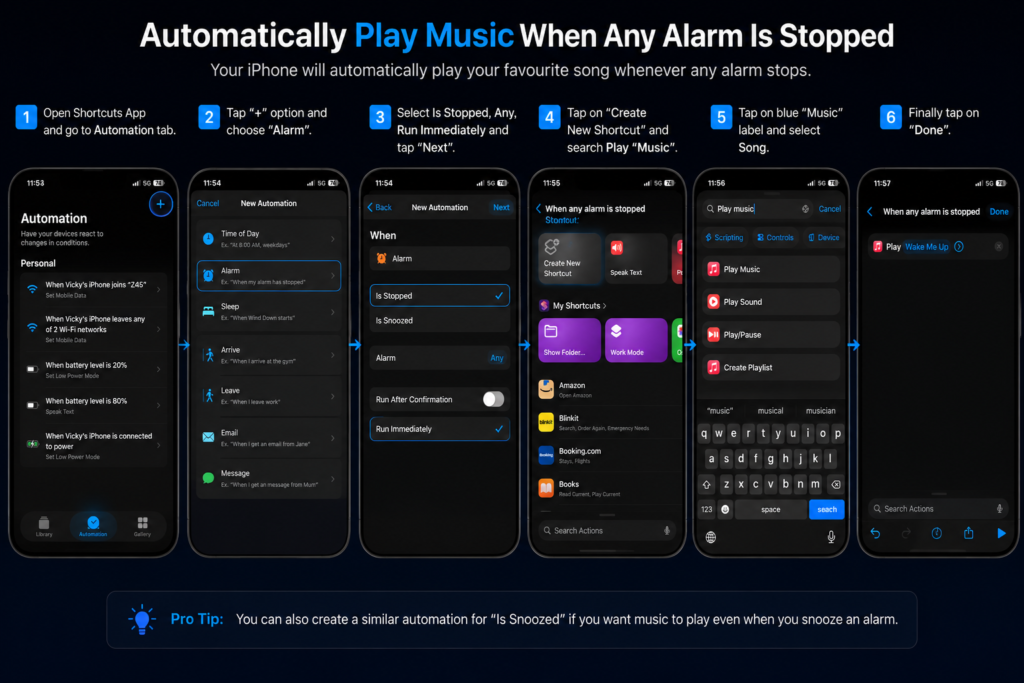
8. Play a Sound After Your Alarm Goes Off
If you tend to dismiss your alarm and fall back asleep, this automation can immediately play your favourite song after the alarm stops, helping you wake up more effectively.
- Open Shortcuts App and go to Automation tab.
- Tap “+” option and choose “Alarm”.
- Select Is Stopped, Any, Run Immediately and Tap “Next”.
- Tap on “Create New Shortcut” and search Play “Music”.
- Tap on Blue “Music” label and select Song.
- Finally tap on “Done”.
9. Create a QR Code Generator
Need to quickly share a website, phone number, Wi-Fi password, or contact information? This shortcut generates a QR code from your input, making it easy for others to scan and access the information instantly.
- Open Shortcuts App and tap on “+” option.
- Search Actions for “ Ask for Input”.
- Again seach Actions for “Create QR Code
- Again seach Actions for “Quick Look”.
- Again seach Actions for “Save Photos”
- Again seach Actions for “Share”
- Finally Rename it and tap Done.
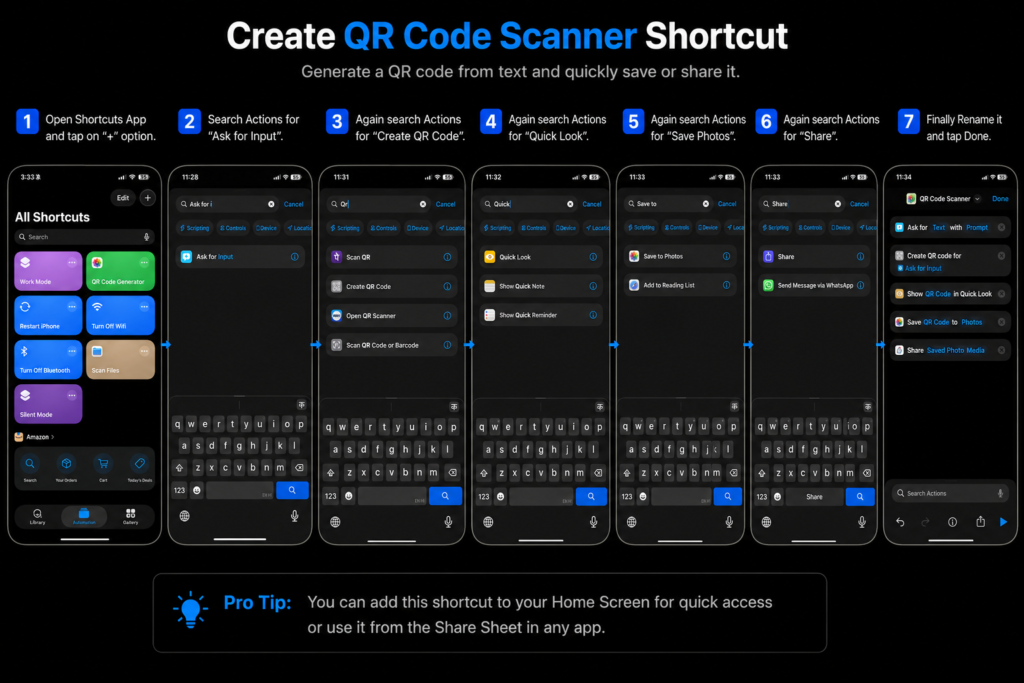
This shortcut lets you create a QR code from any text, URL, phone number, email address, or other information. It then previews the QR code, saves it to your Photos, and opens the share sheet so you can send it to others instantly.
10. Get an Audio Alert When Your iPhone Battery Reaches 80%
Charging your iPhone beyond 80% isn’t always necessary for everyday use. This automation announces a custom message once your battery reaches 80%, reminding you to unplug the charger and helping you maintain better long-term battery health.
- Open Shortcuts App and go to Automation tab.
- Click on “Battery” and drag the bar till 80%.
- Choose Rises Above 80% and Run Immediately.
- Tap “Next” and select “Create New Shortcut”.
- Search “Speak Text” and select it in Actions.
- Enter your preferred message and select done.
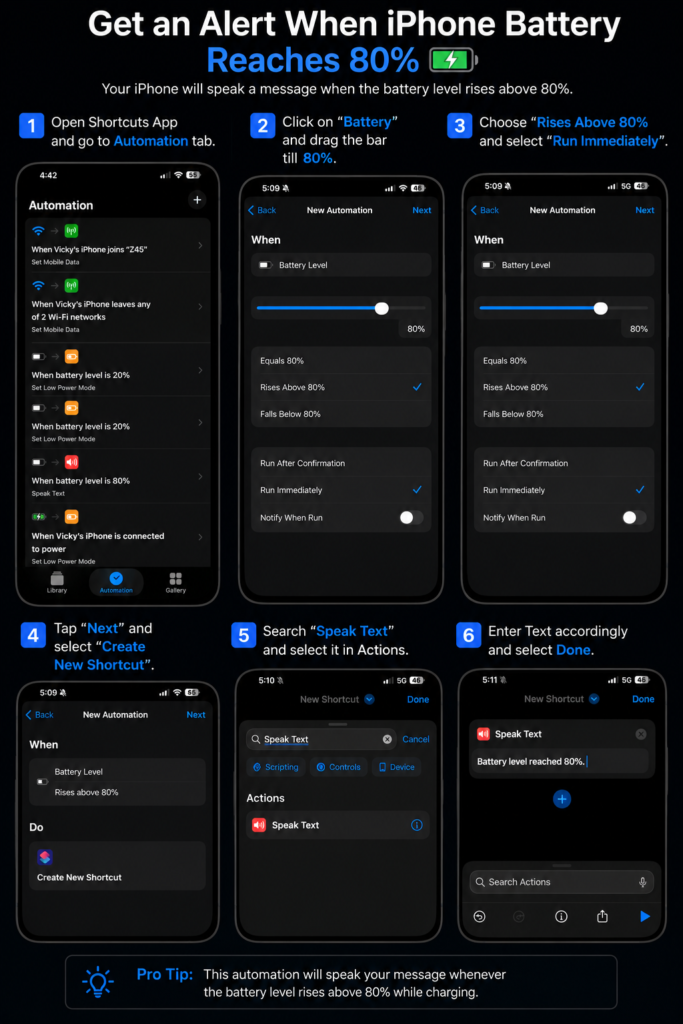
Whenever your iPhone’s battery level rises above 80% while charging, it automatically speaks your custom message aloud. This serves as a convenient reminder to unplug your charger, making it easier to avoid unnecessary charging beyond 80% and helping preserve your iPhone’s battery health.
Tips to Get the Most Out of the Shortcuts App
Now that you’ve created some of the best iPhone shortcuts, there are a few simple practices that can help you build a more streamlined workflow and get even more out of the Shortcuts app.
Whenever you create a shortcut that you use regularly, consider adding it to your Home Screen or Widgets. This saves you from opening the Shortcuts app every time and makes your favourite automations accessible with a single tap.
It’s also a good idea to organise similar shortcuts into folders such as Work, Travel, Photography, or Entertainment. As your shortcut library grows, this small habit will make it much easier to find the one you need.
Finally, always review the permissions a shortcut requests before running it. Some shortcuts require access to your location, photos, contacts, or calendar to function correctly. If the necessary permission hasn’t been granted, the shortcut may not work as expected. Reviewing these permissions not only helps the shortcut run smoothly but also ensures you’re comfortable with the information it can access.
Are iPhone Shortcuts Safe?
Yes, the Shortcuts app is safe to use, especially when you’re creating your own shortcuts or using the ones provided by Apple in the Shortcut Gallery. These shortcuts are designed to work within iOS and only access the permissions you allow.
However, you should be a little more careful when importing shortcuts from third-party websites or online communities. Before adding an imported shortcut to your library, take a moment to review its actions and permissions. If a shortcut requests access that doesn’t seem necessary for its purpose, it’s best not to use it.
As a general rule, download shortcuts only from trusted sources and always understand what a shortcut does before running it for the first time.
Frequently Asked Questions
What is the Shortcuts app on iPhone?
The Shortcuts app is Apple’s built-in automation tool that lets you perform one or multiple tasks with a single tap or automatically when certain conditions are met.
Do I need coding knowledge to use the Shortcuts app?
No. The Shortcuts app is designed for everyone and uses a visual interface that allows you to create automations without writing code.
Can I download shortcuts created by other users?
Yes. You can import shortcuts shared by trusted communities, but you should always review their actions and permissions before adding them to your iPhone.
What’s the difference between a shortcut and an automation?
A shortcut runs when you manually activate it or ask Siri to run it, whereas an automation runs automatically based on a trigger such as time, location, battery level, or a connected device.
Will using shortcuts affect my iPhone’s battery life?
No. Most shortcuts have little to no noticeable impact on battery life. In fact, some automations—such as automatically enabling Low Power Mode—can even help conserve battery.
Can I share my own shortcuts with others?
Yes. The Shortcuts app allows you to share your custom shortcuts with friends, family, or colleagues using a share link.
Conclusion
Creating shortcuts is fun, but the real benefit comes when they start working automatically in the background and provide the desired results exactly when you need them. You’ll be surprised by how much they can improve your daily iPhone experience, whether it’s helping you extend battery life, automating routine tasks, or providing small but useful utilities throughout the day. These automated actions may seem simple, but together they can save you a significant amount of time and effort.
Once you’ve created a few shortcuts, don’t stop there. Experiment with the Shortcuts app and try building your own automations based on your daily routine. You’ll soon discover that it can do far more than you might imagine. I hope this guide helps you get the most out of the iPhone Shortcuts app, enhances your overall user experience, and boosts your productivity. I’ll definitely share another article in the future featuring even more useful iPhone shortcuts and automations.