
Windows 11 is known for its stability, but occasional errors such as a white screen or sudden freezing can disrupt your workflow. While restarting your entire system might seem like the only solution, this can result in lost work and significant downtime. Fortunately, there’s a more efficient solution, restarting File Explorer. By doing this, you can quickly resolve issues without losing your current work or wasting much time.
Steps to Restart File Explorer in Windows 11
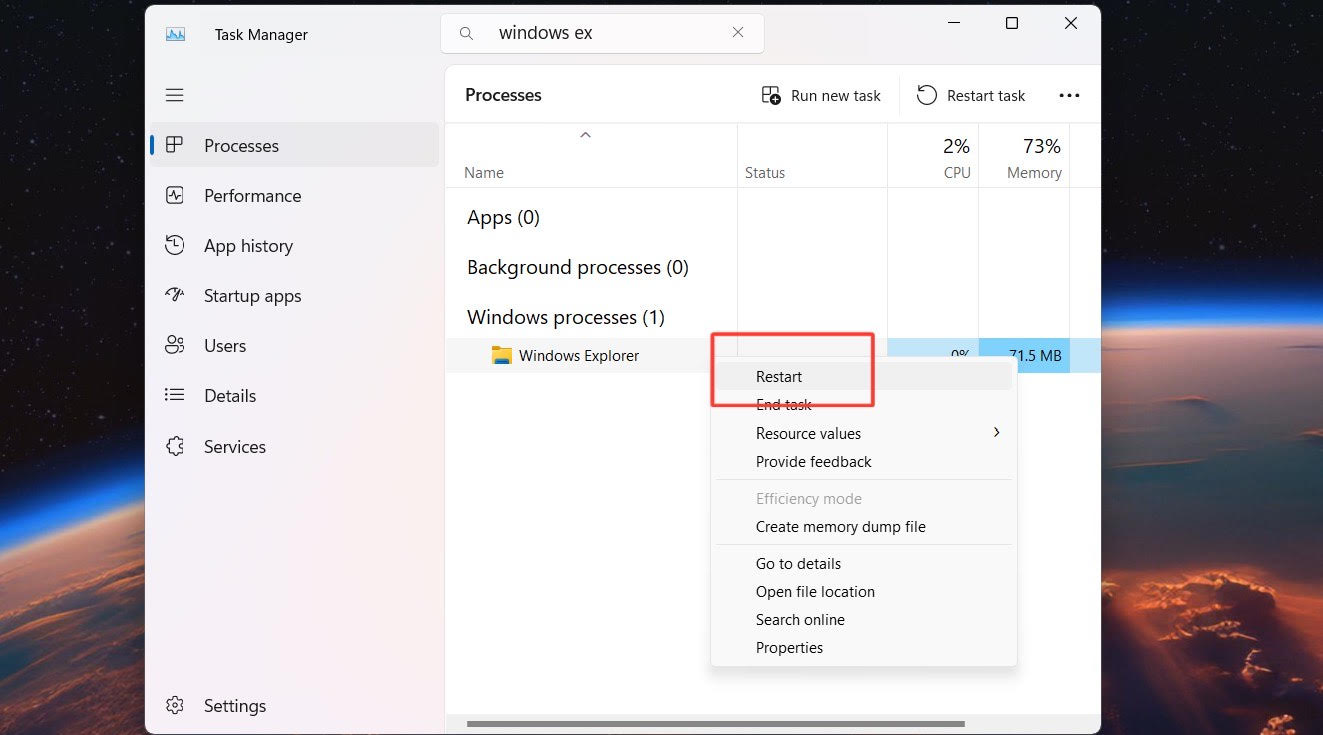
- Use Task Manager: Press Ctrl + Shift + Esc to open Task Manager. Scroll down to find ‘Windows Explorer’ under the ‘Processes’ tab. Select it, then click on the ‘Restart’ button at the bottom right corner. This will refresh the File Explorer without affecting other open applications.
- Command Prompt Method: Open Command Prompt as an administrator by pressing Windows + X and selecting ‘Command Prompt (Admin)’. Type in
taskkill /f /im explorer.exeand press Enter to stop File Explorer. Then typestart explorer.exeand press Enter to restart it. This method is effective for resolving more persistent issues. - Create a Shortcut: For quick access, you can create a shortcut to restart File Explorer. Right-click on your desktop, select ‘New’, and then ‘Shortcut’. In the location field, type
taskkill /f /im explorer.exe && start explorer.exe. Name your shortcut, and click ‘Finish’. Now, you can double-click this shortcut whenever you need to restart File Explorer.
By following these steps, you can easily restart File Explorer in Windows 11, minimizing downtime and preserving your work. This simple yet effective trick is essential for maintaining productivity and ensuring a smooth user experience on your Windows 11 system.