
Windows 11 makes it easy to create separate user accounts for different individuals. This feature helps in managing files, applications, and settings specific to each user, ensuring that multiple people can work on the same system without interfering with one another’s tasks. However, if a user forgets to log out, it can lead to unnecessary system resource usage. While you could request the user to sign out, it becomes challenging to handle in their absence. In this guide, I will show you how to log off a user in Windows 11 using the Task Manager.
Steps to Log Off a User in Windows 11 Using Task Manager:
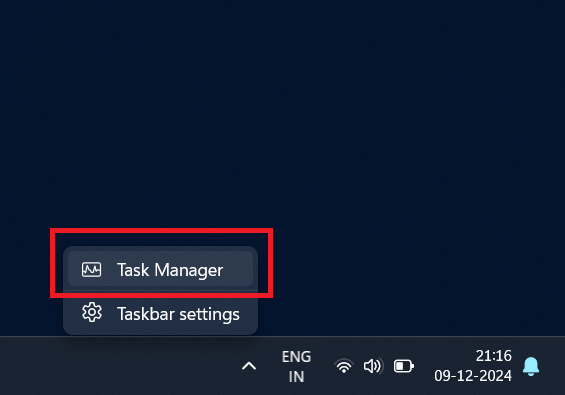
1. Open Task Manager: Right-click on the taskbar and select Task Manager, or press Ctrl + Shift + Esc on your keyboard to open it directly.
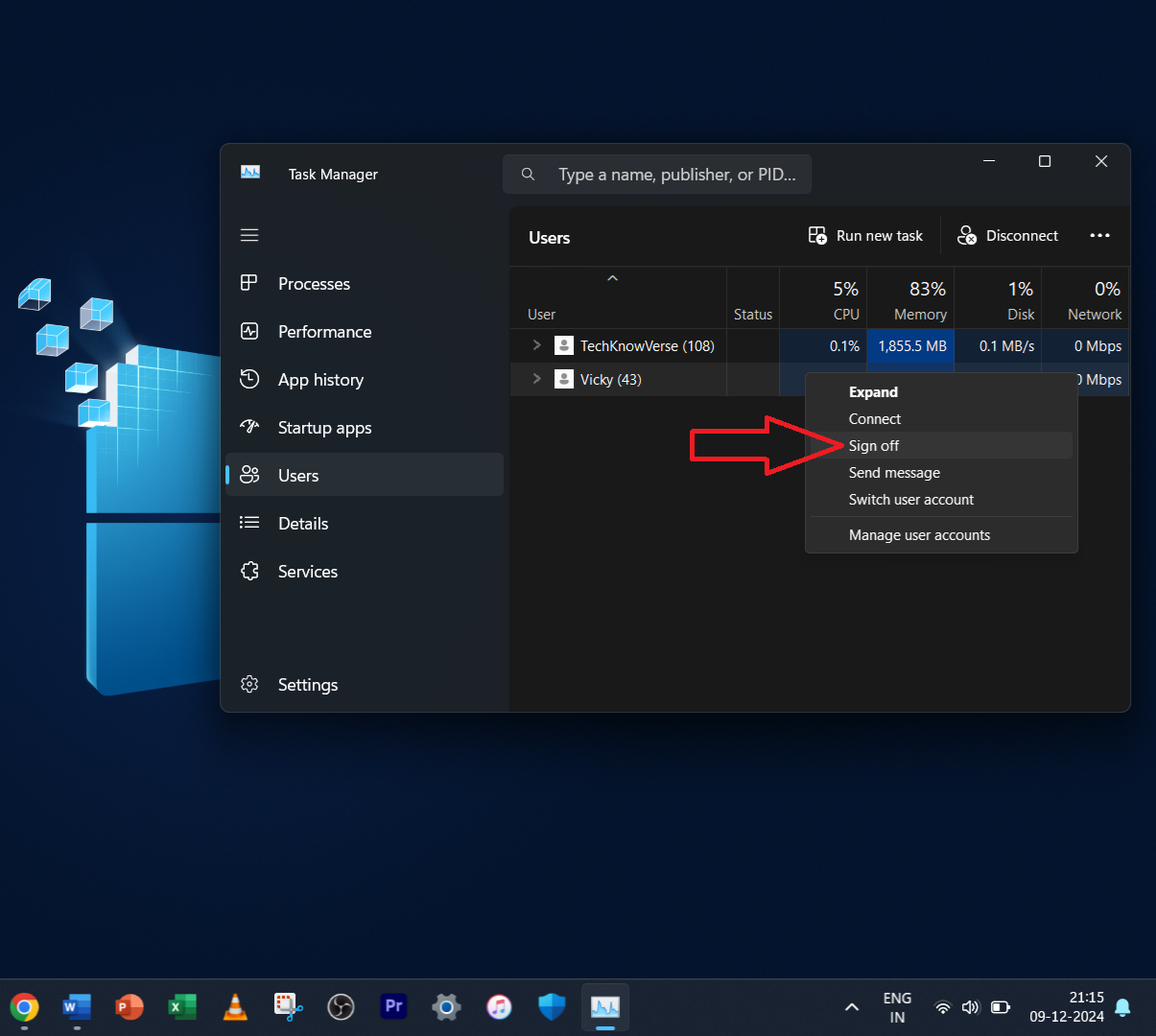
2. Go to the “Users” Tab: In the Task Manager window, click on the Users tab. This will show all active users currently logged into the system.
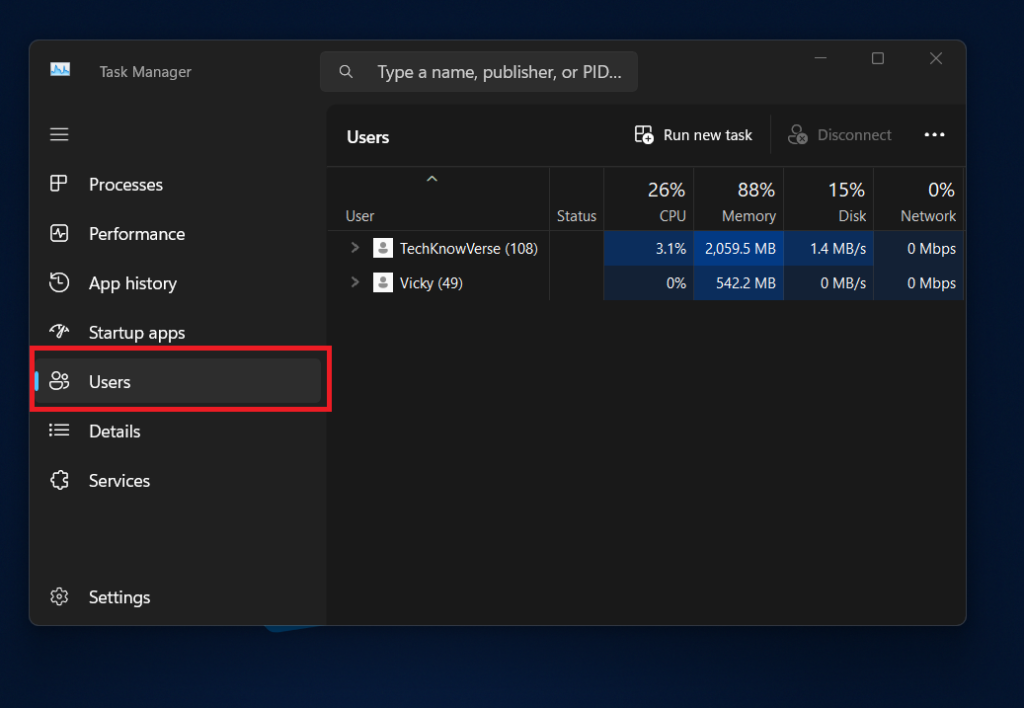
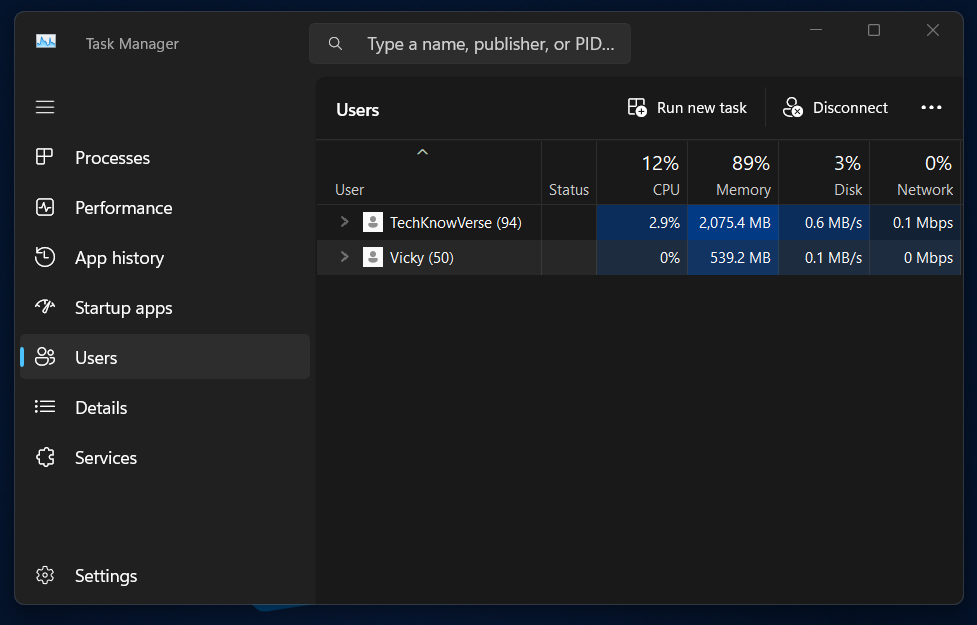
3. Select the User to Log Off: Find the user you want to log off from the list. Click on their username to highlight it.
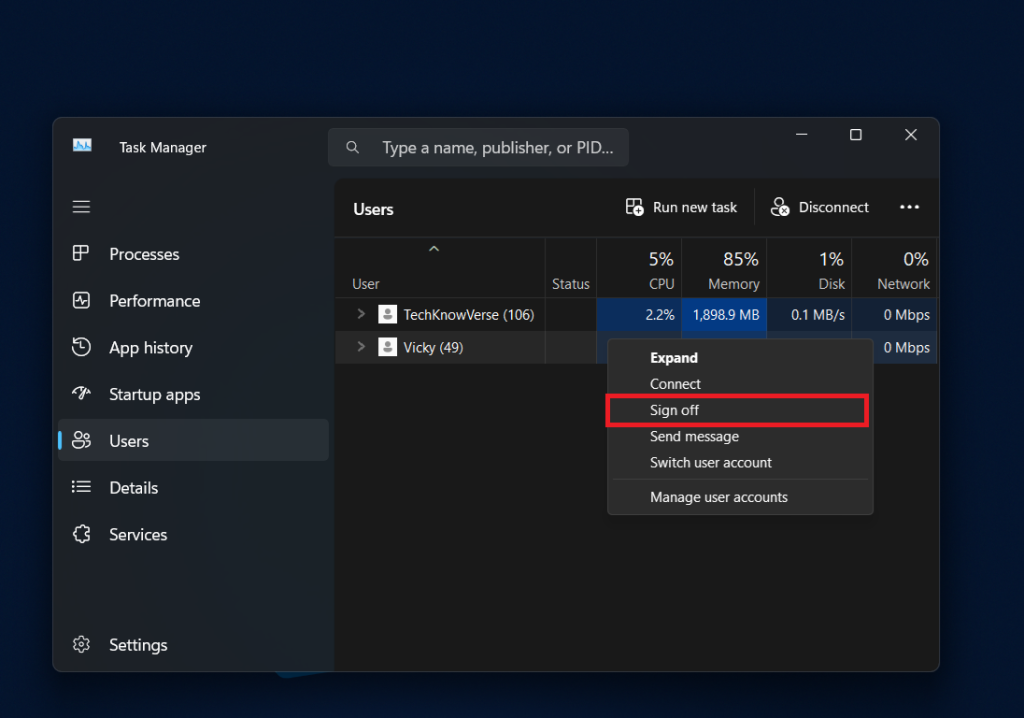
4. Log Off the User: Right-click on the selected user and choose Sign Off from the context menu.
5. Confirm the Action: A prompt may appear asking for confirmation. Click Yes to log off the user.
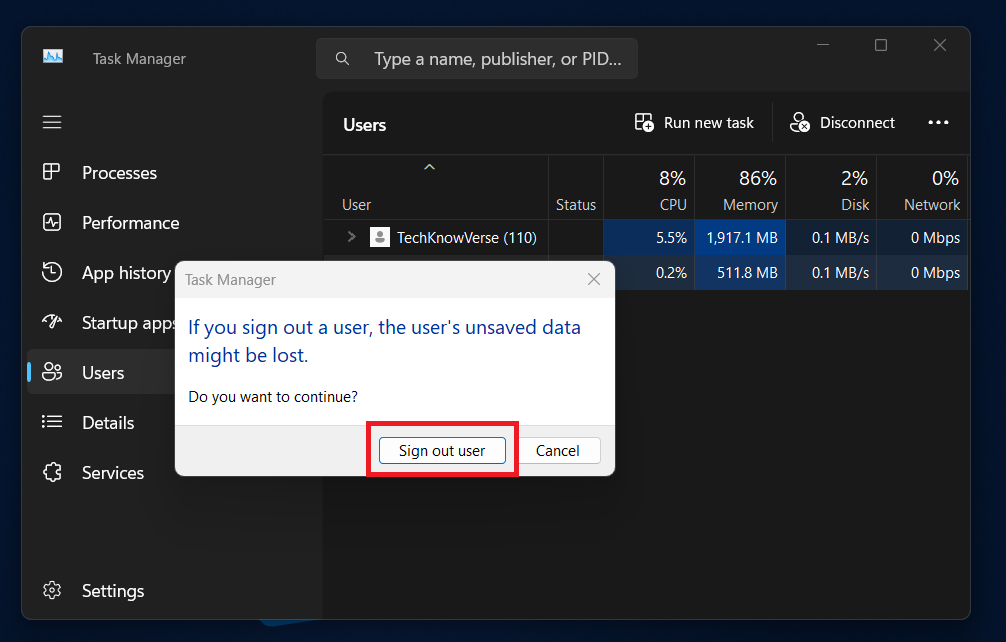
Once these steps are completed, the selected user will be signed out, freeing up system resources.