
Microsoft Windows serves as a central ecosystem for a vast number of users, from corporate executives to administrative assistants, whose daily professional activities often rely on its functionalities. While acknowledging the preference some individuals may have for macOS, this discussion will concentrate on Windows PCs and their user base.
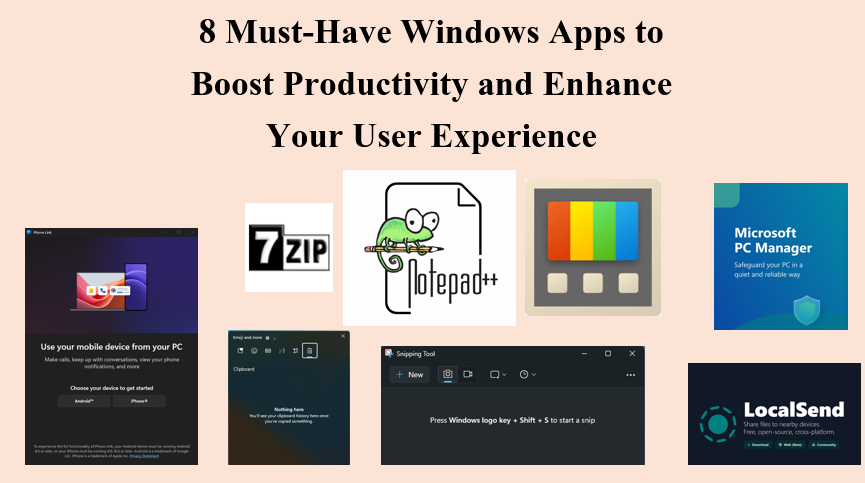
The process of installing or reinstalling Microsoft Windows on a PC can be quite engaging. Each time I undertake this task, I endeavor to explore new approaches, whether through the integration of novel applications or the adjustment of system settings. Following extensive evaluation of various Windows applications, I have curated a list of eight highly beneficial tools that every Microsoft Windows user should consider installing to enhance productivity and streamline operations.
Essential Windows Applications:
1. Clipboard History
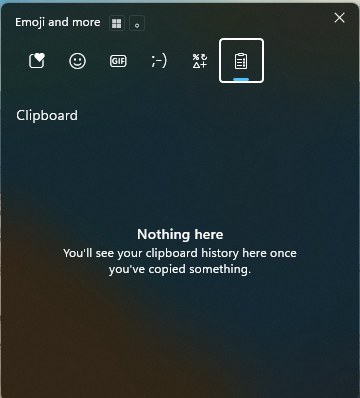
Clipboard History is one of those underrated Windows features that quietly revolutionizes how you work. Instead of copying and pasting one item at a time, Clipboard History stores everything you copy—text, links, and even images. With a simple shortcut (Win + V), you can access all your recent copied items and paste whichever you need.
For writers, developers, students, and anyone juggling multiple tasks, this feature is a huge time-saver. It removes the constant back-and-forth between windows and gives you a smooth, efficient workflow. If you’re still relying on the regular Ctrl + C → Ctrl + V habit, Clipboard History will instantly feel like a massive upgrade.
2. Snipping Tool
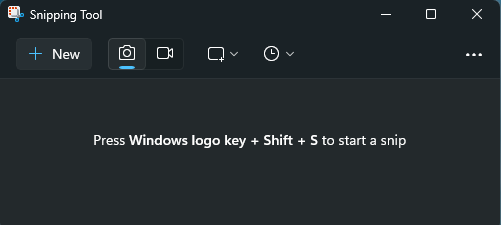
The stock Snipping Tool in Windows has evolved into a powerful screenshot and screen-recording utility. Whether you want to capture a portion of your screen, annotate a screenshot, or record a tutorial, this tool handles it with ease.
The ability to highlight, draw, crop, and blur sensitive information makes it especially useful for bloggers, IT professionals, and office users. And because it’s built into Windows, it launches quickly and integrates perfectly with shortcuts like Win + Shift + S. If you create content or share guides frequently, Snipping Tool is a must-use.
3. LocalSend

LocalSend has recently become a favourite among Windows and Android users because of its simple, fast, and secure file-sharing approach. It allows you to send photos, videos, documents, and even text between your devices using your local Wi-Fi network — no internet required.
The best part? It works without messy pairing steps or cloud uploads. Just select the file, choose the device, and you’re done. For people who regularly transfer content between their phone and PC, LocalSend delivers a smooth, AirDrop-like experience on Windows.
4. Phone Link
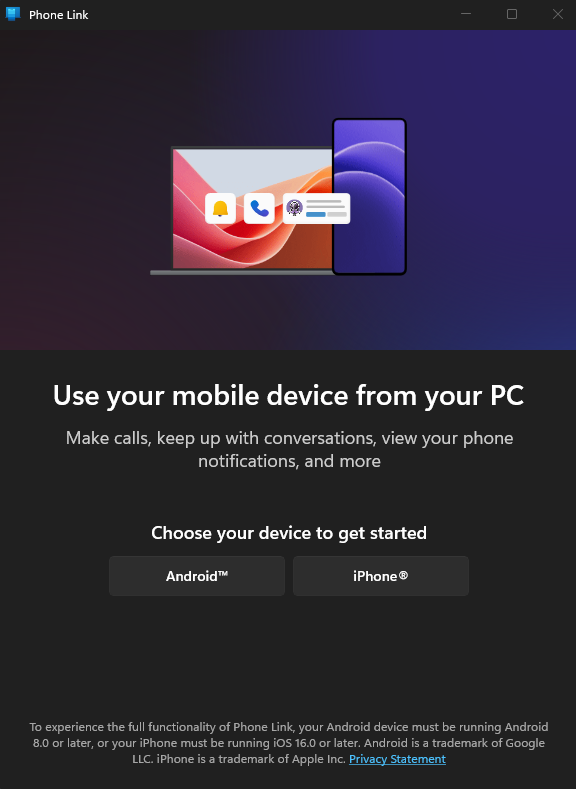
Phone Link bridges the gap between your Windows PC and your smartphone. Once connected, you can check notifications, read and reply to messages, view photos, and even attend calls directly from your computer.
This eliminates the constant need to pick up your phone while working. If you use an Android device, the experience is even more seamless with features like app mirroring and instant photo access. It truly brings your mobile workflow into the Windows ecosystem and boosts multitasking efficiency.
5. Microsoft PC Manager
Microsoft PC Manager is a lightweight utility that helps your PC stay smooth and clutter-free. It offers one-click system cleanup, storage management, process monitoring, and malware scanning — all in a clean and easy interface.
Unlike many third-party “PC cleaner” apps that slow down your system, this one is officially developed by Microsoft, ensuring reliability and safety. It’s perfect for users who want better performance without digging deep into Windows settings.
6. PowerToys

PowerToys is a collection of advanced utilities designed to supercharge your Windows experience. Whether you’re managing window layouts with FancyZones, renaming hundreds of files at once, resizing images instantly, or using a powerful spotlight-like search, PowerToys packs features that genuinely make everyday tasks easier.
It’s especially useful for creators, coders, and productivity enthusiasts. Even if you use only a few tools inside PowerToys, the impact on your workflow is significant.
7. 7-Zip

7-Zip has been a favourite for years, and for good reason. It’s free, open-source, and incredibly efficient at compressing and extracting files. With support for almost every major archive format, it beats many paid tools in performance and reliability.
If you frequently download large files, manage archives, or compress folders for sharing, 7-Zip gives you everything you need in a hassle-free interface. Its lightweight nature ensures it doesn’t slow down your PC — a big reason why so many users consider it essential.
8. Notepad++

Notepad++ is more than just an upgraded version of the default Notepad. It’s a versatile editor that supports dozens of programming languages, advanced search and replace, and a tabbed interface for handling multiple files.
Writers love it for distraction-free drafting, developers use it for quick code edits, and power users rely on it for its wide range of plugins. Despite all its features, it remains shockingly fast and lightweight. If you need a reliable text editor that doesn’t overwhelm you, Notepad++ strikes the perfect balance.
Conclusion:
These eight Windows Tools will definitely enhance your productivity and improve your overall experience. Using them can help you become a power Windows user. Incorporating these tools into your daily routine will definitely help you get the most out of your Windows PC.