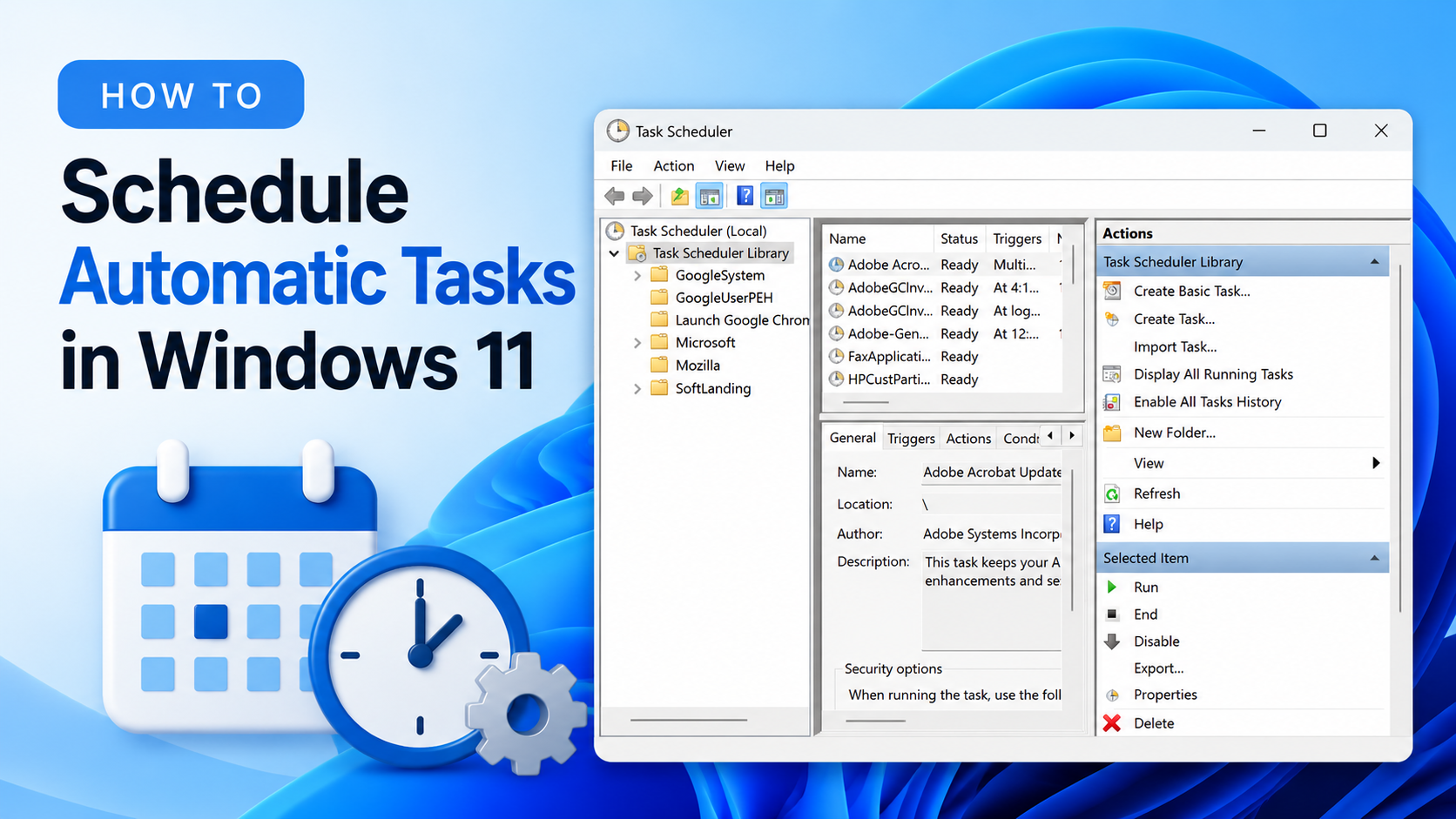

Most Windows users have one or more favourite programs that they open whenever they start working on their PCs. However, not everyone knows that this process can be automated according to their preferences. Windows includes a built-in utility called Task Scheduler, which allows users to schedule programs, scripts, and maintenance tasks to run at specific times or when particular system events occur.
Whether you want to open a specific program automatically when you sign in to Windows or run a task when a particular event occurs, Task Scheduler can help you automate repetitive activities. It is a useful tool that can make your daily workflow simpler and more efficient.
How to Open Task Scheduler in Windows 11
You can easily open Task Scheduler on your Windows PC using any of the following methods.
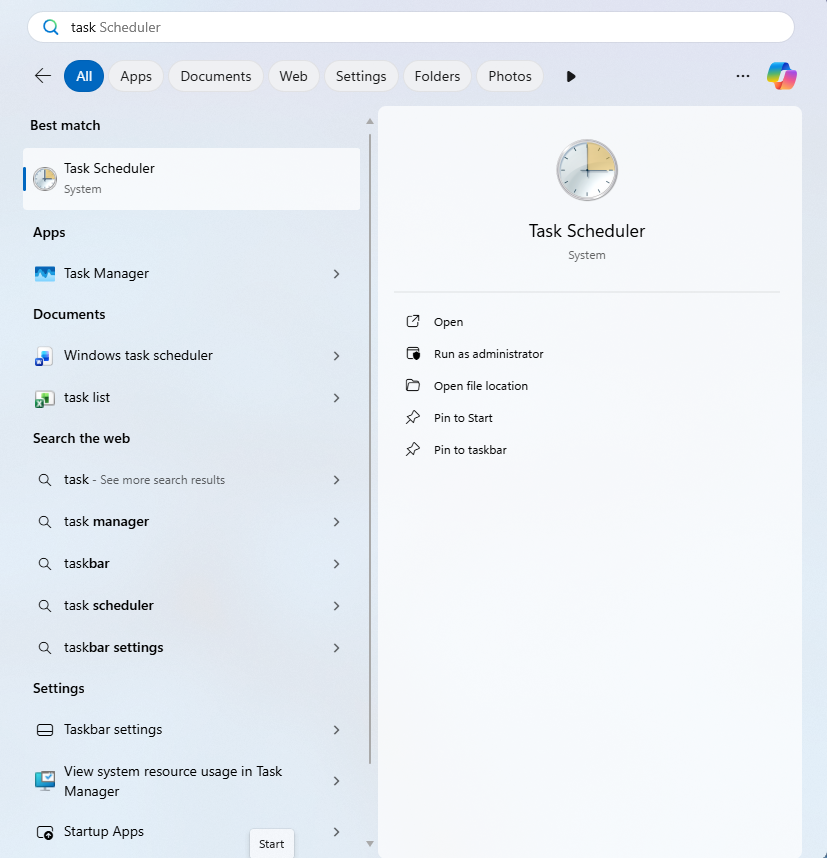
1. Using Windows Search
- Press the Windows key or click the Start menu.
- Type Task Scheduler in the search box.
- Click Task Scheduler in the search results.
2. Using the Run Dialog
- Press Windows + R to open the Run dialog box.
- Type taskschd.msc and press Enter.
3. Using Command Prompt or PowerShell
- Open Command Prompt or PowerShell from the Start menu.
- Type taskschd.msc and press Enter to open Task Scheduler.
- Alternatively, you can use the
schtaskscommand-line utility to create, view, modify, or delete scheduled tasks directly from the command line.
4. Using Computer Management
- Right-click the Start button and select Computer Management.
- In the left-hand pane, expand System Tools.
- Click Task Scheduler to access the utility.
How to Schedule Automatic Tasks in Windows 11
Now that you know how to open Task Scheduler, let’s see how you can use it to automate a task. For this example, we will schedule Google Chrome to open automatically whenever I log onto the PC. You can follow the same steps to schedule other programs according to your preferences.
Step 1: Open Task Scheduler
Open Task Scheduler using any of the methods mentioned above.
Step 2: Create a Folder to Organise Your Tasks (Optional)
If you plan to create multiple scheduled tasks, it is a good idea to organise them into separate folders. This will make them easier to find and manage later.
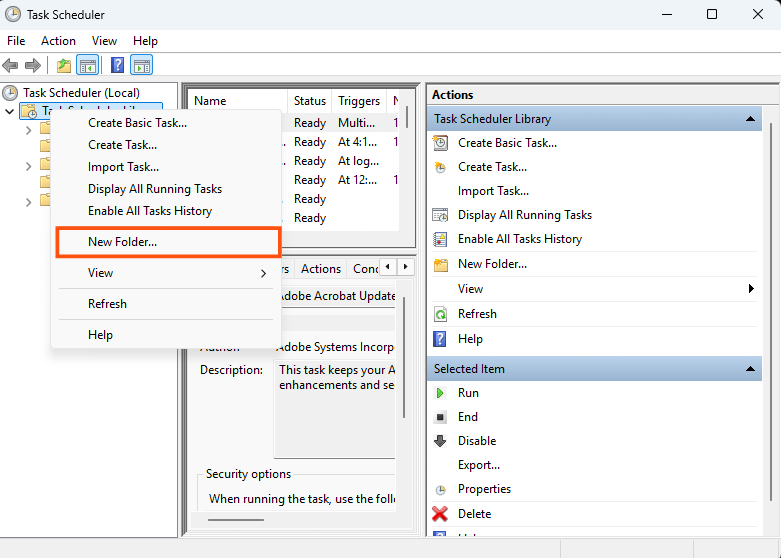
To create a folder, right-click Task Scheduler Library in the left-hand pane, select New Folder, and give it a suitable name. Once the folder is created, select it before proceeding to the next step.
Step 3: Create and Name Your Task
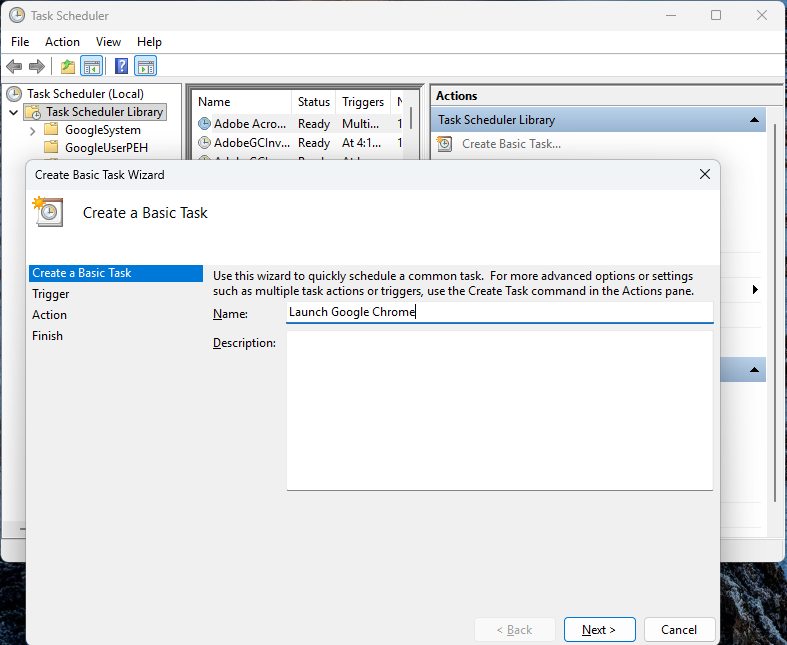
In the right-hand Actions pane, click Create Basic Task to open the task creation wizard. Enter a suitable name for your task, such as Launch Google Chrome, and add a description if you want to explain its purpose. Once you have filled in these details, click Next to continue.
Step 4: Choose When to Run the Task
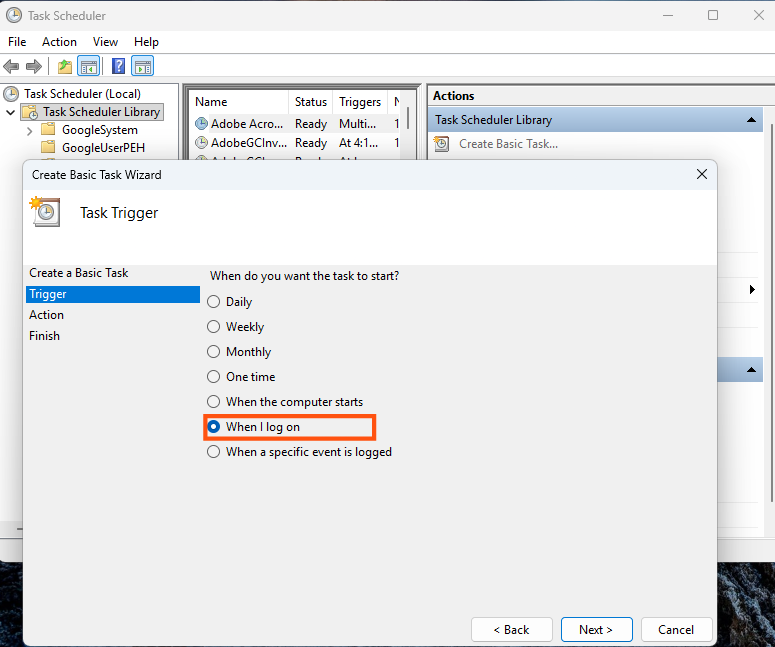
Now, select when you want the task to run. For this example, choose “When I log on” to launch Google Chrome automatically every day, click Next to continue.
Step 5: Select the Action
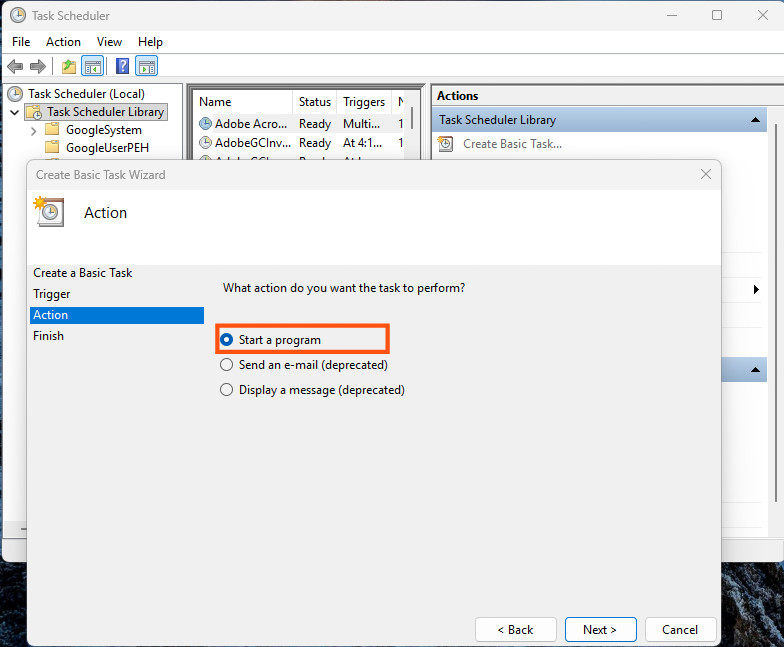
In this step, select Start a program and click Next. Since our goal is to launch Google Chrome, this is the appropriate action for our example.
Step 6: Select Google Chrome
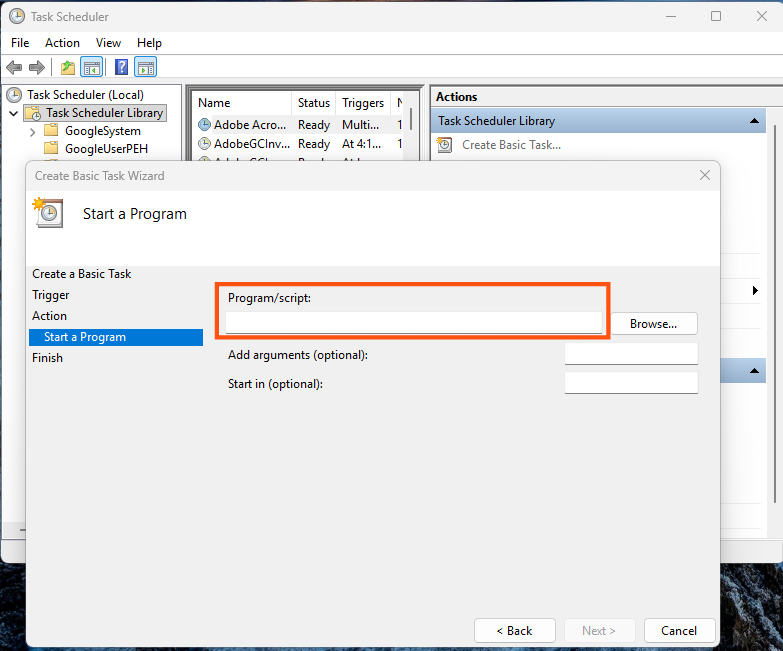
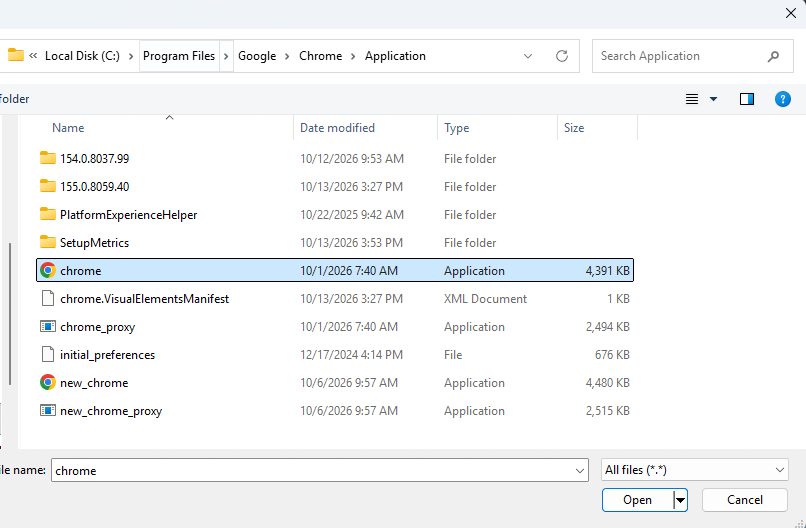
Click Browse next to the Program/script field and locate the Google Chrome executable file, usually named chrome.exe.
The file is commonly found in one of these locations:
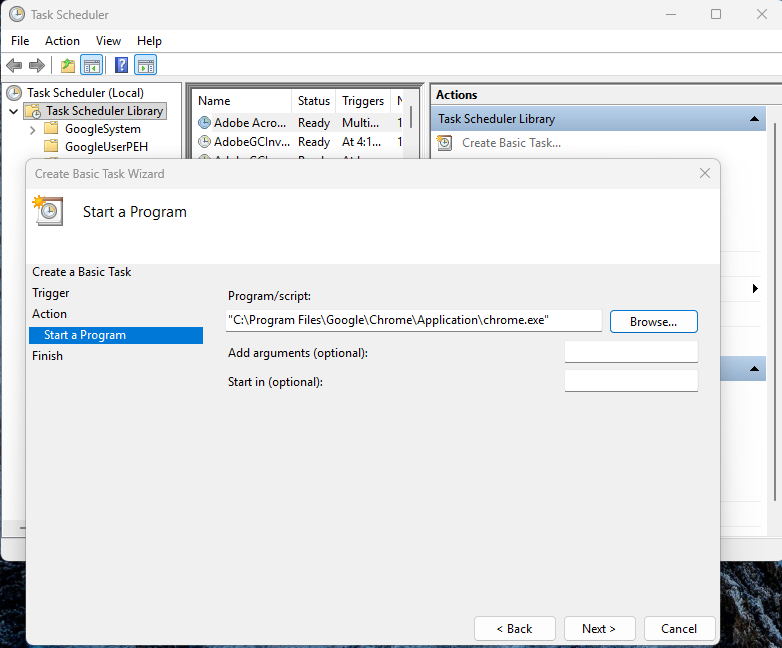
C:\Program Files\Google\Chrome\Application\chrome.exeC:\Program Files (x86)\Google\Chrome\Application\chrome.exe%LOCALAPPDATA%\Google\Chrome\Application\chrome.exe
The exact location may vary depending on how Chrome was installed. Use the Browse option to find the correct file on your computer, select it, and click Open. Once done, click Next.
Step 7: Review and Finish
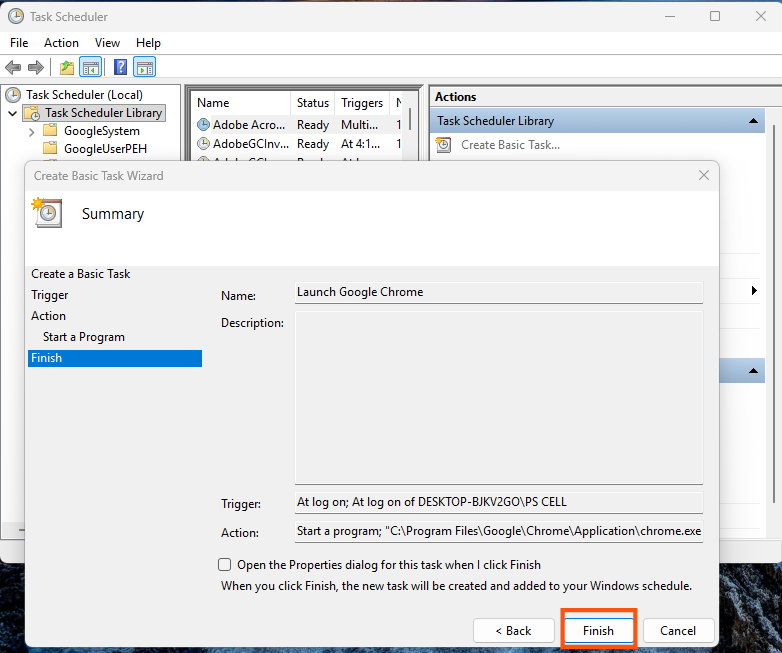
Finally, review the task summary to ensure that the schedule and program details are correct. If everything looks fine, click Finish to save your scheduled task.
That’s it! You have now created a task that will attempt to launch Google Chrome automatically according to your chosen schedule.
How to Test a Scheduled Task in Windows 11
After creating a scheduled task, you can test it immediately instead of waiting for the scheduled time. This helps you check whether the task is working as expected.
Follow these steps:
- Open Task Scheduler and select Task Scheduler Library from the left-hand pane.
- Locate the task you created to launch Google Chrome. If you saved it in a custom folder, open that folder first.
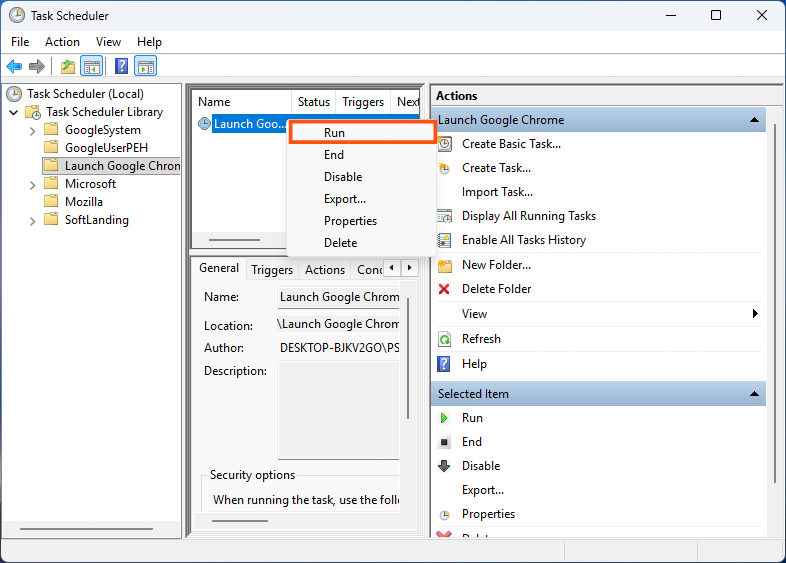
- Right-click the task and select Run.
- Check whether Google Chrome opens successfully.
If Chrome opens, the program action is working. However, you should also check whether the task runs at the scheduled time, as the trigger and other settings may affect its behaviour.
How to Edit a Scheduled Task in Windows 11
If you want to change the timing of a task or modify the program it launches, you do not need to create a new task. You can simply edit the existing one.
Follow these steps:
- Open Task Scheduler and locate your task in the Task Scheduler Library or the folder where you saved it.
- Right-click the task and select Properties.
- Open the Triggers tab to change when the task runs, or select the Actions tab to modify the program it launches.
- Make the necessary changes.
- Click Apply, followed by OK, to save your changes.
You can also explore the other tabs to adjust additional settings according to your requirements.
How to Delete a Scheduled Task in Windows 11
If you no longer need a scheduled task, you can remove it from Task Scheduler by following these steps:
- Open Task Scheduler and locate the task you want to remove.
- Right-click the task and select Delete.
- Confirm the deletion if prompted.
Deleting a scheduled task removes its automation schedule but does not uninstall the associated program. Be careful not to delete unfamiliar Windows system tasks, as some of them may be required for Windows or installed applications to function correctly.
Common Task Scheduler Problems and How to Fix Them
Sometimes, a scheduled task may not work as expected. Here are some common problems and the steps you can take to resolve them.
1. The Scheduled Task Does Not Run
If your task does not run at the scheduled time, check whether your computer was switched on and available at that time. Also, verify the task’s trigger settings to make sure the date, time, and recurrence are correct.
If the computer was unavailable when the task was due to run, open the task’s Properties, select the Settings tab, and check whether the option to run the task as soon as possible after a missed start is available.
2. The Program Does Not Open
If the task runs but the program does not open, check whether you selected the correct executable file in the Actions tab. You can also try opening the program manually to confirm that it works properly.
For Google Chrome, make sure the path points to the correct chrome.exe file on your computer.
3. The Task Runs Only When You Are Logged In
Some tasks are configured to run only when a particular user is logged in. If you want to change this behaviour, open the task’s Properties and review the security options under the General tab.
Keep in mind that applications such as Google Chrome may need to run in your interactive user session if you want their windows to appear on your desktop. Changing the option to run whether a user is logged on or not does not guarantee that a graphical application will be visible.
4. The Task Is Not Running Because of Conditions
Task Scheduler allows you to configure conditions that determine whether a task can run. For example, a task may be restricted to periods when the computer is idle or connected to a power source.
To check these settings, open the task’s Properties, select the Conditions tab, and review the options. Change any settings that unnecessarily prevent the task from running.
Be careful when changing power-related settings on a laptop, as allowing tasks to run on battery power may affect battery life.
5. How to Check Task Scheduler Errors
If the problem persists, open Task Scheduler Library and check the task’s Last Run Result. You can also enable task history and review the recorded events to identify possible errors.
To check the history, select the relevant task and look at the History tab. If task history is disabled, use Enable All Tasks History in the Actions pane, if available, and try running the task again.
This information can help you understand whether the task failed to start, encountered a problem while running, or was prevented from executing by its settings.
Frequently Asked Questions
1. Can I schedule a program to open automatically every day in Windows 11?
Yes. You can use Task Scheduler to create a daily trigger, select Start a program, and choose the executable file of the application you want to launch.
2. Does Task Scheduler work when my computer is turned off?
No. A task cannot execute while your computer is fully shut down. Depending on your system and task settings, you may be able to configure certain tasks to run after a missed start or wake the computer from sleep, provided the necessary hardware and power settings support it.
3. Can I schedule a task to run when Windows starts?
Yes. You can select the When the computer starts trigger while creating a basic task. Some tasks may require administrator permissions or additional configuration.
4. Can I schedule multiple tasks in Windows 11?
Yes. Task Scheduler allows you to create multiple tasks with different triggers, actions, and schedules. You can also organise them into folders to make management easier.
Conclusion
By now, you should have a clear understanding of how Microsoft’s Task Scheduler can help you automate repetitive tasks in Windows 11. Launching Google Chrome is just the tip of the iceberg! I hope this guide has helped you understand the basics and encouraged you to explore more ways to use Task Scheduler according to your needs.